Landscape
Every project has one landscape: endless ground that streams in chunks around the camera. You shape it in three layers. A base surface gives the overall form, shapes add non-destructive features such as flattened plots, hills and roads, and brush edits sculpt and paint the ground by hand. Caves, craters and biomes all build on the same ground.
Sculpt and paint the ground
Section titled “Sculpt and paint the ground”- Click Landscape in the viewport toolbar, or open Window → Landscape. The Landscape workspace opens with the brush switched on.
- Choose Sculpt or Paint at the top of the workspace, then pick a tool.
- Left-drag in the viewport. Hold Shift to invert the tool, for example to lower instead of raise.
- Press [ and ] to shrink and grow the brush.
- Press Esc, or click Select in the toolbar, to return to selecting objects.
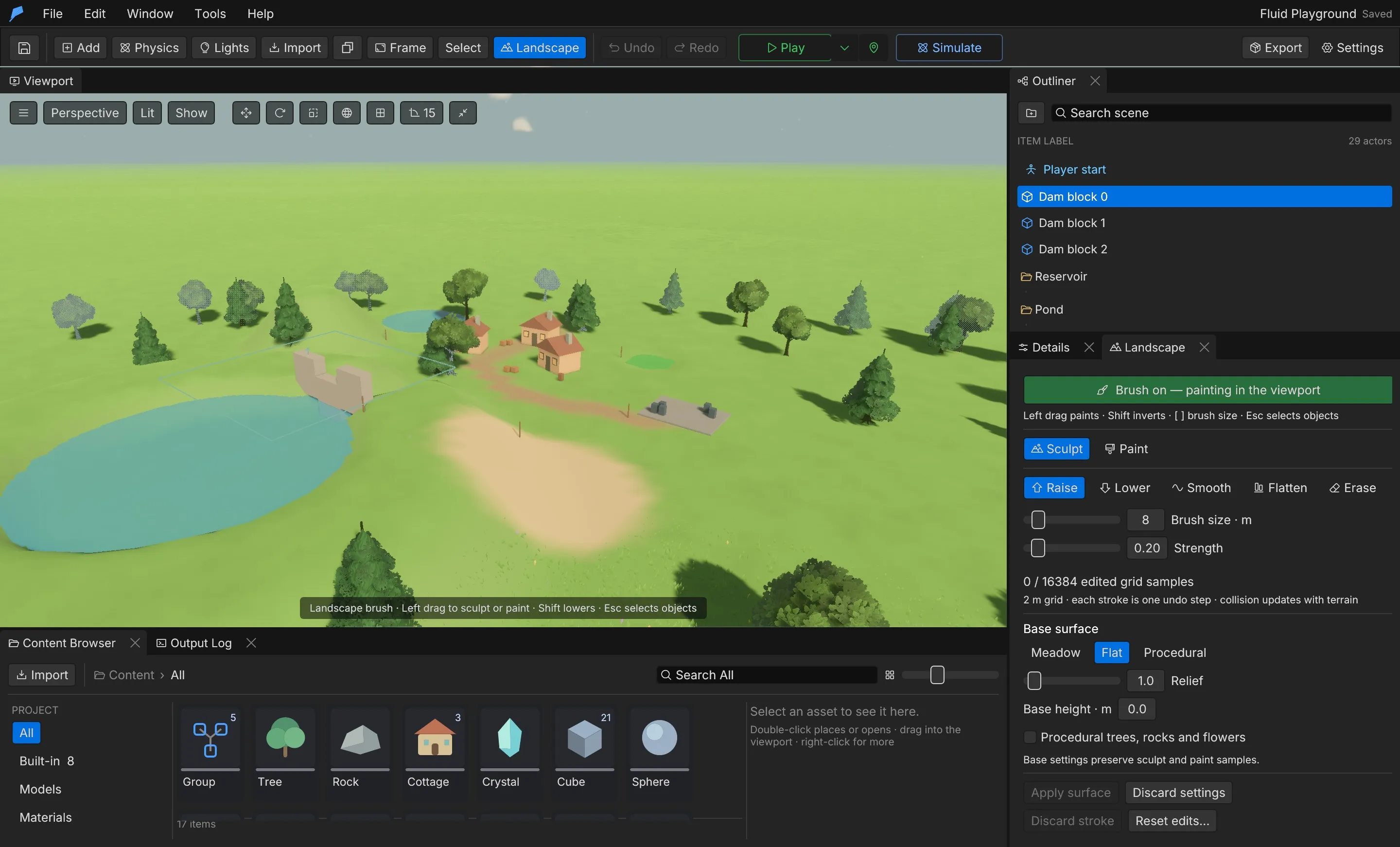
Each stroke is one undo step, and terrain collision updates with the ground. Discard stroke drops a stroke that has not been committed yet. Reset edits… → Reset landscape edits removes all sculpt and paint edits but keeps the base surface settings.
Sculpt tools
Section titled “Sculpt tools”| Tool | Effect | Shift |
|---|---|---|
| Raise | Lifts the ground | Lowers |
| Lower | Digs the ground down | Raises |
| Smooth | Evens out bumps | — |
| Erode | Weathers the ground like rain over ages: branching gullies run down slopes, silt fans out at their foot and ground steeper than about 39° slumps into scree. Strength is how much rain falls. The same dab on the same ground always weathers it the same way | — |
| Flatten | Levels to Target height; Use height under cursor samples it from the viewport | — |
| Erase | Removes sculpt and paint edits under the brush | — |
Paint tools
Section titled “Paint tools”| Tool | Effect |
|---|---|
| Texture | Paints one of the terrain’s texture layers. Shift paints the base layer back |
| Remove foliage | Erases scattered trees, bushes and grass. Shift restores them |
| Restore foliage | Brings erased foliage back |
| Tint | Tints the ground colour. Quick swatches: Grass, Path, Sand, Stone |
| Paint foliage / Erase foliage | Paints one foliage layer in or out. Layers set to Painted only grow where you paint them in |
| More grass / Less grass | Raises the built-in grass density up to double, or thins it to none |
| Taller grass / Shorter grass | Changes the built-in grass height |
| Grass colour | Tints the grass. Quick swatches: Lush, Dry, Autumn, Frost |
| Reset grass | Clears grass painting under the brush |
Brush settings
Section titled “Brush settings”| Setting | Range | Default |
|---|---|---|
| Brush size | 2–64 m | 8 m |
| Strength | 0.01–2 when sculpting, 0.01–1 when painting | 0.2 |
| Target height (Flatten) | −1,000 to 1,000 m | 2 m |
| Hardness | 0 (fades from the centre) – 1 (full strength to the rim) | 0 |
| Edge noise | 0 (round) – 1 (ragged) | 0 |
Edge noise breaks the round rim into a natural edge. The noise is fixed to the ground, not the brush, so the edge of a stroke stays coherent as you drag.
Open Masks to limit any tool to part of the ground. The heading reads Masks · on while a mask is active.
| Mask | Settings | Description |
|---|---|---|
| Only on slopes | Steeper than, Flatter than: 0 (flat) – 1 (vertical); starts at 0.35–1 | Touches only ground whose steepness is in the range, for example rock on cliffs |
| Only between heights | Above · m, Below · m: −500 to 2,000 m in the panel, ±5,000 by command | Touches only ground between the two heights, for example snow above the tree line. It starts from 5 m below to 50 m above the ground under the cursor; Above cursor and Below cursor set one bound from it |
Choose a base surface
Section titled “Choose a base surface”The Base surface section of the Landscape workspace sets the ground under all your edits. Changes stay pending until you press Apply surface; Discard settings drops them. Base settings never remove sculpt and paint edits.
| Base | Description |
|---|---|
| Meadow | Gently rolling default ground. This is the default |
| Flat | Level ground |
| Procedural | Endless generated hills and mountains from a seed |
| Setting | Range | Default | Description |
|---|---|---|---|
| Relief | 0–20 | 1 | Scales the height of the base surface |
| Base height | −1,000 to 1,000 m | 0 | Moves the whole surface up or down |
| Procedural trees, rocks and flowers | On/off | On | Scatters built-in decorations on the ground |
Procedural terrain
Section titled “Procedural terrain”With Procedural selected, the workspace shows the generator. Pick a preset to start from, then adjust the sliders. The same seed always produces the same land, so it streams, saves and reaches the horizon like any other landscape. New land picks a random seed.
| Preset | Shape |
|---|---|
| hills | Rolling green hills with gentle valleys |
| mountains | High ridged mountain ranges with deep valleys |
| plains | Wide flat lowlands with a few low hills |
| highlands | Rough rocky uplands, twisted ridges |
| mesas | Stepped terraces and flat-topped buttes |
| islands | Low land broken by hollows; add an ocean for islands |
| Slider | Field | Range | Default |
|---|---|---|---|
| Height m | height |
0–600 m | 45 |
| Hill spacing m | scale |
20–8,000 m | 420 |
| Mountains | mountains |
0–1 | 0.35 |
| Plains | plains |
0–1 | 0.45 |
| Roughness | roughness |
0–1 | 0.5 |
| Twist | warp |
0–1 | 0.4 |
| Terraces | terraces |
0–1 | 0 |
| Erosion | erosion |
0–1 | 0 |
| Soft ridges | ridge_softness |
0–1 | 0 |
| Flat start area m | clearing |
0–1,000 m | 40 |
Erosion weathers branching gullies and sharp spurs down every slope. Soft ridges rounds off knife-edged ridge crests; 0 keeps the original land. Every preset sets both: mountains has the most erosion (0.75), plains the least (0.1).
Choosing a preset keeps your current seed and replaces the other values.
Texture layers
Section titled “Texture layers”A landscape blends up to four tiling texture layers. Layer 0 is the base and covers everything; layers 1–3 appear on steep ground, in noise patches, along riverbanks, or where you paint them. Without layers the ground uses plain vertex colours.
- Open Window → World & terrain and select the Terrain layers tab.
- Click a Stylized look to dress the whole terrain in one step, or + Add layer to build layers yourself.
- For each layer, pick a texture From library or Import PNG texture…, then tune it.
- Paint layers 1–3 by hand with the Texture tool in the Landscape workspace.
Each stylized look sets all four layers (base, rock on slopes, ground patches, riverbanks), the grass look, and a Trees foliage layer with matching tree designs. Hold Shift when you click to skip the forest.
| Look | Contents |
|---|---|
| Meadow | Green grass, grey mossy rock on slopes, dirt patches, sandy riverbanks; oaks and birches |
| Forest | Mossy forest floor with roots, dark rock, earthy banks; oaks, pines and birches |
| Autumn | Golden grass, warm rock, leafy dirt; autumn trees and birches |
| Desert | Rippled sand, sandstone cliffs, rocky ground; a few palms and dead trees |
| Snow | Snowfields, pale rock, stony patches; pines, no grass |
| Alpine | Mountain grass, blue-grey rock faces, stony ground; pines and birches |
| Flat | Plain painted colours, no textures |
| Layer setting | Field | Range | Default |
|---|---|---|---|
| Metres per repeat | tiling |
0.5–50 m in the panel | 6 |
| Roughness (low = wet) | roughness |
0–1 | 0.95 |
| Relief strength | normal_strength |
0–2 | 1 |
| Height map | height_texture_id |
A texture, or none | None |
| Height blend | height_blend |
0 (plain fade) – 1 (sharp) | 0.6 |
| Large-scale variation | variation |
0–1 | 0 |
| Patches over flat ground | patches |
0–1 | 0 |
| Riverbanks and shores | banks |
0–1 | 0 |
| Cover steep ground → Steeper than | slope |
0 (flat) – 1 (vertical), or off | Off |
With a Height map (a greyscale map, white high, tiled like the texture), the layer blends by
height instead of a plain fade: stones poke through first and grass fills the cracks last.
Height blend sets how crisp that edge is. landscape.texture_layer imports a library texture’s
height map with its colour and normal maps.
Normal maps use the OpenGL convention. Add my texture folder… and Add my texture PNG…
add your own maps to the texture library; name them *_color, *_normal, *_roughness, *_ao
or *_height.
Terrain shapes
Section titled “Terrain shapes”The Shapes tab of the World & terrain window holds non-destructive features applied in order on top of the base surface:
| Shape | Effect |
|---|---|
| Flatten | Levels a disc to an absolute height, with a blend distance |
| Hill | Adds a hill, or digs a hollow with a negative height |
| Path | A polyline road that paints layer 1–3 and can level the ground |
| Paint | Paints a disc with layer 1–3 |
| Clear | Keeps foliage out of a disc |
The same tab can add a Mountain rim around the valley: slopes that rise beyond a radius to bound the playable area.
Streaming and distance
Section titled “Streaming and distance”The landscape loads in 32 m chunks around the camera. Chunks near the camera render at full detail with collision; chunks further out render at lower resolution without collision.
Open Project settings → General to control the range:
| Setting | Range | Default | Description |
|---|---|---|---|
| View range (terrain chunks) | 0–8 | 3 | Chunks streamed in each direction. Players can lower it with their graphics quality |
| Distant land | On/off | On | Draws the land beyond the streamed chunks, without foliage or collision |
| View distance | 300–12,000 m | 3,000 m | How far the distant land reaches. The camera sees this far |
| Detail | 32–320 | 160 | Cells across each ring of the distant land; rings double their spacing outward. More keeps finer ridges and gullies far away |
| Cast shadows | On/off | Off | Distant hills cast shadows, at a shadow-map cost |
| Fog clears to the horizon | On/off | On | Pushes clear-weather fog out to the horizon. Weather fog still closes in |
The graphics quality setting caps the view range at 5 chunks on Low and 7 on Medium.
Example: a level building plot on a hilltop
Section titled “Example: a level building plot on a hilltop”You’ll raise a hill, cut a flat plot into its top and keep foliage off the plot, starting from a new project (File → New project…). Shapes stay editable, so you can move the whole thing later.
- Open Window → World & terrain and select the Shapes tab.
- Click + Hill. Open 1 · Hill and set Centre X to
30, Z to0, Radius m to40and Height m to12. - Click + Flatten. Open 2 · Flatten and set Centre X
30, Z0, Radius m8, Blend m6and Height m16. Height m is an absolute height, not an offset; 16 m is about the top of this hill on the default meadow. - Click + Clear. Open 3 · Clear and set Centre X
30, Z0and Radius m12so no trees, bushes or grass grow on the plot.
Shapes apply in list order, so the Flatten must come after the Hill. Use Move up to reorder.
Do the same from the command line. landscape.layout replaces the whole shape list:
feather-cli --workspace ./hill-plot command project.create \  --json '{"name":"Hill Plot"}' --save project.feather.json
feather-cli --workspace ./hill-plot --project project.feather.json command landscape.layout --json '{  "shapes": [    {"type": "Hill", "center": [30, 0], "radius": 40, "height": 12},    {"type": "Flatten", "center": [30, 0], "radius": 8, "blend": 6, "height": 16},    {"type": "Clear", "center": [30, 0], "radius": 12}  ]}' --save project.feather.json
Check it worked by reading ground heights across the plot and on the slope beyond it:
feather-cli --workspace ./hill-plot --project project.feather.json command landscape.inspect \ --json '{"points":[[30,0],[36,0],[30,-7],[42,0]]}'The first three heights are 16.0; the last, on the hillside outside the plot and its blend, is
lower. In the viewport the hill has a flat, grass-free top.
Limits
Section titled “Limits”- Brush edits are stored on a 2 m grid, up to 16,384 edited samples per landscape. The workspace shows the current count.
- Up to 4 texture layers, 32 foliage layers and 512 shapes. A path has at most 256 points.
- Texture layers are resampled to 1024 × 1024 when packed.
- The landscape cannot be edited during Play.
Automate it
Section titled “Automate it”Agents edit the landscape through the same commands the editor uses. This switches to a procedural mountain base, dresses the terrain in the alpine look, and raises a hill with a single-dab stroke:
feather-cli --connect .feather-session.json command landscape.configure \  --json '{"generator":{"preset":"mountains","seed":7,"erosion":0.9}}'
feather-cli --connect .feather-session.json command landscape.style \  --json '{"style":"alpine"}'
feather-cli --connect .feather-session.json command landscape.stroke \  --json '{"brushes":[{"mode":"Raise","center":[20,0],"radius":12,"strength":2}]}'
A brush takes an optional filter with hardness, noise, slope and height (each range is
[min, max]). On the mountains above, this paints texture layer 1 (rock, in the alpine look) onto
steep ground only, with a ragged edge, then weathers the slope beside it. Erode changes nothing on
flat ground, such as the generator’s flat start area around the origin:
feather-cli --connect .feather-session.json command landscape.stroke --json '{"brushes":[ {"mode":"Layer","layer":1,"center":[300,200],"radius":24,"strength":1,"filter":{"slope":[0.4,1],"noise":0.6}}, {"mode":"Erode","center":[300,210],"radius":30,"strength":1}]}'| Command | Purpose |
|---|---|
landscape.inspect |
Reads base settings and edits; with points, returns ground heights at up to 1,024 positions |
landscape.configure |
Sets the base, relief, height offset, decorations and procedural generator, including erosion and ridge_softness |
landscape.brush / landscape.stroke |
Applies one brush dab, or up to 256 dabs as one undo step; each dab takes an optional filter |
landscape.layout |
Replaces shapes, the valley rim, texture layers and foliage layers |
landscape.texture_layer |
Puts a library texture (colour, normal and height maps) on one layer; optional height_blend |
landscape.style |
Applies a stylized look |
landscape.reset |
Clears all sculpt and paint edits |
horizon.get / horizon.set |
Reads and patches the distant land settings |
project.settings |
Sets stream_radius, among other project settings |
See Agents & automation for connecting a live session, and Caves and cutters for carving into the ground.