Editor tour
The Feather 2 editor is a single window of docked tabs around a 3D viewport. Every tab can be moved, stacked or torn out into its own window, and the layout is remembered between sessions. Workspaces switch between layouts made for one job, such as terrain or logic. Every change a panel makes runs through the same validated command layer that the CLI and AI agents use, so it is undoable and behaves identically however it was made.
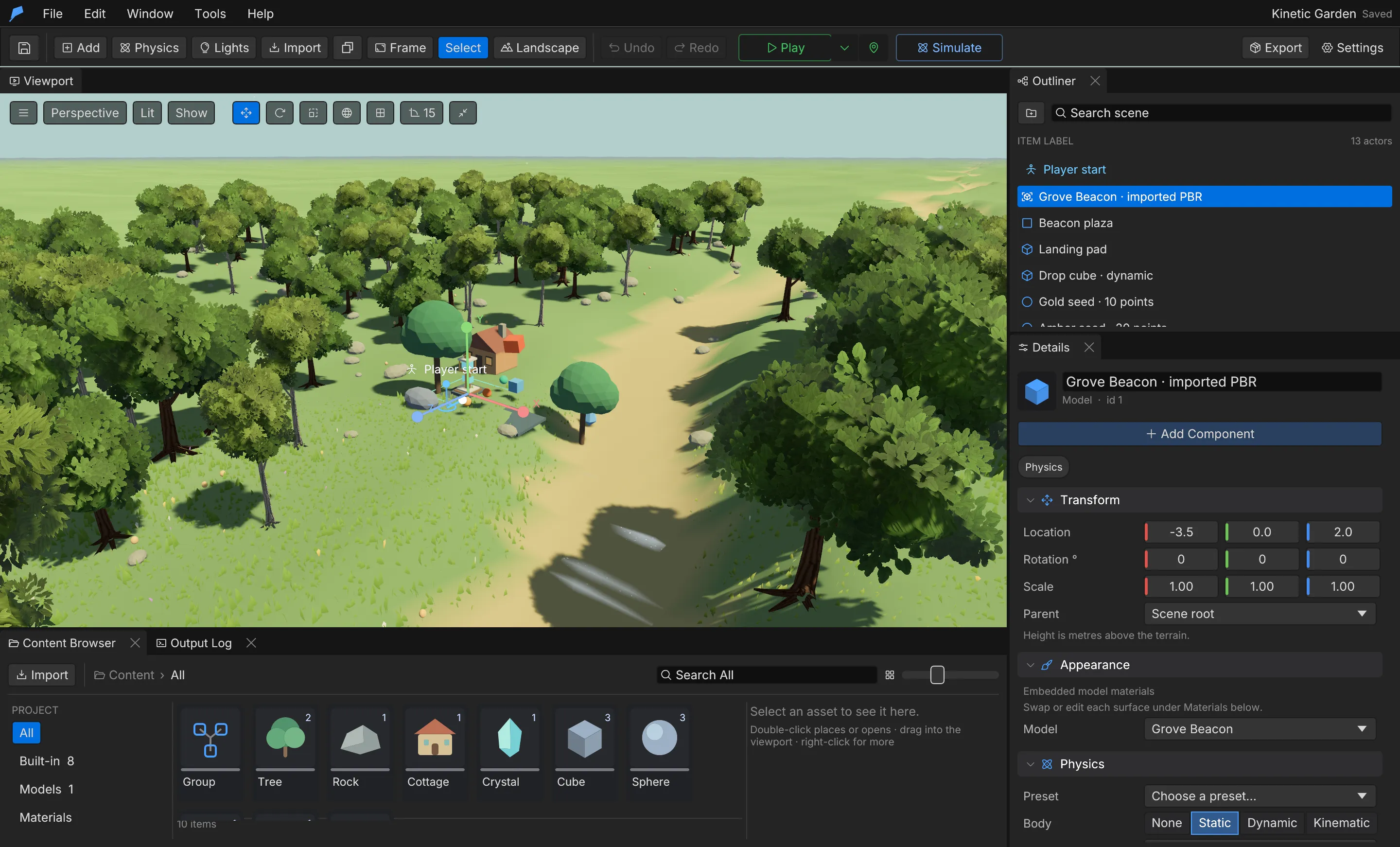
Layout
Section titled “Layout”| Area | Purpose |
|---|---|
| Menu bar | File, Edit, Window, Tools and Help, then the workspace tabs. The project name and save state are on the right |
| Toolbar | Add, Physics, Lights, Import, duplicate, Frame, Select / Landscape modes, Undo / Redo, Play, Simulate, Build and Settings |
| Viewport | The 3D scene, with view, shading, gizmo and snapping controls along its top edge |
| Outliner | The scene tree: search, Groups and the player start |
| Details | The selected object’s transform, appearance, physics, behaviour, script and components |
| Content Browser | Built-in objects, imported assets, prefabs and other project content |
| Output Log | Runtime messages, script errors and model loading diagnostics |
To restore the current workspace’s default arrangement, choose Window → Reset layout.
Workspaces
Section titled “Workspaces”The tabs after the Help menu switch between workspaces. Each one opens the panels its job needs around the viewport, Outliner, Content Browser and Output Log, and remembers how you rearranged it.
| Workspace | Opens |
|---|---|
| Level | The default layout: viewport, Outliner, Details and Content Browser, for placing and arranging objects |
| Terrain | Landscape, World & terrain and Details |
| Art & audio | Materials & textures, Effects, Mixer, Model library, Prefab library, Animation graphs and Details |
| Logic | Game logic, Script graph, Details and Game variables |
| Gameplay | Combat, AI behaviour trees, Input, Item manager, Details, Navigation and Physics |
| Story | Story, Localization, Details and Game variables |
| Ship | Build, Project settings, Profiler and Details |
Right-click a workspace tab and choose Reset <name> layout to restore its default arrangement. Workspaces cannot be changed during Play.
Toolbar
Section titled “Toolbar”| Control | What it does |
|---|---|
| Add | Adds a Group, Tree, Rock, Cottage, Crystal, Cube, Sphere or Plane |
| Physics | Places a ready-made physics setup such as water, cloth, a jump pad or a joint |
| Lights | Adds a light preset, an irradiance volume or a reflection probe |
| Import | Imports a GLB model |
| Frame | Selected object (F), All authored objects (Shift+F) or Reset view |
| Select / Landscape | Switches between selecting objects and the landscape brush |
| Play / Stop | Runs the game. The Play in dropdown beside it chooses the viewport (the pin plays from the editor camera) or a new window — a standalone game you play alongside the editor |
| Simulate | Runs physics only, with the editor camera. Keep writes the settled positions back as one undo step; Reset discards them |
| Build | Builds the game for the platform selected in the Build window, this computer by default; see Build a game |
When Play starts it captures the mouse for mouse look. Capture the mouse under Window → Game logic → Game settings chooses when: When Play starts (the default), Click the game view or Never (free cursor). Shift+F1 frees the cursor at any time and a click in the game view takes it back.
Viewport
Section titled “Viewport”Along the top of the viewport you can choose a view (Perspective, Top, Front, Right), a shading mode (Lit, Wireframe, Lit + wireframe) and what to Show: foliage, guides, the player start, water/field/joint volumes and collision shapes. The gizmo buttons switch between move, rotate and scale, toggle world or local axes, and set grid, rotation and scale snapping.
| Input | Action |
|---|---|
| Right drag | Orbit |
| Middle drag | Pan |
| Scroll | Zoom |
| Right mouse + WASD | Fly the camera; hold Shift to move faster |
| Right-click | Context menu, including Add here at the clicked ground point and Set player start here |
Outliner
Section titled “Outliner”The Outliner lists every object in the open level as an expandable tree. Type in Search scene to filter it; matching objects keep their parent Groups visible. The folder button adds a Group. The first row is the player start: select it to move it with W or turn it with E. See Objects and groups.
Details
Section titled “Details”Details edits the selected object. Sections include Transform (with the Parent selector), Appearance, Physics, Behaviours and Script. Type in Search details at the top, or press Cmd/Ctrl+F with the pointer over the panel, to show only the matching properties. + Add Component lists the components the object does not have yet, such as lights, sounds, water, joints, doors, destructibles and vehicles. During Play, a Live section shows the player’s and the selected object’s current state.
Content Browser
Section titled “Content Browser”The Content Browser lists project content by source: All, Built-in, Models, Materials, Textures, Sounds, Prefabs, Effects, Animation graphs, Levels, Fonts, Physics setups and Model library.
- Click to select; Cmd/Ctrl+click and Shift+click extend the selection.
- Double-click to place or open an item.
- Drag a model or built-in object into the viewport to place it on the ground.
- Right-click for Place, Find in level, Rename, Delete and Refresh thumbnail.
See Assets.
Tool panels
Section titled “Tool panels”Open tool panels from the Window menu. Each opens as a dock tab.
| Panel | Covers |
|---|---|
| World & terrain | Environment, weather, ambience, trees, items, post-processing, player and terrain layers |
| Landscape | Sculpting, painting and procedural terrain |
| Model library | Converted model packs to search and place |
| Materials & textures | Material assets and material graphs |
| Prefab library | Capturing and placing reusable assemblies |
| Game logic | World scripts and data tables |
| Combat, Levels, Input, Navigation, AI behaviour trees | Game systems of the same names |
| Animation graphs, Mixer, Effects, Localization, Item manager | Animation, audio, particles, translations and items |
| Story | Dialogues, quests and cinematics |
| Script graph | Any script shown as a node graph |
| Profiler | Frame-time and memory statistics; works during Play |
| Build · Windows, macOS, Linux | Builds the game for players; see Build a game |
| Assistant | An in-editor AI assistant that works through the command catalog |
| Project settings | Searchable project and editor settings |
The Tools menu opens the Script editor and Blueprints for the selected object, and Automation (MCP) for connecting external AI tools.
Command search
Section titled “Command search”Press Cmd/Ctrl+K to open the command palette. It searches editor actions, panels, Settings pages, objects to add and every command in the catalog. Catalog commands can be run from the palette with JSON arguments.
Keyboard shortcuts
Section titled “Keyboard shortcuts”| Shortcut | Action |
|---|---|
| W / E / R | Move / rotate / scale gizmo |
| F | Frame the selection |
| Shift+F | Frame the whole scene |
| Cmd/Ctrl+D | Duplicate |
| Cmd/Ctrl+C, Cmd/Ctrl+V | Copy and paste objects or Groups |
| Delete / Backspace | Remove the selection |
| End | Drop the selection to the ground |
| Cmd/Ctrl+Z | Undo |
| Cmd/Ctrl+Shift+Z or Cmd/Ctrl+Y | Redo |
| Cmd/Ctrl+S | Save |
| Cmd/Ctrl+K | Command palette |
| Cmd/Ctrl+F | Search the Details panel (with the pointer over it) |
| Escape | Stop Play, or leave the landscape brush |
Help → Controls & shortcuts shows these in the editor. Text fields keep their normal copy and paste behaviour.
Copy and paste
Section titled “Copy and paste”Paste places an independent copy one metre to the right of the original. A copied Group includes its whole subtree. The clipboard holds up to 128 objects and stays within the open project; to move an assembly between projects, export it as a prefab. Each paste is one undo step.
Automate it
Section titled “Automate it”The camera controls are available to agents too. Framing requests are queued; poll
viewport.view.get until the request reports applied before capturing an image:
feather-cli --connect .feather-session.json command viewport.focus --json '{"id":1,"padding":1.2}'# Use the request_id returned above.feather-cli --connect .feather-session.json command viewport.view.get --json '{"request_id":1}'See MCP setup for connecting to a running editor.