Blueprints
A Blueprint is a node graph attached to one object. You wire events, flow control, values and engine functions together, and the editor compiles the graph to readable Rhai. It runs on the same bounded runtime as a script, in the editor’s Play mode and in exported games.
An object can have both a script and a Blueprint. They run as independent programs in the same session, with the script running first.
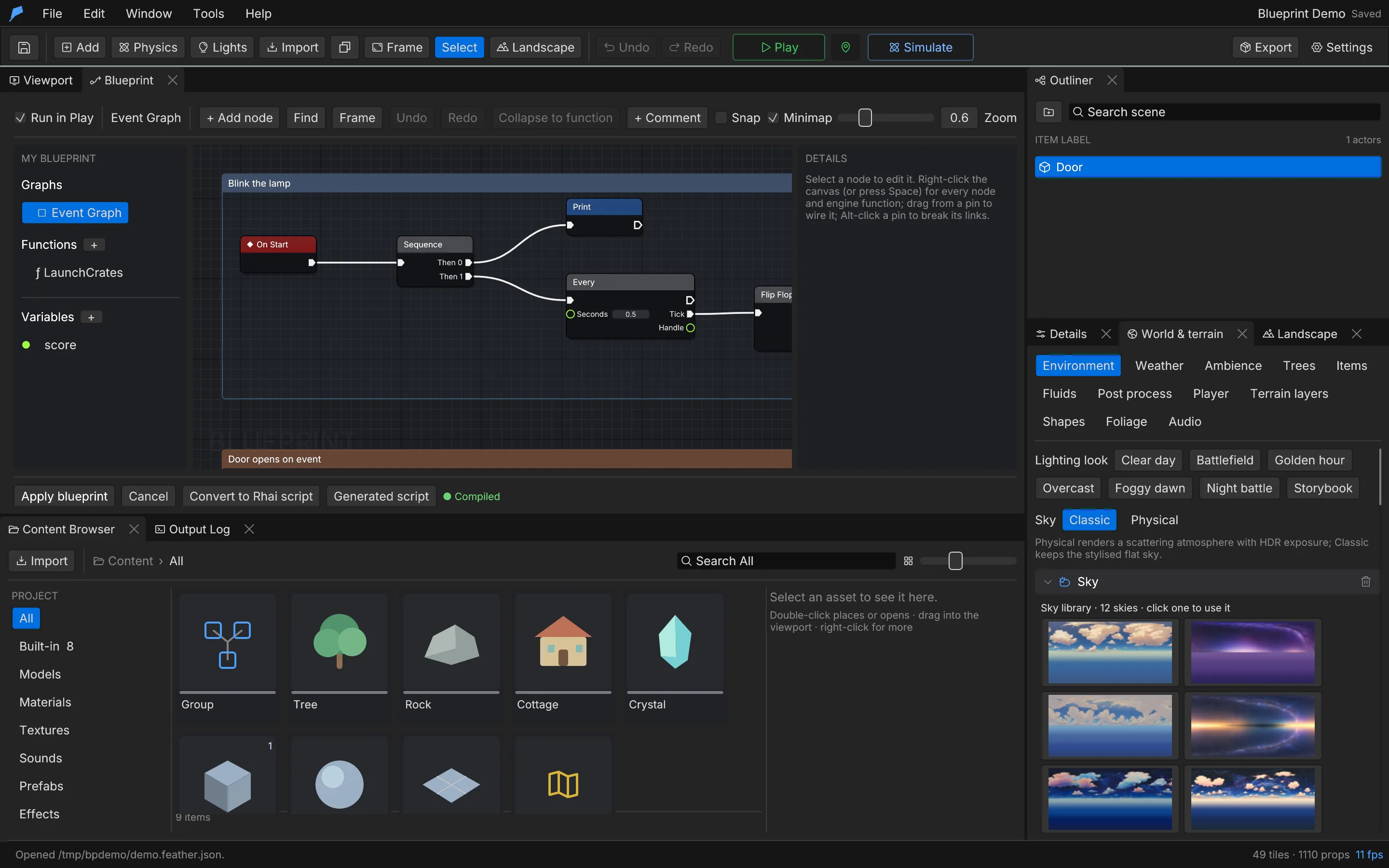
Open the Blueprint editor
Section titled “Open the Blueprint editor”- Select the object in the viewport or the Outliner.
- Choose Tools → Blueprints, or click Blueprints in the object’s Details panel.
- Right-click the canvas, press Ctrl+Space or click + Add node to open the node palette.
- Drag from a pin to another pin to wire them.
- Click Apply blueprint to commit the graph to the object. Cancel discards the pending edits.
- Press Play. While the session runs, nodes glow as they execute.
Apply blueprint is available only while the graph compiles. The status line under the canvas shows Compiled, the number of warnings, or the first error. Click an error or warning to jump to its node.
Example: a gate that opens when the player steps on a plate
Section titled “Example: a gate that opens when the player steps on a plate”You will add a pressure plate and a gate to the jetty in the Ocean Voyage example. A Blueprint on the plate opens the gate the first time the player steps on it.
- Choose File → Open example → Ocean Voyage, then File → Save project to keep your own copy.
- Click Add → Cube and rename it
Pressure plate. Under Transform, set Parent to Jetty, Local location to0,0.2,3and Scale to1.4,0.1,1.4. Under Physics, turn on Sensor. - Click Add → Cube again and rename it
Gate. Set Parent to Jetty, Local location to0,1.2,8and Scale to2.6,2.2,0.2. Note its ID in the Details header (id 37in a fresh copy). - With the gate selected, click + Add Component → Door. Set Swings to
90°and Takes to1 s. The hinge stays on the left edge. - Select the plate and choose Tools → Blueprints.
- Open the node palette and add On Trigger Enter, Branch, Do Once, Use Object (from the Interaction & carrying group) and Print.
- Wire On Trigger Enter → Next to Branch → In, Branch → True to Do Once → In, Do Once → Completed to Use Object → In, and Use Object → Next to Print → In.
- Select Branch. In Details, under Inline expressions, set Condition to
OtherIsPlayer. On the Use Object node, type the gate’s ID (
37) into id. Set the Print message toPlate pressed: opening the gate. - Click Apply blueprint. The status line shows Compiled.
Do Once stops the plate from closing the gate again the next time the player steps on it, because
use_object toggles a door the same way pressing Interact does.
Do the same from the command line, on a copy of the example. Each scene.add returns the new
object’s ID and each blueprint.add_node returns a node_id; the commands below use the values a
fresh copy returns.
cp -R examples/ocean-voyage /tmp/demoP="--workspace /tmp/demo --project project.feather.json"
feather-cli $P command scene.add --save project.feather.json \  --json '{"kind":"Cube","name":"Pressure plate","parent_id":3,"position":[0,0.2,3]}'      # id 36feather-cli $P command scene.update --save project.feather.json \  --json '{"id":36,"patch":{"scale":[1.4,0.1,1.4],"physics":{"sensor":true}}}'feather-cli $P command scene.add --save project.feather.json \  --json '{"kind":"Cube","name":"Gate","parent_id":3,"position":[0,1.2,8]}'                # id 37feather-cli $P command scene.update --save project.feather.json \  --json '{"id":37,"patch":{"scale":[2.6,2.2,0.2],"door":{"open_degrees":90,"seconds":1}}}'
feather-cli $P command blueprint.add_node --save project.feather.json \  --json '{"id":36,"operation":{"type":"OnTriggerEnter"},"position":[0,0]}'                # node 1feather-cli $P command blueprint.add_node --save project.feather.json \  --json '{"id":36,"operation":{"type":"Branch","condition":{"type":"OtherIsPlayer"}},"position":[240,0]}'feather-cli $P command blueprint.add_node --save project.feather.json \  --json '{"id":36,"operation":{"type":"DoOnce"},"position":[480,0]}'feather-cli $P command blueprint.add_node --save project.feather.json \  --json '{"id":36,"operation":{"type":"Call","function":"use_object","arity":1,"values":{"id":37}},"position":[720,0]}'feather-cli $P command blueprint.add_node --save project.feather.json \  --json '{"id":36,"operation":{"type":"Print","message":"Plate pressed: opening the gate"},"position":[960,0]}'
feather-cli $P command blueprint.connect --save project.feather.json \  --json '{"id":36,"from":1,"from_pin":"Next","to":2,"to_pin":"In"}'feather-cli $P command blueprint.connect --save project.feather.json \  --json '{"id":36,"from":2,"from_pin":"True","to":3,"to_pin":"In"}'feather-cli $P command blueprint.connect --save project.feather.json \  --json '{"id":36,"from":3,"from_pin":"Completed","to":4,"to_pin":"In"}'feather-cli $P command blueprint.connect --save project.feather.json \  --json '{"id":36,"from":4,"from_pin":"Next","to":5,"to_pin":"In"}'
blueprint.get with {"id":36} returns the compiled Rhai in data.source:
let _once_3 = false;fn trigger_enter(other_id) { if other_is_player() { if !_once_3 { _once_3 = true; use_object(37.0); print("Plate pressed: opening the gate"); } } else { }}Check it worked. Press Play and walk forward with W. When you cross the plate, its nodes
glow, the Console shows Pressure plate [Blueprint]: Plate pressed: opening the gate and the gate
swings open on its left edge over one second. To check the Blueprint path without the editor:
feather-cli $P command game.simulate \ --json '{"frames":120,"inputs":[{"frame":0,"key":"W","pressed":true}]}'data.report.logs contains the Plate pressed line exactly once and success is true. The
simulation runs Blueprints but not the game’s world-logic runtime, so the door itself does not swing
there; check the swing in Play.
The editor layout
Section titled “The editor layout”| Area | Contents |
|---|---|
| Toolbar | Run in Play, the graph breadcrumb, + Add node, Find, Frame, Undo, Redo, Collapse to function, + Comment, Snap, Minimap and Zoom |
| My Blueprint | The event graph, the object’s functions and its variables |
| Canvas | The graph you are editing, with an optional minimap |
| Details | Settings of the selected node, comment, function or variable |
| Footer | Apply blueprint, Cancel, Convert to Rhai script, Generated script and the compile status |
Clear Run in Play to keep a Blueprint on the object without running it.
Canvas controls
Section titled “Canvas controls”| Action | Shortcut |
|---|---|
| Open the node palette | Right-click the canvas, or Ctrl+Space |
| Break every link on a pin | Alt-click the pin |
| Frame the whole graph | Home, or Frame |
| Frame the selection | F |
| Comment box around the selection | C |
| Copy, paste, duplicate | Ctrl+C, Ctrl+V, Ctrl+D |
| Select all | Ctrl+A |
| Delete the selection | Delete or Backspace |
| Undo, redo | Ctrl+Z, Ctrl+Y |
Snap aligns moved nodes to a 16 px grid. Zoom ranges from 0.2 to 2.0. Find lists every node of the open graph by title or ID; click one to select and frame it.
Wires and pins
Section titled “Wires and pins”Graphs carry two kinds of wire:
- Execution wires set the order in which nodes run. Every chain starts at an event.
- Data wires carry typed values: Number, Bool, String, Vec3, Object or Array. A pin of type Any accepts every type. Wires between incompatible types are rejected.
Nodes without execution pins are pure: they are evaluated where their value is read. An execution output and a data input each take one wire; connecting a new wire replaces the old one. Execution cycles are rejected; use Every for repeating work.
Unconnected data inputs use the constant typed into the node. Object inputs accept an object name or ID.
Events
Section titled “Events”Each event can appear once in the event graph.
| Node | Runs when |
|---|---|
| On Start | Once, when Play begins |
| On Update | Every frame; Delta Seconds is the frame time |
| On Trigger Enter / On Trigger Exit | A sensor on this object starts or stops overlapping something. Needs Physics → Sensor and a collider |
| On Collision Start / On Collision End | This object’s collider starts or stops touching something |
| On Event | An event with this name arrives from emit or emit_to in any script; Data is its payload |
| Custom Event | A listener registered with on(name) when Play begins fires on a matching emit |
| On Key | A key or mouse button is Pressed this frame, or every frame while Held |
The four contact events output Other, the other object’s ID. On Key accepts A–Z, 0–9, SPACE, ENTER, F1–F12, the arrow keys (ARROWUP and so on) and mouse buttons such as MOUSELEFT.
Node palette
Section titled “Node palette”The palette lists the built-in nodes below, your Blueprint functions, and a generated Call node for every engine function in the script API, grouped the same way. A function registered for scripts appears in the palette automatically.
Type in the search box to find a node. Every word must match the node’s name, key, group or
description, and the best matches come first: an exact name, then names that start with the words,
then names that contain them, then matches in the group or description. A word of three or more
letters also matches the letters of a name in order, so gvitm finds Give Item. While you search,
results are listed by rank with their group on the right; with an empty search the palette is grouped.
Flow control
Section titled “Flow control”| Node | Behaviour |
|---|---|
| Branch | Continues on True or False from a Bool Condition |
| Sequence | Runs outputs Then 0 to Then N in order; 1 to 8 outputs |
| For Each | Runs Body for every element of Array (with Element and Index), then Completed |
| Do Once | Lets execution through once until Reset |
| Gate | Enter passes to Exit only while the gate is open; Open, Close and Toggle change it. Can start closed |
| Flip Flop | Alternates between A and B; Is A reports which ran |
| Delay | Runs Completed after Seconds (default 1). Re-triggers while waiting are ignored |
| Every | Runs Tick every Seconds (default 1); Next continues at once. Handle cancels the timer; running the node again restarts it |
| Reroute | A waypoint for a data or execution wire |
| If Key | Branches on a key held this frame (legacy) |
Data and messages
Section titled “Data and messages”| Group | Nodes |
|---|---|
| Events & messages | Emit (send an event to every script), Emit To (send an event to one object) |
| Objects | Self, Get Object (by name or ID), Get Tagged (every object with a tag, as an array) |
| Variables | Get, Set, Add to (Number variables only) |
| Math | Add, Subtract, Multiply, Divide, Negate, Break Vec3, Append (joins two values as text) |
| Compare | <, ≤, >, ≥ on Numbers; == and != on any values |
| Logic | AND, OR, Not |
Actions
Section titled “Actions”| Node | Behaviour |
|---|---|
| Print, Print Value | Writes a message or a value to the Console |
| Print Contact | Prints a message with the other object’s name and ID. Contact events only |
| Translate, Rotate | Moves or turns this object by a fixed offset, in metres or radians; per second when Per second is on in On Update |
| Translate Expression, Rotate Expression | The same, from X, Y and Z values |
| Apply Impulse | Pushes this Dynamic body once, in N·s |
| Set Velocity | Sets this Dynamic body’s velocity, in m/s |
Call nodes
Section titled “Call nodes”A Call node’s input pins are the function’s parameters, and Return Value is its result. Functions with several parameter counts expose an Overload setting. Getters are pure by default; functions that change the game keep execution pins. Turn on Pure (no execution pins) to override this.
Game variables are read with a Call node from the Data & state group: Tune Number,
Tune Bool or Tune Text (the keys tune_number, tune_bool and tune_text), plus Tune
for any kind. Type the variable’s id into the id pin. Tune Number returns a Number and
Tune Bool a Bool, so they wire straight into comparisons; Tune Text and Tune return Any.
See World logic for the variables themselves and
Scripting for the script functions.
Variables
Section titled “Variables”Add variables under Variables in My Blueprint. Each has a unique name (letters, digits and _),
a type and a default value.
| Type | Default value |
|---|---|
| Number | A number |
| Boolean | true or false |
| String | Text, up to 256 bytes |
| Vec3 | [x, y, z] |
Select a variable to add a Get or Set node for it. Variables reset when Play starts again.
Expressions and contact filters
Section titled “Expressions and contact filters”Branch, Set Variable, Add to Variable and the expression actions also accept an inline expression, used when the pin is not wired. Expressions combine:
| Expression | Value |
|---|---|
Number, Boolean, Variable |
A constant or a variable |
DeltaTime, ElapsedTime |
Frame time, and seconds since Play started |
Binary, Unary |
Arithmetic, comparison and logic operators |
OtherIsPlayer, OtherIsSensor |
Whether the other contact is the player, or a sensor |
OtherKindIs |
Whether the other object is a Group, Tree, Rock, Cottage, Crystal, Cube, Sphere, Plane or Model |
OtherIdIs |
Whether the other object has an ID, or is player or world |
The Other… filters are valid only on a path that starts from a trigger or collision event.
Functions
Section titled “Functions”Functions are reusable sub-graphs with typed inputs and outputs. They run inline where they are called.
- Click + next to Functions in My Blueprint. A new function starts with a Function Entry wired to a Return node.
- Add inputs and outputs in Details. Types are Number, Bool, String, Vec3, Object, Array and Any.
- Build the body between the entry and the return.
- In the event graph, add the function from the palette’s Functions group.
Functions cannot contain events, Delay or Every. A function that is still called cannot be deleted.
Collapse to function
Section titled “Collapse to function”Select nodes in the event graph and click Collapse to function, or use the node context menu. Wires entering the selection become inputs, values leaving it become outputs, and a single call node replaces the selection. The selection needs one execution entry and at most one exit; events, Delay and Every must stay outside.
Comments
Section titled “Comments”Press C or click + Comment to draw a comment box around the selection. Set its title and colour in Details. Moving a comment moves the nodes inside it.
Generated Rhai
Section titled “Generated Rhai”Open Generated script to read the Rhai the graph compiles to, highlighted like the code editor. Copy to clipboard copies it. Convert to Rhai script writes that program into the object’s script, where you can edit it in the Code panel, and turns the Blueprint off.
Limits
Section titled “Limits”| Limit | Value |
|---|---|
| Nodes, across the event graph and all functions | 256 |
| Links | 512 |
| Variables | 32 |
| Functions | 16 |
| Inputs or outputs per function | 12 |
| Comment boxes per graph | 64 |
| Script variables in the compiled program (variables, node state and wired outputs) | 100 |
| Compiled source | 16 KiB |
| Text constants | 256 bytes |
| Print messages | 1,000 bytes |
| Event names | 1 to 64 characters |
The compiled program also runs under the script limits.
Automate it
Section titled “Automate it”Agents edit Blueprints node by node through blueprint.* commands. Each edit is one undo step, and
the whole graph must still compile.
| Command | Purpose |
|---|---|
blueprint.nodes |
The palette, with each node’s pins and the operation JSON to add it |
blueprint.get, blueprint.set |
Read, replace or clear an object’s whole graph |
blueprint.add_node, blueprint.set_node, blueprint.remove_node |
Edit nodes |
blueprint.connect, blueprint.disconnect |
Edit wires |
blueprint.function, blueprint.collapse |
Create, change and collapse functions |
blueprint.comment |
Create, update or remove comment boxes |
blueprint.to_script |
Convert the graph to a Rhai script |
blueprint.runtime |
Per-node execution counts from Play or a headless run |
blueprint.selftest |
Wires, compiles and runs palette nodes headless to check that they work |
blueprint.selftest takes an optional query (up to 128 characters, matched like the palette search),
frames (1 to 600, default 30) and all. Each matching node, built-in or Call, is wired from
On Start with sample pin values, compiled, checked and run in a small test world holding the
object itself, a tagged object named Smoke Target and the player. It changes nothing in the project.
Each node gets a status:
| Status | Meaning |
|---|---|
ran |
The node executed and passed execution on |
compiled |
It compiles, but its event cannot fire headless, such as contacts and keys |
data_error |
The engine rejected the sample data, such as an unknown item; the pins are fine |
failed |
A compile or check error, wrong argument types or a crash; the message and generated source are included |
The result has the counts and lists only the nodes that did not run; "all": true lists every node.
feather-cli --connect .feather-session.json command blueprint.selftest --json '{"query":"delay"}'Add an On Start node and a Delay node to object 1, then wire them. Use the node IDs that
blueprint.add_node returns; this example assumes 1 and 2:
feather-cli --connect .feather-session.json command blueprint.add_node \  --json '{"id":1,"operation":{"type":"OnStart"},"position":[0,0]}'
feather-cli --connect .feather-session.json command blueprint.add_node \  --json '{"id":1,"operation":{"type":"Delay","values":{"Seconds":2}},"position":[240,0]}'
feather-cli --connect .feather-session.json command blueprint.connect \  --json '{"id":1,"from":1,"from_pin":"Next","to":2,"to_pin":"In"}'
See Agents & automation for connecting a live session.