Assets are the files a project uses: models, textures, sounds and fonts. Importing an asset copies
it into a content-addressed cache, named by its SHA-256 hash, and registers it in the project.
Saving copies every asset the project references into the assets/ folder beside the project file,
so projects and game builds never depend on the editor’s cache.
Opening a project, and building a game, check every asset’s hash. One exception keeps a project
usable when a file goes missing: a standalone texture (a PNG imported as a texture, not one that belongs to a
model) that is not in assets/ or the cache is skipped with a warning instead of stopping the
project from opening. A build leaves it out and lists it in its warnings. Saving still needs every
texture, so import it again before you save.
Import a model
Section titled “Import a model”- Click Import in the toolbar, or choose File → Import GLB model….
- Choose a
.glbfile. The model is validated, added to the project and placed in the scene. - Set its collider in Details → Physics. Fit box sizes a box collider to the model’s bounds; Hull and Mesh build colliders from its geometry.
Imported models keep their embedded PBR materials and node hierarchy. To change their surfaces, use material overrides; see Materials.
Model requirements
Section titled “Model requirements”| Requirement | Detail |
|---|---|
| Format | glTF 2.0 binary (.glb) |
| Textures | Embedded in the GLB, or PNG files referenced by relative path beside it. Data-URI textures are rejected |
| Size | Up to 64 MiB per model and 32 textures |
| Duplicates | Identical files are stored once; external textures shared by several models are stored once too |
The importer validates the file’s structure, binary bounds, numeric data and node tree before accepting it. A rejected file leaves the project unchanged.
Example: import a cardboard box that falls and lands
Section titled “Example: import a cardboard box that falls and lands”You’ll import a GLB, give it a collider that matches its shape, and let it drop. Start from a new
project (File → New project…) and use cardboard_box.glb from the models/ folder of the
paper-shredder example in the engine repository, or any small GLB of your own.
- Click Import in the toolbar and choose
cardboard_box.glb. The model is added to the project and placed in the scene. - In Details → Transform, set Location to
0,4,0so it starts 4 m above the ground. - In Details → Physics, set Body to Dynamic, then click Fit box. The collider shrinks from the default 1 m cube to the box’s bounds, about 0.45 × 0.36 × 0.47 m.
- Press Play. The box falls and comes to rest on the grass.
- Press Cmd/Ctrl+S and save the project. The GLB is copied into
assets/imported/under its SHA-256 name.
Do the same from the command line. Put the GLB inside the workspace first; import paths are relative to it:
feather-cli --workspace ./box-drop command project.create \  --json '{"name":"Box Drop"}' --save project.feather.json
mkdir -p ./box-drop/models && cp path/to/cardboard_box.glb ./box-drop/models/
feather-cli --workspace ./box-drop --project project.feather.json command asset.import \  --json '{"path":"models/cardboard_box.glb","add_to_scene":true}' --save project.feather.json
feather-cli --workspace ./box-drop --project project.feather.json command scene.update \  --json '{"id":1,"patch":{"position":[0,4,0]}}' --save project.feather.json
feather-cli --workspace ./box-drop --project project.feather.json command physics.fit \  --json '{"id":1,"body":"Dynamic"}' --save project.feather.json
Check it worked. asset.import returns the new asset_id and "object_id": 1. physics.fit
returns "half_extents" of about [0.225, 0.178, 0.235] and the model_bounds it read from the
GLB. Then drop it:
feather-cli --workspace ./box-drop --project project.feather.json command game.simulate \ --json '{"frames":120}'The object’s final.position is several metres below its initial.position, and error_count
is 0. The project’s assets list has one entry whose path is imported/<sha256>.glb.
Import textures, sounds and fonts
Section titled “Import textures, sounds and fonts”| Asset | Formats | Where to import |
|---|---|---|
| Texture | PNG. A .cube colour LUT is converted to a PNG strip |
Materials & textures → Import PNG texture… |
| Sound | OGG, WAV, MP3 | World & terrain → Audio → Import sound… |
| Font | TTF, OTF | Game logic → Import font… |
Textures are used by materials, terrain layers, skies and colour grading. Sounds are used by emitters, music, ambience and scripts. Fonts are used by the game UI by family name.
Content Browser
Section titled “Content Browser”The Content Browser tab shows everything the project can place or open, grouped by source: Built-in, Models, Materials, Textures, Sounds, Prefabs, Effects, Animation graphs, Levels, Fonts, Physics setups and Model library.
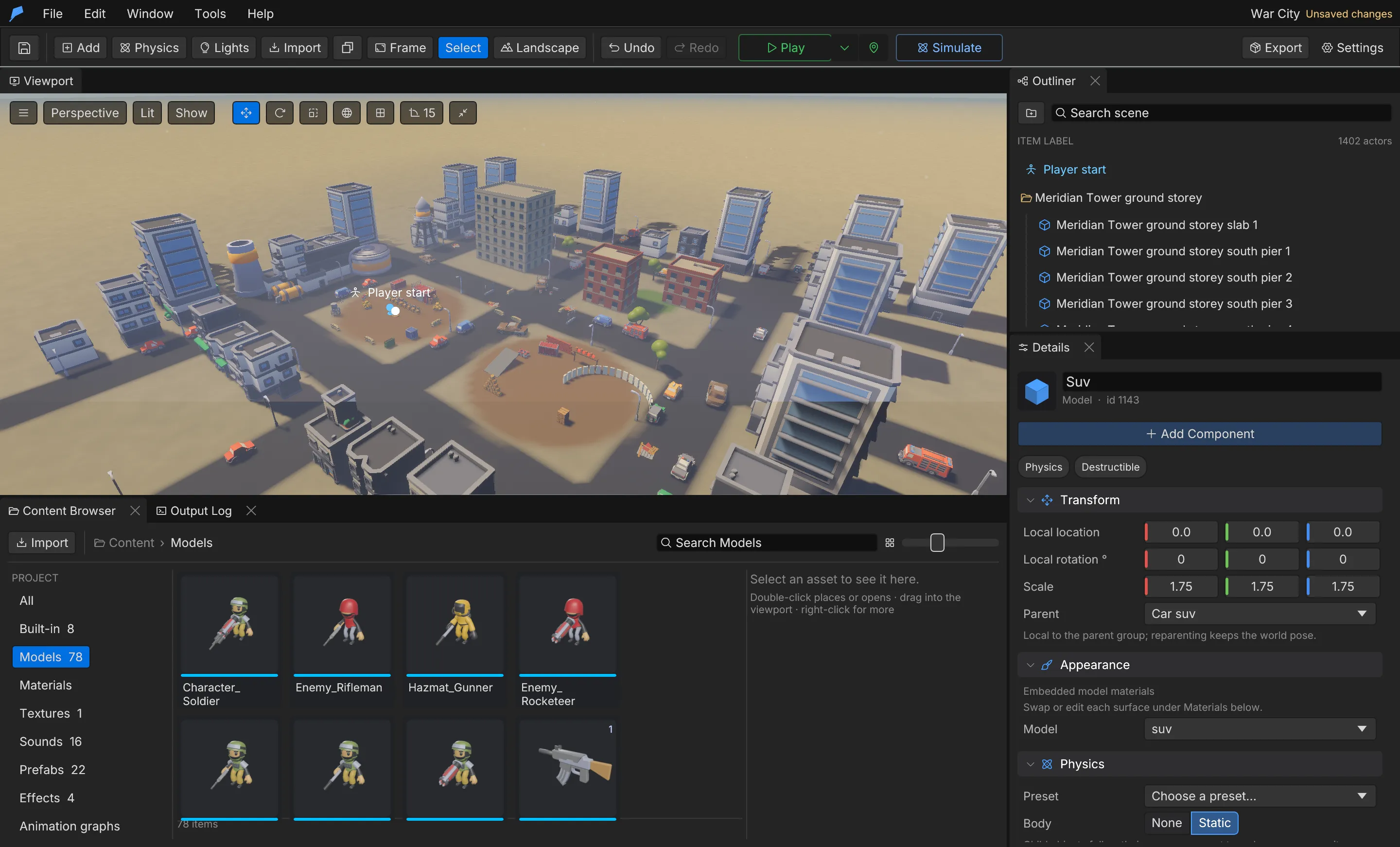
- Search by name and adjust the thumbnail size from the toolbar.
- Double-click a model or built-in object to place it, or drag it into the viewport to drop it on the ground under the cursor.
- Right-click for Place, Find in level, Rename, Delete and Refresh thumbnail.
- Select an item to see a large preview, its ID and where it is used.
Model thumbnails are rendered by the engine and cached in the Feather data folder. An asset that is still used by an object, material, terrain layer or audio setting cannot be deleted.
Model library
Section titled “Model library”The model library is a local collection of converted model packs, outside any project. Open it with Window → Model library, or use the Model library source in the Content Browser. Search by name, pack or category, then place a model. Placing imports the model into the project like any other GLB and, by default, gives it a static box collider fitted to its bounds.
The library lives in the library/ folder of the Feather data folder. Set FEATHER_LIBRARY_ROOT to
an absolute path to use another location.
Convert Synty packs
Section titled “Convert Synty packs”scripts/synty_import.py converts Synty POLYGON source packs that you own into the library. It runs
Blender in background worker processes and needs Blender and the Pillow Python package. Source files
are never modified.
python3 scripts/synty_import.py --pack ~/Downloads/POLYGON_Fantasy_Kingdom_SourceFilespython3 scripts/synty_import.py --packs-root ~/Downloads/SyntyPacks --jobs 6The converter turns each FBX into a self-contained GLB with PBR materials and records each model’s
category, bounds and triangle count in a library.json manifest per pack. It adapts Synty-specific
shader features: foliage is split into bark and alpha-cutout leaf materials, triplanar rock shaders
become projected materials, mask vertex colours are removed, and skinned characters keep their
skeleton and animations. Mismatched texture names are resolved automatically, and every fallback is
recorded in the manifest.
| Option | Effect |
|---|---|
--pack DIR |
Convert one pack; repeat for more |
--packs-root DIR |
Convert every pack found in a folder |
--output DIR |
Write to another library root |
--only GLOBS |
Convert only matching FBX names, for example 'SM_Prop_*' |
--texture-size N |
Maximum texture size (default 2048) |
--jobs N |
Parallel Blender workers |
--skip-characters |
Skip skinned characters |
--force |
Reconvert models that are already up to date |
Other tools can populate the library too, by writing the same library.json format.
Limits
Section titled “Limits”- Models: GLB only, up to 64 MiB and 32 textures each.
- Imported content IDs are 53-bit numbers, so they are exact in JSON clients.
- Physics uses the authored collider; imported meshes get no collision until you choose Fit box, Hull or Mesh.
Automate it
Section titled “Automate it”Paths are relative to the workspace folder:
feather-cli --workspace ./my-game --project project.feather.json command asset.import \  --json '{"path":"models/lantern.glb","add_to_scene":true}' --save project.feather.json
feather-cli --workspace ./my-game --project project.feather.json command sound.import \  --json '{"path":"audio/wind.ogg"}' --save project.feather.json
feather-cli --workspace ./my-game command library.list --json '{"query":"tavern","limit":5}'
library.place imports and places a library model in one undoable step. See the command
reference.