Prefabs
A prefab is a reusable assembly of objects stored in the project’s prefab library. It keeps each member’s transform, model, materials, physics, scripts, Blueprints and Group hierarchy. Placed instances are linked to their prefab by default, so editing the prefab updates every instance while keeping each instance’s own changes.
Capture a prefab
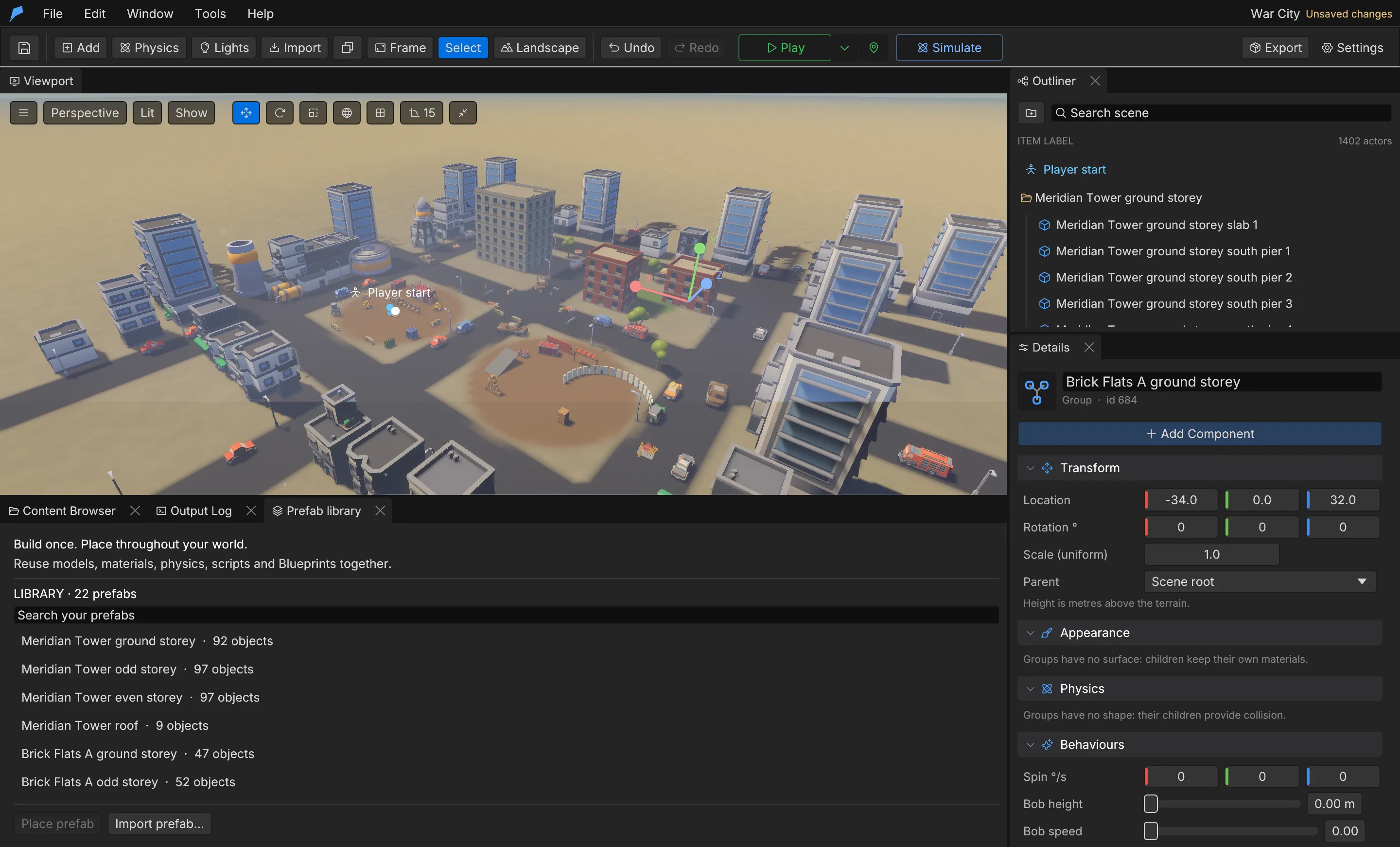
Section titled “Capture a prefab”- Open Window → Prefab library.
- Under Capture an assembly, check the scene objects that form the assembly, or use Add selected object. Selecting a Group includes its whole subtree.
- Set the pivot, or click Use selected position. The pivot anchors placement.
- Enter a Prefab name and click Capture new prefab.
Capturing a child without its parent turns it into a root at the same world pose.
Place a prefab
Section titled “Place a prefab”- Select a prefab in the library.
- Set the X and Z position and the Height above the landscape.
- Leave Link new instances to the prefab on to place a linked instance, or turn it off to place independent copies.
- Click Place prefab.
All members appear together with fresh IDs, as one undo step. Root members keep their spacing on uneven terrain: terrain compensation is applied once per root. A prefab with several roots is placed under a new Group named after the prefab.
Linked instances and overrides
Section titled “Linked instances and overrides”Edit a member of a linked instance as usual. Each change you make is recorded as an override on that instance. When you select an instance, the library’s Selected instance section offers:
| Action | Result |
|---|---|
| Apply to prefab | Pushes the instance’s overrides into the prefab, then updates every other linked instance |
| Revert / Revert all | Restores one override, or all of them, to the prefab’s values |
| Unlink instance | Turns the instance back into plain objects, unchanged |
Use Replace selected template… to rebuild a prefab from the checked objects. Linked instances follow it and keep their overrides.
Updates propagate to instances in every level and to prefabs that nest this one. The instance root’s own position, rotation and scale always belong to the instance and are never overrides.
Object references
Section titled “Object references”When a prefab is placed, internal references follow the new IDs: parent relationships, typed
Blueprint Other ID is contact filters that point at other members, joint targets and switch
targets. References to objects outside the prefab, and the reserved player and world identities,
stay as they are.
Script source text is copied verbatim. A hard-coded ID such as other_id_is("14") is not rewritten.
Example: repaint every signpost at once
Section titled “Example: repaint every signpost at once”You’ll turn a Group into a prefab, place two linked copies, then recolour one copy and push the
change to all of them. Start from the signpost built in the Objects and groups
example: a Group named
Signpost (ID 1) at X 10, Z −5 with a Post and a Board.
- Open Window → Prefab library.
- Under Capture an assembly, select Signpost in the viewport and click Add selected object. The Group brings its two children with it.
- Click Use selected position to put the pivot on the Group, enter
Signpostas the Prefab name and click Capture new prefab. - With the new prefab selected in the library, set X to
0, Z to10and Height to0. Leave Link new instances to the prefab on and click Place prefab. - Set X to
-10and click Place prefab again. - Select the Board of the first copy. In Details → Appearance, set Base colour to
#E6331A. The library’s Selected instance section now reads1 overrides · 3 membersand lists#3 · color. - Click Apply to prefab. The second copy’s board turns red too.
The original Group you captured is not linked to the prefab, so it keeps its white board.
Do the same from the command line, in the same project. The placed copies receive IDs 4–6 and 7–9:
feather-cli --workspace ./signpost --project project.feather.json command prefab.capture \  --json '{"ids":[1],"name":"Signpost","origin":[10,0,-5]}' --save project.feather.json
feather-cli --workspace ./signpost --project project.feather.json command prefab.instantiate \  --json '{"id":1,"origin":[0,0,10]}' --save project.feather.jsonfeather-cli --workspace ./signpost --project project.feather.json command prefab.instantiate \  --json '{"id":1,"origin":[-10,0,10]}' --save project.feather.json
# Recolour the first copy's board (ID 6), then push the override into the prefab.feather-cli --workspace ./signpost --project project.feather.json command scene.update \  --json '{"id":6,"patch":{"color":[0.9,0.2,0.1]}}' --save project.feather.jsonfeather-cli --workspace ./signpost --project project.feather.json command prefab.apply \  --json '{"id":6}' --save project.feather.json
Check it worked:
feather-cli --workspace ./signpost --project project.feather.json command prefab.listfeather-cli --workspace ./signpost --project project.feather.json command scene.get --json '{"id":9}'prefab.list shows Signpost with "member_count": 3 and "instance_count": 2. The second copy’s
board, ID 9, has "color": [0.9, 0.2, 0.1]. Before you apply, prefab.instance_get with {"id":6}
lists the override as {"member": 3, "path": "color", …}; afterwards override_count is 0.
Share prefabs between projects
Section titled “Share prefabs between projects”| Action | Result |
|---|---|
| Export prefab… | Writes a portable .feather.prefab.json manifest with an assets/ folder containing only the GLBs it uses |
| Import prefab… | Adds a portable prefab to the library as one undoable template |
Keep the manifest and its assets/ folder together. Import deduplicates models that are already in
the project and renumbers conflicting asset IDs. Exported prefabs are self-contained: nested prefab
links are flattened. Older flat prefab files still import.
Removing a prefab from the library turns its linked instances into plain objects in the same undo step.
Limits
Section titled “Limits”| Limit | Value |
|---|---|
| Prefabs per project | 256 |
| Members per prefab | 128 |
| Portable prefab manifest | 16 MiB |
Automate it
Section titled “Automate it”# Capture objects 2 and 3 as a prefab, then place a linked instance.feather-cli --workspace ./my-game --project project.feather.json command prefab.capture \ --json '{"ids":[2,3],"name":"Watchtower","origin":[0,0,0]}' --save project.feather.json
feather-cli --workspace ./my-game --project project.feather.json command prefab.instantiate \ --json '{"id":1,"origin":[20,0,10]}' --save project.feather.json
# Read an instance's overrides, then export the prefab for another project.feather-cli --workspace ./my-game --project project.feather.json command prefab.instance_get \ --json '{"id":4}'feather-cli --workspace ./my-game --project project.feather.json command prefab.export \ --json '{"id":1,"path":"shared/watchtower.feather.prefab.json"}'To edit a prefab and every linked instance at once, read its member_keys with prefab.get, then
patch members with prefab.update. A member patch takes the same fields as scene.update,
components included. This one gives member 1 a hover thruster, which pushes only Dynamic bodies; see
Physics:
feather-cli --workspace ./my-game --project project.feather.json command prefab.get --json '{"id":1}'feather-cli --workspace ./my-game --project project.feather.json command prefab.update --json '{ "id": 1, "members": [{"key": 1, "patch": {"thruster": {"force": 150, "direction": [0, 1, 0], "hover": 3.0}}}]}' --save project.feather.jsonThe response’s instances_updated counts the instances that changed. Related commands: prefab.apply, prefab.revert, prefab.unlink, prefab.import.
See the command reference.