Objects and groups
Everything you place in a level is a scene object. Each object has a stable numeric ID, a name, a kind, a transform and a set of components. Groups are objects that carry other objects, so you can move, rotate and scale an assembly as one.
Object kinds
Section titled “Object kinds”| Kind | Description |
|---|---|
| Group | A transform parent with no surface or collider of its own |
| Tree, Rock, Cottage, Crystal | Built-in stylised props |
| Cube, Sphere, Plane | Built-in primitives |
| Model | An imported GLB model; see Assets |
Add objects from the toolbar’s Add menu, the Content Browser, or the viewport’s right-click Add here menu.
Components
Section titled “Components”Every object has a transform, an appearance, a physics component and behaviours. Everything else is optional and added with Details → + Add Component.
| Component | Purpose |
|---|---|
| Transform | Position, rotation and scale |
| Appearance | Base colour, roughness, metallic, emission and unlit mode for built-in objects. Models use their embedded materials |
| Physics | Body type, collider, friction, bounce, mass, centre of mass and sensor; see Physics |
| Behaviours | Spin, bobbing and collectible scoring, with no code |
| Script, Blueprint | Gameplay programs; see Scripting and Blueprints |
| Optional components | Light, sound, animation, effect, decal, fog volume, water, force field, thruster, spawner, joint, cloth, boat, vehicle, terrain cutter, destructible, door, switch, pickup, container, fluid container, fluid source, fluid pool, and tags with an interaction prompt |
An object’s ID never changes while it exists. Scripts, Blueprints and commands refer to objects by this ID.
Transforms
Section titled “Transforms”| Field | Unit | Notes |
|---|---|---|
| Position | Metres | For root objects, height is measured above the terrain. For Group children, the position is local to the parent |
| Rotation | Degrees in Details; radians in project data and commands | Local to the parent for children |
| Scale | Multiplier | Groups use one uniform value |
The viewport gizmo uses world axes by default; switch to local axes with the axis button above the viewport. Snap settings for movement, rotation and scale are next to it.
Groups
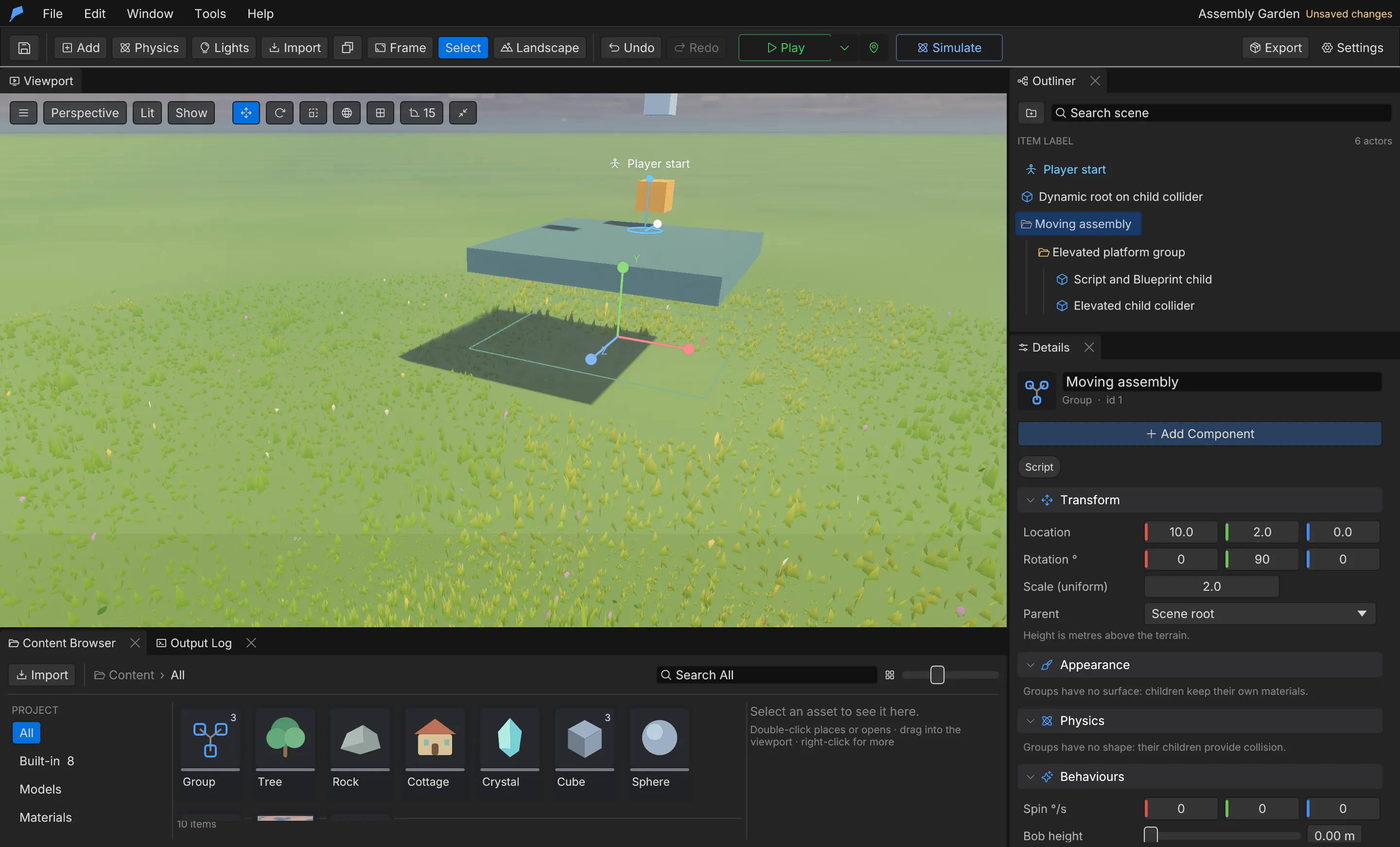
Section titled “Groups”- Click the folder button in the Outliner, or choose Add → Group.
- Select an object and choose a Group in Details → Transform → Parent. Changing the parent keeps the object’s world position, rotation and scale.
- Choose Scene root to detach it again.
- Move, rotate or uniformly scale the Group to transform the whole assembly.
Groups can be nested. Duplicating or removing a Group includes its whole subtree, as one undo step. Group scripts, Blueprints, spin and bobbing carry their children with them.
Parenting rules
Section titled “Parenting rules”- Only a Group can be a parent.
- Groups need a positive, uniform scale.
- Dynamic and Kinematic bodies must stay at the scene root.
- Hierarchies can be at most 32 levels deep, and cycles are rejected.
- Groups have no collider or surface; their children provide collision and appearance.
Script functions such as position(), translate() and set_position() always work in world
coordinates, even on children.
Example: a signpost you move as one
Section titled “Example: a signpost you move as one”You’ll build a two-part signpost inside a Group, then move and turn the Group so both parts follow. Start from a new project (File → New project…).
- Choose Add → Group. In Details, set Name to
Signpostand leave Location at0,0,0. - Choose Add → Cube and name it
Post. In Details → Transform, set Parent to Signpost, then set Local location to0,1,0and Scale to0.2,2,0.2. - Choose Add → Cube again and name it
Board. Set Parent to Signpost, Local location to0,1.8,0and Scale to1.2,0.4,0.1. - Select Signpost in the Outliner. Set Location to
10,0,-5and Rotation ° to0,45,0. The post and board move and turn with it. - Press F to frame the Group and both children.
Set Parent before typing the local values: changing the parent keeps the object where it is in the world and rewrites its local transform to match.
Do the same from the command line. One scene.batch builds the assembly as a single undo step;
IDs 1–3 assume a project with no objects yet:
feather-cli --workspace ./signpost command project.create \  --json '{"name":"Signpost"}' --save project.feather.json
feather-cli --workspace ./signpost --project project.feather.json command scene.batch --json '{  "commands": [    {"command": "scene.add", "arguments": {"kind": "Group", "name": "Signpost", "position": [0, 0, 0]}},    {"command": "scene.add", "arguments": {"kind": "Cube", "name": "Post", "parent_id": 1, "position": [0, 1, 0]}},    {"command": "scene.update", "arguments": {"id": 2, "patch": {"scale": [0.2, 2, 0.2]}}},    {"command": "scene.add", "arguments": {"kind": "Cube", "name": "Board", "parent_id": 1, "position": [0, 1.8, 0]}},    {"command": "scene.update", "arguments": {"id": 3, "patch": {"scale": [1.2, 0.4, 0.1]}}}  ]}' --save project.feather.json
# Rotation is in radians in commands: 0.7854 is 45°.feather-cli --workspace ./signpost --project project.feather.json command scene.update \  --json '{"id":1,"patch":{"position":[10,0,-5],"rotation":[0,0.7854,0]}}' --save project.feather.json
Check it worked. scene.get shows that the board’s authored values are still local to the Group:
feather-cli --workspace ./signpost --project project.feather.json command scene.get --json '{"id":3}'It reports "parent_id": 1 and "position": [0.0, 1.8, 0.0]. To see world poses, run
game.simulate with {"frames":1}: every object’s initial.position has X 10 and Z −5, and all
three share the Group’s rotation.
Selection and editing
Section titled “Selection and editing”To find a field quickly, type in Search details at the top of the Details panel (or press Cmd/Ctrl+F with the pointer over it). A section whose title matches stays whole; in the others, only the properties whose names match stay visible. Escape or the clear button shows everything again.
- Select objects in the viewport or the Outliner. Search filters the Outliner but keeps parent Groups of each match visible.
- Cmd/Ctrl+D duplicates; Delete removes; End drops a root object or Group to the terrain.
- Cmd/Ctrl+C and Cmd/Ctrl+V copy and paste objects, including Group subtrees of up to 128 objects. Each paste gets fresh IDs and is one undo step.
Frame the camera
Section titled “Frame the camera”| Command | Shortcut | Result |
|---|---|---|
| Frame → Selected object | F | Fits the selection; a Group frames all of its descendants |
| Frame → All authored objects | Shift+F | Fits every object in the level |
| Frame → Reset view | Returns to the default camera |
Framing keeps the current viewing angle and accounts for rotation, scale and the visible area of the viewport. A model that is still loading is framed by its collider; frame it again once it has loaded.
Limits
Section titled “Limits”- Up to 100,000 objects per project.
- Groups must be nested no more than 32 deep.
- Copy and paste, duplicate and prefab capture handle up to 128 objects at a time.
Automate it
Section titled “Automate it”# Add a Group and a cube inside it, then move the cube out while keeping its world pose.# The project already holds object 1, so the Group receives ID 2 and the cube ID 3.feather-cli --workspace ./my-game --project project.feather.json command scene.batch --json '{ "commands": [ {"command": "scene.add", "arguments": {"kind": "Group", "name": "Assembly", "position": [0, 0, 0]}}, {"command": "scene.add", "arguments": {"kind": "Cube", "name": "Part", "parent_id": 2, "position": [1, 0, 0]}} ]}' --save project.feather.json
feather-cli --workspace ./my-game --project project.feather.json command scene.reparent \ --json '{"id":3,"parent_id":null,"preserve_world":true}' --save project.feather.jsonscene.batch applies up to 64 commands as one undo step, or none of them if any fails. In a live
editor, viewport.focus and viewport.frame_scene frame objects; see MCP
setup.