Post-processing
Post-processing changes the final image. The project has one post-process volume that applies everywhere, live in the viewport, in Play and in exported games. It covers exposure and tonemapping, bloom, colour grading, lens effects, motion blur and anti-aliasing, and stylized ink outlines. Fog and ambient occlusion are part of the environment, and toon shading is part of the project’s material settings.
Apply a look
Section titled “Apply a look”- Open Window → World & terrain → Post process.
- Under Looks, click a look to start from: Neutral, Stylized, Warm storybook, Vivid, Cinematic, Cold moonlight, Faded film, Dreamy or Noir.
- Fine-tune the sections below. Each slider has a reset button that returns it to neutral.
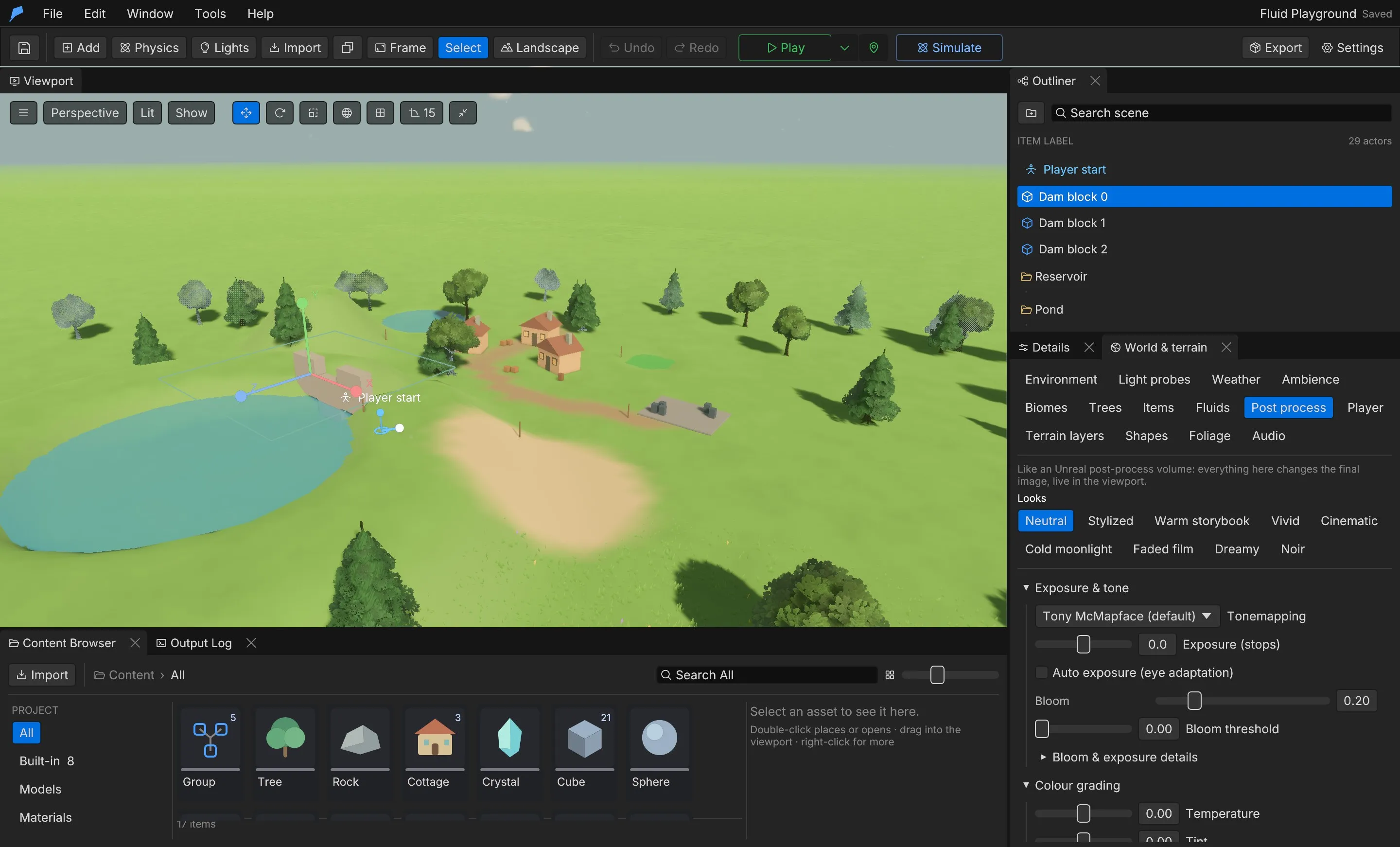
Stylized combines toon-friendly grading, ink outlines and soft bloom. For a complete lighting mood, including time of day and haze, use a lighting look instead; see Sky, weather and climate.
Exposure and tone
Section titled “Exposure and tone”| Setting | Field | Panel range | Default |
|---|---|---|---|
| Tonemapping | tonemapping |
TonyMcMapface, AcesFitted, AgX, BlenderFilmic, Reinhard, ReinhardLuminance, SomewhatBoring, None | TonyMcMapface |
| Exposure (stops) | exposure |
−4 to 4 (−8 to 8 by command) | 0 |
| Auto exposure (eye adaptation) | auto_exposure |
On/off | Off |
| Bloom threshold | bloom_threshold |
0–4 (up to 10 by command) | 0 |
Under Bloom & exposure details:
| Setting | Field | Range | Default |
|---|---|---|---|
| Bloom at strength 0 / at strength 1 | bloom_intensity_min, bloom_intensity_max |
0–1; 0–2 | 0.05; 0.35 |
| Bloom soft knee | bloom_soft_knee |
0–1 | 0.5 |
| Bloom scatter | bloom_scatter |
0–1 | 0.7 |
| Auto exposure min EV / max EV | auto_exposure_min_ev, auto_exposure_max_ev |
−16 to 24 | −8; 8 |
| Adapt to dark / Adapt to bright (EV/s) | auto_exposure_speed_brighten, auto_exposure_speed_darken |
0.01–20 | 3; 1 |
The overall Bloom strength (0–1, default 0, which turns bloom off) and Exposure stops for the
Physical sky (−3 to 3 in the panel, −6 to 6 by command) are on the Environment tab and stored in
project.environment as bloom and exposure_compensation. Bloom strength maps onto the range set
by Bloom at strength 0 and Bloom at strength 1.
Colour grading
Section titled “Colour grading”| Setting | Field | Panel range | Default |
|---|---|---|---|
| Temperature | temperature |
−0.5 (cooler) to 0.5 (warmer) | 0 |
| Tint | tint |
−0.5 (green) to 0.5 (magenta) | 0 |
| Saturation | saturation |
0–2 | 1 |
| Contrast | contrast |
0.5–2 | 1 |
| Midtone gamma | gamma |
0.5–2; above 1 darkens midtones | 1 |
| Shadows lift | shadows |
−0.2 to 0.2 | 0 |
| Highlights gain | highlights |
0.5–1.5 | 1 |
| Hue shift ° | hue |
−180 to 180 | 0 |
Shadows, Midtones and Highlights each have their own saturation, contrast, gamma, gain and lift, multiplied onto the global values. Midtones from … to sets where the midtone range starts and ends.
Colour LUT
Section titled “Colour LUT”Pick a Colour LUT to grade with a lookup table, and blend it with LUT intensity (0–1,
default 1). A LUT is a strip PNG of N² × N pixels, for example 256 × 16. Import a .cube file
with texture.import and it is converted to a strip. Vignette, film grain
and the LUT run after tonemapping, so they appear in the player, screenshots and thumbnails.
| Setting | Field | Panel range | Default |
|---|---|---|---|
| Vignette | vignette |
0–1 | 0 |
| Vignette softness | vignette_softness |
0 (tight) – 1 (wide) | 0.5 |
| Vignette roundness | vignette_roundness |
0 (follows the frame) – 1 (circle) | 0.5 |
| Vignette colour | vignette_color |
sRGB | Black |
| Chromatic aberration | chromatic_aberration |
0–0.06 (up to 0.2 by command) | 0 |
| Depth of field | depth_of_field |
On/off | Off |
| Focus distance m | focus_distance |
0.5–200 m | 12 m |
| Aperture f-stop | aperture |
0.8–22 | 2.8 |
| Bokeh highlights | bokeh |
On/off | Off |
Motion and quality
Section titled “Motion and quality”| Setting | Field | Range | Default |
|---|---|---|---|
| Motion blur | motion_blur |
0–1, the camera shutter angle | 0 |
| Anti-aliasing | anti_aliasing |
Msaa, Smaa, Taa, Fxaa, None | Msaa |
| Contrast-adaptive sharpening | sharpening |
0–1 | 0 |
Players can lower depth of field, motion blur and TAA with the Low graphics setting. Some effects replace MSAA with SMAA or TAA: ink outlines, screen-space reflections, bounce lighting and volumetric clouds.
Ink outlines and film grain
Section titled “Ink outlines and film grain”Ink outlines draw cel-shaded lines around shapes and creases. They are in Reflections and film.
| Setting | Field | Panel range | Default |
|---|---|---|---|
| Ink outlines | outline |
0 (off) – 1 | 0 |
| Outline thickness (px) | outline_thickness |
0.5–6 | 1.5 |
| Outline colour | outline_color |
sRGB | Near black |
| Silhouette threshold | outline_depth_threshold |
0.005–1; lower draws more lines | 0.08 |
| Crease lines | outline_crease |
0–0.3; 0 turns creases off | 0.02 |
| Outline fade (m) | outline_fade_distance |
5–1,000 m | 220 m |
| Film grain | film_grain |
0–1 | 0 |
| Grain size (px) | grain_size |
1–8 | 1.5 |
Screen-space reflections and bounce lighting are covered in Lighting.
Ambient occlusion
Section titled “Ambient occlusion”Turn on Ambient occlusion (SSAO) in the Post process tab, or Ambient occlusion on the Environment tab. It is off by default.
| Setting | Field | Range | Default |
|---|---|---|---|
| SSAO quality | ssao_quality |
Low, Medium, High, Ultra | High |
| SSAO thickness (m) | ssao_thickness |
0.01–4 m; thinner gives less halo | 0.25 m |
Feather Engine 2 has three kinds of fog:
- Distance fog fully hides the world at Fog distance m on the Environment tab (20–2,000 m in the panel, up to 5,000 by command, default 235 m). The weather thickens it, and the horizon settings can push clear-weather fog out to the edge of the view; see Landscape.
- Volumetric fog is a box of raymarched fog around the camera, lit by the sun or moon and by lights marked Volumetric. Turn it on under Volumetric fog on the Environment tab.
- Fog volumes fill one object’s box with volumetric fog. Add one with Add Component → Fog.
| Volumetric fog setting | Panel range | Default |
|---|---|---|
| Volumetric fog (light shafts and halos) | On/off | Off |
| Fog colour | sRGB | Pale blue |
| Density | 0–0.5 | 0.06 |
| Scattering | 0–1 | 0.35 |
| Absorption | 0–1 | 0.3 |
| Shaft directionality | −0.95 to 0.95 | 0.55 |
| Sun/moon in fog | 0–10 | 1 |
| Ambient in fog | 0–2 | 0.1 |
| Quality (steps) | 4–256 | 48 |
| Box half-width m | 5–500 | 90 |
| Box height m | 1–300 | 30 |
| Box floor m | −100 to 100 | −4 |
The Low graphics setting turns volumetric fog off.
Toon shading
Section titled “Toon shading”Toon shading bands the light from directional lights, including their shadows, into a few soft steps, tints the shade, and adds a rim light and a stylized highlight. Base colour textures, vertex colours, normal maps, alpha and emission keep working. Other lights, the sky and ambient light reach the surface unchanged.
- Open Window → Materials & textures and select the Project shading tab.
- Turn on Toon by default to draw imported models, and every material on Project shading, with toon shading. Materials set to Standard or Toon keep their choice.
- Pick a Preset, then adjust the look.
| Setting | Field | Range | Default |
|---|---|---|---|
| Light bands | bands |
1–6 lit steps | 2 |
| Band softness | softness |
0 (hard ink) – 1 (smooth) | 0.12 |
| Shadow tint | shadow_tint |
sRGB; white keeps the shade neutral | Cool blue |
| Rim colour | rim_color |
sRGB | Warm white |
| Rim width | rim_width |
0–1 | 0.32 |
| Rim strength | rim_strength |
0–4 | 0.45 |
| Highlight size | specular_size |
0–1 | 0.25 |
| Highlight strength | specular_strength |
0–4 | 0.3 |
| Preset | Look |
|---|---|
| Storybook | The defaults |
| Hard cel | One hard band, deeper shade, stronger rim |
| Soft painterly | Three soft bands, gentle rim |
| Warm sunset | Warm rim light |
| Flat | One band, no rim and no highlight |
A material can override the project look; see Materials.
Limits
Section titled “Limits”- One post-process volume per project.
- Depth of field, motion blur, TAA, volumetric fog and bounce lighting are reduced or off on the Low graphics setting.
- A LUT must be a project texture in the N² × N strip layout.
Automate it
Section titled “Automate it”This loads the Stylized look, adds a warm grade and a vignette, and turns on toon shading for the whole project:
feather-cli --connect .feather-session.json command project.post_process \  --json '{"preset":"Stylized","temperature":0.15,"vignette":0.3}'
feather-cli --connect .feather-session.json command material.set \ --json '{"patch":{"toon_by_default":true,"toon_preset":"Soft painterly"}}'| Command | Purpose |
|---|---|
project.post_process |
Patches the post-process volume; preset loads a look first |
project.environment |
Patches bloom strength, ambient occlusion, exposure stops, fog distance and volumetric fog |
material.set |
Patches the project’s toon shading |
scene.update |
Adds or edits a fog volume on an object |
texture.import |
Imports a PNG or converts a .cube LUT |
See Agents & automation for connecting a live session.