World logic
Object scripts and Blueprints belong to one object. World scripts belong to the whole game: they hold its rules, react to engine events such as quests, damage, items and the clock, and drive the game UI. Data tables keep tuning numbers and content out of the code, as JSON.
Write a world script
Section titled “Write a world script”- Open Window → Game logic and select the World scripts tab.
- Click New, type a name and click Create.
- Write the script. The editor checks it as you type.
- Press Cmd/Ctrl+Enter to apply it. Applying goes through the project’s undo history.
- Press Play.
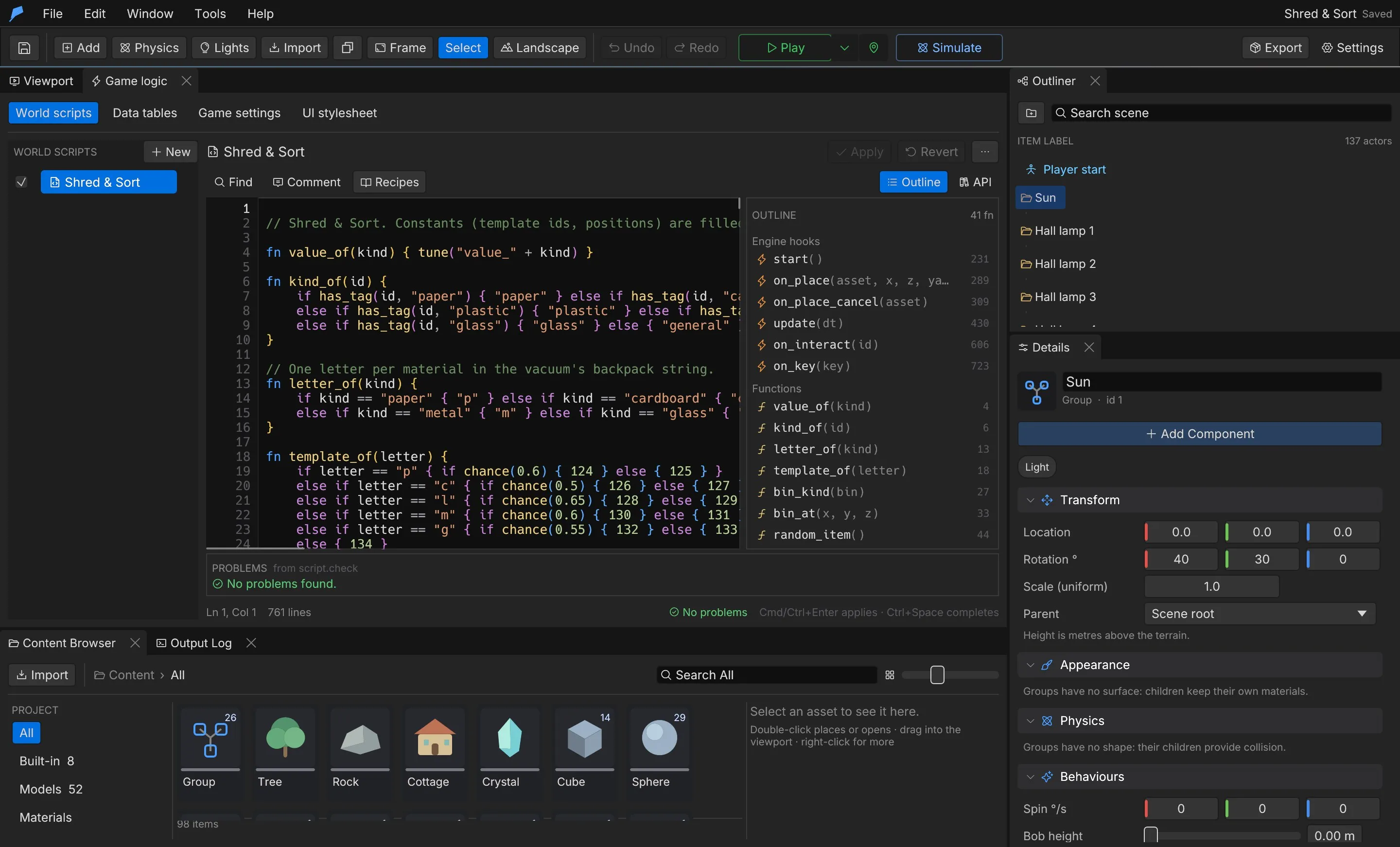
Each script has a run toggle: Off · click to run it in Play keeps a script in the project without running it. Scripts with errors cannot be applied; fix them or turn the script off.
fn start() {    every(30.0, || toast("Still alive"));    on("coin", |data| {        set("score", get("score", 0) + data.value);        ui_set("hud", "score", get("score"));    });}
fn on_enemy_killed(id, kind, x, y, z, value) {    emit("coin", #{ value: value });}
Strict checking
Section titled “Strict checking”World scripts are checked before they are saved. Unknown functions (with suggestions), wrong argument counts and misspelt or wrong hooks are errors. Helper functions defined in other world scripts count as known.
Example: a shop that opens at 9:00
Section titled “Example: a shop that opens at 9:00”You will add a shop counter to the jetty in the Ocean Voyage example. The game clock starts at 8:30, the shop opens at 9:00 and closes at 18:00, and the opening hours and prices live in a data table.
-
Choose File → Open example → Ocean Voyage, then File → Save project to keep your own copy.
-
Open Window → Game logic and select Data tables. Type
shopin the name field, click + Add table, replace{}with the JSON below and click Apply.{ "opens": 9, "closes": 18, "prices": { "bread": 3, "lamp_oil": 8 } } -
Select Game settings. Set Game minutes per real second to
10and Start hour to8.5. At this rate one game hour takes six real seconds. -
Click Add → Cube and rename it
Shop counter. Under Transform, set Parent to Jetty, Local location to1,0.6,4and Scale to0.8,0.8,1.6. -
Under Tags & interaction, set Tags to
shop, turn on Interactable (E) and set Prompt toBuy bread. -
Back in Game logic, select World scripts, click New, name it
Shopand click Create. Replace the template with the script below and press Cmd/Ctrl+Enter.
// Opens the shop between the hours in the "shop" data table.fn start() {    update_shop(hour());}
fn on_hour(hour) {    update_shop(hour);}
fn update_shop(hour) {    let shop = data("shop");    let open = hour >= shop.opens && hour < shop.closes;    if open != get("shop_open", false) {        set("shop_open", open);        toast(if open { "The shop is open" } else { "The shop is closed" });    }}
fn on_interact(id) {    if !has_tag(id, "shop") {        return;    }    let shop = data("shop");    if get("shop_open", false) {        toast("Bread costs " + shop.prices.bread + " coins");    } else {        toast("Closed. Come back at " + shop.opens + ":00");    }}
Do the same from the command line, on a copy of the example. Save the script above as shop.rhai in
the workspace folder. In a fresh copy the counter gets ID 36.
cp -R examples/ocean-voyage /tmp/democd /tmp/demo   # put shop.rhai hereP="--workspace /tmp/demo --project project.feather.json"
feather-cli $P command data.set --save project.feather.json \  --json '{"name":"shop","value":{"opens":9,"closes":18,"prices":{"bread":3,"lamp_oil":8}}}'feather-cli $P command project.game --save project.feather.json \  --json '{"minutes_per_second":10,"start_hour":8.5}'feather-cli $P command scene.add --save project.feather.json \  --json '{"kind":"Cube","name":"Shop counter","parent_id":3,"position":[1,0.6,4]}'feather-cli $P command scene.update --save project.feather.json \  --json '{"id":36,"patch":{"scale":[0.8,0.8,1.6],"tags":["shop"],"interact":"Buy bread"}}'
jq -n --rawfile src shop.rhai '{kind:"world",source:$src}' | \  feather-cli $P command script.check --json -jq -n --rawfile src shop.rhai '{name:"Shop",enabled:true,source:$src}' | \  feather-cli $P command world_script.set --json - --save project.feather.json
Check it worked. Press Play. Walk to the counter and press E before 9:00: the message
reads Closed. Come back at 9:00. About three seconds after Play starts, The shop is open appears;
press E again to see Bread costs 3 coins. From the command line, script.check returns
"ok": true with no findings, data.get with {"name":"shop"} returns the table, and
project.inspect lists Shop in data.project.world_scripts with enabled: true and
minutes_per_second: 10 in data.project.game.
Define any of these functions in a world script and the engine calls them:
| Hook | Runs when |
|---|---|
start() |
Play begins, after the world loads |
update(dt) |
Every frame; dt is seconds since the last frame |
on_minute(hour, minute), on_hour(hour), on_day(day) |
The game clock passes a minute, hour or day |
on_key(key) |
A key or mouse button is pressed, such as E, SPACE or MOUSELEFT |
on_interact(id) |
The player uses an object’s interaction prompt |
on_ui(panel, button) |
A game UI button is clicked |
on_place(asset, x, z, yaw, radius), on_place_cancel(asset) |
Build mode places a structure, or is cancelled |
on_load() |
A save is loaded |
on_level(level) |
A level finishes loading |
on_quest(id, status, stage) |
A quest changes status or stage |
on_dialogue_end(id) |
A dialogue finishes |
on_cinematic_end(id) |
A cinematic finishes |
on_enemy_killed(id, kind, x, y, z, value) |
An enemy dies |
on_player_hurt(amount), on_player_died() |
The player takes damage or dies |
on_pickup(kind, amount) |
The player picks something up |
on_anim_event(id, name) |
An animation event or montage notify fires on a character |
on_destroyed(id) |
A destructible object breaks |
on_item(id, count) |
The player gains or loses an item; count is how many they have now |
on_use_item(id) |
The player uses an item |
on_equip(slot, id) |
The player wears an item in a slot; id is empty when the slot is emptied |
on_damaged(target, amount, kind) |
The player, an enemy or an object takes elemental damage |
on_status(target, status) |
The player or an enemy starts burning, gets wet, shocked or chilled |
on_event(name, data) |
An event arrives from emit in any world or object script |
Timers, events and state
Section titled “Timers, events and state”| Function | Description |
|---|---|
after(seconds, callback) |
Runs a callback once; returns a timer ID |
every(seconds, callback) |
Runs a callback repeatedly; returns a timer ID |
cancel(id) |
Cancels a timer |
emit(name), emit(name, data) |
Sends an event to every script |
emit_to(object, name), emit_to(object, name, data) |
Sends an event to one object |
on(name, callback) |
Listens for an event |
get(key), get(key, default), set(key, value), has(key) |
Shared game state |
data(table) |
Reads a data table |
obj(name_or_id), tagged(tag), named(name) |
Object handles |
script.api lists every function with typed parameters, and script.recipes returns working examples
such as a door, a pickup and a wave spawner.
Data tables
Section titled “Data tables”The Data tables tab holds named JSON tables for gameplay numbers and content: enemy stats, loot
lists, shop prices. Scripts read them with data("name"). Click Format to tidy the JSON and
Apply to save. Table names use lowercase letters, digits and _.
fn start() { let waves = data("waves"); print("First wave: " + waves[0].count + " enemies");}Game variables
Section titled “Game variables”Game variables are the game’s tunable values: starting cash, prices, timers, speeds. Each has a
label, a category, a kind, a value, a default, an optional range and step, a unit and a description,
so the editor shows it as a control instead of code. Scripts read the live value with tune, and an
edit applies at once, even during Play.
Open Window → Game variables. Click New variable, give it a Name (the label), a Script id, a Category and a Type, and click Create. The kind decides the control:
| Kind | Control | Value |
|---|---|---|
| Number | Slider when Min and Max are set, otherwise a drag field | A number |
| Integer | Slider or drag field | A whole number |
| Toggle | Checkbox | true or false |
| Text | Text field | Up to 400 characters |
| Color | Colour picker | [r, g, b], each 0–1 |
Right-click a row to Edit label, range, unit…, copy its tune("id") call or Remove it. The
header’s reset button restores every default. A variable’s fields:
| Field | Meaning |
|---|---|
id |
What scripts call it: tune("starting_cash"); lowercase letters, digits and _, starting with a letter, at most 48 characters |
label |
Shown in the editor, at most 80 characters |
category |
Groups the panel; empty means General |
kind |
Number, Integer, Toggle, Text or Color |
value |
The current value |
default |
What reset restores; the value when it was created if left unset |
min, max |
Optional number range; a slider is shown when both are set |
step |
Slider or drag step for numbers |
unit |
Shown with the number: $ leads it, s and m/s follow |
description |
Tooltip: what it changes, at most 400 characters |
When a variable is read, the panel shows used by N and lists every world script, object script and Blueprint that reads it. Renaming the id rewrites all of them; removing one that is still in use is refused unless the reads are gone or you confirm Remove anyway. During Play the header shows LIVE · changes apply at once.
Example: starting cash and a shop toggle
Section titled “Example: starting cash and a shop toggle”You will add two game variables and read them from a world script in the Ocean Voyage example.
- Choose File → Open example → Ocean Voyage, then File → Save project to keep your own copy.
- Open Window → Game variables and click New variable. Set Name to
Starting cash, Script id tostarting_cash, Category toEconomyand Type to Number, then click Create. - Right-click the new row and choose Edit label, range, unit…. Set Min to
0, Max to500, Step to5, Unit to$and Description toCoins the player starts with., then click Save. - Add a second variable: New variable, Name
Shop open, Script idshop_open, Type Toggle, then Create. - Open Window → Game logic, select World scripts, click New, name it
Economy, click Create, replace the template with the script below and press Cmd/Ctrl+Enter.
fn start() { toast("Starting cash: " + tune("starting_cash")); if tune("shop_open", false) { toast("Shop is open"); }}Do the same from the command line, on a copy of the example. Save the script above as economy.rhai
in the workspace folder.
cp -R examples/ocean-voyage /tmp/democd /tmp/demo   # put economy.rhai hereP="--workspace /tmp/demo --project project.feather.json"
feather-cli $P command variables.upsert --save project.feather.json \  --json '{"value":{"id":"starting_cash","label":"Starting cash","category":"Economy","kind":"Number","value":20,"min":0,"max":500,"step":5,"unit":"$","description":"Coins the player starts with."}}'feather-cli $P command variables.upsert --save project.feather.json \  --json '{"value":{"id":"shop_open","label":"Shop open","kind":"Toggle","value":false}}'
jq -n --rawfile src economy.rhai '{kind:"world",source:$src}' | \  feather-cli $P command script.check --json -jq -n --rawfile src economy.rhai '{name:"Economy",enabled:true,source:$src}' | \  feather-cli $P command world_script.set --json - --save project.feather.json
Check it worked. script.check returns "ok": true with no findings. variables.get with
{"id":"starting_cash"} returns value 20 and a used_by list reading
World script "Economy" (1×), and shop_open is listed the same way. Press Play to read them:
tune("starting_cash") returns the current number and tune("shop_open", false) the toggle. While
the game runs, drag the Starting cash slider (or run variables.set) and the next read returns
the new value at once. A headless game.simulate run does not load game variables into the script
runtime, so test the read in Play.
Game settings
Section titled “Game settings”The Game settings tab sets the game clock and rules:
| Setting | Description |
|---|---|
| Game minutes per real second | Clock speed; 0 follows the environment clock |
| Start day, Start hour | When the clock starts |
| Mouse look without holding a button | Free mouse look in Play |
| Interaction distance m | How close the player must be to use an interaction prompt |
| Character animation library | The clip library characters use by default, or each model’s own clips |
The UI stylesheet tab edits the game’s CSS; see Game UI.
Script graph
Section titled “Script graph”Window → Script graph · code as nodes shows any world or object script as a node graph, with the Rhai code beside it. Code and graph are one program: edit either. Constructs that no node fits are kept as code blocks, so nothing is lost.
- Choose a world script or an object script. On an object, you can also click Open as graph in its Details panel.
- Click a node to edit it in the Inspector, or add statements below it.
- Click Save to project to write the graph back as code. This is undoable.
Limits
Section titled “Limits”| Limit | Value |
|---|---|
| World scripts per project | 32 |
| Source per world script | 256 KiB |
| Data tables | 64, up to 1 MiB each |
| Game variables per project | 512 |
| Operations per callback | 2,000,000 |
| Nested calls | 64 |
| Strings | 64 KiB |
| Arrays and maps | 100,000 entries |
Automate it
Section titled “Automate it”| Command | Purpose |
|---|---|
world_script.set |
Creates or updates a world script; it must pass script.check |
world_script.rename, world_script.remove |
Renames or deletes a world script |
script.check |
Strict static check of a world or object script |
script.api, script.recipes |
The typed API and working examples |
script.to_graph, script.from_graph |
Reads a script as a graph, or writes a graph back as Rhai |
data.list, data.get, data.set, data.rename, data.remove |
Manage data tables |
variables.get, variables.upsert, variables.set |
Read, create or patch, and change game variables |
variables.reset, variables.remove |
Restore defaults, or delete (refused while in use unless force) |
feather-cli --connect .feather-session.json command world_script.set \ --json '{"name":"Rules","enabled":true,"source":"fn on_player_died() { toast(\"Try again\"); }"}'See Agents & automation for connecting a live session.