This is the abridged developer documentation for Feather Engine 2
# Editor tour
> The docked editor layout, its menus and panels, command search and keyboard shortcuts.
The Feather 2 editor is a single window of docked tabs around a 3D viewport. Every tab can be moved, stacked or torn out into its own window, and the layout is remembered between sessions. Workspaces switch between layouts made for one job, such as terrain or logic. Every change a panel makes runs through the same validated command layer that the CLI and AI agents use, so it is undoable and behaves identically however it was made. 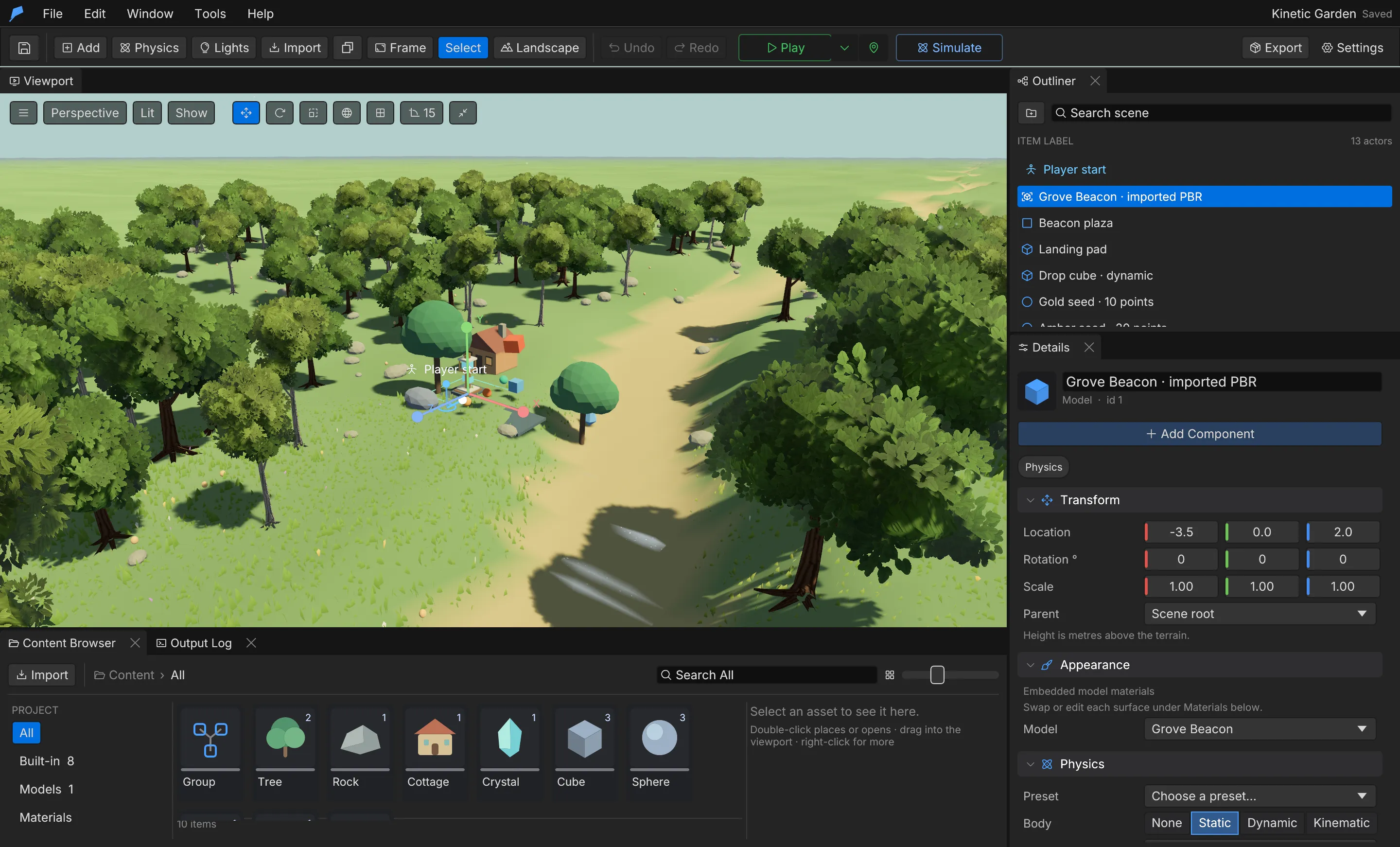 ## Layout [Section titled “Layout”](#layout) | Area | Purpose | | ------------------- | ----------------------------------------------------------------------------------------------------------------------------------------------------------------------------- | | Menu bar | **File**, **Edit**, **Window**, **Tools** and **Help**, then the workspace tabs. The project name and save state are on the right | | Toolbar | **Add**, **Physics**, **Lights**, **Import**, duplicate, **Frame**, **Select** / **Landscape** modes, **Undo** / **Redo**, **Play**, **Simulate**, **Build** and **Settings** | | **Viewport** | The 3D scene, with view, shading, gizmo and snapping controls along its top edge | | **Outliner** | The scene tree: search, Groups and the player start | | **Details** | The selected object’s transform, appearance, physics, behaviour, script and components | | **Content Browser** | Built-in objects, imported assets, prefabs and other project content | | **Output Log** | Runtime messages, script errors and model loading diagnostics | To restore the current workspace’s default arrangement, choose **Window → Reset layout**. ## Workspaces [Section titled “Workspaces”](#workspaces) The tabs after the **Help** menu switch between workspaces. Each one opens the panels its job needs around the viewport, Outliner, Content Browser and Output Log, and remembers how you rearranged it. | Workspace | Opens | | --------------- | ------------------------------------------------------------------------------------------------------------------------- | | **Level** | The default layout: viewport, Outliner, Details and Content Browser, for placing and arranging objects | | **Terrain** | **Landscape**, **World & terrain** and Details | | **Art & audio** | **Materials & textures**, **Effects**, **Mixer**, **Model library**, **Prefab library**, **Animation graphs** and Details | | **Logic** | **Game logic**, **Script graph**, Details and **Game variables** | | **Gameplay** | **Combat**, **AI behaviour trees**, **Input**, **Item manager**, Details, **Navigation** and **Physics** | | **Story** | **Story**, **Localization**, Details and **Game variables** | | **Ship** | **Build**, **Project settings**, **Profiler** and Details | Right-click a workspace tab and choose **Reset \ layout** to restore its default arrangement. Workspaces cannot be changed during Play. ## Toolbar [Section titled “Toolbar”](#toolbar) | Control | What it does | | -------------------------- | --------------------------------------------------------------------------------------------------------------------------------------------------------------------------------------- | | **Add** | Adds a Group, Tree, Rock, Cottage, Crystal, Cube, Sphere or Plane | | **Physics** | Places a ready-made physics setup such as water, cloth, a jump pad or a joint | | **Lights** | Adds a light preset, an irradiance volume or a reflection probe | | **Import** | Imports a GLB model | | **Frame** | **Selected object** (F), **All authored objects** (Shift+F) or **Reset view** | | **Select** / **Landscape** | Switches between selecting objects and the landscape brush | | **Play** / **Stop** | Runs the game. The **Play in** dropdown beside it chooses **the viewport** (the pin plays from the editor camera) or **a new window** — a standalone game you play alongside the editor | | **Simulate** | Runs physics only, with the editor camera. **Keep** writes the settled positions back as one undo step; **Reset** discards them | | **Build** | Builds the game for the platform selected in the **Build** window, this computer by default; see [Build a game](/docs/shipping/export/) | When Play starts it captures the mouse for mouse look. **Capture the mouse** under **Window → Game logic → Game settings** chooses when: **When Play starts** (the default), **Click the game view** or **Never (free cursor)**. **Shift+F1** frees the cursor at any time and a click in the game view takes it back. ## Viewport [Section titled “Viewport”](#viewport) Along the top of the viewport you can choose a view (**Perspective**, **Top**, **Front**, **Right**), a shading mode (**Lit**, **Wireframe**, **Lit + wireframe**) and what to **Show**: foliage, guides, the player start, water/field/joint volumes and collision shapes. The gizmo buttons switch between move, rotate and scale, toggle world or local axes, and set grid, rotation and scale snapping. | Input | Action | | ------------------ | ---------------------------------------------------------------------------------------------- | | Right drag | Orbit | | Middle drag | Pan | | Scroll | Zoom | | Right mouse + WASD | Fly the camera; hold Shift to move faster | | Right-click | Context menu, including **Add here** at the clicked ground point and **Set player start here** | ## Outliner [Section titled “Outliner”](#outliner) The Outliner lists every object in the open level as an expandable tree. Type in **Search scene** to filter it; matching objects keep their parent Groups visible. The folder button adds a Group. The first row is the player start: select it to move it with **W** or turn it with **E**. See [Objects and groups](/docs/concepts/objects-and-groups/). ## Details [Section titled “Details”](#details) Details edits the selected object. Sections include **Transform** (with the **Parent** selector), **Appearance**, **Physics**, **Behaviours** and **Script**. Type in **Search details** at the top, or press **Cmd/Ctrl+F** with the pointer over the panel, to show only the matching properties. **+ Add Component** lists the components the object does not have yet, such as lights, sounds, water, joints, doors, destructibles and vehicles. During Play, a **Live** section shows the player’s and the selected object’s current state. ## Content Browser [Section titled “Content Browser”](#content-browser) The Content Browser lists project content by source: **All**, **Built-in**, **Models**, **Materials**, **Textures**, **Sounds**, **Prefabs**, **Effects**, **Animation graphs**, **Levels**, **Fonts**, **Physics setups** and **Model library**. * Click to select; Cmd/Ctrl+click and Shift+click extend the selection. * Double-click to place or open an item. * Drag a model or built-in object into the viewport to place it on the ground. * Right-click for **Place**, **Find in level**, **Rename**, **Delete** and **Refresh thumbnail**. See [Assets](/docs/concepts/assets/). ## Tool panels [Section titled “Tool panels”](#tool-panels) Open tool panels from the **Window** menu. Each opens as a dock tab. | Panel | Covers | | -------------------------------------------------------------------------------- | ---------------------------------------------------------------------------------------- | | **World & terrain** | Environment, weather, ambience, trees, items, post-processing, player and terrain layers | | **Landscape** | Sculpting, painting and procedural terrain | | **Model library** | Converted model packs to search and place | | **Materials & textures** | Material assets and material graphs | | **Prefab library** | Capturing and placing reusable assemblies | | **Game logic** | World scripts and data tables | | **Combat**, **Levels**, **Input**, **Navigation**, **AI behaviour trees** | Game systems of the same names | | **Animation graphs**, **Mixer**, **Effects**, **Localization**, **Item manager** | Animation, audio, particles, translations and items | | **Story** | Dialogues, quests and cinematics | | **Script graph** | Any script shown as a node graph | | **Profiler** | Frame-time and memory statistics; works during Play | | **Build · Windows, macOS, Linux** | Builds the game for players; see [Build a game](/docs/shipping/export/) | | **Assistant** | An in-editor AI assistant that works through the command catalog | | **Project settings** | Searchable project and editor settings | The **Tools** menu opens the **Script editor** and **Blueprints** for the selected object, and **Automation (MCP)** for connecting external AI tools. ## Command search [Section titled “Command search”](#command-search) Press **Cmd/Ctrl+K** to open the command palette. It searches editor actions, panels, Settings pages, objects to add and every command in the [catalog](/docs/agents/commands/). Catalog commands can be run from the palette with JSON arguments. ## Keyboard shortcuts [Section titled “Keyboard shortcuts”](#keyboard-shortcuts) | Shortcut | Action | | -------------------------------------- | --------------------------------------------------- | | **W** / **E** / **R** | Move / rotate / scale gizmo | | **F** | Frame the selection | | **Shift+F** | Frame the whole scene | | **Cmd/Ctrl+D** | Duplicate | | **Cmd/Ctrl+C**, **Cmd/Ctrl+V** | Copy and paste objects or Groups | | **Delete** / **Backspace** | Remove the selection | | **End** | Drop the selection to the ground | | **Cmd/Ctrl+Z** | Undo | | **Cmd/Ctrl+Shift+Z** or **Cmd/Ctrl+Y** | Redo | | **Cmd/Ctrl+S** | Save | | **Cmd/Ctrl+K** | Command palette | | **Cmd/Ctrl+F** | Search the Details panel (with the pointer over it) | | **Escape** | Stop Play, or leave the landscape brush | **Help → Controls & shortcuts** shows these in the editor. Text fields keep their normal copy and paste behaviour. ### Copy and paste [Section titled “Copy and paste”](#copy-and-paste) Paste places an independent copy one metre to the right of the original. A copied Group includes its whole subtree. The clipboard holds up to 128 objects and stays within the open project; to move an assembly between projects, export it as a [prefab](/docs/concepts/prefabs/). Each paste is one undo step. ## Automate it [Section titled “Automate it”](#automate-it) The camera controls are available to agents too. Framing requests are queued; poll `viewport.view.get` until the request reports `applied` before capturing an image:
```bash
feather-cli --connect .feather-session.json command viewport.focus --json '{"id":1,"padding":1.2}'
# Use the request_id returned above.
feather-cli --connect .feather-session.json command viewport.view.get --json '{"request_id":1}'
```
See [MCP setup](/docs/agents/mcp/) for connecting to a running editor.
# Make your first game
> Place objects, give them physics and behaviour, test with Play, then save and export a playable build.
This walkthrough covers the full authoring loop in Feather 2: add objects, configure physics, attach behaviour, play-test in the viewport, save a portable project and export a native player. It takes about ten minutes and uses only built-in content. Before you start, [install and run the editor](/docs/getting-started/install/). ## 1. Create a project [Section titled “1. Create a project”](#1-create-a-project) 1. Choose **File → New project…**. A new project starts with a procedural meadow landscape and a player start. 2. Alternatively, keep the **Shred & Sort** starter the editor opens by default and edit that. ## 2. Place objects [Section titled “2. Place objects”](#2-place-objects) 1. Click **Add** in the toolbar and choose a built-in object: **Group**, **Tree**, **Rock**, **Cottage**, **Crystal**, **Cube**, **Sphere** or **Plane**. 2. To use your own model, click **Import** (or **File → Import GLB model…**) and choose a `.glb` file. See [Assets](/docs/concepts/assets/) for what the importer accepts. 3. Select objects in the viewport or the **Outliner**. 4. Press **W**, **E** or **R** to move, rotate or scale with the viewport gizmo, or type exact values in **Details → Transform**. A root object’s height is measured in metres above the terrain. 5. Press **F** to frame the selection and **Cmd/Ctrl+D** to duplicate it. You can also drag a card from the **Content Browser** into the viewport; it lands on the ground under the cursor. ## 3. Add physics [Section titled “3. Add physics”](#3-add-physics) Select an object and open **Details → Physics**. | Setting | What it does | | -------------------------------------- | ----------------------------------------------------------------------------------------------------------------- | | **Preset** | Applies a ready-made body setup in one step | | **Body** | **None**, **Static**, **Dynamic** or **Kinematic**. Dynamic bodies fall and collide during Play | | **Collider** | **Box**, **Sphere**, **Capsule**, **Hull** (convex hull) or **Mesh** (exact triangles; Static and Kinematic only) | | **Half extents** and **Centre offset** | The collider’s size and offset in metres. **Fit box** sizes it to an imported model | | **Friction**, **Bounce**, **Mass** | Surface and body properties. Mass is in kilograms | | **Sensor** | The collider reports overlaps but blocks nothing | For a quick test, add a **Cube**, raise it a few metres, and set **Body** to **Dynamic**. ## 4. Add behaviour [Section titled “4. Add behaviour”](#4-add-behaviour) Feather offers three ways to make an object do something. They can be combined on one object. | Option | Where | Use it for | | ---------- | -------------------------------------------------- | ------------------------------------------------ | | Behaviours | **Details → Behaviours** | Spin, bobbing and collectibles, with no code | | Script | **Details → Script**, or **Tools → Script editor** | Rhai code with `start()` and `update(dt)` | | Blueprint | **Tools → Blueprints** | A visual node graph compiled to the same runtime | 1. For a collectible, add a **Crystal**, open **Details → Behaviours**, turn on **Collectible** and set **Score per item**. Walking into it during Play collects it. 2. For code, click **Add script** in **Details → Script**. The default script rotates the object:
```rust
fn update(dt) {
rotate(0.0, dt, 0.0);
}
```
3. Press **Cmd/Ctrl+Enter** or click **Apply script** to commit the change. Applying creates an undo step. See [Scripting](/docs/logic/scripting/) and [Blueprints](/docs/logic/blueprints/) for the full APIs. ## 5. Play and stop [Section titled “5. Play and stop”](#5-play-and-stop) 1. Click **Play** in the centre of the toolbar. The **Play in** dropdown beside it can run the game in the viewport or in its own window instead. 2. Walk with **WASD**, look with the mouse — Play captures the cursor when it starts; press **Shift+F1** to free it — jump with **Space** and run with **Shift**. 3. Press **Stop** or **Escape** to return to editing. Editing is locked during Play, so the simulation cannot change your saved project. Stop restores every object to its authored state. Script messages and errors appear in the **Output Log** tab. ## 6. Save [Section titled “6. Save”](#6-save) 1. Press **Cmd/Ctrl+S**, or choose **File → Save project**. 2. Choose a folder and file name. The project is saved as a `.feather.json` file with an `assets/` folder beside it containing every imported file it uses. Keep the project file and its `assets/` folder together when you move or share the project. See [Projects](/docs/concepts/projects/). ## 7. Build [Section titled “7. Build”](#7-build) 1. Choose **File → Build for this computer**, or **File → Build game…** to pick platforms and settings. 2. Feather validates the project and builds a standalone copy of your game, with the native player, the project and its assets. 3. Run it to play the game outside the editor. See [Build a game](/docs/shipping/export/) for every platform and setting. ## Example: a spinning crystal worth 10 points [Section titled “Example: a spinning crystal worth 10 points”](#example-a-spinning-crystal-worth-10-points) You’ll put a collectible crystal in front of the player start and a cube that falls when Play begins, starting from a new project. 1. Choose **File → New project…**. The player start sits at X 0, Z 8, facing towards negative Z. 2. Choose **Add → Crystal**. In **Details → Transform**, set **Location** to `0`, `1`, `2` and name it `Seed`. 3. Open **Details → Behaviours**. Set **Spin °/s** to `0`, `90`, `0`, turn on **Collectible** and set **Score per item** to `10`. 4. Choose **Add → Cube** and set its **Location** to `3`, `5`, `0`. 5. In the cube’s **Details → Physics**, set **Body** to **Dynamic**. 6. Press **Play** and walk forward with **W**. The cube drops onto the grass, and the crystal disappears when you walk into it. Do the same from the command line:
```bash
feather-cli --workspace ./crystal-hunt command project.create \
--json '{"name":"Crystal Hunt"}' --save project.feather.json
feather-cli --workspace ./crystal-hunt --project project.feather.json command scene.add \
--json '{"kind":"Crystal","name":"Seed","position":[0,1,2]}' --save project.feather.json
# rotate_speed is in radians per second: 1.5708 is 90°/s.
feather-cli --workspace ./crystal-hunt --project project.feather.json command scene.update \
--json '{"id":1,"patch":{"gameplay":{"collectible":true,"score":10,"rotate_speed":[0,1.5708,0]}}}' \
--save project.feather.json
feather-cli --workspace ./crystal-hunt --project project.feather.json command scene.add \
--json '{"kind":"Cube","name":"Falling cube","position":[3,5,0]}' --save project.feather.json
feather-cli --workspace ./crystal-hunt --project project.feather.json command scene.update \
--json '{"id":2,"patch":{"physics":{"body":"Dynamic"}}}' --save project.feather.json
```
Check it worked by holding **W** for three seconds of simulated play:
```bash
feather-cli --workspace ./crystal-hunt --project project.feather.json command game.simulate \
--json '{"frames":180,"inputs":[{"frame":0,"key":"W","pressed":true}]}'
```
The report should contain `"score": 10` and the log entry `Collected Seed (+10).`. The crystal’s `final.visible` is `false`, and the cube’s `final.position` is lower than its `initial.position`. ## Automate it [Section titled “Automate it”](#automate-it) Every step above is also a command. This builds and checks a small scene without opening a window:
```bash
feather-cli --workspace ./my-game command scene.add \
--json '{"kind":"Cube","name":"Falling cube","position":[0,4,0]}' \
--save game.feather.json
feather-cli --workspace ./my-game --project game.feather.json command scene.update \
--json '{"id":1,"patch":{"physics":{"body":"Dynamic"}}}' --save game.feather.json
feather-cli --workspace ./my-game --project game.feather.json \
command game.simulate --json '{"frames":120}'
```
The simulation report lists each object’s initial and final position, so you can confirm the cube fell. See [Command-line control](/docs/agents/cli/) and [Play-testing with simulation](/docs/agents/simulation/).
# Install Feather 2
> Build and run the Feather 2 editor from a source checkout, or package it as a macOS app.
Feather 2 is in preview and is built from source. One Cargo workspace produces three programs: the editor, the standalone game player and a command-line tool for automation. Caution Development and packaging are currently verified on Apple Silicon macOS only. The engine is written to build on Windows and Linux, but those platforms have not been validated yet. ## Requirements [Section titled “Requirements”](#requirements) | Requirement | Notes | | -------------------- | ------------------------------------------------------------------------- | | Rust 1.89 or newer | The crate declares `rust-version = "1.89"` and uses the 2024 edition | | Platform build tools | On macOS, install the Xcode Command Line Tools (`xcode-select --install`) | | Python 3 | Only for the packaging and example build scripts | ## Run the editor from source [Section titled “Run the editor from source”](#run-the-editor-from-source) 1. Clone the engine repository and open a terminal in its root folder. 2. Start the editor:
```bash
cargo run --bin feather-editor
```
3. The first build compiles every dependency and takes a while. Later builds are incremental. The editor opens the included **Shred & Sort** starter. It is a template: **Save** asks you for a destination, so your own copy never overwrites the example. Use **File → New project…** to start from an empty scene instead. To open a specific project:
```bash
cargo run --bin feather-editor -- --project examples/paper-shredder/project.feather.json
```
## The three programs [Section titled “The three programs”](#the-three-programs) | Binary | What it is | | ---------------- | --------------------------------------------------------------------------------- | | `feather-editor` | The editor. The default target for `cargo run` | | `feather-player` | The standalone game runtime, without editor features. Exported games ship with it | | `feather-cli` | The JSON command runner and MCP server used by scripts and AI agents | Build all three at once with `cargo build`. The binaries are written to `target/debug/`. ## Editor command-line options [Section titled “Editor command-line options”](#editor-command-line-options) | Option | Effect | | ----------------------------------- | ------------------------------------------------------------------------------------------------------------------------------------------------------------------------------------------------------------ | | `PROJECT` | Open a `.feather` or `.feather.json` project given as a bare path. This is how Windows and Linux open a double-clicked project file | | `--project FILE` | Open a saved project | | `--new` | Start with a new, empty project | | `--panel NAME` | Open a tool panel on launch, for example `code`, `blueprint`, `landscape`, `prefab`, `ai`, `navigation`, `material-graph` or `automation` | | `--workspace DIR --automation FILE` | Enable a live automation session for AI tools; see [MCP setup](/docs/agents/mcp/) | | `--check` | Validate the project, print a summary and exit without opening a window | | `--export` | Build the game for this computer into an `exports/` folder and exit: in the engine repository from a source checkout, or in the Feather data folder from the app. See [Build a game](/docs/shipping/export/) | | `--screenshot PNG` | Capture the editor window once the scene has loaded, then exit | For example, to validate a project without opening a window:
```bash
cargo run --bin feather-editor -- --project examples/paper-shredder/project.feather.json --check
```
## Build a macOS app [Section titled “Build a macOS app”](#build-a-macos-app) On macOS you can package the editor as a Finder application:
```bash
python3 scripts/package_macos.py
open "dist/Feather v2.app"
```
The script builds all three programs and assembles `dist/Feather v2.app`: | Location in the bundle | Contents | | ----------------------------------- | ------------------------------------------------------ | | `Contents/MacOS/feather-editor` | The editor | | `Contents/MacOS/feather-cli` | The automation CLI, ready for MCP client configuration | | `Contents/Resources/feather-player` | The player used by **Build** for macOS games | | `Contents/Resources/` | The Shred & Sort and Fluid Playground examples | The bundle is ad-hoc signed for local use. It is a development build for your Mac’s architecture, not a signed or notarised installer. A source-checkout editor builds the player with Cargo when you build a game; the app uses the player inside its bundle instead. The app registers the `.feather` project type with Finder, so double-clicking a project opens it in the editor, whether or not the editor is already running. ## Where Feather stores data [Section titled “Where Feather stores data”](#where-feather-stores-data) Feather keeps its working data outside your projects: the imported-asset cache, the converted model library, thumbnails, crash reports and recovery autosaves. | Platform | Location | | -------- | -------------------------------------------------- | | macOS | `~/Library/Application Support/Feather v2/` | | Windows | `%LOCALAPPDATA%/Feather v2/` | | Linux | `${XDG_DATA_HOME:-$HOME/.local/share}/feather-v2/` | If the editor closes unexpectedly, it offers to restore the recovery autosave the next time it starts. ## Next steps [Section titled “Next steps”](#next-steps) * [Make your first game](/docs/getting-started/first-game/) * [Tour the editor](/docs/getting-started/editor-tour/) * [Example projects](/docs/examples/)
# Agents and automation
> How every editor feature is exposed as a validated command that scripts and AI agents can call through the CLI or MCP.
Feather 2 is built so that an AI agent or a script can do anything a person can do in the editor. Every authoring feature is a command in one shared catalog, with a strict JSON schema. The editor’s own panels run the same commands, so an edit made by an agent is validated, undoable and visible in the editor exactly like an edit made by hand. The engine does not bundle a language model or provider credentials. You connect your own AI client through the [Model Context Protocol](/docs/agents/mcp/), or call commands directly with [`feather-cli`](/docs/agents/cli/). ## How a command flows [Section titled “How a command flows”](#how-a-command-flows) | Step | What happens | | -------------- | ---------------------------------------------------------------------------------------------------------------------------------------------------- | | 1. Request | A person (editor panel or **Cmd/Ctrl+K**), the CLI or an MCP client sends a command name and JSON arguments | | 2. Validation | Arguments are checked against the command’s schema; unknown fields and out-of-range values are rejected | | 3. Transaction | The change is applied to a copy of the project, and the whole project is validated, including references between assets, objects and scripts | | 4. Commit | On success the change becomes one undo step and the revision number advances. On failure nothing changes | | 5. Feedback | The response reports the result. Agents can then read state, run a [simulation](/docs/agents/simulation/), read runtime logs or capture the viewport | The catalog currently holds 270 commands; see the [command reference](/docs/agents/commands/). ## Live and headless sessions [Section titled “Live and headless sessions”](#live-and-headless-sessions) | Session | Started with | Works on | Use it for | | -------- | ---------------------------------------------- | ------------------------------------------------ | ---------------------------------------------------------- | | Headless | `feather-cli --workspace DIR [--project FILE]` | A document in memory, with no window or renderer | Batch authoring, CI checks, building projects from scripts | | Live | `feather-cli --connect SESSIONFILE` | The running editor’s open project | Working alongside a person, Play, viewport capture | Headless sessions support all authoring commands, renderer-free play-testing with `game.simulate` and game builds with `game.export`. Commands that need a real window — `runtime.*`, `viewport.*`, `editor.*` and `job.inspect` — work only in a live session. A live session connects over an authenticated local connection described by a session file; see [MCP setup](/docs/agents/mcp/). ## Response envelope [Section titled “Response envelope”](#response-envelope) Every command returns the same JSON envelope:
```json
{
"ok": true,
"revision": 12,
"data": { "object": { "id": 4, "name": "My cube" } },
"error": null
}
```
On failure, `ok` is `false`, `data` is `null` and `error` holds a stable `code` and a `message` that says what to change. | Error code | Meaning | | ---------------------- | ------------------------------------------------------------ | | `invalid_arguments` | Arguments do not match the command’s schema | | `not_found` | A referenced object, asset or item does not exist | | `validation` | The change would leave the project invalid | | `revision_conflict` | The document changed since the revision you passed | | `playing` | Authoring is locked while the live editor is in Play | | `unknown_command` | No command with that name exists | | `requires_live_editor` | The command needs a running editor; connect with `--connect` | ## Revisions [Section titled “Revisions”](#revisions) Every edit, selection change, undo and redo advances the document’s revision. Pass the revision you last read to make an edit conditional: * CLI: `--expected-revision N` * MCP: an `expected_revision` field in the tool’s arguments If anything changed in between, the command fails with `revision_conflict` and changes nothing. Read the current state again before retrying. This lets an agent and a person work on the same project without overwriting each other. ## Undo [Section titled “Undo”](#undo) Each successful command is one undo step, including multi-step operations such as `scene.batch` (up to 64 commands applied atomically). Agents undo and redo with `history.undo` and `history.redo`; in the editor, the same history is on **Edit → Undo** and **Cmd/Ctrl+Z**. ## Pending editor edits [Section titled “Pending editor edits”](#pending-editor-edits) A person may have unapplied edits in the editor, such as an unsaved script buffer or a Blueprint that has not been applied. `engine.status` reports them. Before making a conflicting change, call `editor.commit` to validate and apply them, or `editor.discard` to drop them explicitly. ## Editor layout [Section titled “Editor layout”](#editor-layout) In a live session, an agent can arrange the editor for the task at hand. `editor.workspace.get` lists the workspaces (`level`, `terrain`, `art`, `logic`, `gameplay`, `story`, `ship`) with their panels, and reports the current workspace and the panels open and in front. `editor.workspace.set` switches to one; `reset: true` restores its default arrangement. Neither changes the project or its revision, and switching is refused during Play.
```bash
feather-cli --connect .feather-session.json command editor.workspace.set --json '{"id":"ship"}'
```
## Checking results [Section titled “Checking results”](#checking-results) | To check | Use | | -------------------- | ----------------------------------------------------------------------------------------------- | | Project data | `project.inspect`, `scene.get`, and each domain’s `.get` command | | Gameplay and physics | `game.simulate` returns a report without a renderer; see [Simulation](/docs/agents/simulation/) | | Runtime messages | `runtime.logs` in a live session | | Visuals | `viewport.capture`, then `viewport.image`; see [MCP setup](/docs/agents/mcp/) | | Performance | `runtime.stats`; see [Profiler](/docs/shipping/profiler/) | ## Automate it [Section titled “Automate it”](#automate-it)
```bash
# Discover every command and its schema.
feather-cli catalog
# Inspect a live editor before editing.
feather-cli --connect .feather-session.json command engine.status
```
Next: [Command-line control](/docs/agents/cli/) and [MCP setup](/docs/agents/mcp/).
# Feather documentation
> Guides and reference for building games with Feather Engine 2 — the editor, the built-in game systems, scripting and agent automation.
Feather is a native game engine that ships with the systems most games need — a player, physics, combat, items, story, AI, vehicles, saves and menus — so you start from a working game and extend it. Every feature can be tuned in the editor, changed from a script or Blueprint, and driven by an AI agent through the same commands. Preview Feather 2 is in preview. Builds are currently verified on macOS with Apple Silicon. Features and command names may change before the first public release. ## Start here [Section titled “Start here”](#start-here) [Install Feather](/docs/getting-started/install/)Get the editor running and open a starter project. [Make your first game](/docs/getting-started/first-game/)Place objects, add behaviour, press Play and export a player. [Tour the editor](/docs/getting-started/editor-tour/)Panels, workspaces, shortcuts and how the pieces fit together. [Drive Feather with an agent](/docs/agents/overview/)Connect an AI client over MCP or script the CLI. ## Explore by area [Section titled “Explore by area”](#explore-by-area) [World](/docs/world/landscape/)Landscape sculpting, caves, sky, weather, water and foliage. [Rendering](/docs/rendering/materials/)Materials, material graphs, lighting and post-processing. [Gameplay systems](/docs/gameplay/physics/)Physics, combat, items, interaction, story, AI and vehicles. [Logic](/docs/logic/scripting/)Rhai scripts and visual Blueprints that run in Play and in exported games. [Animation](/docs/animation/animation-graphs/)State machines, IK, retargeting, montages and the sequencer. [Shipping](/docs/shipping/export/)Export a standalone player and package a playtest.
# Use these docs with AI
> Give an AI assistant the Feather documentation as plain Markdown, in full or by topic, so it can answer questions and drive the engine accurately.
Every page of this documentation is also published as plain Markdown, and the whole site is available in the [llms.txt](https://llmstxt.org/) format that AI tools read. Pair the docs with Feather’s [MCP server](/docs/agents/mcp/) and an assistant can both learn how a system works and make the change for you. ## What’s available [Section titled “What’s available”](#whats-available) | File | Contents | Use it when | | ------------------------------------ | ----------------------------------------------------------------------------------------------------------------- | --------------------------------------------- | | [`/llms.txt`](/llms.txt) | A short index of the documentation and the topic files below | You want the assistant to choose what to read | | [`/llms-full.txt`](/llms-full.txt) | Every page in one file, including the full command reference | The assistant has a large context window | | [`/llms-small.txt`](/llms-small.txt) | Every page, with tips, notes and extra detail removed | You need the whole engine in less space | | `/_llms-txt/.txt` | One topic: getting started, agents, world and rendering, gameplay and logic, or animation, audio, UI and shipping | You are working on one area | | `/docs/.md` | A single page, for example [`/docs/gameplay/combat.md`](/docs/gameplay/combat.md) | You need one system in detail | Each page also has three buttons under its title: * **Copy page for AI** copies the page as Markdown, ready to paste into a chat. * **View as Markdown** opens the same Markdown in the browser. * **Ask Claude** starts a Claude conversation that reads the page. ## Give your coding assistant the docs [Section titled “Give your coding assistant the docs”](#give-your-coding-assistant-the-docs) Add a line to your project’s assistant instructions so it reads the docs before working on your game. For Claude Code, put it in `CLAUDE.md` next to your `project.feather.json`:
```markdown
## Feather Engine
This is a Feather Engine 2 game. Before changing it, read https://feather-engine.com/llms.txt
and the topic files it links to. Prefer `feather-cli catalog` over the docs if they disagree.
```
Then connect the [MCP server](/docs/agents/mcp/) so the assistant can act on what it reads. ## Docs and the live catalog [Section titled “Docs and the live catalog”](#docs-and-the-live-catalog) The docs explain how systems fit together, what the editor panels do and which settings matter. The command catalog is the exact, current contract. When an assistant needs the precise arguments for a command, it should read them from the catalog:
```bash
feather-cli catalog > catalog.json
```
MCP clients receive the same schemas automatically through tool discovery.
# Command-line control
> Use feather-cli to discover commands, author projects headlessly and control a running editor.
`feather-cli` runs any command in the Feather 2 catalog from a terminal or script. It never starts a renderer. It can work on a project in memory (headless) or send commands to a running editor (live), and it can serve the same catalog to AI clients over MCP. Build it from a source checkout, or use the copy inside the macOS app bundle at `Feather v2.app/Contents/MacOS/feather-cli`:
```bash
cargo build --bin feather-cli
target/debug/feather-cli --help
```
## Usage [Section titled “Usage”](#usage)
```text
feather-cli --workspace DIR [--project FILE] command NAME [--json JSON] [--expected-revision N] [--save FILE]
feather-cli --workspace DIR [--project FILE] mcp
feather-cli --connect SESSIONFILE command NAME [--json JSON] [--expected-revision N]
feather-cli --connect SESSIONFILE mcp
feather-cli --workspace DIR --project FILE build [--platform P] [--output DIR] [--player FILE]
[--profile release|development] [--archive] [--version X.Y.Z] [--build-number N]
[--name NAME] [--sign-identity ID]
feather-cli catalog
```
| Option | Description | | ----------------------- | ---------------------------------------------------------------------------------------------------------------------------------------------------- | | `--workspace DIR` | The folder that file operations may use. Project, asset, export and capture paths resolve inside it. It must already exist | | `--project FILE` | Load a saved project (`.feather` or `.feather.json`) for a headless command, build or MCP session. Relative to the workspace | | `--connect SESSIONFILE` | Send commands to a running editor through its session file. Uses the editor’s workspace and project; cannot be combined with `--project` or `--save` | | `--json JSON` | Command arguments as a JSON object. Defaults to `{}`. Use `--json -` to read up to 16 MiB from standard input | | `--expected-revision N` | Reject the command if the document revision has changed | | `--save FILE` | After a successful headless command, save the project to this workspace path | ## Discover commands [Section titled “Discover commands”](#discover-commands)
```bash
feather-cli catalog
```
`catalog` prints `{"tools":[...]}`. Each entry has a `name`, a `description` that lists fields, units and valid values, a JSON `inputSchema`, and `annotations` including `readOnlyHint`. The same list is published as MCP tools and summarised in the [command reference](/docs/agents/commands/). ## Run commands headlessly [Section titled “Run commands headlessly”](#run-commands-headlessly) Each headless `command` invocation opens a new document session and exits after one command. Load a project with `--project`, and persist the result with `--save` or the `project.save` command. 1. Create a folder to use as the workspace. 2. Add an object and save a new project:
```bash
feather-cli --workspace ./my-game command scene.add \
--json '{"kind":"Cube","name":"My cube","position":[0,2,0]}' \
--save project.feather.json
```
3. Read the project back:
```bash
feather-cli --workspace ./my-game --project project.feather.json command project.inspect
```
4. Pass larger arguments through standard input:
```bash
cat patch.json | feather-cli --workspace ./my-game --project project.feather.json \
command scene.update --json - --save project.feather.json
```
To apply several edits as one undoable step, use `scene.batch` with up to 64 commands. Caution Paths that contain `..` or point outside the workspace are rejected. Keep every file a command reads or writes inside the workspace folder. ## Control a running editor [Section titled “Control a running editor”](#control-a-running-editor) Start the editor with an automation session, or enable one from **Tools → Automation (MCP)**; see [MCP setup](/docs/agents/mcp/). Then connect with the session file:
```bash
feather-cli --connect .feather-session.json command engine.status
feather-cli --connect .feather-session.json command runtime.play --json '{"playing":true}'
feather-cli --connect .feather-session.json command runtime.logs
feather-cli --connect .feather-session.json command runtime.play --json '{"playing":false}'
```
Live commands edit the open project directly and appear in the editor immediately, with undo. Save with the `project.save` command; `--save` is not available live. Authoring commands are rejected with the `playing` error code while the editor is in Play. ## Responses and exit codes [Section titled “Responses and exit codes”](#responses-and-exit-codes) Every command prints one JSON object and exits:
```json
{"ok":false,"revision":2,"data":null,"error":{"code":"not_found","message":"Object 99 does not exist."}}
```
| Field | Description | | ---------- | ------------------------------------------ | | `ok` | `true` if the command succeeded | | `revision` | The document revision after the command | | `data` | The command’s result, or `null` on failure | | `error` | `null`, or `{code, message}` | The process exits with status 0 on success and 1 on failure, so commands can be chained in shell scripts. See [Agents overview](/docs/agents/overview/) for error codes and revisions. ## Conditional edits [Section titled “Conditional edits”](#conditional-edits) Read the revision, then make the edit depend on it:
```bash
feather-cli --connect .feather-session.json command project.inspect # note "revision"
feather-cli --connect .feather-session.json command scene.update \
--json '{"id":1,"patch":{"name":"Gate"}}' --expected-revision 12
```
If someone changed the project in between, the command fails with `revision_conflict` and nothing changes. ## Build a game [Section titled “Build a game”](#build-a-game) The `build` mode builds the project as a standalone game, using the same pipeline as the editor’s **Build** window. It runs `game.export` and prints its report; against a running editor it waits for the build job to finish.
```bash
feather-cli --workspace . --project game/project.feather.json build --platform windows --archive
```
| Option | Description | | --------------------------------------- | --------------------------------------------------------------------------------------------------------------------------------------- | | `--platform P` | `macos`, `windows`, `linux` or `host` (the default). Other platforms need `--player` or a player runtime; run `game.platforms` to check | | `--output DIR` | Folder in the workspace that receives the build. Default: the project’s `build.output_dir`, `builds` | | `--player FILE` | A prebuilt `feather-player` for the platform, inside the workspace. Skips compiling | | `--profile P` | `release` (default) or `development` | | `--archive` | Also write a `.zip` (`.tar.gz` for Linux) next to the build | | `--version`, `--build-number`, `--name` | Override the build settings. Headless, they apply to this build only and are not saved. Handy for CI tags | | `--sign-identity ID` | macOS signing identity; `-` signs ad hoc (the default) | See [Build a game](/docs/shipping/export/). ## Run an MCP server [Section titled “Run an MCP server”](#run-an-mcp-server) The `mcp` mode serves the catalog over MCP on standard input and output. A headless MCP session keeps its document in memory until the client disconnects. Standard output carries only protocol messages; startup errors go to standard error.
```bash
feather-cli --workspace ./my-game --project project.feather.json mcp
```
See [MCP setup](/docs/agents/mcp/) for client configuration.
# MCP setup
> Connect an AI client to Feather 2 over the Model Context Protocol, live in a running editor or headless on a project folder.
`feather-cli mcp` is a Model Context Protocol server that runs over standard input and output. It exposes every command in the catalog as an MCP tool, with the same JSON schemas and descriptions, so any MCP-capable AI client can author, play-test and inspect a Feather 2 project. You can connect it in two ways: | Mode | Agent works on | Can see the viewport | Needs the editor running | | -------- | --------------------------------------------- | -------------------- | ------------------------ | | Live | The project open in the editor, alongside you | Yes | Yes | | Headless | A project folder, in memory | No | No | ## Connect to a running editor [Section titled “Connect to a running editor”](#connect-to-a-running-editor) ### Option 1: enable automation from the editor [Section titled “Option 1: enable automation from the editor”](#option-1-enable-automation-from-the-editor) 1. Open **Tools → Automation (MCP)**. 2. Click **Enable for a project folder…** and choose the folder the agent may use. File operations are limited to this folder. 3. Click **Copy MCP configuration** and paste it into your AI client’s MCP settings. **Copy command** copies the equivalent command line. The panel then shows the session, the document revision, the full command list and recent command activity. ### Option 2: launch the editor with a session [Section titled “Option 2: launch the editor with a session”](#option-2-launch-the-editor-with-a-session)
```bash
feather-editor --workspace /path/to/my-game --automation .feather-session.json --panel automation
```
The session file is created inside the workspace. Add `--project FILE` to open a specific project. ### Client configuration [Section titled “Client configuration”](#client-configuration) Use absolute paths to the CLI and the session file:
```json
{
"mcpServers": {
"feather": {
"command": "/absolute/path/to/feather-cli",
"args": ["--connect", "/absolute/path/to/my-game/.feather-session.json", "mcp"]
}
}
}
```
In the macOS app the CLI is at `Feather v2.app/Contents/MacOS/feather-cli`. ### How the live connection is secured [Section titled “How the live connection is secured”](#how-the-live-connection-is-secured) The editor listens only on the loopback interface. The session file holds the address and a random 256-bit token, and is created with owner-only permissions. Requests without the token are refused. The editor deletes the session file when it exits. If an old session file is still present, choose a new file name. ## Connect headlessly [Section titled “Connect headlessly”](#connect-headlessly) For a headless session, point the server at a workspace and, optionally, a project:
```json
{
"mcpServers": {
"feather": {
"command": "/absolute/path/to/feather-cli",
"args": ["--workspace", "/absolute/path/to/my-game", "--project", "project.feather.json", "mcp"]
}
}
}
```
The document stays in memory for the whole MCP session. Call `project.save` to write it to disk. Commands that need a window, such as `runtime.play` and `viewport.capture`, return `requires_live_editor`. ## Revisions in MCP [Section titled “Revisions in MCP”](#revisions-in-mcp) Every tool accepts an optional `expected_revision` argument. Read the current revision first, for example with `engine.status` or `project.inspect`, then pass it with your edit. A stale revision returns `revision_conflict` and changes nothing. See [Agents overview](/docs/agents/overview/). ## Let the agent see the viewport [Section titled “Let the agent see the viewport”](#let-the-agent-see-the-viewport) An agent can capture the real editor image and receive it as MCP image content: 1. Call `viewport.capture` with a PNG path inside the workspace. It returns a `job_id`. 2. Poll `job.inspect` with that `job_id` until `status` is `completed` (or `failed`). 3. Call `viewport.image` with the same `job_id`. MCP returns the PNG as image content; the CLI returns it as base64.
```bash
feather-cli --connect .feather-session.json command viewport.capture \
--json '{"path":"captures/view.png"}'
feather-cli --connect .feather-session.json command job.inspect --json '{"job_id":1}'
feather-cli --connect .feather-session.json command viewport.image --json '{"job_id":1}'
```
To frame the shot first, use `viewport.focus`, `viewport.frame_scene` or `viewport.view.set`, and poll `viewport.view.get` with the returned `request_id` until it reports `applied`. ## Limits [Section titled “Limits”](#limits) * Images returned by `viewport.image` are at most 16 MiB. * Live jobs (capture, export and simulation) report `running`, `completed` or `failed` through `job.inspect`. * The server negotiates MCP protocol versions 2025-11-25, 2025-06-18 and 2025-03-26. ## Automate it [Section titled “Automate it”](#automate-it) A typical agent loop against a live editor: 1. `engine.status` — check for pending editor edits and Play state. 2. Author with `scene.*`, `prefab.*` and the domain commands, passing `expected_revision`. 3. `game.simulate` — check gameplay without a renderer; see [Simulation](/docs/agents/simulation/). 4. `viewport.capture` → `job.inspect` → `viewport.image` — look at the result. 5. `project.save` — write the project.
# Play-testing with simulation
> Run gameplay without a renderer using game.simulate, with scheduled inputs, and read the report to verify behaviour.
`game.simulate` plays a fresh copy of the committed project without a window or renderer. It uses the same scripts, Blueprints, Rapier physics and player controller as Play and the exported player, runs for a fixed number of 1/60-second ticks with scheduled key presses, and returns a report. The project, selection, revision and undo history are never changed. Use it to check that a mechanic works after an edit: that a door opens, a body falls, a script runs without errors, or the player can reach a platform. ## Run a simulation [Section titled “Run a simulation”](#run-a-simulation) 1. Decide how many frames to run. At 60 ticks per second, 240 frames is four seconds. 2. Schedule inputs as key transitions. A key stays held until you release it. 3. Run the command and read the report.
```bash
# Hold D for the first second of a four-second run.
feather-cli --workspace ./my-game --project project.feather.json command game.simulate --json '{
"frames": 240,
"inputs": [
{"frame": 0, "key": "D", "pressed": true},
{"frame": 60, "key": "D", "pressed": false}
]
}'
```
Headless, the command returns `{report}` directly. In a live editor it starts a background job and returns a `job_id`; poll `job.inspect` until `status` is `completed`, and read the report from its `output`. ## Arguments [Section titled “Arguments”](#arguments) | Field | Description | | --------- | ---------------------------------------------------------------------------------------------------------------------------------------- | | `frames` | Ticks to run, 1 to 600. Default 240 | | `inputs` | Up to 256 `{frame, key, pressed}` transitions. `frame` is zero-based and must be less than `frames` | | `blasts` | Up to 64 explosions `{frame, position, radius, damage}`; needs destruction enabled | | `weather` | Weather events `{frame, action, weather, seconds, at}` with actions `set`, `strike`, `tornado` and `stop_tornado`; needs weather enabled | ### Keys [Section titled “Keys”](#keys) | Keys | Effect | | ------------------------------------------------------------- | ------------------------------------------------------------------------------------------------------------------------------------------------------------------------------------ | | `W`, `A`, `S`, `D` | Move the player | | `Space` | Jump | | `Shift`, `ShiftLeft`, `ShiftRight` | Change movement speed | | `E`, arrow keys (`Up`, `Down`, `Left`, `Right` or `ArrowUp`…) | Reach script and Blueprint input such as `key_down` | | `Q`, `F`, `C`, `G`, `R`, `V`, `Ctrl`, `ControlLeft` | Further gameplay actions | | `Pad:South`, `Pad:East`, … `Pad:DPadRight` | Gamepad buttons | | `Pad:LeftStickAxis`, `Pad:RightStickAxis` | Gamepad sticks; pass `axis: [x, y]` in −1..1, where `y = 1` pushes forward | | `Look` | Turns the view like mouse look; pass `look: [yaw, pitch]` in degrees. Yaw 0 faces −Z; pitch is −89 to 89, negative looks down. **E** then picks up what the centre of the view is on | The player spawns during the first tick. Schedule jump presses after the player exists and is standing on the ground. ## Report [Section titled “Report”](#report) | Field | Description | | ---------------------------------------------- | ------------------------------------------------------------------------------------------------------------------------------------------------------------------------ | | `success` | `true` if the run finished without runtime errors and Stop restored the authored state | | `frames`, `timestep_seconds`, `prewarm_frames` | The ticks run, the tick length, and the warm-up ticks used to load terrain before the run | | `objects` | For each object: `initial` and `final` state (position, rotation, scale, velocity, visibility, physics suspension), `min_height`, `max_height` and `max_upward_velocity` | | `player` | The player’s initial and final state and its height range | | `score` | Collectible score at the end | | `logs` | The most recent runtime messages, up to 128 | | `error_count`, `errors` | Total runtime errors, and up to 128 distinct messages | | `restored` | Whether Stop restored every authored object | | `limitations` | What this run could not verify | Further sections appear when the project uses the matching system: `blueprints` (per-node execution counts), `destruction`, `boat`, `vehicle`, `traversal`, `weather`, `feel` (stamina, climbing, footsteps and the surface underfoot), `fluids`, `smoke`, `interaction` (doors, switches, pickups, carrying and throwing) and `ai` (agent paths, blackboards, perception and events). The interactive water surface (`water.interactive` in `project.environment`) is part of the run too. Caution A run can complete with `ok: true` while its report has `success: false`, for example when a script throws an error. Check both. ## Live editor [Section titled “Live editor”](#live-editor) * Pending editor edits must be committed or discarded first; see `editor.commit`. * A simulation can run during Play; it uses an isolated copy of the authored project. * Only one background simulation can run at a time in an editor session. ## Limits [Section titled “Limits”](#limits) | Limit | Value | | ----------------- | ------------------------------ | | Frames per run | 1 to 600, at 1/60 second each | | Input transitions | 256 | | Authored objects | 2,048 | | Work budget | 1,000,000 object × frame steps | The runner does not render pixels, load model visuals, or play animation or audio. Imported models use their authored colliders. Dynamic bodies far from the player may stay suspended while their terrain is not loaded; check `physics_suspended` in the report. Fixed ticks make runs repeatable on one machine, but results are not guaranteed to be bit-identical across platforms. ## Automate it [Section titled “Automate it”](#automate-it) Use simulation as a regression check after every change. For example, confirm that a cube set to **Dynamic** falls:
```bash
feather-cli --workspace ./my-game --project project.feather.json \
command game.simulate --json '{"frames":120}' \
| python3 -c 'import json,sys; o=json.load(sys.stdin)["data"]["report"]["objects"][0]; print(o["initial"]["position"][1], o["final"]["position"][1])'
```
The War City example shows a run with scheduled blasts; see [Example projects](/docs/examples/).
# Animation graphs
> Drive a character's clips with state machines, blend spaces, parameters and timed events.
An animation graph is a state machine over a model’s clips. It has parameters, states that play one clip or blend several, transitions with conditions and cross-fades, and timed events that play sounds and notify scripts. The same graph can also carry IK, root motion and montages; see [IK & retargeting](/docs/animation/ik-and-retargeting/). Graphs are stored in the project and can drive placed models, spawned characters and the third-person avatar. ## Create a graph [Section titled “Create a graph”](#create-a-graph) 1. Open **Window → Animation graphs**. 2. Type an ID in the **new graph id** field and click **Add graph**. The graph starts with one state, `idle`. 3. Under **Clip library**, pick the model that contains the clips. Leave it empty to use the clips of whichever model the graph runs on. 4. Add **Parameters**, **States** and **Transitions**. 5. Click **Apply**. **Revert** discards your edits; **Delete graph** removes a graph that nothing uses. The panel validates the graph as you edit and shows the first problem above the **Apply** button. ## Use a graph [Section titled “Use a graph”](#use-a-graph) | Character | Where to assign the graph | | ---------------------------- | ------------------------------------------------------------------------------------------------------------------ | | A placed model | Select it, add the **Animation** component with **Add Component**, then set **Graph** in its **Animation** section | | The third-person avatar | **World & terrain → Player → Animation graph** | | Any character, from a script | `anim_graph(id, "graph_id")` | Without a graph, a model’s **Animation** component loops its single **Clip** at the set **Speed**. ## Example: an idle, walk and run character [Section titled “Example: an idle, walk and run character”](#example-an-idle-walk-and-run-character) You will give the player avatar in the **War City** example a graph that blends idle, walk and run by speed, and switches to a falling pose in the air. War City’s avatar, `Character_Soldier`, has the clips `Idle`, `Walk`, `Run` and `Jump_Idle`. (In a source checkout, War City’s models are downloaded by its `build.py`; run it once first.) 1. Choose **File → Open example → War City**, then **File → Save project** to keep your own copy. 2. Open **Window → Animation graphs**. Type `soldier` in **new graph id** and click **Add graph**. 3. Set **Clip library** to **Character\_Soldier**, so the clip fields list its clips. 4. Under **States**, change the first state’s **Id** to `move` and click **Make blend space**. **Blend by** is already `speed`. Set the two points to `Idle` at `0` and `Walk` at `2.4`, then click **+ Blend point** and add `Run` at `5.2`. These match War City’s walk and run speeds in m/s. 5. Click **+ State**, set its **Id** to `fall` and its **Clip** to `Jump_Idle`. 6. Under **Transitions**, click **+ Transition**. Set it from `move` to `fall`, click **+ Condition** and choose `grounded` **False**, with a `0.15 s fade`. Add a second transition from `fall` to `move` when `grounded` is **True**, with a `0.2 s fade`. 7. Set **Initial state** to `move` and click **Apply**. 8. Open **Window → World & terrain**, select the **Player** tab and set **Animation graph** to **soldier**. `speed`, `grounded` and `vertical_speed` are filled in by the engine for the avatar, so the graph does not declare any parameters. Do the same from the command line, on a copy of the example (with its `assets/` folder). Save the graph as `soldier.json`:
```json
{"value": {
"id": "soldier", "name": "Soldier locomotion",
"library_asset_id": 8890572774061676,
"states": [
{"id": "move", "blend_param": "speed",
"blend": [{"clip": "Idle", "at": 0}, {"clip": "Walk", "at": 2.4}, {"clip": "Run", "at": 5.2}]},
{"id": "fall", "clip": "Jump_Idle"}
],
"transitions": [
{"from": "move", "to": "fall", "conditions": [{"param": "grounded", "op": "False", "value": 0}], "duration": 0.15},
{"from": "fall", "to": "move", "conditions": [{"param": "grounded", "op": "True", "value": 0}], "duration": 0.2}
],
"initial": "move"
}}
```
```bash
cp -R examples/war-city /tmp/demo
P="--workspace /tmp/demo --project project.feather.json"
feather-cli $P command animation.clips --json '{"asset_id":8890572774061676}' # Idle, Walk, Run, Jump_Idle…
feather-cli $P command animation.upsert --json "$(cat soldier.json)" --save project.feather.json
feather-cli $P command project.player --json '{"animation_graph":"soldier"}' --save project.feather.json
```
**Check it worked.** Press **Play**. Standing still plays `Idle`; hold **Ctrl** to walk and the avatar blends into `Walk`; move normally and it reaches `Run`; jump and it switches to `Jump_Idle` until it lands. From the command line, `animation.get` with `{"id":"soldier"}` returns both states, the three blend points and the two transitions, and `animation.get` with no arguments lists `soldier` with `"states": ["move", "fall"]`. `game.simulate` does not evaluate animation, so check the blending itself in Play. ### Common problems [Section titled “Common problems”](#common-problems) * **A state does not play its clip.** Clip names are not checked when you apply, so a misspelt clip is accepted. Compare every name with `animation.clips`. The engine’s default names `Idle_Loop`, `Walk_Loop` and `Jog_Fwd_Loop` are the exception: on a model without them they play its conventionally named idle, walk and run clips; see [Locomotion clips](/docs/gameplay/player-and-traversal/#locomotion-clips). * **Apply reports an unknown parameter.** Every condition and **Blend by** must name a declared parameter, or one of `speed`, `grounded` and `vertical_speed`. * **A graph cannot be deleted.** Something still uses it, such as **Player → Animation graph**. Clear that first. ## Parameters [Section titled “Parameters”](#parameters) Parameters are the inputs that transitions test and blend spaces read. | Kind | Value | Notes | | ------- | -------------- | ----------------------------------------------------------------------------- | | Float | A number | Set with `anim_set(id, name, number)` | | Bool | 0 or 1 | Set with `anim_set(id, name, true)` | | Trigger | Set or not set | Fired with `anim_trigger(id, name)`; consumed by the transition that tests it | Each parameter has a starting value. The engine fills in three parameters for the third-person avatar every frame, so you can use them without declaring them: | Parameter | Value | | ---------------- | ----------------------------- | | `speed` | Movement speed | | `grounded` | 1 on the ground, 0 in the air | | `vertical_speed` | Vertical velocity | ## States [Section titled “States”](#states) A state plays a single clip, or a 1D blend space that mixes clips along a parameter. | Setting | Description | Default | | --------------- | ----------------------------------------------------------------------------------------------------------------------------------------- | ------- | | Clip | The clip to play | — | | Blend points | Clips placed at values along the **Blend by** parameter. Click **Make blend space** to convert a state, **Single clip instead** to revert | None | | Speed | Playback rate, 0 to 10 | 1 | | Speed parameter | Multiplies the speed by a parameter’s value | None | | Loop | Whether the clip loops | On | | Events | Timed events in the clip; see below | None | **Initial state** sets the state the graph starts in. When it is empty, the first state is used. ## Transitions [Section titled “Transitions”](#transitions) A transition moves from one state, or from any state (`*`), to another. | Setting | Description | Default | | ---------- | ------------------------------------------------------------------------------------------------------------------------------------------------------------------ | ------- | | From | A state ID, or `*` for any state | `*` | | To | The target state | — | | Conditions | All must hold. Each compares a parameter with **Greater**, **Less**, **GreaterOrEqual**, **LessOrEqual**, **Equal** or **NotEqual**, or tests **True** / **False** | None | | Duration | Cross-fade time in seconds, 0 to 10 | 0.2 | | Exit time | Waits until the source clip reaches this normalized time, 0 to 1. Empty means any time | Empty | Transitions are checked in order each frame; the first one whose conditions hold fires. ## Events [Section titled “Events”](#events) Events fire at a normalized point of a state’s clip, from 0 to 1. Each event can play a project sound at the character, at a set volume, and calls the `on_anim_event(id, name)` hook in world scripts. Use them for footsteps, weapon swings and hit frames.
```rust
// World script.
fn on_anim_event(id, name) {
if name == "footstep" {
print("Step from " + id);
}
}
```
## Script API [Section titled “Script API”](#script-api) The `id` argument is the character’s object ID. Pass `"player"` for the third-person avatar. | Function | Description | | ----------------------------------------------------------- | ----------------------------------------------------- | | `anim_graph(id, graph)` | Runs a graph on a character; an empty name removes it | | `anim_set(id, name, value)` | Sets a Float or Bool parameter | | `anim_trigger(id, name)` | Fires a Trigger parameter | | `anim_state(id)` | Returns the current state ID | | `play_montage(id, clip)`, `play_montage(id, clip, options)` | Plays a one-shot over the graph | | `stop_montage(id)`, `stop_montage(id, blend)` | Stops the playing montage | | `montage_playing(id)` | Returns the playing montage, or an empty string | Montages, look-at and IK weights are covered in [IK & retargeting](/docs/animation/ik-and-retargeting/).
```rust
fn update(dt) {
if key_down("E") {
anim_trigger("player", "wave");
}
}
```
## Limits [Section titled “Limits”](#limits) | Limit | Value | | --------------------------------------- | ----------------------------------- | | Graphs per project | 128 | | Graph, state, parameter and montage IDs | 1 to 64 letters, digits, `-` or `_` | | Blend points per state | 16 | | Events per state | 32 | | Event names | 64 characters | | Montages per graph | 64 | ## Automate it [Section titled “Automate it”](#automate-it) | Command | Purpose | | ------------------ | ------------------------------------------------------------------------------------------------------- | | `animation.get` | Lists graphs, or returns one in full with `id` | | `animation.upsert` | Creates or patches a graph (JSON merge; arrays replace). `rename_from` renames it and updates its users | | `animation.remove` | Deletes a graph that nothing uses | | `animation.clips` | Lists a model’s clips and their lengths | Create a locomotion graph that blends idle, walk and run by speed and jumps on a trigger:
```bash
feather-cli --connect .feather-session.json command animation.upsert --json '{
"value": {
"id": "hero",
"name": "Hero",
"parameters": [{"name": "jump", "kind": "Trigger", "default": 0}],
"states": [
{"id": "move", "blend_param": "speed",
"blend": [{"clip": "Idle", "at": 0}, {"clip": "Walk", "at": 2}, {"clip": "Run", "at": 6}]},
{"id": "jump", "clip": "Jump", "looping": false}
],
"transitions": [
{"from": "move", "to": "jump", "conditions": [{"param": "jump", "op": "True", "value": 0}], "duration": 0.1},
{"from": "jump", "to": "move", "exit_time": 0.9, "duration": 0.2}
],
"initial": "move"
}
}'
```
Clip names must match the model’s clips; list them with `animation.clips`. See [Agents & automation](/docs/agents/overview/) for connecting a live session.
# IK & retargeting
> Plant feet, put hands on weapon grips, aim heads, share one clip library across rigs, and play root motion and montages.
Animation graphs can carry more than a state machine. Each graph can add foot IK, hand IK, look-at, root motion and montages, applied after the graph has posed the character each frame. Humanoid rig maps let one clip library drive characters whose skeletons use different bone names. All of these settings live in **Window → Animation graphs**, below the state machine of the selected graph. Read [Animation graphs](/docs/animation/animation-graphs/) first. 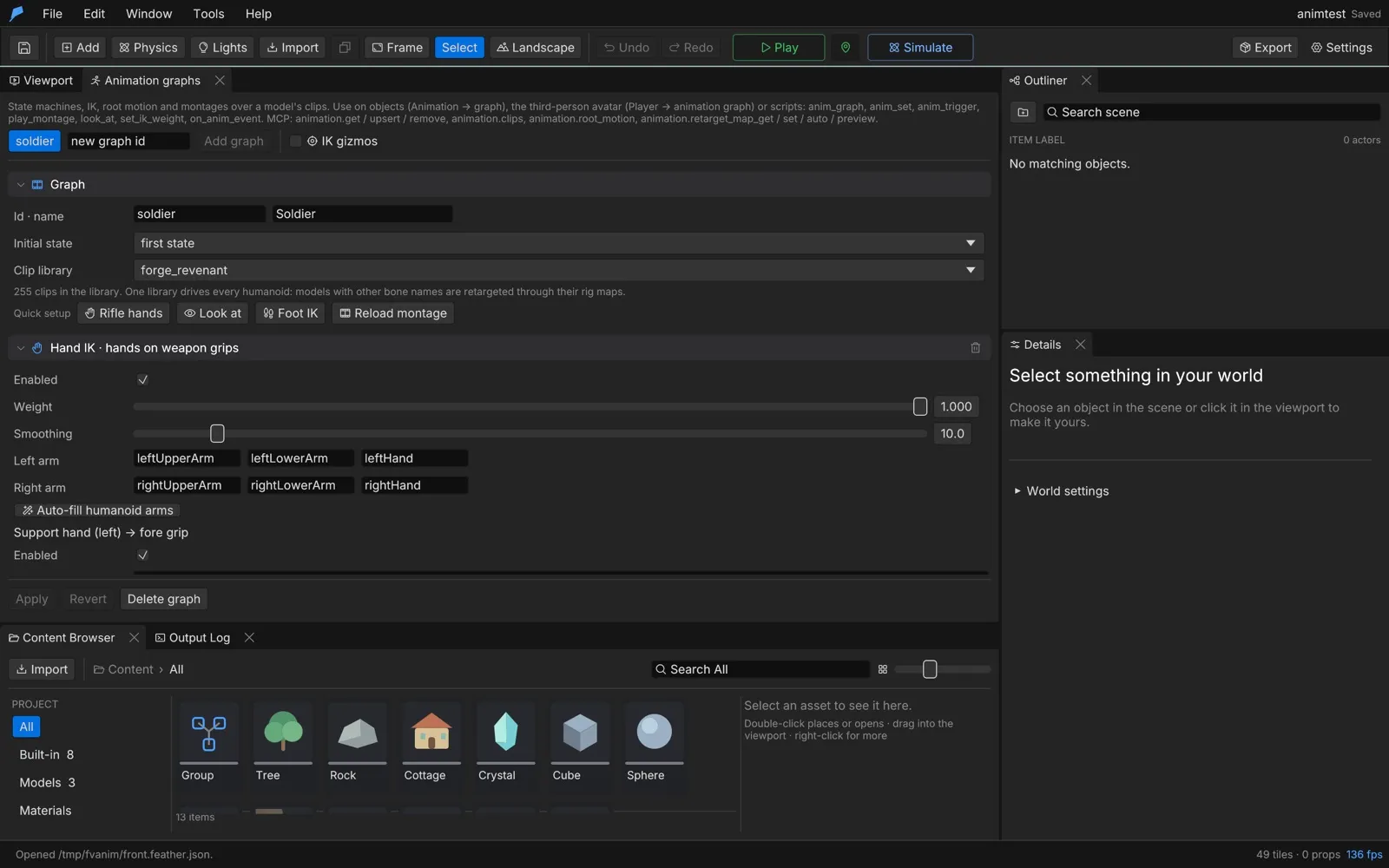 ## Quick setup [Section titled “Quick setup”](#quick-setup) The **Quick setup** row adds a working starting point to the selected graph: | Button | Adds | | ------------------ | --------------------------------------------------------------------------------------------------- | | **Rifle hands** | Hand IK with the support hand on the weapon’s fore grip | | **Look at** | Look-at: the spine, neck and head follow the camera aim (avatar) or the player (other characters) | | **Foot IK** | Foot IK with humanoid leg bones | | **Reload montage** | An upper-body `reload` montage that releases the support hand, with `mag_out` and `mag_in` notifies | Click **Apply** to keep the result. Turn on **IK gizmos** to draw IK chains, grip targets, elbow poles and look targets in the viewport during Play. ## Humanoid bone names [Section titled “Humanoid bone names”](#humanoid-bone-names) IK, montage masks and retargeting refer to bones by canonical humanoid names, the naming used by the VRM format: `hips`, `spine`, `chest`, `upperChest`, `neck`, `head`, and `left`/`right` + `Shoulder`, `UpperArm`, `LowerArm`, `Hand`, `UpperLeg`, `LowerLeg`, `Foot` and `Toes`. Finger joints follow the same pattern, such as `leftIndexProximal`. Each model’s rig map resolves these names to its own bones, so the same graph settings work across rigs. ## Foot IK [Section titled “Foot IK”](#foot-ik) Foot IK plants both feet on the terrain. It drops the hips to the lower foot’s ground and bends each leg with a two-bone solver, so feet rest on slopes and steps. | Setting | Description | Default | Range | | --------------------------- | ----------------------------------------------------- | ------------------------------------------------------ | ---------- | | **Pelvis** | The bone lowered so the lower foot reaches its ground | `hips` | — | | **Left leg**, **Right leg** | Hip, knee and foot bones | `leftUpperLeg`, `leftLowerLeg`, `leftFoot` (and right) | — | | **Max adjust** | Largest correction | 0.45 m | 0 to 2 m | | **Smoothing** | How fast corrections follow the ground, per second | 12 | 0.1 to 100 | ## Hand IK [Section titled “Hand IK”](#hand-ik) Hand IK bends two-bone arms so the support hand holds the weapon’s fore grip and, optionally, the trigger hand holds its pistol grip. Elbows bend toward pole hints. It works on the third-person avatar and on enemies holding weapons. Give the avatar a weapon under **World & terrain → Player → Held models (weapons)**: choose a model and the bone it hangs from, such as `rightHand`. 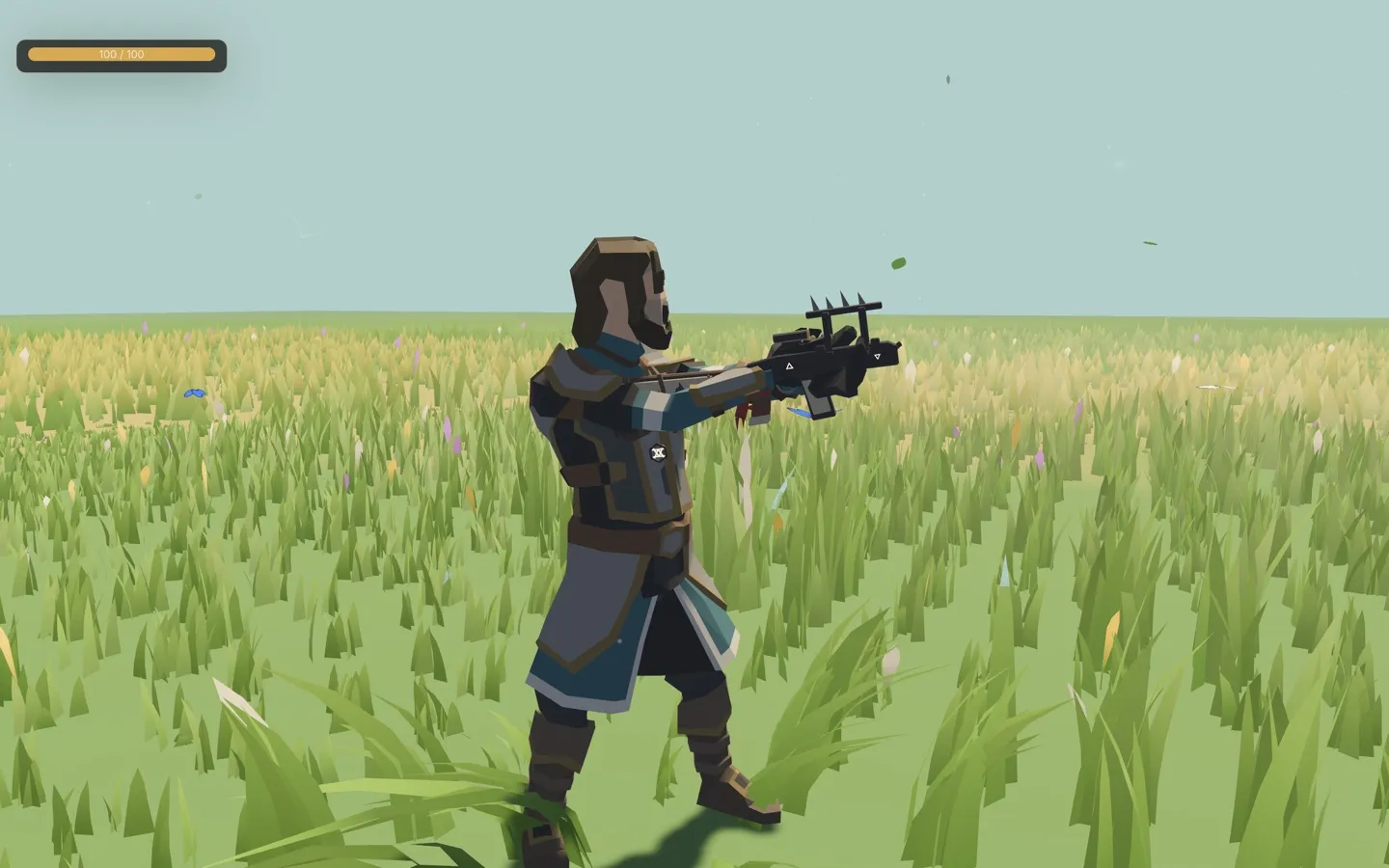 | Setting | Description | Default | Range | | --------------------------- | ------------------------------------------------ | ------------------ | ---------- | | **Weight** | Overall blend | 1 | 0 to 1 | | **Smoothing** | How fast the weight follows releases, per second | 10 | 0.1 to 100 | | **Left arm**, **Right arm** | Upper arm, lower arm and hand bones | Humanoid arm bones | — | Each hand has a target: **Support hand (left) → fore grip** and **Trigger hand (right) → pistol grip**. The trigger hand target is off by default. | Target setting | Description | | ------------------- | ---------------------------------------------------------------------------------------------------------------- | | **Grip sockets** | Node names searched under the character, such as `grip_left` on the weapon model. The first match wins; up to 16 | | **Else follow** | The bone used when no socket exists, such as `rightHand` | | **Offset m** | Offset in that bone’s frame, within ±5 m | | **Rotation °** | Extra rotation, within ±360° | | **Match grip turn** | How much the hand turns to match the grip, 0 to 1 | | **Elbow pole** | Elbow hint from the shoulder (outward, up, forward), in metres | Without a socket, the default support-hand target sits 25 cm up the held weapon’s barrel from the pistol grip. ## Look-at [Section titled “Look-at”](#look-at) Look-at turns the spine, neck and head toward a target, sharing the turn across a chain of bones within angle limits. | Setting | Description | Default | Range | | ------------------ | ----------------------------------------------------------------------------------------------------------------------------------------------------------- | ---------------------------------------------------------------------- | ------------ | | **Weight** | Overall blend | 1 | 0 to 1 | | **Looks at** | **Aim / player**: the camera aim for the avatar, the player for other characters. **Player**: the player character. **Script only**: targets from `look_at` | Aim / player | — | | **Chain** | Bones from the hips up, each with its share of the turn | `spine` 0.15, `chest` 0.15, `upperChest` 0.1, `neck` 0.25, `head` 0.35 | 1 to 8 bones | | **Max yaw** | Largest sideways turn | 70° | 0 to 180° | | **Max pitch** | Largest up or down turn | 45° | 0 to 90° | | **Behind falloff** | Angle over which the look fades for targets behind | 50° | 0 to 180° | | **Smoothing** | Per second | 8 | 0.1 to 100 | | **Range** | Targets further away are ignored | 25 m | 0.5 to 500 m | ## Retargeting [Section titled “Retargeting”](#retargeting) Every character model has a humanoid map from canonical bone names to its own bone names. The engine detects the map from the bone names in the model’s GLB and recognises these naming conventions: | Rig kind | Example bone names | | --------------------- | --------------------------------- | | Synty | `Pelvis`, `UpperArm_L`, `Thigh_L` | | Mixamo | `mixamorig:LeftArm` | | VRM / Character Forge | `leftUpperArm` | | Generic | `UpperArm.L` and similar | When a model’s bone names differ from those of its graph’s clip library, the clips are retargeted automatically. Retargeting corrects for different rest poses (T-pose or A-pose), facing and proportions, including armatures exported at 0.01 scale. One clip library can drive many characters. 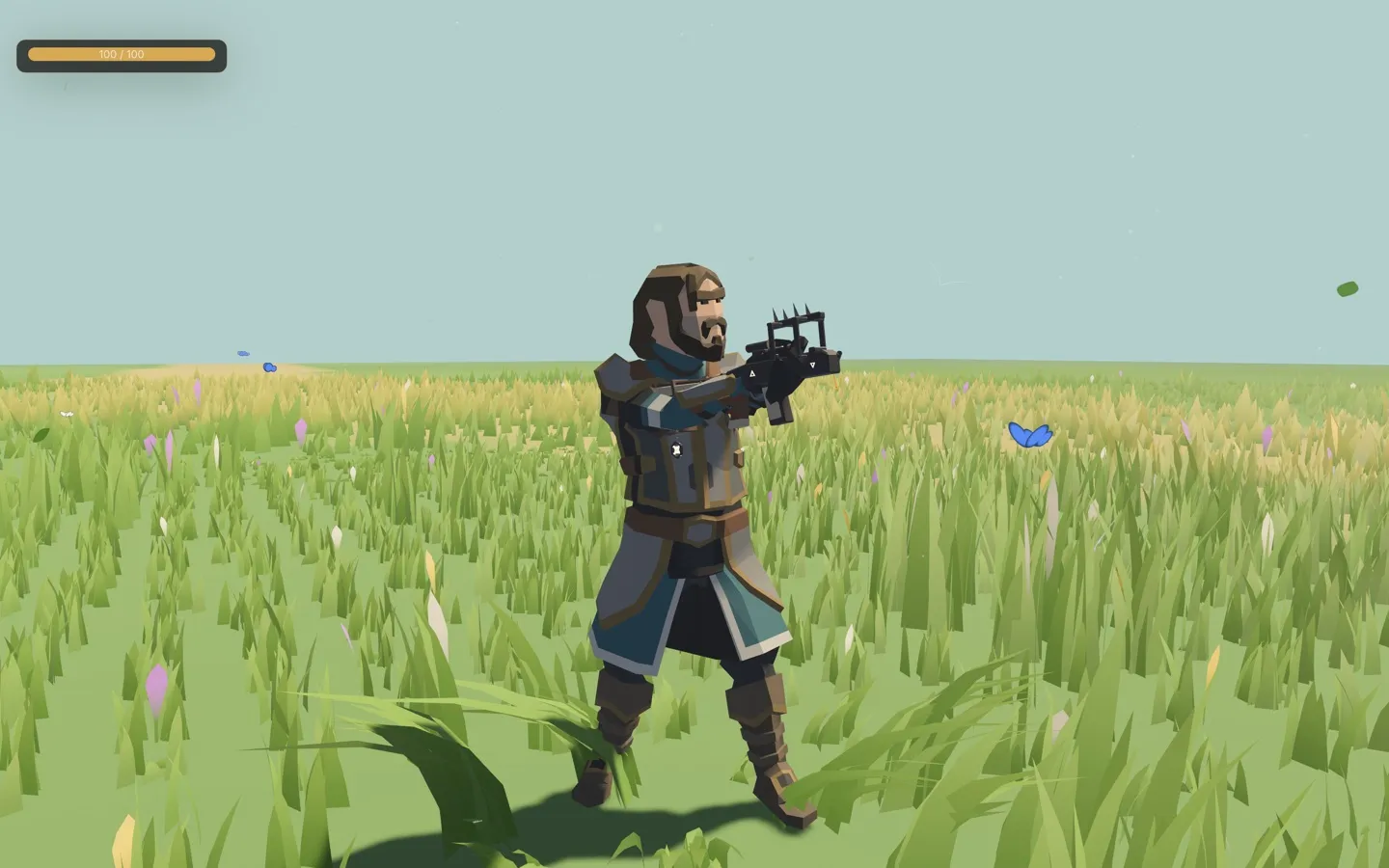 ### Check or fix a rig map [Section titled “Check or fix a rig map”](#check-or-fix-a-rig-map) 1. In **Retarget map · humanoid bones**, choose the character’s **Model**. 2. Click **Read bones** to list its bones, or **Auto-match** to detect the map and store it in the project. 3. The header shows how many bones are mapped and lists required bones that are missing. 4. Change any mapping by hand. **Back to the detected bone** undoes one override; **Reset to detected** removes them all. 5. Under **Check a clip on another model**, pick a clip and a second model and click **Check** to compare the two poses. Chest, upper chest, shoulders and toes are optional. Every other body bone is required. ### IK without an animation graph [Section titled “IK without an animation graph”](#ik-without-an-animation-graph) Enemies and NPCs often run without a graph. Give their model hand IK or look-at directly under **IK for this model without a graph (enemies)**, then click **Apply rig IK**. The settings have the same shape as on a graph. ## Root motion [Section titled “Root motion”](#root-motion) By default, clips play in place and the character controller moves the character. Root motion lets selected clips move the character by the distance their root bone travels, which suits dodges, vaults, lunges and authored walk cycles. It works with graph blending: the travel is weighted like the blend. | Setting | Description | Default | | -------------------------- | ----------------------------------------------------------------------- | ------- | | **Root bone** | The bone that carries the motion: a humanoid name or the rig’s own root | `hips` | | **Turn with clip** | Also turn the character by the clip’s yaw | Off | | **Tick clips that travel** | The clips that move the character; others play in place. Up to 64 | None | Use `animation.root_motion` to measure how far and fast each clip travels before you tick it. ## Montages [Section titled “Montages”](#montages) A montage is a one-shot clip, such as a reload, melee swing or emote, played over the graph. It blends in, plays on a bone mask, fires notifies and blends out at its end or when stopped. A new montage interrupts the playing one unless that one is not interruptible. | Setting | Description | Default | Range | | --------------------------- | ------------------------------------------------------------------------------------------------------------------------------------------------ | --------- | ---------- | | **Clip** | The clip to play | — | — | | **Mask** | **Full body**, **Upper body** (the spine and above; the legs keep the graph’s locomotion), **Arms** (both arms from the shoulders) or **Custom** | Full body | — | | **Mask roots** | For **Custom**: bones whose subtrees play the montage | None | Up to 16 | | **Blend in**, **Blend out** | Seconds | 0.15, 0.2 | 0 to 5 s | | **Speed** | Playback rate | 1 | 0.05 to 10 | | **Notifies** | Points in the clip (0 to 1) that call `on_anim_event` and can play a sound | None | Up to 32 | | Root motion | Move the character by the clip’s travel | Off | — | | Release hands | Let go of hand IK while playing, for reloads | Off | — | | Interruptible | Whether a new montage can cut this one short | On | — | You can also play a montage straight from a clip name without defining it on the graph. ## Script API [Section titled “Script API”](#script-api) Pass the character’s object ID, or `"player"` for the third-person avatar. | Function | Description | | --------------------------------------------- | -------------------------------------------------------------------------------------------------- | | `play_montage(id, clip)` | Plays a graph montage by ID, or a clip by name | | `play_montage(id, clip, options)` | Overrides `mask` (`"full"`, `"upper"`, `"arms"` or `"custom"`), `blend`, `speed` and `root_motion` | | `stop_montage(id)`, `stop_montage(id, blend)` | Stops the montage, with an optional blend-out in seconds (0 to 5) | | `montage_playing(id)` | The playing montage, or an empty string | | `look_at(id, target)` | Sets a look target: a `vec3`, `[x, y, z]`, `"player"`, an object handle or an object ID | | `clear_look(id)` | Clears the script look target | | `set_ik_weight(id, chain, weight)` | Scales `"feet"`, `"hands"` or `"look"` IK, 0 to 1 | Montage notifies reach world scripts through the `on_anim_event(id, name)` hook.
```rust
fn on_key(key) {
if key == "R" {
play_montage("player", "reload", #{ mask: "upper", blend: 0.1 });
}
}
fn on_anim_event(id, name) {
if name == "mag_in" {
print("Reloaded");
}
}
```
## Automate it [Section titled “Automate it”](#automate-it) | Command | Purpose | | ---------------------------- | ------------------------------------------------------------------------------------------- | | `animation.upsert` | Sets `foot_ik`, `hand_ik`, `look_at`, `root_motion` and `montages` on a graph | | `animation.retarget_map_get` | A model’s bones, the detected map, overrides and missing bones | | `animation.retarget_auto` | Detects and stores a model’s map; `keep_overrides` keeps hand-set bones | | `animation.retarget_map_set` | Overrides bones (`null` removes one), sets rig IK, or removes the map | | `animation.retarget_preview` | Samples a clip on another model and reports limb angle errors; under about 5° is a good map | | `animation.root_motion` | Measures each clip’s travel, speed and turn | Detect a model’s rig, then check a clip from another model on it:
```bash
feather-cli --connect .feather-session.json command animation.retarget_auto \
--json '{"asset_id":12}'
feather-cli --connect .feather-session.json command animation.retarget_preview \
--json '{"source_asset_id":7,"target_asset_id":12,"clip":"Run"}'
```
See [Agents & automation](/docs/agents/overview/) for connecting a live session.
# Sequencer
> Build cinematics on a multi-track timeline with cameras, cuts, animation, audio, subtitles, post looks and time of day.
The Sequencer turns a story cinematic into a multi-track timeline. Tracks key camera rigs and cuts, object transforms and visibility, animation clips, audio, script events, story actions, subtitles, post looks, time of day and weather, and nested shots. Sequences play in the editor and in exported games, and you can scrub them in the viewport without pressing Play. A sequence is a cinematic: the same item that [Story](/docs/gameplay/story/) uses, with tracks added. ## Create a sequence [Section titled “Create a sequence”](#create-a-sequence) 1. Open **Window → Story · dialogues, quests, cinematics** and select the **Cinematics** tab. 2. Create a cinematic, or click **New from template** to start from a ready-made camera move. 3. Fly the editor camera to a shot and click **Key from view** to add a camera key at the playhead. 4. Click **+ Track** and choose a track type. Transform, Visibility and Animation tracks target the selected object, or the player when nothing is selected. 5. Scrub the timeline to preview. Turn on **Pilot viewport** to look through the cinematic camera while you scrub. 6. Select a key on the timeline to edit its values in the inspector. Drag a key to move it. Keys snap to the sequence’s frame rate as you drag them. ## Sequence settings [Section titled “Sequence settings”](#sequence-settings) | Setting | Description | Default | | --------------------- | ------------------------------------------------------------------------------------------------------------- | ------------- | | **Title** | Shown in the editor | New cinematic | | **Id** | Used by `play_cinematic` and `play_sequence` | — | | **Duration (s)** | Length; the sequence runs on past it if keys or events are later | 6 | | **Frames per second** | Key snapping and the frame counter | 30 | | **Playback speed** | Speed multiplier | 1 | | **Blend in (s)** | Glide from the gameplay camera into the first shot | 0 | | **Blend back (s)** | Glide back to the gameplay camera at the end | 0.8 | | **Loop playback** | Play again until stopped; **Use loop range** limits it to **Loop from** – **Loop to** | Off | | **Anchor** | An object whose position and heading the camera keys and moves follow. **World space** uses world coordinates | World space | | **Letterbox** | Black bars during playback | On | | **Skippable** | The player can skip it | On | | **Hide HUD** | Hides the HUD during playback | On | | **On end** | Rhai code run when the sequence ends or is skipped | Empty | ## Tracks [Section titled “Tracks”](#tracks) | Track | Keys | | --------------- | ------------------------------------------------------------------------------------- | | **Camera** | A camera rig: position, look-at target, field of view, depth of field, roll and shake | | **CameraCuts** | Which Camera track is live from each key, with an optional blend time | | **Transform** | Position, rotation and scale of a named object, or `player` | | **Visibility** | Shows or hides a named object | | **Animation** | Clips a character plays, with looping and a duration | | **Audio** | Sounds or music with volume, duration and fades | | **Event** | Sends an event to every script and/or runs a Rhai snippet | | **Actions** | Story actions such as move, place, fade, shake and starting a dialogue | | **Subtitles** | Lines with a speaker, text and duration | | **Post** | Fade to colour, exposure, vignette, saturation, contrast and temperature | | **Environment** | Time of day and weather changes | | **Shots** | Other sequences placed on this timeline | Each track has **Mute** and **Lock**. Muted tracks are skipped by playback; locked tracks cannot be edited on the timeline, although commands still change them. ### Easing and curves [Section titled “Easing and curves”](#easing-and-curves) Camera, Transform, Post and Environment keys set how the value arrives at the key: | Ease | Behaviour | | --------------- | ------------------------------------------------------------------ | | Linear | Constant rate | | Smooth | Eases in and out (default) | | EaseIn, EaseOut | Accelerates or decelerates | | Cut | Jumps straight to the key | | Curve | A custom cubic Bézier `[x1, y1, x2, y2]`, edited in the curve view | ### Camera keys [Section titled “Camera keys”](#camera-keys) | Field | Unit | Range | Default | | ---------------- | -------------------------------------------------- | ----------- | ------- | | Position, target | Metres | — | — | | Field of view | Degrees (vertical) | 5 to 150 | 45 | | Focus distance | Metres that stay sharp; 0 turns depth of field off | 0 to 10,000 | 0 | | Aperture | f-stops; smaller blurs more | 0.1 to 64 | — | | Roll | Degrees | −360 to 360 | 0 | | Shake | Hand-held amount, 0 is steady | 0 to 10 | 0 | **Set from view** replaces the selected key with the editor camera. ### Camera blending [Section titled “Camera blending”](#camera-blending) A **CameraCuts** key names a Camera track by ID. With a **blend** of 0 it cuts; with a positive blend (up to 10 s) it blends from the previous camera over that time. Use several Camera tracks and one CameraCuts track to edit between shots. ### Audio keys [Section titled “Audio keys”](#audio-keys) | Field | Description | Default | | ----------------- | ----------------------------------------------------------- | ------- | | Sound | A sound name or cue; see [Audio](/docs/presentation/audio/) | — | | Volume | Linear, 0 to 2 | 1 | | Duration | Seconds the sound is held before it stops | 4 | | Fade in, fade out | Seconds | 0 | | Music | Shows the key as a music clip | Off | ### Event keys [Section titled “Event keys”](#event-keys) An Event key emits an event, by default named `cue`, with a JSON data object. The engine adds `sequence` and `time` to the data. Scripts receive it with `on(name, |data| ...)` or the `on_event` hook. A key can also run a Rhai snippet. ### Environment keys [Section titled “Environment keys”](#environment-keys) **Set time of day** keys an hour from 0 to 24. Hours interpolate forward between keys and wrap past midnight. A key can also change the weather, over a transition time that defaults to 2 seconds. ### Shots [Section titled “Shots”](#shots) A Shots key plays another sequence on this timeline, with an offset into it, a duration (0 plays the rest), a speed and optional looping. Shots nest up to 4 levels deep. ## Templates [Section titled “Templates”](#templates) **New from template** creates a complete sequence around a point: | Template | Shot | | ------------------- | --------------------------------------------------------------------------------------- | | `orbit_reveal` | The camera circles the subject once while rising, fading in from black | | `dolly_push_in` | A slow push towards the subject with a narrowing lens and focus pulled onto it | | `two_shot_dialogue` | A wide establishing shot and over-the-shoulder shots of two speakers, cut on each line | | `flyover` | A high sweeping pass over the area, descending gently, with the light warming over time | Templates use a radius of 6 m and a duration of 8 s unless you set them. ## Play a sequence [Section titled “Play a sequence”](#play-a-sequence) | Function | Description | | ----------------------------------------- | ----------------------------- | | `play_cinematic(id)`, `play_sequence(id)` | Plays a sequence | | `stop_cinematic()` | Stops the playing sequence | | `cinematic_playing()` | Whether a sequence is playing | The world-script hook `on_cinematic_end(id)` runs when a sequence finishes.
```rust
fn on_key(key) {
if key == "G" {
play_sequence("gate_opens");
}
}
fn on_cinematic_end(id) {
if id == "gate_opens" {
print("Back to gameplay");
}
}
```
## Limits [Section titled “Limits”](#limits) | Limit | Value | | ------------------- | ---------- | | Tracks per sequence | 64 | | Keys per track | 1,024 | | Key times | 0 to 600 s | | Shot nesting | 4 levels | ## Automate it [Section titled “Automate it”](#automate-it) | Command | Purpose | | ------------------------------------------------ | --------------------------------------------------------------- | | `sequence.get` | Lists sequences and templates, or returns one sequence’s tracks | | `sequence.template` | Creates a sequence from a template | | `sequence.track_upsert`, `sequence.track_remove` | Creates, replaces or removes a track | | `sequence.key_upsert`, `sequence.key_remove` | Adds, replaces or removes a key by zero-based index | | `sequence.sample` | Evaluates a sequence at a time without playing it | Each edit is one undo step, and invalid references are rejected. Create an orbit around a point, then check the camera two seconds in:
```bash
feather-cli --connect .feather-session.json command sequence.template \
--json '{"id":"tower_reveal","template":"orbit_reveal","center":[0,4,0],"radius":10,"duration":8}'
feather-cli --connect .feather-session.json command sequence.sample \
--json '{"id":"tower_reveal","time":2}'
```
See [Agents & automation](/docs/agents/overview/) for connecting a live session.
# Assets
> Import GLB models, textures, sounds and fonts, browse them in the Content Browser, and place models from a converted model library.
Assets are the files a project uses: models, textures, sounds and fonts. Importing an asset copies it into a content-addressed cache, named by its SHA-256 hash, and registers it in the project. Saving copies every asset the project references into the `assets/` folder beside the project file, so projects and game builds never depend on the editor’s cache. Opening a project, and building a game, check every asset’s hash. One exception keeps a project usable when a file goes missing: a standalone texture (a PNG imported as a texture, not one that belongs to a model) that is not in `assets/` or the cache is skipped with a warning instead of stopping the project from opening. A build leaves it out and lists it in its warnings. Saving still needs every texture, so import it again before you save. ## Import a model [Section titled “Import a model”](#import-a-model) 1. Click **Import** in the toolbar, or choose **File → Import GLB model…**. 2. Choose a `.glb` file. The model is validated, added to the project and placed in the scene. 3. Set its collider in **Details → Physics**. **Fit box** sizes a box collider to the model’s bounds; **Hull** and **Mesh** build colliders from its geometry. Imported models keep their embedded PBR materials and node hierarchy. To change their surfaces, use material overrides; see [Materials](/docs/rendering/materials/). ### Model requirements [Section titled “Model requirements”](#model-requirements) | Requirement | Detail | | ----------- | ------------------------------------------------------------------------------------------------------- | | Format | glTF 2.0 binary (`.glb`) | | Textures | Embedded in the GLB, or PNG files referenced by relative path beside it. Data-URI textures are rejected | | Size | Up to 64 MiB per model and 32 textures | | Duplicates | Identical files are stored once; external textures shared by several models are stored once too | The importer validates the file’s structure, binary bounds, numeric data and node tree before accepting it. A rejected file leaves the project unchanged. ## Example: import a cardboard box that falls and lands [Section titled “Example: import a cardboard box that falls and lands”](#example-import-a-cardboard-box-that-falls-and-lands) You’ll import a GLB, give it a collider that matches its shape, and let it drop. Start from a new project (**File → New project…**) and use `cardboard_box.glb` from the `models/` folder of the **paper-shredder** example in the engine repository, or any small GLB of your own. 1. Click **Import** in the toolbar and choose `cardboard_box.glb`. The model is added to the project and placed in the scene. 2. In **Details → Transform**, set **Location** to `0`, `4`, `0` so it starts 4 m above the ground. 3. In **Details → Physics**, set **Body** to **Dynamic**, then click **Fit box**. The collider shrinks from the default 1 m cube to the box’s bounds, about 0.45 × 0.36 × 0.47 m. 4. Press **Play**. The box falls and comes to rest on the grass. 5. Press **Cmd/Ctrl+S** and save the project. The GLB is copied into `assets/imported/` under its SHA-256 name. Do the same from the command line. Put the GLB inside the workspace first; import paths are relative to it:
```bash
feather-cli --workspace ./box-drop command project.create \
--json '{"name":"Box Drop"}' --save project.feather.json
mkdir -p ./box-drop/models && cp path/to/cardboard_box.glb ./box-drop/models/
feather-cli --workspace ./box-drop --project project.feather.json command asset.import \
--json '{"path":"models/cardboard_box.glb","add_to_scene":true}' --save project.feather.json
feather-cli --workspace ./box-drop --project project.feather.json command scene.update \
--json '{"id":1,"patch":{"position":[0,4,0]}}' --save project.feather.json
feather-cli --workspace ./box-drop --project project.feather.json command physics.fit \
--json '{"id":1,"body":"Dynamic"}' --save project.feather.json
```
Check it worked. `asset.import` returns the new `asset_id` and `"object_id": 1`. `physics.fit` returns `"half_extents"` of about `[0.225, 0.178, 0.235]` and the `model_bounds` it read from the GLB. Then drop it:
```bash
feather-cli --workspace ./box-drop --project project.feather.json command game.simulate \
--json '{"frames":120}'
```
The object’s `final.position` is several metres below its `initial.position`, and `error_count` is 0. The project’s `assets` list has one entry whose `path` is `imported/.glb`. ## Import textures, sounds and fonts [Section titled “Import textures, sounds and fonts”](#import-textures-sounds-and-fonts) | Asset | Formats | Where to import | | ------- | ----------------------------------------------------- | ---------------------------------------------- | | Texture | PNG. A `.cube` colour LUT is converted to a PNG strip | **Materials & textures → Import PNG texture…** | | Sound | OGG, WAV, MP3 | **World & terrain → Audio → Import sound…** | | Font | TTF, OTF | **Game logic → Import font…** | Textures are used by materials, terrain layers, skies and colour grading. Sounds are used by emitters, music, ambience and scripts. Fonts are used by the game UI by family name. ## Content Browser [Section titled “Content Browser”](#content-browser) The **Content Browser** tab shows everything the project can place or open, grouped by source: **Built-in**, **Models**, **Materials**, **Textures**, **Sounds**, **Prefabs**, **Effects**, **Animation graphs**, **Levels**, **Fonts**, **Physics setups** and **Model library**. 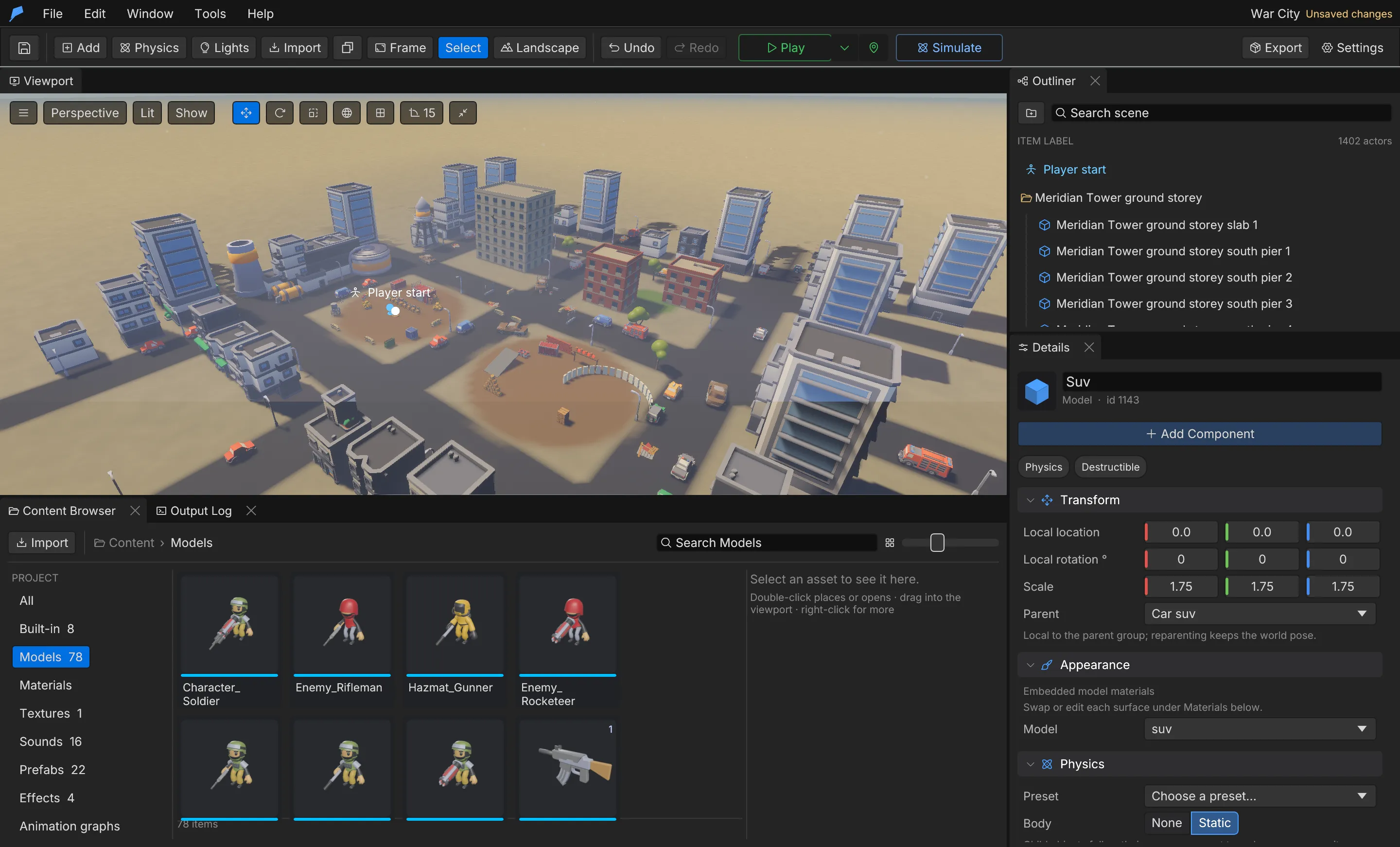 * Search by name and adjust the thumbnail size from the toolbar. * Double-click a model or built-in object to place it, or drag it into the viewport to drop it on the ground under the cursor. * Right-click for **Place**, **Find in level**, **Rename**, **Delete** and **Refresh thumbnail**. * Select an item to see a large preview, its ID and where it is used. Model thumbnails are rendered by the engine and cached in the Feather data folder. An asset that is still used by an object, material, terrain layer or audio setting cannot be deleted. ## Model library [Section titled “Model library”](#model-library) The model library is a local collection of converted model packs, outside any project. Open it with **Window → Model library**, or use the **Model library** source in the Content Browser. Search by name, pack or category, then place a model. Placing imports the model into the project like any other GLB and, by default, gives it a static box collider fitted to its bounds. The library lives in the `library/` folder of the Feather data folder. Set `FEATHER_LIBRARY_ROOT` to an absolute path to use another location. ### Convert Synty packs [Section titled “Convert Synty packs”](#convert-synty-packs) `scripts/synty_import.py` converts Synty POLYGON source packs that you own into the library. It runs Blender in background worker processes and needs Blender and the Pillow Python package. Source files are never modified.
```bash
python3 scripts/synty_import.py --pack ~/Downloads/POLYGON_Fantasy_Kingdom_SourceFiles
python3 scripts/synty_import.py --packs-root ~/Downloads/SyntyPacks --jobs 6
```
The converter turns each FBX into a self-contained GLB with PBR materials and records each model’s category, bounds and triangle count in a `library.json` manifest per pack. It adapts Synty-specific shader features: foliage is split into bark and alpha-cutout leaf materials, triplanar rock shaders become projected materials, mask vertex colours are removed, and skinned characters keep their skeleton and animations. Mismatched texture names are resolved automatically, and every fallback is recorded in the manifest. | Option | Effect | | ------------------- | ---------------------------------------------------------- | | `--pack DIR` | Convert one pack; repeat for more | | `--packs-root DIR` | Convert every pack found in a folder | | `--output DIR` | Write to another library root | | `--only GLOBS` | Convert only matching FBX names, for example `'SM_Prop_*'` | | `--texture-size N` | Maximum texture size (default 2048) | | `--jobs N` | Parallel Blender workers | | `--skip-characters` | Skip skinned characters | | `--force` | Reconvert models that are already up to date | Other tools can populate the library too, by writing the same `library.json` format. ## Limits [Section titled “Limits”](#limits) * Models: GLB only, up to 64 MiB and 32 textures each. * Imported content IDs are 53-bit numbers, so they are exact in JSON clients. * Physics uses the authored collider; imported meshes get no collision until you choose **Fit box**, **Hull** or **Mesh**. ## Automate it [Section titled “Automate it”](#automate-it) Paths are relative to the workspace folder:
```bash
feather-cli --workspace ./my-game --project project.feather.json command asset.import \
--json '{"path":"models/lantern.glb","add_to_scene":true}' --save project.feather.json
feather-cli --workspace ./my-game --project project.feather.json command sound.import \
--json '{"path":"audio/wind.ogg"}' --save project.feather.json
feather-cli --workspace ./my-game command library.list --json '{"query":"tavern","limit":5}'
```
`library.place` imports and places a library model in one undoable step. See the [command reference](/docs/agents/commands/).
# Objects and groups
> Scene objects, their components, Group hierarchies and camera framing.
Everything you place in a level is a scene object. Each object has a stable numeric ID, a name, a kind, a transform and a set of components. Groups are objects that carry other objects, so you can move, rotate and scale an assembly as one. ## Object kinds [Section titled “Object kinds”](#object-kinds) | Kind | Description | | -------------------------------------------- | ----------------------------------------------------------- | | **Group** | A transform parent with no surface or collider of its own | | **Tree**, **Rock**, **Cottage**, **Crystal** | Built-in stylised props | | **Cube**, **Sphere**, **Plane** | Built-in primitives | | **Model** | An imported GLB model; see [Assets](/docs/concepts/assets/) | Add objects from the toolbar’s **Add** menu, the **Content Browser**, or the viewport’s right-click **Add here** menu. ## Components [Section titled “Components”](#components) Every object has a transform, an appearance, a physics component and behaviours. Everything else is optional and added with **Details → + Add Component**. | Component | Purpose | | ------------------- | --------------------------------------------------------------------------------------------------------------------------------------------------------------------------------------------------------------------------------------------------------------------- | | Transform | Position, rotation and scale | | Appearance | Base colour, roughness, metallic, emission and unlit mode for built-in objects. Models use their embedded materials | | Physics | Body type, collider, friction, bounce, mass, centre of mass and sensor; see [Physics](/docs/gameplay/physics/) | | Behaviours | Spin, bobbing and collectible scoring, with no code | | Script, Blueprint | Gameplay programs; see [Scripting](/docs/logic/scripting/) and [Blueprints](/docs/logic/blueprints/) | | Optional components | Light, sound, animation, effect, decal, fog volume, water, force field, thruster, spawner, joint, cloth, boat, vehicle, terrain cutter, destructible, door, switch, pickup, container, fluid container, fluid source, fluid pool, and tags with an interaction prompt | An object’s ID never changes while it exists. Scripts, Blueprints and commands refer to objects by this ID. ## Transforms [Section titled “Transforms”](#transforms) | Field | Unit | Notes | | -------- | ------------------------------------------------------------ | --------------------------------------------------------------------------------------------------------------- | | Position | Metres | For root objects, height is measured above the terrain. For Group children, the position is local to the parent | | Rotation | Degrees in **Details**; radians in project data and commands | Local to the parent for children | | Scale | Multiplier | Groups use one uniform value | The viewport gizmo uses world axes by default; switch to local axes with the axis button above the viewport. Snap settings for movement, rotation and scale are next to it. ## Groups [Section titled “Groups”](#groups) 1. Click the folder button in the **Outliner**, or choose **Add → Group**. 2. Select an object and choose a Group in **Details → Transform → Parent**. Changing the parent keeps the object’s world position, rotation and scale. 3. Choose **Scene root** to detach it again. 4. Move, rotate or uniformly scale the Group to transform the whole assembly. Groups can be nested. Duplicating or removing a Group includes its whole subtree, as one undo step. Group scripts, Blueprints, spin and bobbing carry their children with them. 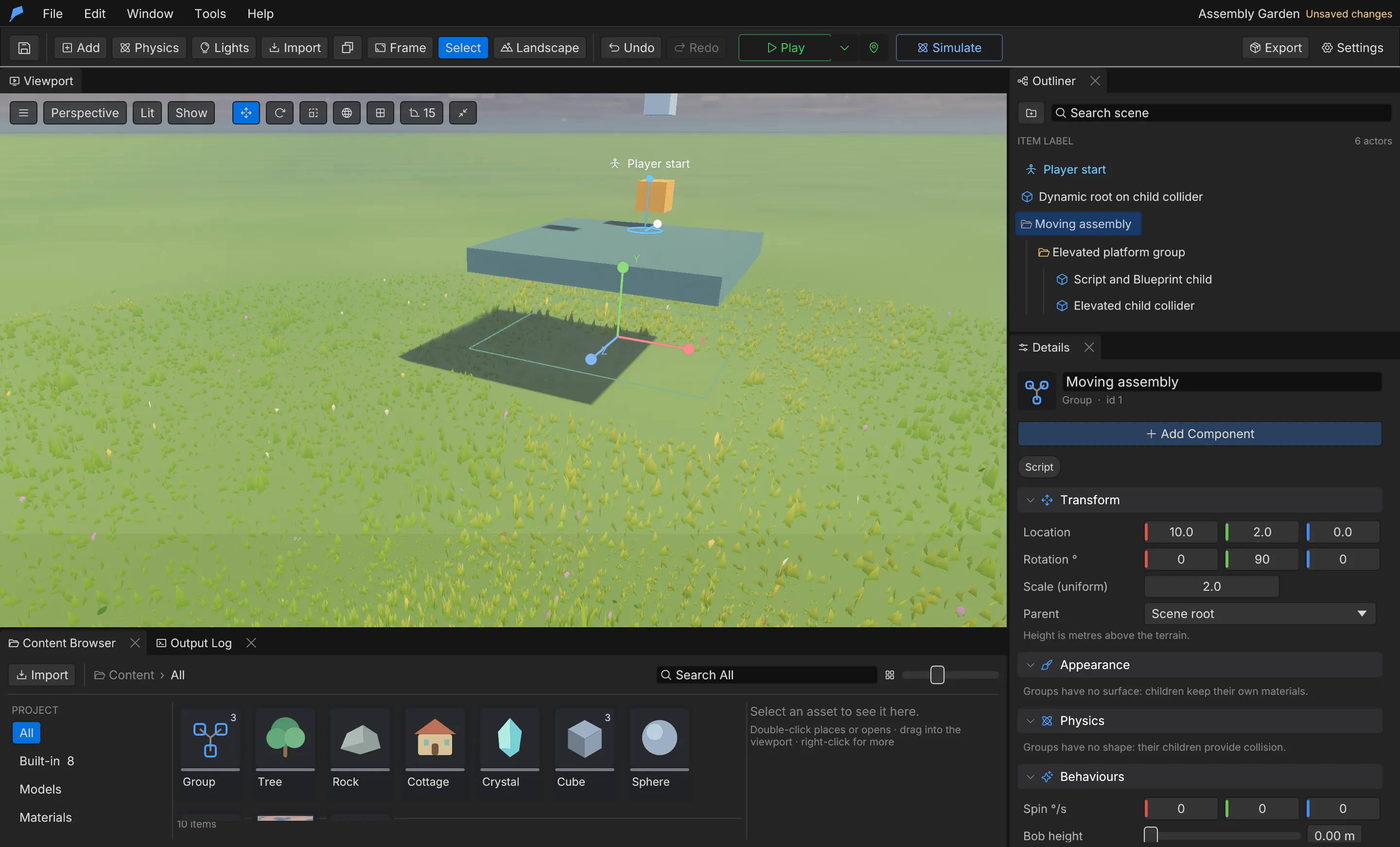 ### Parenting rules [Section titled “Parenting rules”](#parenting-rules) * Only a Group can be a parent. * Groups need a positive, uniform scale. * **Dynamic** and **Kinematic** bodies must stay at the scene root. * Hierarchies can be at most 32 levels deep, and cycles are rejected. * Groups have no collider or surface; their children provide collision and appearance. Script functions such as `position()`, `translate()` and `set_position()` always work in world coordinates, even on children. ## Example: a signpost you move as one [Section titled “Example: a signpost you move as one”](#example-a-signpost-you-move-as-one) You’ll build a two-part signpost inside a Group, then move and turn the Group so both parts follow. Start from a new project (**File → New project…**). 1. Choose **Add → Group**. In **Details**, set **Name** to `Signpost` and leave **Location** at `0`, `0`, `0`. 2. Choose **Add → Cube** and name it `Post`. In **Details → Transform**, set **Parent** to **Signpost**, then set **Local location** to `0`, `1`, `0` and **Scale** to `0.2`, `2`, `0.2`. 3. Choose **Add → Cube** again and name it `Board`. Set **Parent** to **Signpost**, **Local location** to `0`, `1.8`, `0` and **Scale** to `1.2`, `0.4`, `0.1`. 4. Select **Signpost** in the **Outliner**. Set **Location** to `10`, `0`, `-5` and **Rotation °** to `0`, `45`, `0`. The post and board move and turn with it. 5. Press **F** to frame the Group and both children. Set **Parent** before typing the local values: changing the parent keeps the object where it is in the world and rewrites its local transform to match. Do the same from the command line. One `scene.batch` builds the assembly as a single undo step; IDs 1–3 assume a project with no objects yet:
```bash
feather-cli --workspace ./signpost command project.create \
--json '{"name":"Signpost"}' --save project.feather.json
feather-cli --workspace ./signpost --project project.feather.json command scene.batch --json '{
"commands": [
{"command": "scene.add", "arguments": {"kind": "Group", "name": "Signpost", "position": [0, 0, 0]}},
{"command": "scene.add", "arguments": {"kind": "Cube", "name": "Post", "parent_id": 1, "position": [0, 1, 0]}},
{"command": "scene.update", "arguments": {"id": 2, "patch": {"scale": [0.2, 2, 0.2]}}},
{"command": "scene.add", "arguments": {"kind": "Cube", "name": "Board", "parent_id": 1, "position": [0, 1.8, 0]}},
{"command": "scene.update", "arguments": {"id": 3, "patch": {"scale": [1.2, 0.4, 0.1]}}}
]
}' --save project.feather.json
# Rotation is in radians in commands: 0.7854 is 45°.
feather-cli --workspace ./signpost --project project.feather.json command scene.update \
--json '{"id":1,"patch":{"position":[10,0,-5],"rotation":[0,0.7854,0]}}' --save project.feather.json
```
Check it worked. `scene.get` shows that the board’s authored values are still local to the Group:
```bash
feather-cli --workspace ./signpost --project project.feather.json command scene.get --json '{"id":3}'
```
It reports `"parent_id": 1` and `"position": [0.0, 1.8, 0.0]`. To see world poses, run `game.simulate` with `{"frames":1}`: every object’s `initial.position` has X 10 and Z −5, and all three share the Group’s rotation. ## Selection and editing [Section titled “Selection and editing”](#selection-and-editing) To find a field quickly, type in **Search details** at the top of the **Details** panel (or press **Cmd/Ctrl+F** with the pointer over it). A section whose title matches stays whole; in the others, only the properties whose names match stay visible. **Escape** or the clear button shows everything again. * Select objects in the viewport or the **Outliner**. Search filters the Outliner but keeps parent Groups of each match visible. * **Cmd/Ctrl+D** duplicates; **Delete** removes; **End** drops a root object or Group to the terrain. * **Cmd/Ctrl+C** and **Cmd/Ctrl+V** copy and paste objects, including Group subtrees of up to 128 objects. Each paste gets fresh IDs and is one undo step. ## Frame the camera [Section titled “Frame the camera”](#frame-the-camera) | Command | Shortcut | Result | | -------------------------------- | ----------- | --------------------------------------------------------- | | **Frame → Selected object** | **F** | Fits the selection; a Group frames all of its descendants | | **Frame → All authored objects** | **Shift+F** | Fits every object in the level | | **Frame → Reset view** | | Returns to the default camera | Framing keeps the current viewing angle and accounts for rotation, scale and the visible area of the viewport. A model that is still loading is framed by its collider; frame it again once it has loaded. ## Limits [Section titled “Limits”](#limits) * Up to 100,000 objects per project. * Groups must be nested no more than 32 deep. * Copy and paste, duplicate and prefab capture handle up to 128 objects at a time. ## Automate it [Section titled “Automate it”](#automate-it)
```bash
# Add a Group and a cube inside it, then move the cube out while keeping its world pose.
# The project already holds object 1, so the Group receives ID 2 and the cube ID 3.
feather-cli --workspace ./my-game --project project.feather.json command scene.batch --json '{
"commands": [
{"command": "scene.add", "arguments": {"kind": "Group", "name": "Assembly", "position": [0, 0, 0]}},
{"command": "scene.add", "arguments": {"kind": "Cube", "name": "Part", "parent_id": 2, "position": [1, 0, 0]}}
]
}' --save project.feather.json
feather-cli --workspace ./my-game --project project.feather.json command scene.reparent \
--json '{"id":3,"parent_id":null,"preserve_world":true}' --save project.feather.json
```
`scene.batch` applies up to 64 commands as one undo step, or none of them if any fails. In a live editor, `viewport.focus` and `viewport.frame_scene` frame objects; see [MCP setup](/docs/agents/mcp/).
# Prefabs
> Capture objects into reusable templates, place linked instances, manage overrides and share prefabs between projects.
A prefab is a reusable assembly of objects stored in the project’s prefab library. It keeps each member’s transform, model, materials, physics, scripts, Blueprints and Group hierarchy. Placed instances are linked to their prefab by default, so editing the prefab updates every instance while keeping each instance’s own changes. ## Capture a prefab [Section titled “Capture a prefab”](#capture-a-prefab) 1. Open **Window → Prefab library**. 2. Under **Capture an assembly**, check the scene objects that form the assembly, or use **Add selected object**. Selecting a Group includes its whole subtree. 3. Set the pivot, or click **Use selected position**. The pivot anchors placement. 4. Enter a **Prefab name** and click **Capture new prefab**. Capturing a child without its parent turns it into a root at the same world pose. 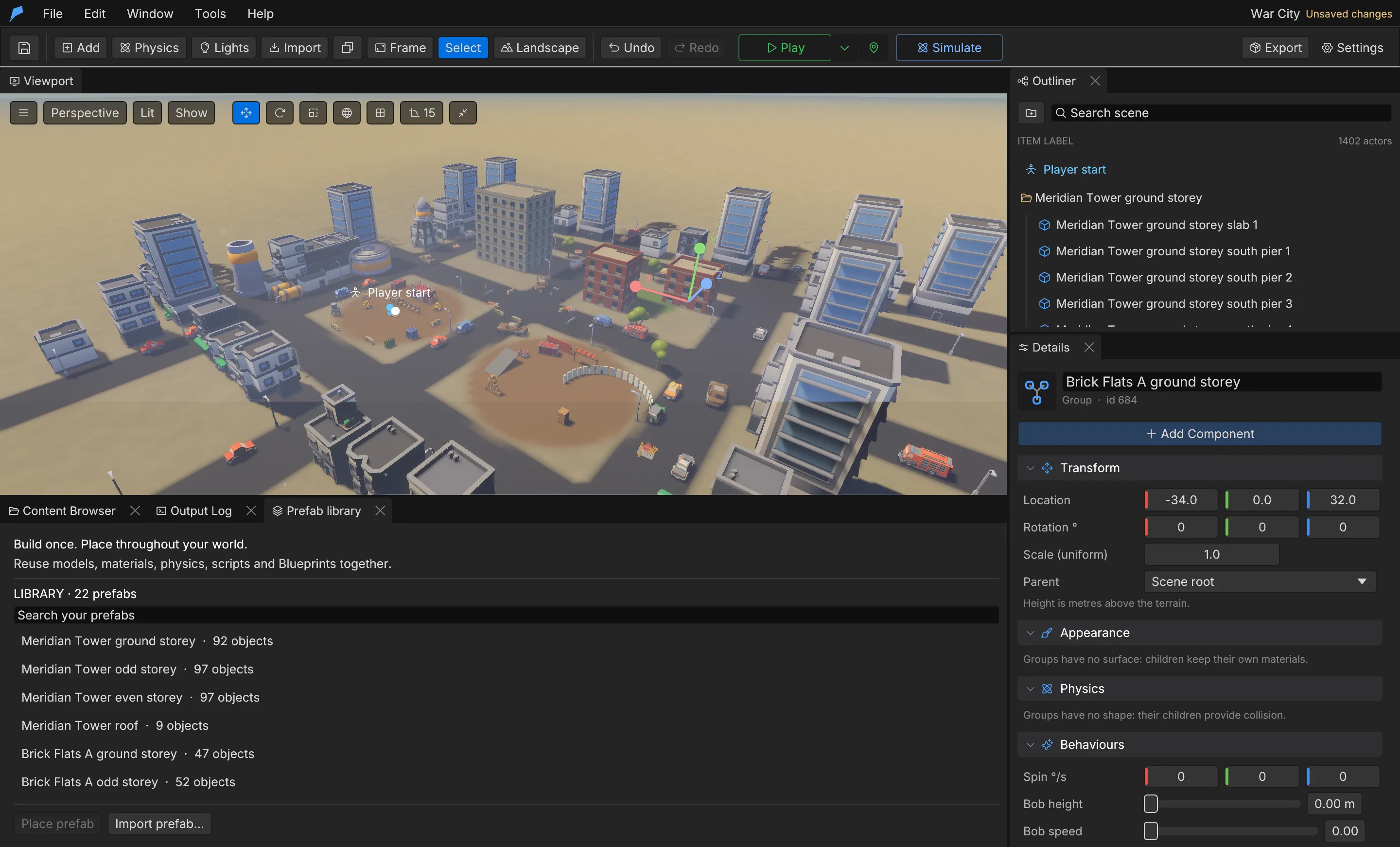 ## Place a prefab [Section titled “Place a prefab”](#place-a-prefab) 1. Select a prefab in the library. 2. Set the X and Z position and the **Height** above the landscape. 3. Leave **Link new instances to the prefab** on to place a linked instance, or turn it off to place independent copies. 4. Click **Place prefab**. All members appear together with fresh IDs, as one undo step. Root members keep their spacing on uneven terrain: terrain compensation is applied once per root. A prefab with several roots is placed under a new Group named after the prefab. ## Linked instances and overrides [Section titled “Linked instances and overrides”](#linked-instances-and-overrides) Edit a member of a linked instance as usual. Each change you make is recorded as an override on that instance. When you select an instance, the library’s **Selected instance** section offers: | Action | Result | | --------------------------- | ----------------------------------------------------------------------------------------- | | **Apply to prefab** | Pushes the instance’s overrides into the prefab, then updates every other linked instance | | **Revert** / **Revert all** | Restores one override, or all of them, to the prefab’s values | | **Unlink instance** | Turns the instance back into plain objects, unchanged | Use **Replace selected template…** to rebuild a prefab from the checked objects. Linked instances follow it and keep their overrides. Updates propagate to instances in every level and to prefabs that nest this one. The instance root’s own position, rotation and scale always belong to the instance and are never overrides. ### Object references [Section titled “Object references”](#object-references) When a prefab is placed, internal references follow the new IDs: parent relationships, typed Blueprint **Other ID is** contact filters that point at other members, joint targets and switch targets. References to objects outside the prefab, and the reserved `player` and `world` identities, stay as they are. Script source text is copied verbatim. A hard-coded ID such as `other_id_is("14")` is not rewritten. ## Example: repaint every signpost at once [Section titled “Example: repaint every signpost at once”](#example-repaint-every-signpost-at-once) You’ll turn a Group into a prefab, place two linked copies, then recolour one copy and push the change to all of them. Start from the signpost built in the [Objects and groups example](/docs/concepts/objects-and-groups/#example-a-signpost-you-move-as-one): a Group named `Signpost` (ID 1) at X 10, Z −5 with a `Post` and a `Board`. 1. Open **Window → Prefab library**. 2. Under **Capture an assembly**, select **Signpost** in the viewport and click **Add selected object**. The Group brings its two children with it. 3. Click **Use selected position** to put the pivot on the Group, enter `Signpost` as the **Prefab name** and click **Capture new prefab**. 4. With the new prefab selected in the library, set **X** to `0`, **Z** to `10` and **Height** to `0`. Leave **Link new instances to the prefab** on and click **Place prefab**. 5. Set **X** to `-10` and click **Place prefab** again. 6. Select the **Board** of the first copy. In **Details → Appearance**, set **Base colour** to `#E6331A`. The library’s **Selected instance** section now reads `1 overrides · 3 members` and lists `#3 · color`. 7. Click **Apply to prefab**. The second copy’s board turns red too. The original Group you captured is not linked to the prefab, so it keeps its white board. Do the same from the command line, in the same project. The placed copies receive IDs 4–6 and 7–9:
```bash
feather-cli --workspace ./signpost --project project.feather.json command prefab.capture \
--json '{"ids":[1],"name":"Signpost","origin":[10,0,-5]}' --save project.feather.json
feather-cli --workspace ./signpost --project project.feather.json command prefab.instantiate \
--json '{"id":1,"origin":[0,0,10]}' --save project.feather.json
feather-cli --workspace ./signpost --project project.feather.json command prefab.instantiate \
--json '{"id":1,"origin":[-10,0,10]}' --save project.feather.json
# Recolour the first copy's board (ID 6), then push the override into the prefab.
feather-cli --workspace ./signpost --project project.feather.json command scene.update \
--json '{"id":6,"patch":{"color":[0.9,0.2,0.1]}}' --save project.feather.json
feather-cli --workspace ./signpost --project project.feather.json command prefab.apply \
--json '{"id":6}' --save project.feather.json
```
Check it worked:
```bash
feather-cli --workspace ./signpost --project project.feather.json command prefab.list
feather-cli --workspace ./signpost --project project.feather.json command scene.get --json '{"id":9}'
```
`prefab.list` shows `Signpost` with `"member_count": 3` and `"instance_count": 2`. The second copy’s board, ID 9, has `"color": [0.9, 0.2, 0.1]`. Before you apply, `prefab.instance_get` with `{"id":6}` lists the override as `{"member": 3, "path": "color", …}`; afterwards `override_count` is 0. ## Share prefabs between projects [Section titled “Share prefabs between projects”](#share-prefabs-between-projects) | Action | Result | | ------------------ | ----------------------------------------------------------------------------------------------------------- | | **Export prefab…** | Writes a portable `.feather.prefab.json` manifest with an `assets/` folder containing only the GLBs it uses | | **Import prefab…** | Adds a portable prefab to the library as one undoable template | Keep the manifest and its `assets/` folder together. Import deduplicates models that are already in the project and renumbers conflicting asset IDs. Exported prefabs are self-contained: nested prefab links are flattened. Older flat prefab files still import. Removing a prefab from the library turns its linked instances into plain objects in the same undo step. ## Limits [Section titled “Limits”](#limits) | Limit | Value | | ------------------------ | ------ | | Prefabs per project | 256 | | Members per prefab | 128 | | Portable prefab manifest | 16 MiB | ## Automate it [Section titled “Automate it”](#automate-it)
```bash
# Capture objects 2 and 3 as a prefab, then place a linked instance.
feather-cli --workspace ./my-game --project project.feather.json command prefab.capture \
--json '{"ids":[2,3],"name":"Watchtower","origin":[0,0,0]}' --save project.feather.json
feather-cli --workspace ./my-game --project project.feather.json command prefab.instantiate \
--json '{"id":1,"origin":[20,0,10]}' --save project.feather.json
# Read an instance's overrides, then export the prefab for another project.
feather-cli --workspace ./my-game --project project.feather.json command prefab.instance_get \
--json '{"id":4}'
feather-cli --workspace ./my-game --project project.feather.json command prefab.export \
--json '{"id":1,"path":"shared/watchtower.feather.prefab.json"}'
```
To edit a prefab and every linked instance at once, read its `member_keys` with `prefab.get`, then patch members with `prefab.update`. A member patch takes the same fields as `scene.update`, components included. This one gives member 1 a hover thruster, which pushes only Dynamic bodies; see [Physics](/docs/gameplay/physics/):
```bash
feather-cli --workspace ./my-game --project project.feather.json command prefab.get --json '{"id":1}'
feather-cli --workspace ./my-game --project project.feather.json command prefab.update --json '{
"id": 1,
"members": [{"key": 1, "patch": {"thruster": {"force": 150, "direction": [0, 1, 0], "hover": 3.0}}}]
}' --save project.feather.json
```
The response’s `instances_updated` counts the instances that changed. Related commands: `prefab.apply`, `prefab.revert`, `prefab.unlink`, `prefab.import`. See the [command reference](/docs/agents/commands/#prefab).
# Projects
> How a Feather 2 project is stored on disk, opened, saved and split into levels.
A Feather 2 project holds every authored setting: scene objects, landscape, environment, materials, scripts, Blueprints, prefabs, levels and the configuration of each game system. An `assets/` folder beside it holds the imported files the project uses. A project is saved in one of two layouts. **A project folder** (`.feather`) is the editor’s default. The `.feather` file is a small manifest, and everything else is split into readable files under `content/`, so changes are easy to review in version control:
```text
My Game/
My Game.feather manifest: name, seed, player start, level list
content/
levels//objects.json each level's objects, landscape.json and environment.json
scripts/.rhai world scripts as plain Rhai
ui/screens/.html, .css game UI screens; also ui/widgets/, ui/templates/, ui/stylesheet.css
data/.json content: assets, materials, sounds, prefabs, items, story…
data/tables/.json data tables
config/.json settings: physics, weather, input, game, build…
assets/
imported/
.glb
tex-.png
snd-.ogg
```
In the manifest and the JSON files, a value saved elsewhere is replaced by a reference such as `{"$file": "content/levels/main/objects.json"}` (or `$text` for scripts and screens). Saving rewrites only the files that changed and removes the ones the project no longer needs. Keep one `.feather` project per folder: saving refuses a folder that already holds another one. **A single file** (`project.feather.json`) holds the whole project in one JSON file. The examples and game builds use this layout, and older projects open unchanged. Imported files are named by their SHA-256 hash, so identical content is stored once. ## Create, open and save [Section titled “Create, open and save”](#create-open-and-save) 1. Choose **File → New project…** to start from an empty level with a procedural meadow landscape. 2. Choose **File → Open project…** to open a `.feather` or `.feather.json` file, or **File → Open example** to open one of the bundled [examples](/docs/examples/). 3. Press **Cmd/Ctrl+S**, or choose **File → Save project**, to save. The first save of a new project asks for a location and offers **Feather project** (`.feather`) or **Single-file project (JSON)**. When you save a new `.feather` into a folder that already holds other files, the editor puts it in its own `/` folder there. To convert a single-file project, save it with `project.save` to a path ending in `.feather`; a path ending in `.json` converts it back. With the macOS app installed, double-clicking a `.feather` file in Finder opens it in the editor. On any platform you can also pass the file to the editor: `feather-editor "My Game/My Game.feather"`. Opening runs in the background. The editor shows its progress and keeps the current project until the new one has loaded and passed validation. Cancelling or a failed load leaves the current project and its undo history untouched. Saving validates the whole project first, then copies every referenced asset into the `assets/` folder beside the destination and writes each file atomically. A crash during a save never leaves a half-written file. Opening verifies each asset’s hash before loading it, so a project never depends on the editor’s private cache. A standalone texture that is missing from `assets/`, such as a library texture left out of version control, does not stop the project from opening: it logs a warning and the texture does not show until you import it again. ## What a project contains [Section titled “What a project contains”](#what-a-project-contains) These are the top-level sections of a single-file project. A project folder keeps the same sections, split into the files shown above. | Section | Contents | | --------------------------------------------------------- | ------------------------------------------------------------------------------------------------------------------------------------------- | | `schema_version`, `name`, `seed` | Format version, display name and terrain seed | | `objects` | Scene objects of the open level; see [Objects and groups](/docs/concepts/objects-and-groups/) | | `landscape`, `environment`, `spawn_position`, `spawn_yaw` | Terrain, sky and lighting, and the player start of the open level | | `assets`, `textures`, `sounds`, `fonts`, `materials` | Imported content and material assets | | `prefabs` | The prefab library; see [Prefabs](/docs/concepts/prefabs/) | | `levels`, `start_level` | Other levels and the level the game starts in | | `world_scripts`, `data`, `game` | Game logic, data tables and game settings | | System sections | One section per engine system, for example `physics`, `weather`, `combat`, `input`, `navigation`, `ai`, `items`, `story` and `localization` | System sections are written only when they differ from their defaults, so a small project stays small. ## Schema versions [Section titled “Schema versions”](#schema-versions) New projects use schema 2, which supports [Groups](/docs/concepts/objects-and-groups/) and parent relationships. Flat schema 1 projects still open, and upgrade to schema 2 when you first add a Group or parent an object. Fields added in later engine versions load with default values. ## Levels [Section titled “Levels”](#levels) A project can contain several levels. Each level has its own objects, landscape, environment and player start. Assets, materials, sounds, data tables, scripts, story, combat and input settings are shared by every level. The open level is the one the editor shows and the one all scene, landscape and environment commands edit. The other levels wait in the `levels` section (in a project folder, under `content/levels/`). 1. Open **Window → Levels**. 2. Enter an id and a name, choose a **Flat** or **Meadow** base, and create the level. Alternatively, duplicate an existing level. 3. Click a level to open it for editing. Opening a level is an undoable edit. 4. Use **Make start** to choose where the game begins, and **Rename** or **Delete** to manage levels. The open level cannot be deleted. If no start level is set, the game starts in the open level. At runtime, scripts switch levels with `load_level(id)`. ## Example: a door that takes the player to a second level [Section titled “Example: a door that takes the player to a second level”](#example-a-door-that-takes-the-player-to-a-second-level) You’ll add a cellar level and a sensor in the first level that loads it when the player walks in. Start from a new project (**File → New project…**). Its only level has the id `main`. 1. Choose **Add → Cube**, name it `Cellar door` and set **Location** to `0`, `0`, `2`, between the player start and the direction it faces. 2. In **Details → Physics**, turn on **Sensor** so the player can walk into it. 3. In **Details → Script**, click **Add script**, replace the source with the script below and click **Apply script**.
```rust
fn trigger_enter(other) {
if other_is_player() {
print("Down to the cellar");
load_level("cellar");
}
}
```
4. Open **Window → Levels**. Under **New level**, enter `cellar` as the id and `The Cellar` as the name, choose **Flat**, and click **Create and open**. 5. Choose **Add → Crystal** so the cellar has something in it. 6. In the Levels list, click **Make start** next to **Main · main**, then click **Main · main** to open it again. 7. Press **Cmd/Ctrl+S** to save, then **Play** and walk forward into the cube. Step 6 matters: while no start level is chosen, the game starts in whichever level is open, so without it the game would start in the cellar. Do the same from the command line:
```bash
feather-cli --workspace ./two-rooms command project.create \
--json '{"name":"Two Rooms"}' --save project.feather.json
feather-cli --workspace ./two-rooms --project project.feather.json command scene.add \
--json '{"kind":"Cube","name":"Cellar door","position":[0,0,2]}' --save project.feather.json
feather-cli --workspace ./two-rooms --project project.feather.json command scene.update --json '{
"id": 1,
"patch": {
"physics": {"sensor": true},
"script": {"source": "fn trigger_enter(other) {\n if other_is_player() {\n print(\"Down to the cellar\");\n load_level(\"cellar\");\n }\n}"}
}
}' --save project.feather.json
feather-cli --workspace ./two-rooms --project project.feather.json command level.create \
--json '{"id":"cellar","name":"The Cellar","base":"Flat","open":true}' --save project.feather.json
feather-cli --workspace ./two-rooms --project project.feather.json command scene.add \
--json '{"kind":"Crystal","name":"Cellar crystal","position":[0,0,0]}' --save project.feather.json
feather-cli --workspace ./two-rooms --project project.feather.json command level.update \
--json '{"id":"main","start":true}' --save project.feather.json
feather-cli --workspace ./two-rooms --project project.feather.json command level.open \
--json '{"id":"main"}' --save project.feather.json
```
Check it worked:
```bash
feather-cli --workspace ./two-rooms --project project.feather.json command level.list
```
The result has `"open": "main"` and `"start": "main"`, and lists `cellar` and `main` with one object each. To check the trigger, simulate walking forward:
```bash
feather-cli --workspace ./two-rooms --project project.feather.json command game.simulate \
--json '{"frames":180,"inputs":[{"frame":0,"key":"W","pressed":true}]}'
```
The report’s `logs` include `Cellar door [Script]: Down to the cellar`. The simulation runs one level and does not perform the switch itself; press **Play** in the editor to see the cellar load. ## Limits [Section titled “Limits”](#limits) | Limit | Value | | -------------------- | ----------------------------------------------------------- | | Single-file project | 16 MiB | | Project folder | 16 MiB per file, 64 MiB in total | | Objects in a project | 100,000 | | Levels | 64 | | Level ids | Lowercase letters, digits, `-` and `_`; up to 48 characters | ## Undo and revisions [Section titled “Undo and revisions”](#undo-and-revisions) Every change to the project is a transaction: it is validated as a whole, applied atomically and recorded as one undo step. Each change also advances the document’s revision number, which automation uses to detect conflicting edits. Opening a project clears the undo history. See [Agents overview](/docs/agents/overview/). ## Automate it [Section titled “Automate it”](#automate-it)
```bash
# Create a level, open it and save the project.
feather-cli --workspace ./my-game --project project.feather.json command level.create \
--json '{"id":"caves","name":"The Caves","base":"Flat","open":true}' \
--save project.feather.json
feather-cli --workspace ./my-game --project project.feather.json command level.list
# Convert the single-file project into a project folder (written into ./my-game).
feather-cli --workspace ./my-game --project project.feather.json command project.save \
--json '{"path":"My Game.feather"}'
```
`project.open` and `--project` accept either layout. The editor can also validate a project without opening a window:
```bash
cargo run --bin feather-editor -- --project my-game/project.feather.json --check
```
# Example projects
> The example projects in the engine repository, what each one demonstrates and how to open it.
The engine repository includes example projects in `examples/`. Each is an ordinary Feather 2 project that you can open, play, change and export. ## Open an example [Section titled “Open an example”](#open-an-example) 1. In the editor, choose **File → Open example** and pick an example by name. The menu lists every folder in `examples/` that contains a `project.feather.json`. 2. Or open one from a source checkout:
```bash
cargo run --bin feather-editor -- --project examples/paper-shredder/project.feather.json
```
3. Press **Play** to try it, and **Stop** or **Escape** to return to editing. The macOS app bundle includes Shred & Sort and Fluid Playground. Each example ships with a `build.py` script that generates it using only engine commands, sent over one MCP session to `feather-cli`. These scripts double as working examples of driving Feather from code. Rebuild one with:
```bash
cargo build && python3 examples/paper-shredder/build.py
```
## Shred & Sort [Section titled “Shred & Sort”](#shred--sort) The starter the editor opens by default: a recycling depot (32 × 24 metres) where a truck and ceiling pipes keep dumping mixed rubbish — paper, cardboard, plastic bottles, cans, glass and bin bags. The depot starts with no sorting line: you build your own belts and sorters and sort the rubbish into six bins (Paper, Cardboard, Plastic, Metal, Glass, General). The right bin pays, the wrong bin costs a contamination fine, and finishing an order pays a bonus. 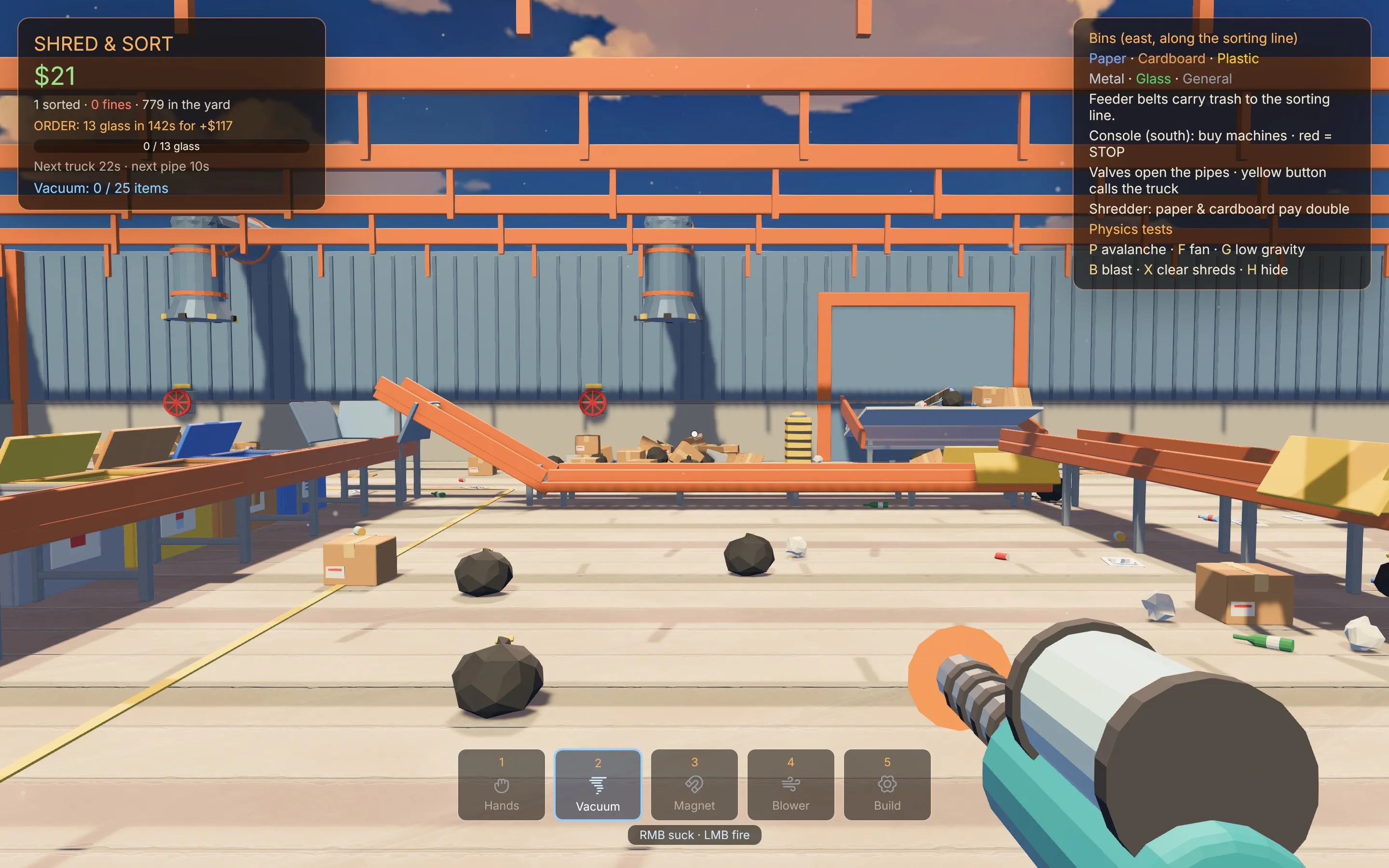 | Input | Action | | ---------- | ---------------------------------------------------------------------------------------------------------------- | | Mouse | Captured when Play starts; **Shift+F1** frees it, a click takes it back | | E | Pick up or put down, or press the button or valve you look at | | 1–5 / Q | Hold a tool: hands, vacuum gun, magnet gun, leaf blower, build | | LMB | Throw what you hold; fire the vacuum; launch the magnet’s cluster | | RMB | Vacuum up trash (25 slots); grab metal; blast a pile with air | | Z / C | Vacuum gun: choose which material it picks up (All, Paper, Cardboard, Plastic, Metal, Glass, General) | | Tab | Open a clickable picker: the pieces (build tool) or the vacuum’s material filter. It frees the cursor while open | | Build tool | LMB place on a 1 m grid, R turn 90°, Z / C choose the piece, X remove (50% back) | Tool 5 builds the line: belts and turns, loaders, per-material sorter gates, bins and an auto sorter that throws each material onto its own pile. The console sells machines for it, a belt upgrade that speeds up every belt you built, and an emergency stop for every belt and machine. Every number in the game — starting cash, fines, item values, machine prices, truck timing — is a **game variable**, tunable in the editor even while it plays (see [Game variables](/docs/logic/world-logic/#game-variables)). Press **P**, **F**, **G**, **B**, **X** or **H** in Play for the physics tests: trash avalanche, fan, low gravity, blast, clear shreds and help. Shows: runtime copies, conveyor and wind force fields, game variables, held tools and a world script. Built with `build.py`. ## Ocean Voyage [Section titled “Ocean Voyage”](#ocean-voyage) An open sea with rolling waves, five islands, a lighthouse and a sloop. Walk to the sloop and press **E** to take the helm, then sail with the arrow keys. The hull floats on buoyancy columns and the sail is cloth. Shows: ocean water, buoyancy, boats and cloth. Built with `build.py`. ## Fluid Playground [Section titled “Fluid Playground”](#fluid-playground) A spring fills a reservoir behind a stone dam above a village. Burst the dam and the flood carves its bed, floats crates and soaks the village, unless you dig a trench or raise a wall first. A volcano pours lava, an oil depot leaks and burns, and a slime pit sits beside the road. | Key | Action | | --- | ------------------------------------------------------------------------------------- | | 1–7 | Hold a tool: shovel, earth staff, leveller, water flask, oil flask, fire rod, ice rod | | C | Use the held tool where you aim | | B | Burst the dam | | V | Erupt the volcano | | F | Flash flood upstream | | R | Thunderstorm on or off | | L | Light the oil depot | | H | Hide or show the help panel | Shows: flowing fluids with momentum, erosion, terrain tools, fluid pools and sources, and buoyancy. Built with `build.py`. ## Water Lab [Section titled “Water Lab”](#water-lab) A pond for the interactive water surface and the physics components. Wade in and the water swirls round your legs, with foam trailing behind you. A spawner rains wooden balls into the pond that splash, bob and drift on the currents; a world script keeps a whirlpool turning; rocks split the flow into eddies; and a hover drone holds itself above the water on a thruster. | Key | Action | | ----- | ---------------------------------- | | Space | Fire the rocket crate on the shore | | R | Splash the water where you look | Every number, such as the whirlpool’s position, size and speed, is a game variable. Shows: the interactive water surface, the Spawner and Thruster components, centre of mass, script physics queries (`raycast`) and water functions (`water_stir`, `water_splash`). Built with `build.py`. ## War City [Section titled “War City”](#war-city) A third-person destruction sandbox: a seven-storey tower you can walk into and collapse, apartment blocks built from stacked storey prefabs, explosive cars, and a running battle between allied and enemy squads. The models are CC0 packs from Kenney and Quaternius and are not included in the repository. Download the packs listed in `examples/war-city/README.md`, then build the project:
```bash
cargo build && python3 examples/war-city/build.py ~/Downloads/feather-cc0
```
Shows: destruction and structural collapse, combat, AI squads and prefabs. The README also shows a headless `game.simulate` run with scheduled blasts whose report lists what broke and what collapsed. ## Meadow Expedition [Section titled “Meadow Expedition”](#meadow-expedition) A 600 × 600 metre exploration scene generated from the POLYGON Meadow Forest pack. It is not in the repository: you generate it locally from your own copy of the pack with `scripts/convert_meadow_assets.py` and `scripts/generate_meadow_project.py`, which need Blender and the built CLI. It is a useful stress test for large imported scenes. ## Older examples [Section titled “Older examples”](#older-examples) Kinetic Garden, Assembly Garden and World Generation now live in the engine’s `tests/fixtures/` as test scenes rather than shipped examples, and Physics Workshop, Material Study and Physics Showcase have been removed. The five examples above (plus Meadow Expedition, generated on demand) are what the repository ships.
# AI and navigation
> Author behaviour trees with sight, hearing and memory, assign them to objects or enemy types, and route agents across multi-floor levels.
Feather’s gameplay AI is authored data. A project stores reusable behaviour trees, each with its own perception and blackboard defaults, and assigns them to scene objects or combat enemy types. The editor, the CLI and MCP all edit the same `ai` data, and Play, exported games and `game.simulate` run the same interpreter. Navigation builds a walkable grid of the open level without a renderer. With layered floors on, agents route across upper storeys, stairs, ramps, bridges and caves, and use authored links for ladders, jumps and drops. ## What’s included [Section titled “What’s included”](#whats-included) * Behaviour trees with 21 node types: composites, decorators, conditions and actions. * Three ready-made trees: **Guard**, **Coward** and **Sentry**. * Perception: a sight cone with line of sight, close-range awareness, hearing and memory. * A blackboard per agent that perception writes to and scripts can read and write. * Script events when an agent sees, loses or forgets the player, or hears a noise. * A layered navmesh with step and drop heights, and up to 256 off-mesh links. * A flow field that steers crowds of enemies around walls toward the player. * A live debugger that shows each agent’s active node, blackboard, perception and route. ## Create and assign a tree [Section titled “Create and assign a tree”](#create-and-assign-a-tree) 1. Open **Window → AI behaviour trees**. 2. Start from a preset (Guard, Coward or Sentry) or choose **+ Empty tree**. 3. Select nodes in the hierarchy. Use **+ Child**, **Duplicate**, the arrow buttons and **Delete** to shape the tree, then edit the selected node’s settings. 4. Set the initial blackboard values, perception, and optional idle, walk and run clips. 5. Choose **Apply tree**. Edits stay in a local draft until you apply; **Revert** discards them. 6. Assign the tree to a scene object or a combat enemy type. 7. Press **Play**. Applying and assigning use the `ai.upsert` and `ai.assign` commands, so validation and undo are the same as for agents. ### Presets [Section titled “Presets”](#presets) | Preset | Behaviour | | ------ | ----------------------------------------------------------------------------------------------------------- | | Guard | Patrols; attacks when close, chases what it sees, searches the last known position and investigates noises | | Coward | Wanders between objects tagged `waypoint`; when hurt or when the player is close, emits `ai:help` and flees | | Sentry | Stands still and emits `ai:alarm` whenever it sees the player (at most every 5 s); sight 40 m, 90° cone | ## Node types [Section titled “Node types”](#node-types) The root is a single node. Composites and decorators hold `children`; other fields are used only by the node types that list them. ### Composites and decorators [Section titled “Composites and decorators”](#composites-and-decorators) | Type | Parameters | Behaviour | | ---------- | -------------------------------- | --------------------------------------------------------------------------------------------------------------------------------------------------------- | | `selector` | — | Tries children in order every tick; the first that succeeds or runs wins, and a newly valid higher branch aborts a running lower one. Fails when all fail | | `sequence` | — | Runs children in order and remembers the running one, re-checking the guard conditions before it every tick. Fails on the first failure | | `parallel` | `policy` | Ticks every child. `all` (default) succeeds when all succeed and fails when one fails; `any` succeeds when one succeeds and fails when all fail | | `inverter` | — | Swaps its child’s success and failure | | `cooldown` | `seconds` (0.05–600) | After its child finishes, fails for this long | | `repeat` | `times` (0 forever, or 1–10,000) | Runs its child again each time it succeeds; fails if the child fails | ### Conditions [Section titled “Conditions”](#conditions) | Type | Parameters | Succeeds when | | -------------- | -------------------- | ------------------------------------------------------------------------------------------------------------------------------------------ | | `blackboard` | `key`, `op`, `value` | The key compares true. `op` is `eq`, `ne`, `lt`, `le`, `gt`, `ge`, `set` or `unset`; `eq` and `ne` also compare text, booleans and vectors | | `has_target` | — | The agent remembers the player | | `in_range` | `distance`, `key` | The target, or the vector in `key`, is within `distance` metres | | `can_see` | — | The player is in the sight cone, in range and in line of sight now | | `health_below` | `fraction` (0–1) | Health is below that fraction. Enemies use their health; objects use the `health` blackboard key | ### Actions [Section titled “Actions”](#actions) | Type | Parameters | Behaviour | | ---------------- | ------------------------------------------------- | ------------------------------------------------------------------------------------------------------------------------------------------------------------ | | `move_to` | `key`, `position`, `speed`, `distance`, `seconds` | Walks the navmesh to a position or the vector in `key`; succeeds within `distance` (default 0.6 m), fails when unreachable or after `seconds` (0 = no limit) | | `chase` | `speed`, `distance` | Runs at the target; succeeds within `distance` (default 1.5 m), fails without a target | | `flee` | `speed`, `distance` | Runs from the target until `distance` away (default 15 m) | | `patrol` | `points`, `tag`, `speed`, `seconds` | Loops through up to 64 points, or objects with `tag` sorted by name, pausing at each; keeps running and resumes where it left off | | `attack` | `damage`, `distance` | Attacks within `distance` (default 2 m). Enemies use their archetype attack; objects deal `damage` (default 10) and emit `ai:attack` | | `wait` | `seconds`, `random` | Waits, plus up to `random` extra seconds | | `play_animation` | `clip`, `looping`, `seconds` | Plays a clip on the agent’s model; succeeds after `seconds` | | `emit_event` | `event` | Emits a script event with data `#{id, position}` | | `run_function` | `function` | Calls the Rhai function `name(id)` next frame: the agent’s own script if it defines it, otherwise every world script that does | | `set_blackboard` | `key`, `value` | Sets a key; `null` removes it | The interpreter is deterministic per agent. Only the nearest `max_agents` assigned agents think; agents outside the budget wait until they enter it. ## Perception [Section titled “Perception”](#perception) | Field | Description | Range | Default | | ---------------- | ----------------------------------------------------------- | -------- | ------- | | `sight_range` | Sight distance; 0 is blind | 0–500 m | 25 m | | `fov_degrees` | Full width of the sight cone | 1–360° | 110° | | `eye_height` | Eye height above the feet | 0–10 m | 1.6 m | | `line_of_sight` | Colliders and thick smoke block sight | On/off | On | | `close_range` | The player is noticed in any direction within this distance | 0–50 m | 1.5 m | | `hearing_range` | Range for a noise of loudness 1; 0 is deaf | 0–1000 m | 30 m | | `memory_seconds` | How long a seen player or heard noise is remembered | 0–600 s | 8 s | ### Blackboard keys written by perception [Section titled “Blackboard keys written by perception”](#blackboard-keys-written-by-perception) | Key | Value | | ----------------------------- | ------------------------------------------------------------------- | | `can_see` | The player is visible now | | `has_target` | The player is remembered | | `target` | The player’s position while seen, otherwise the last known position | | `target_distance` | Metres to the target | | `last_known` | Where the player was last seen; remove it to forget | | `seen_ago` | Seconds since the player was last seen | | `awareness` | 0–1, fading over `memory_seconds` after losing sight | | `heard`, `noise`, `noise_ago` | Whether a noise is remembered, where, and how long ago | | `health` | Health fraction; live for enemies, set it yourself for objects | A tree can define up to 64 initial blackboard values: numbers, booleans, text or `[x, y, z]` vectors. ### Events [Section titled “Events”](#events) | Event | Raised when | | ------------------ | ---------------------------------------------------------------- | | `ai:saw_player` | The player comes into sight | | `ai:lost_player` | The player goes out of sight; the position is the last known one | | `ai:forgot_player` | Memory of the player runs out | | `ai:heard_noise` | A noise is heard | | `ai:attack` | An object agent attacks the player | Events arrive through the normal script event system with data `#{id, position}`. ## Navigation [Section titled “Navigation”](#navigation) Open **Window → Navigation** to change settings and preview the walkable grid. | Setting | Field | Range | Default | | -------------------------- | --------------- | ---------------------------------------------------------- | ---------------- | | Enabled | `enabled` | On/off | On | | Enemies route around walls | `enemies` | On/off | On | | Agents navigate | `agents` | On/off | On | | Layered floors | `multi_floor` | On/off | On | | Cell size | `cell_size` | 0.5–4 m | 1 m | | Max slope | `max_slope` | 0.05 (flat) to 1 (vertical) | 0.55 (about 47°) | | Clearance | `agent_radius` | 0–5 m | 0.4 m | | Head height | `head_height` | 0.5–20 m | 2.2 m | | Step height | `step_height` | 0–2 m | 0.45 m | | Drop height | `drop_height` | 0–20 m; one way | 1.2 m | | Level margin | `margin` | 0–500 m | 40 m | | Bounds | `bounds` | `[min_x, min_z, max_x, max_z]`; all zeros covers the level | Automatic | | Flow radius | `flow_radius` | 5–400 m | 70 m | | Flow refresh | `flow_interval` | 0.05–5 s | 0.3 s | With layered floors, each grid cell can hold several walkable floors — terrain plus collider tops — so an upper floor does not erase the ground below it. Neighbours connect across steps up to the step height and along walkable ramps. Head height keeps clearance under ceilings, and a failed layered route stays failed rather than falling back to a path through the floor below. The grid includes terrain and static, non-sensor colliders. Structures spawned at runtime are added while the game runs. ### Off-mesh links [Section titled “Off-mesh links”](#off-mesh-links) Links connect two points for traversals the grid can’t infer. Choose **+ Ladder / jump / drop link**, set the `from` and `to` points, and select **Both ways** for ladders. Leave it off for one-way drops. A level can have up to 256 links. ## Debug AI live [Section titled “Debug AI live”](#debug-ai-live) During Play, **Window → AI behaviour trees** becomes the **AI live debugger**. For each agent it shows the current node path, blackboard, perception state, route, timeline and recent AI events. Turn on **Viewport debug** to draw the selected agent’s sight, target, noise and route, and **Nearby navmesh** to draw the walkable floors around it. ## Extend it [Section titled “Extend it”](#extend-it) | Function | Description | | -------------------------------------- | ---------------------------------------------------------------------------- | | `ai_set(agent, key, value)` | Writes a blackboard key; `()` removes it | | `ai_get(agent, key)` | Reads a blackboard key | | `ai_tree(agent, tree)` | Switches the agent’s tree for this Play session; an empty string disables it | | `ai_active(agent)` | The agent’s current node path, as text | | `make_noise(at[, loudness])` | Makes a noise; loudness 1 carries each tree’s hearing range | | `find_path(x1, z1, x2, z2)` | A flat route as `[#{x, z}…]`; empty when unreachable | | `find_path_3d(x1, y1, z1, x2, y2, z2)` | A layered route as `[#{x, y, z}…]` over bridges, storeys, stairs and caves | | `nav_floor(x, y, z)` | The walkable floor height there, or `()` | | `nav_walkable(x, z)` | Whether the ground there is walkable | | `move_to(id, position, speed)` | Walks a script-driven character to a position |
```rust
// A world script: make a noise on T, and log when an agent spots the player.
fn on_key(key) {
if key == "T" {
make_noise(player_pos(), 2.0);
}
}
fn on_event(name, data) {
if name == "ai:saw_player" {
print("Spotted by " + data.id);
}
}
```
Use the `run_function` action to call your own Rhai function from a tree, and `emit_event` to notify world scripts and Blueprints. ## Limits [Section titled “Limits”](#limits) * Up to 128 trees per project and 256 nodes per tree. * Composites hold up to 32 children; decorators hold exactly one. * Up to 64 blackboard keys per tree, each 1–48 characters, and up to 64 patrol points per node. * `max_agents` is 1–1024 (default 64); `repath_seconds` is 0.05–10 s (default 0.5 s). * A tree can’t be removed while an object or enemy type is assigned to it. ## Automate it [Section titled “Automate it”](#automate-it)
```bash
# Create a tree from the Guard preset and give it longer sight
feather-cli --connect .feather-session.json command ai.upsert \
--json '{"preset":"guard","value":{"id":"gate_guard","name":"Gate guard","perception":{"sight_range":35}}}'
# Assign it to object 42 (use enemy_id to assign a combat enemy type)
feather-cli --connect .feather-session.json command ai.assign \
--json '{"object_id":42,"tree":"gate_guard"}'
# Add a two-way ladder link between the yard and a rooftop
feather-cli --connect .feather-session.json command navigation.set \
--json '{"patch":{"multi_floor":true,"links":[{"from":[4,0,10],"to":[4,8,10.5],"bidirectional":true}]}}'
# Check that the rooftop is reachable
feather-cli --connect .feather-session.json command navigation.query \
--json '{"from":[0,0,0],"to":[6,8,12]}'
```
`ai.get` returns the settings, tree summaries, assignments, presets, every node type with its parameters, the perception keys and the events; pass `id` for one complete tree. `navigation.get` reports grid and layered navmesh statistics, and adds an ASCII map with `map_columns` or `floor`. `game.simulate` reports each agent’s active nodes, perception, route, blackboard and events, so you can verify behaviour without a renderer. See [Simulation](/docs/agents/simulation/).
# Combat
> Turn on the built-in action combat kit — movement, modular guns, melee, grenades, an ability, enemies with limb damage, pickups and a HUD — and tune it as project data.
Feather includes a complete first-person combat kit. Turning it on gives the player a movement kit, a grapple, modular guns, melee weapons, grenades and a charged ability, and fills your levels with enemies that have hitboxes, severable limbs and loot drops. Everything is stored in the project as `combat` data, so you tune numbers rather than write systems, and you drive missions from world scripts. Combat also supports over-the-shoulder shooting when the project’s player camera is third-person with an avatar. ## What’s included [Section titled “What’s included”](#whats-included) * **Player:** health, regenerating armour, a hit grace period and a close-range shove. * **Movement kit:** run, sprint, slide, dash, coyote-time jumps, field-of-view kick and head bob. * **Grapple:** a rope to tagged anchors or any static surface, with reel, swing and release boost. * **Modular guns:** weapons assembled from a **Frame**, **Core**, **Barrel** and **Relic**, plus a sidearm. * **Melee:** light and heavy swings, cleaving, blocking, and tools that dig the ground. * **Grenades** (blast and gravity) and a charged area **ability**. * **Enemies:** melee, ranged and charger archetypes, hostile or allied, with hitboxes per bone, limbs that sever, weak points and drops. * **Pickups, feedback and HUD:** ammo, health, armour, grenade and charge pickups; hit markers, gore, blood decals and camera shake; a compass, minimap and objective markers. * **Budgets** that cap enemies, body parts, particles and projectiles in large fights. ## Set up combat [Section titled “Set up combat”](#set-up-combat) 1. Open **Window → Combat**. 2. Select **First-person combat enabled**. 3. Work through the tabs: **Player & keys**, **Movement & grapple**, **Weapons**, **Grenades & ability**, **Melee & arms**, **Enemies**, **Feedback & budgets** and **HUD**. 4. Press **Play**. Enemies are spawned by world scripts (see [Extend it](#extend-it)). 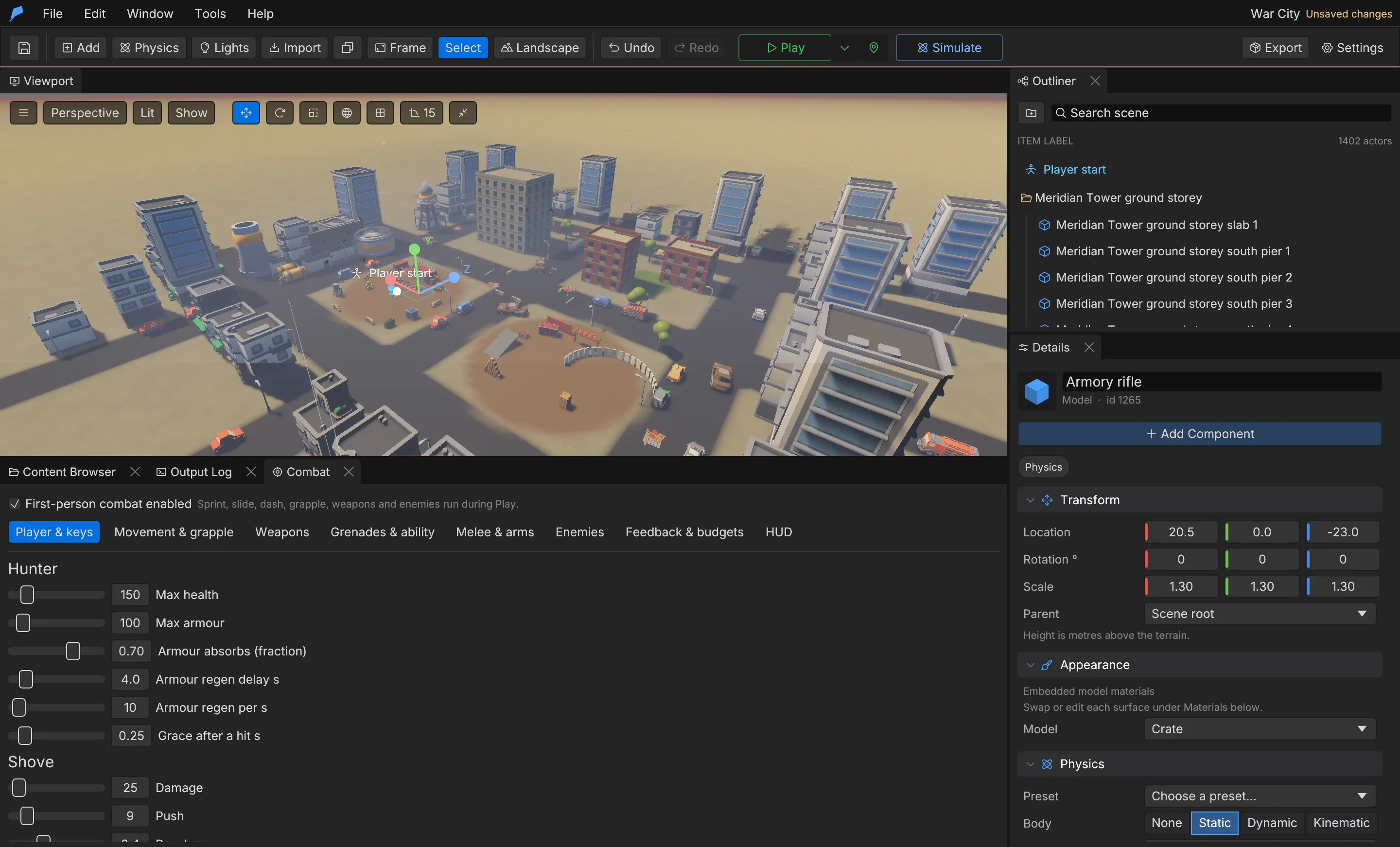 Every edit in the window commits through `combat.set`, the same validated, undoable path agents use. New projects start with a working set: two frames (`hex_shotgun`, `warden_rifle`), two cores (`wraith_core`, `ember_core`), two barrels (`scatter_barrel`, `long_barrel`), two relics (`chain_relic`, `storm_relic`), the `blast` and `gravity` grenades, an `axe`, and the enemies `swarmer`, `hex_caster` and `armoured_revenant`. ## Player and keys [Section titled “Player and keys”](#player-and-keys) | Field | Description | Default | | -------------------------------------------------------------------- | ------------------------------------------------ | ------------------- | | `player.max_health` | Health | 100 | | `player.max_armor` | Armour | 50 | | `player.armor_absorb` | Fraction of damage armour absorbs | 0.7 | | `player.armor_regen_delay` | Seconds without damage before armour regenerates | 4 s | | `player.armor_regen_rate` | Armour regained per second | 10 | | `player.hit_grace` | Invulnerability after a hit | 0.25 s | | `player.melee_damage`, `melee_push`, `melee_range`, `melee_cooldown` | The shove | 25, 9, 2.4 m, 0.7 s | | Action | Field | Default key | | -------------------------------- | -------------------------------------------------- | --------------- | | Fire / aim | `keys.fire`, `keys.aim` | Mouse1 / Mouse2 | | Sprint and dash | `keys.sprint`, `keys.dash` | ShiftLeft | | Slide | `keys.slide` | ControlLeft | | Jump | `keys.jump` | Space | | Grapple | `keys.grapple` | F | | Grenade | `keys.grenade` | G | | Ability | `keys.ability` | Q | | Reload | `keys.reload` | R | | Shove | `keys.melee` | V | | Melee, primary and sidearm slots | `keys.melee_slot`, `ranged_slot`, `secondary_slot` | 1, 2, 3 | ## Movement and grapple [Section titled “Movement and grapple”](#movement-and-grapple) | Field | Default | | ------------------------------------------------- | --------------------------------------------- | | `run_speed` / `sprint_speed` | 6.5 / 9.5 m/s | | `acceleration` | 60 m/s² | | `air_control` | 0.35 | | `gravity` | 22 m/s² | | `jump_speed` | 7.5 m/s | | `coyote_time` | 0.12 s after leaving a ledge | | `slide_speed`, `slide_duration`, `slide_cooldown` | 13 m/s, 0.75 s, 0.4 s | | `slide_height` | Eye drop while sliding, 0.6 m | | `dash_speed`, `dash_duration`, `dash_cooldown` | 22 m/s, 0.16 s, 1.2 s | | `fov` / `sprint_fov` | 72° vertical / +8° while sprinting or dashing | | `head_bob`, `slide_tilt` | 0.035, 4° | The grapple attaches to objects tagged `grapple` (`anchors: "Tagged"`, the default) or to any static surface (`"AnySurface"`). | Field | Description | Default | | -------------------- | ------------------------------------- | ------- | | `grapple.enabled` | Grapple available | On | | `range` | Reach | 32 m | | `aim_cone` | Aim assist angle around the crosshair | 7° | | `reel_speed`, `pull` | Reel-in speed and pull acceleration | 20, 45 | | `swing_control` | Steering while attached | 14 | | `release_distance` | Detaches this close to the anchor | 2.5 m | | `max_attach_seconds` | Longest attachment | 2.5 s | | `cooldown` | Between grapples | 1.5 s | | `release_boost` | Upward boost on release | 4 | ## Weapons [Section titled “Weapons”](#weapons) A gun is a loadout of four parts. The **Frame** sets the weapon family and its base stats; the **Core**, **Barrel** and **Relic** attach to the frame’s sockets and change stats with modifiers. 1. In **Weapons**, create or select a part and choose its slot. 2. For a frame, set the `family` (for example `shotgun` or `rifle`), the base stats, and the sockets where other parts and the muzzle sit. 3. For other parts, list the families they fit in `fits` (empty fits every frame) and add modifiers: `{stat, op, value}` with `op` set to `Add`, `Multiply` or `Set`. 4. Choose a model, offset, rotation and scale for each part, plus fire and reload sounds. 5. Set the starting `loadout` (and, optionally, a `secondary` sidearm on key 3). Feather applies the frame’s base stats, then every part’s modifiers in slot order, and clamps the result to playable ranges. | Stat | Description | Clamped to | | ----------------------------------------- | ------------------------------------------------------ | ---------------- | | `damage` | Per pellet or projectile | 0–10,000 | | `pellets` | Pellets per shot | 1–32 | | `spread` | Degrees | 0–45 | | `fire_rate` | Shots per second | 0.1–30 | | `magazine`, `reserve` | Rounds | 1–500, 0–5000 | | `reload_time` | Seconds | 0.05–10 | | `range`, `falloff` | Damage falls to half between falloff and range, metres | 1–500 | | `impulse` | Push on hit | 0–200 | | `recoil` | Camera kick per shot, degrees | 0–45 | | `projectile_speed` | 0 is hitscan; otherwise m/s | 0–500 | | `homing` | Turn rate toward the nearest enemy, rad/s | 0–50 | | `limb_multiplier`, `weakpoint_multiplier` | Extra damage to limbs and weak points | 0–20 | | `stagger` | Stagger per hit | 0–20 | | `charge_per_hit` | Ability charge per hit | 0–100 | | `chain_bonus` | Damage bonus per chained kill, up to five stacks | 0–5 | | `ability_radius` | Ability radius multiplier | 0.1–5 | | `automatic` | 1 holds to fire | 0 or 1 | | `explosion_radius`, `explosion_damage` | Projectiles explode on impact (rockets, launchers) | 0–30 m, 0–10,000 | Props tagged `explosive` chain-explode and props tagged `breakable` shatter when shot. Hitscan shots into the ground flick the built-in grass aside and clip a tuft while the grass’s **Shots clip it** setting is on (the default); see [Foliage and biomes](/docs/world/foliage-and-biomes/). ## Example: a marksman barrel for the starting rifle [Section titled “Example: a marksman barrel for the starting rifle”](#example-a-marksman-barrel-for-the-starting-rifle) You’ll add a barrel that makes the rifle hit harder and more accurately at long range but fire more slowly, and put it on the player’s starting gun. Start from the **War City** example project, whose starting gun is the `rifle` frame (named AK-47). 1. Open **Window → Combat · movement, weapons, enemies** and select the **Weapons** tab. 2. Under **Parts**, click **+ Barrel**. Set **Id** to `marksman_barrel`, **Name** to **Marksman Barrel** and **Fits families (empty = all)** to `rifle`. 3. Under **Modifiers**, click **+ Modifier** four times and set them to: * `spread` **×** 0.4 * `range` **+** 40 * `damage` **+** 8 * `fire_rate` **×** 0.6 4. Under **Default loadout**, choose **Marksman Barrel** in the **Barrel** box. The line below reads **Assembled: AK-47** with the new stats. 5. Press **Play**. You start with the rifle and its new barrel. Taking a gun from War City’s weapon crates swaps it for that bare frame, because the example’s world script calls `set_loadout(frame, "", "", "")`. ### Do the same from the command line [Section titled “Do the same from the command line”](#do-the-same-from-the-command-line)
```bash
feather-cli --workspace /tmp/demo --project project.feather.json command combat.upsert \
--json '{"kind":"weapon_part","value":{"id":"marksman_barrel","name":"Marksman Barrel","slot":"Barrel","fits":["rifle"],"modifiers":[{"stat":"spread","op":"Multiply","value":0.4},{"stat":"range","op":"Add","value":40},{"stat":"damage","op":"Add","value":8},{"stat":"fire_rate","op":"Multiply","value":0.6}]}}' \
--save project.feather.json
feather-cli --workspace /tmp/demo --project project.feather.json command combat.set \
--json '{"patch":{"loadout":{"frame":"rifle","barrel":"marksman_barrel"}}}' \
--save project.feather.json
```
### Check it worked [Section titled “Check it worked”](#check-it-worked) Read the assembled weapon back:
```bash
feather-cli --workspace /tmp/demo --project project.feather.json command combat.get --json '{}'
```
`loadout.barrel` is `marksman_barrel`, and `assembled_default_weapon.stats` shows `damage` 30 (was 22), `spread` 0.48 (was 1.2), `range` 160 (was 120) and `fire_rate` 5.4 (was 9). Combat doesn’t run in `game.simulate`, so check the feel in Play: shots group tighter and the rifle fires noticeably slower. ### Common problems [Section titled “Common problems”](#common-problems) * **“Marksman Barrel does not fit the shotgun frame.”** The part’s **Fits families** doesn’t include the frame’s **Family**. Add the family, or leave the list empty to fit every frame. * **“marksman\_barrel is not a frame.”** Only a **Frame** part can go in the frame slot. * **A part can’t be deleted.** **Delete part** is disabled while the default loadout uses it. ## Melee [Section titled “Melee”](#melee) A melee weapon takes the melee slot. Tap fire for a light swing, hold it for a heavy swing, and hold aim to block. | Field | Description | Axe default | | -------------------------------- | ------------------------------------------------- | -------------- | | `light_damage`, `heavy_damage` | Damage per swing | 42, 110 | | `light_seconds`, `heavy_seconds` | Swing duration | 0.55 s, 0.85 s | | `heavy_charge` | Hold time for a heavy swing | 0.35 s | | `hit_window` | Part of the swing that can hit, 0–1 | \[0.25, 0.6] | | `range`, `arc` | Reach and swing width | 2.7 m, 110° | | `cleave_light`, `cleave_heavy` | Enemies one swing cuts through | 2, 4 | | `limb_multiplier` | Blades sever limbs readily | 1.8 | | `block_reduction`, `block_angle` | Damage blocked and the arc it covers | 0.8, 120° | | `dig_radius`, `dig_depth` | Earth moved per ground hit when destruction is on | 0 m, 0 m | | `structure_damage` | Multiplier against destructible objects | 1 | `destruction.setup` adds an entrenching shovel that digs foxholes and trenches. See [Destruction](/docs/gameplay/destruction/). The **Melee & arms** tab also configures the first-person arms model, its weapon sockets and animation clips, and an optional carried lantern. ## Grenades and ability [Section titled “Grenades and ability”](#grenades-and-ability) | Field | Description | Blast default | | ---------------------------------------- | ----------------------------------------------------------- | --------------- | | `kind` | `Blast`, or `Gravity` (pulls light enemies in, then bursts) | Blast | | `fuse` | Seconds | 1.4 s | | `radius`, `damage`, `impulse`, `stagger` | Blast | 6 m, 140, 14, 3 | | `pull`, `pull_duration` | Gravity grenades only | 0 | | `throw_speed` | m/s | 19 | | `self_damage` | Fraction the player takes from their own blast | 0.3 | The player starts with `grenade_stock` grenades (default 3) and carries up to `grenade_max` (default 4). The ability (default name **Shockwave**) fills from hits and kills and releases an area blast: `charge` 100, `charge_per_kill` 8, `radius` 9 m, `damage` 60, `impulse` 18, `stagger` 4. ## Enemies [Section titled “Enemies”](#enemies) Each enemy archetype combines a model, a behaviour, combat numbers, hitboxes, limbs and drops. | Field | Description | | --------------------------------------------- | ----------------------------------------------------------------------------------------------------------------------------------------------------------- | | `behaviour` | `Melee` runs in and strikes; `Ranged` keeps distance and casts telegraphed projectiles; `Charger` adds a readable charge at mid range | | `team` | `Hostile` hunts the player and allies; `Ally` fights hostiles beside the player and follows them when no hostile is near. The player’s shots pass allies by | | `health`, `armor` | Armour is the fraction of damage ignored, except on weak points | | `heavy` | Resists gravity pulls and most knockback | | `walk_speed`, `run_speed`, `radius`, `height` | Movement and body size | | `attack_*`, `ranged_*`, `charge_*` | Damage, range, wind-up and cooldown per attack type; wind-ups telegraph the strike so it can be dodged | | `flank` | 0 comes straight in, 1 swings wide so crowds surround | | `leap_range`, `leap_speed`, `leap_cooldown` | Pounce from a distance band; `[0, 0]` never leaps | | `vault_speed` | Hop over low obstacles when stuck; 0 never | | `poise` | Stagger needed to interrupt | | `gib_overkill` | Overkill damage that blows the body apart | | `model_variants` | Other looks on the same skeleton; each spawn picks one | | `clips` | Idle, walk, run, attack, hit, death and other clips, with variants | | `value` | A number scripts read in `on_enemy_killed` | ### Hitboxes and limbs [Section titled “Hitboxes and limbs”](#hitboxes-and-limbs) A hitbox is a capsule from `bone` to `to_bone` (or `length` metres along the bone) with a `radius`, and it feeds damage to a `limb`. Default archetypes use a humanoid rig. | Limb field | Description | | ------------------- | --------------------------------------------------------------------------- | | `id` | Limb name, referenced by hitboxes | | `sever_bone` | Bone whose subtree comes off when the limb is destroyed; empty never severs | | `health` | Limb health as a fraction of the enemy’s health | | `damage_multiplier` | Damage multiplier for hits on this limb | | `effect` | `None`, `DisableAttack`, `DisableRanged`, `Limp`, `Crawl` or `Kill` | | `lethality` | Fraction of a limb hit that also reaches the enemy’s health | | `weakpoint` | Applies the weapon’s weak-point multiplier and ignores armour | Low `lethality` on arms and legs means shooting a limb cripples an enemy rather than killing it. ### Drops [Section titled “Drops”](#drops) `drops` is a list of `{kind, chance, amount}` where `kind` is `Ammo`, `Health`, `Armor`, `Grenade` or `Charge`. By default an enemy drops ammo 20% of the time and health 8% of the time. Pickups are pulled toward the player within `pickups.magnet_radius` (default 3.5 m) and vanish after `pickups.lifetime` (default 25 s). To give an enemy authored behaviour, assign it a behaviour tree. See [AI and navigation](/docs/gameplay/ai-and-navigation/). ## Feedback, budgets and HUD [Section titled “Feedback, budgets and HUD”](#feedback-budgets-and-hud) | Field | Default | | ------------------------------------------------------ | ------------------------------------------------ | | `feedback.shake` | 1 (players can scale it down in Settings) | | `feedback.hit_markers`, `damage_vignette`, `gore` | On | | `feedback.head_burst` | On: a killing shot to a severable head bursts it | | `feedback.blood_decals`, `max_decals`, `decal_seconds` | On, 160, 45 s | | `feedback.bleed_seconds` | 1.8 s | | `feedback.flinch` | 14° per hit | | `budgets.max_enemies` | 60 | | `budgets.max_body_parts` | 28 | | `budgets.max_particles` | 700 | | `budgets.max_projectiles` | 120 | | `budgets.corpse_seconds`, `part_seconds` | 6 s, 8 s | | `hud.compass`, `hud.minimap`, `hud.world_markers` | On | | `hud.minimap_range` | 45 m | `hud_template` replaces the built-in HUD with your own markup. It can use `{{health}}`, `{{max_health}}`, `{{health_pct}}`, `{{armor}}`, `{{armor_pct}}`, `{{ammo}}`, `{{reserve}}`, `{{weapon}}`, `{{grenade}}`, `{{grenades}}`, `{{ability_pct}}`, `{{ability_ready}}`, `{{grapple_ready}}`, `{{dash_ready}}` and `{{reloading}}`. Leave it empty to use the built-in HUD. ## Damage kinds and statuses [Section titled “Damage kinds and statuses”](#damage-kinds-and-statuses) All damage goes through one shared path, **elements**. It has seven damage kinds — `physical`, `blunt`, `explosive`, `fire`, `electric`, `ice` and `water` — and four statuses: `burning`, `wet`, `shocked` and `chilled`. Wet targets take half fire damage and double electric damage; chilled targets move slower and take more from blunt hits. Per-material and per-enemy multipliers (0 makes a target immune) are set with `elements.set`. ## Extend it [Section titled “Extend it”](#extend-it) World scripts drive missions with these functions. Enemy IDs are strings. | Function | Description | | --------------------------------------------------------------------------------------- | -------------------------------------------------------------- | | `spawn_enemy(kind, x, y, z[, yaw])` | Spawns an archetype; returns its ID | | `set_horde(on)` | Enemies spawned from now on sprint | | `enemies()`, `enemy_count([kind])` | Live enemies as maps `{id, kind, x, y, z, health}`, or a count | | `damage_enemy(id, amount)`, `kill_enemies()`, `clear_enemies()` | Damage or remove enemies | | `player_health()`, `player_max_health()`, `player_armor()`, `player_alive()` | Player state | | `heal_player(n)`, `hurt_player(n)`, `set_player_health(n)`, `give_armor(n)` | Change health and armour | | `ammo()`, `reserve_ammo()`, `give_ammo(n)` | Ammunition | | `grenades()`, `grenade_type()`, `give_grenades(n)`, `set_grenade(id)` | Grenades | | `ability_charge()`, `add_charge(n)` | The ability | | `loadout()`, `set_loadout(frame, core, barrel, relic)`, `weapon_name()` | The equipped gun | | `spawn_pickup(kind, amount, x, y, z)` | Drops a pickup | | `set_marker(key, x, y, z, label)`, `clear_marker(key)` | Objective markers on the compass, minimap and screen | | `revive_player()`, `refill_player()`, `set_invulnerable(on)`, `set_combat_controls(on)` | Player control | | `kills()`, `combat_running()` | Run state | | `deal_damage(target, amount, kind)`, `damage_area(x, y, z, radius, amount, kind)` | Damage through elements | | `apply_status(target, status, seconds)`, `clear_status`, `has_status`, `statuses` | Statuses | | `profile_get(key[, default])`, `profile_set(key, value)`, `profile_has(key)` | Unlocks and banked values that persist across runs | | Hook | Runs when | | ------------------------------------------- | --------------------------------------------------------------- | | `on_enemy_killed(id, kind, x, y, z, value)` | An enemy dies | | `on_player_hurt(amount)` | The player takes damage | | `on_player_died()` | The player dies | | `on_pickup(kind, amount)` | The player collects a pickup | | `on_damaged(target, amount, kind)` | The player, an enemy or an object takes damage through elements | | `on_status(target, status)` | A target starts burning, gets wet, shocked or chilled |
```rust
// A simple wave: spawn five swarmers, then a reward when they are all down.
fn start() {
for i in 0..5 {
spawn_enemy("swarmer", i * 2.0, 0.0, 30.0);
}
set_marker("arena", 0.0, 0.0, 30.0, "Arena");
}
fn on_enemy_killed(id, kind, x, y, z, value) {
if enemy_count() == 0 {
clear_marker("arena");
spawn_pickup("health", 25, x, y, z);
}
}
```
See [Scripting](/docs/logic/scripting/) for where world scripts live. ## Limits [Section titled “Limits”](#limits) * Up to 64 entries each for weapon parts, grenades, enemies and melee weapons; IDs are at most 48 characters. * A loadout must use a **Frame** in the frame slot, and other parts must fit the frame’s family. * Live enemies are capped by `budgets.max_enemies`. ## Automate it [Section titled “Automate it”](#automate-it)
```bash
# Turn combat on and make sprinting faster
feather-cli --connect .feather-session.json command combat.set \
--json '{"patch":{"enabled":true,"movement":{"sprint_speed":11}}}'
# Add a barrel that trades spread for range on rifles
feather-cli --connect .feather-session.json command combat.upsert \
--json '{"kind":"weapon_part","value":{"id":"marksman_barrel","name":"Marksman Barrel","slot":"Barrel","fits":["rifle"],"modifiers":[{"stat":"spread","op":"Multiply","value":0.4},{"stat":"range","op":"Add","value":40}]}}'
# Make swarmers immune to fire
feather-cli --connect .feather-session.json command elements.set \
--json '{"patch":{"enemies":{"swarmer":{"fire":0}}}}'
```
`combat.get` with no arguments returns every section, the assembled default weapon and the stat names; pass `section`, or `kind` and `id`, to read one part. `combat.remove` deletes a weapon part, grenade, enemy or melee weapon.
# Destruction
> Break objects into pieces of their own mesh, collapse buildings that lose their supports, and blast craters and dig trenches in the ground.
Feather’s destruction system breaks any solid object into Voronoi pieces of its own mesh. Pieces are smaller near the hit, structural parts hold each other up, and a building collapses when its supports are shot out. Blasts near the ground leave craters, and shovels dig holes and trenches. Explosions, bullets, melee, falling bodies and fire all feed the same damage path. Destruction is off by default. You turn it on per game. ## What’s included [Section titled “What’s included”](#whats-included) * Eight materials — concrete, brick, stone, wood, glass, metal, plaster and sandbag — each with a density, strength, break pattern, colours and an optional break sound. * Four break patterns: **Chunks**, **Splinters**, **Shards** and **Bricks**. * Structural collapse: parts are glued by contact area and anchored to the ground or static objects; anything that loses its path to an anchor falls. * Explosive objects, objects that shatter on impact, and second breaks for large pieces. * Craters, digging, bullet holes, fire and smoke. * Budgets that cap moving debris, fade small debris and merge resting rubble into one body. * Ragdolls for combat enemies that die without being blown apart. ## Turn on destruction [Section titled “Turn on destruction”](#turn-on-destruction) 1. Open **Window → Physics** and expand **Destruction**. 2. Select **Enabled**. 3. Either select **Everything breaks**, so every solid object breaks with a material guessed from its name and surface, or make individual objects breakable. 4. To make an object breakable, right-click it and choose **Make breakable**, or add **Details → Add Component → Destructible** and pick a **Preset**. 5. Press **Play** and shoot, throw or blow things up. During **Simulate**, use the toolbar **Blast** button and click in the viewport to set off an explosion. `destruction.setup` does the project-level work in one step: it enables destruction, adds the effects `destruction_dust`, `destruction_smoke`, `destruction_fire` and `destruction_chips`, matches break and collapse sounds from your project’s sounds by name, and adds an entrenching shovel to the combat melee weapons. ### Presets [Section titled “Presets”](#presets) | Preset | Result | | ------------ | ------------------------------------------------------------------------------------------------------ | | `auto` | Guesses from the name, surface, kind and size: window → glass, crate → wood, Tree → wood, Rock → stone | | `wall` | Concrete wall: structural, 14 chunks | | `brick_wall` | Brick wall: structural, breaks into bricks | | `pillar` | Concrete pillar: structural, holds up what rests on it | | `floor` | Concrete floor or roof slab: structural, rests on walls and pillars | | `wood` | Wooden wall, floor, fence or beam: structural, splinters and burns | | `window` | Glass pane: shatters from any hit | | `door` | Wooden door: splinters, not structural | | `crate` | Wooden crate or furniture: loose prop, splinters | | `fuel_drum` | Metal drum that explodes in a 4 m blast | | `sandbags` | Sandbag wall: tough, soaks up blasts | | `vase` | Shatters when it hits the ground; needs a **Dynamic** body | | `bomb` | Explodes in a 5 m blast when it lands; needs a **Dynamic** body | ## Example: a fuel drum that blows up two crates [Section titled “Example: a fuel drum that blows up two crates”](#example-a-fuel-drum-that-blows-up-two-crates) You’ll put an explosive drum on the jetty with two wooden crates beside it. Breaking the drum sets off a 4 m explosion that smashes the crates. Start from the **Ocean Voyage** example project, which already has destruction on. 1. Right-click the viewport and choose **Add here → Cube**. In **Details**, name it **Fuel drum**, and under **Transform** set **Location** to **0, 15.78, 53** and **Scale** to **0.7, 1.1, 0.7**. 2. Add two more cubes the same way: **Crate A** at **−0.6, 15.63, 55.5** and **Crate B** at **0.6, 15.63, 55.5**, both with **Scale** **0.8, 0.8, 0.8**. 3. Right-click the drum and choose **Make breakable → Fuel drum**. In **Details → Destructible** it now shows **Material** Metal, **Pieces** 5 and **Explodes** 4 m. 4. Right-click each crate and choose **Make breakable → Crate** (Wood, 8 pieces, not structural). 5. Select the drum and click **Break it now** in **Details → Destructible**. The editor starts **Simulate**, blows the drum apart, and the crates splinter. Press **Reset** to put everything back. ### Do the same from the command line [Section titled “Do the same from the command line”](#do-the-same-from-the-command-line) The three `scene.add` calls return IDs `36`, `37` and `38` in a fresh copy of Ocean Voyage.
```bash
feather-cli --workspace /tmp/demo --project project.feather.json command scene.add --json '{"kind":"Cube","name":"Fuel drum","position":[0,15.78,53]}' --save project.feather.json
feather-cli --workspace /tmp/demo --project project.feather.json command scene.add --json '{"kind":"Cube","name":"Crate A","position":[-0.6,15.63,55.5]}' --save project.feather.json
feather-cli --workspace /tmp/demo --project project.feather.json command scene.add --json '{"kind":"Cube","name":"Crate B","position":[0.6,15.63,55.5]}' --save project.feather.json
feather-cli --workspace /tmp/demo --project project.feather.json command scene.update --json '{"id":36,"patch":{"scale":[0.7,1.1,0.7]}}' --save project.feather.json
feather-cli --workspace /tmp/demo --project project.feather.json command scene.update --json '{"id":37,"patch":{"scale":[0.8,0.8,0.8]}}' --save project.feather.json
feather-cli --workspace /tmp/demo --project project.feather.json command scene.update --json '{"id":38,"patch":{"scale":[0.8,0.8,0.8]}}' --save project.feather.json
feather-cli --workspace /tmp/demo --project project.feather.json command destruction.make --json '{"ids":[36],"preset":"fuel_drum"}' --save project.feather.json
feather-cli --workspace /tmp/demo --project project.feather.json command destruction.make --json '{"ids":[37,38],"preset":"crate"}' --save project.feather.json
```
### Check it worked [Section titled “Check it worked”](#check-it-worked) Set off a small blast on the drum only. Blast positions are world coordinates; the drum’s world position is `[0, 1.9, 53]` (the example’s terrain lies well below the sea, and object positions are terrain-relative):
```bash
feather-cli --workspace /tmp/demo --project project.feather.json command game.simulate \
--json '{"frames":180,"blasts":[{"frame":30,"position":[0,1.9,53],"radius":0.5,"damage":200}]}'
```
The report’s `destruction.destroyed` lists `36`, `37` and `38`, and `pieces` is about 33. The logs show the drum breaking first (`broke 1 object(s); 9 pieces`) and both crates on the next line (`broke 2 object(s)`). Object `35` in the list is the example’s wrecked hull, which breaks as Play starts. ## Destructible settings [Section titled “Destructible settings”](#destructible-settings) | Setting | Field | Description | Default | | ------------------- | -------------- | ----------------------------------------------------------------------------- | ---------- | | Material | `material` | Concrete, Brick, Stone, Wood, Glass, Metal, Plaster or Sandbag | Concrete | | Health | `health` | 0 derives it from the material and the object’s size | 0 | | Pieces | `pieces` | 2–64, scaled by quality | 12 | | Breaks into | `pattern` | Chunks, Splinters, Shards or Bricks; `null` uses the material’s | Material’s | | Holds up a building | `structural` | Rests on and holds up touching structural objects | On | | Anchored | `anchor` | `Auto` (touching the ground), `Always` or `Never` | Auto | | Explodes | `explosive` | Blast radius when destroyed, 0–50 m; 0 is not explosive | 0 | | Leaves pieces | `debris` | Off crumbles it to dust | On | | Breaks on impact at | `impact_speed` | Shatters when it hits anything this fast, 0–200 m/s; needs a **Dynamic** body | 0 (off) | 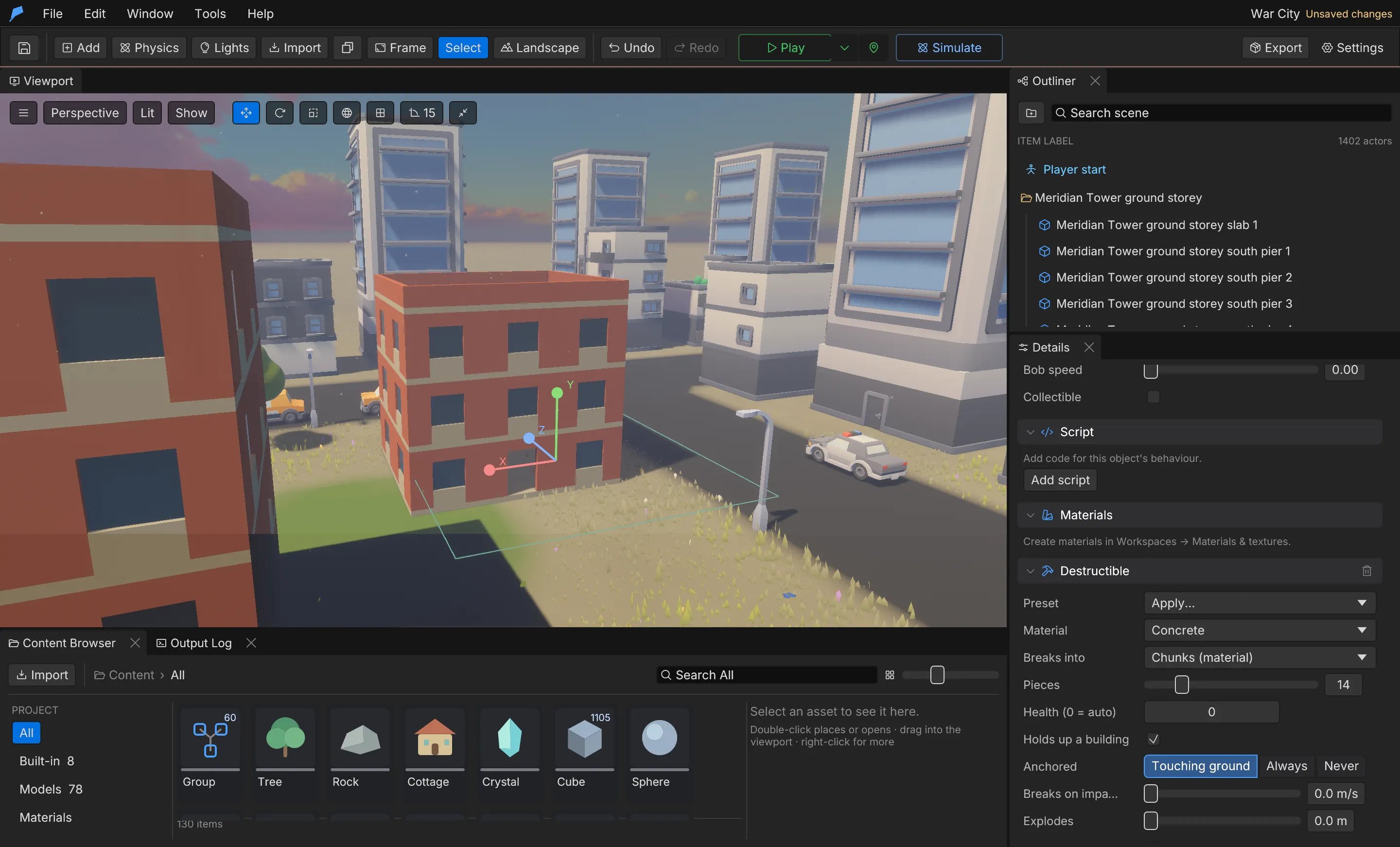 ## Materials [Section titled “Materials”](#materials) | Material | Density (kg/m³) | Health per m³ | Crack share | Glue (kPa) | Pattern | Burns | | -------- | --------------- | ------------- | ----------- | ---------- | --------- | ----- | | Concrete | 2400 | 160 | 0.3 | 450 | Chunks | No | | Brick | 1900 | 120 | 0.25 | 300 | Bricks | No | | Stone | 2600 | 200 | 0.35 | 500 | Chunks | No | | Wood | 600 | 70 | 0.2 | 200 | Splinters | Yes | | Glass | 2500 | 10 | 0 | 60 | Shards | No | | Metal | 7800 | 500 | 0.6 | 900 | Chunks | No | | Plaster | 1200 | 40 | 0.15 | 120 | Chunks | No | | Sandbag | 1600 | 250 | 0.5 | 250 | Bricks | No | An object cracks into pieces once its damage passes the crack share of its health; 0 shatters at once. Glue strength sets how much load touching parts carry before the joint gives way. Override any material with `destruction.set {materials: [...]}`, one entry per material, including its `inside_color`, `dust_color` and break `sound`. ## Project settings [Section titled “Project settings”](#project-settings) | Setting | Field | Range | Default | | ------------------------------- | ----------------------------------------------- | ------------------------------------------------------------ | ----------- | | Enabled | `enabled` | On/off | Off | | Everything breaks | `everything` | On/off | Off | | Quality | `quality` | Low, Medium, High, Epic | High | | Moving pieces | `max_debris` | 10–5000; past it the smallest turn to dust | 400 | | All pieces | `max_pieces` | 50–50,000; past it the oldest small rubble fades | 2500 | | Small debris lasts | `debris_lifetime` | 0–3600 s for pieces under 35 cm; 0 keeps them | 25 s | | Rubble settles / merges | `settle_rubble`, `merge_rubble` | Resting debris freezes, then merges into one body per object | On, On | | Buildings collapse | `collapse` | On/off | On | | Structure strength | `structure_strength` | 0.1–10 × every material’s glue | 1 | | Pieces break again | `second_breaks` | Big pieces break on hard landings | On | | Impacts damage | `impact_damage` | Falling and thrown bodies damage what they hit | On | | Blast / bullet / melee damage × | `blast_damage`, `bullet_damage`, `melee_damage` | 0–100 against structures | 2, 0.2, 0.6 | | Craters | `craters` | Blasts near the ground leave craters | On | | Crater size | `crater_scale` | 0.05–2 m of crater per metre of blast radius | 0.4 | | Digging | `digging` | Melee weapons with a dig radius dig the ground | On | | Bullet holes | `bullet_holes` | Bullets leave holes and chip what they hit | On | | Fire | `fire` | Burning materials catch fire in blasts | On | | Fires burn | `fire_seconds` | 1–600 s | 30 s | | Smoke rises | `smoke_seconds` | 0–600 s | 12 s | Quality scales pieces and budgets: Low ×0.5, Medium ×0.75, High ×1, and Epic ×1.5 pieces with ×2 budgets. ## Ragdolls [Section titled “Ragdolls”](#ragdolls) When a combat enemy dies and is not blown apart, its animation stops and each hitbox segment — head, chest, upper and lower arms and legs — becomes a dynamic capsule linked to its parent by a ball joint, so the body folds and tumbles down slopes. Severed limbs stay collapsed. Hitboxes are set per enemy archetype; see [Combat](/docs/gameplay/combat/#hitboxes-and-limbs). ## Extend it [Section titled “Extend it”](#extend-it) | Function | Description | | -------------------------------------------------------------- | ------------------------------------------------------------------------------------ | | `damage(id, amount)` | Damages one object | | `damage_at(x, y, z, radius, amount)` | Damages everything in a radius, up to 200 m | | `blast(x, y, z, radius, damage)` | An explosion: breaks things, craters the ground and lights fires; radius up to 100 m | | `crater(x, y, z, radius, depth)` | A crater | | `dig(x, y, z, radius, depth)`, `fill(x, y, z, radius, height)` | Digs a hole with soil heaped beside it, or adds ground | | `dig_trench(x1, z1, x2, z2, width, depth)` | A straight trench | | `dig_tunnel(x1, y1, z1, x2, y2, z2, radius)` | A tunnel | | `make_breakable(id[, preset])`, `make_unbreakable(id)` | Changes breakability during play | | `health_of(id)` | Remaining health, 0–1 | | `is_destroyed(id)` | Whether the object has broken | The `on_destroyed(id)` hook runs in world scripts when a destructible object breaks, from a blast, bullets, a collapse or a script.
```rust
// A world script: open the vault route when the wall comes down.
fn on_destroyed(id) {
if id == 31 {
print("The vault wall is down");
blast(4.0, 0.0, 12.0, 6.0, 400.0);
}
}
```
Ground edits made during Play are recorded in saves and undone when you stop. See [Caves and cutters](/docs/world/caves-and-cutters/) for authored terrain edits. ## Limits [Section titled “Limits”](#limits) * An object breaks into at most 64 pieces before quality scaling. * Groups, sensors, water volumes, force fields and objects without a physics body cannot break. * `vase`, `bomb` and `impact_speed` need a **Dynamic** body so the object can fall or be thrown. ## Automate it [Section titled “Automate it”](#automate-it)
```bash
# Turn destruction on with starter effects and a shovel
feather-cli --connect .feather-session.json command destruction.setup --json '{}'
# Make a whole building group breakable, guessing materials per part
feather-cli --connect .feather-session.json command destruction.make \
--json '{"ids":[50],"preset":"auto"}'
# Preview how object 51 breaks when hit at a point
feather-cli --connect .feather-session.json command destruction.fracture \
--json '{"id":51,"pieces":16,"hit":[2,1.5,0]}'
# During Play or Simulate, set off a blast
feather-cli --connect .feather-session.json command destruction.runtime \
--json '{"action":"blast","position":[0,1,8],"radius":6,"damage":300}'
```
`destruction.fracture` returns each piece’s centre, volume, mass and triangle count without a renderer. `game.simulate` accepts scheduled `blasts` and reports what was destroyed and what collapsed. See [Simulation](/docs/agents/simulation/).
# Interaction
> Add interaction prompts to objects, and use the built-in doors, switches, pickups, and carrying and throwing.
Interaction is how the player acts on the world with a single key. Any object can show an interaction prompt and call your script when it is used. Feather also includes ready-made interactions that need no script: doors that swing open and can be locked with a key item, switches that open and close linked doors, item pickups, containers, and carrying and throwing physics objects. All of them use the **Interact** action (E by default; West on a gamepad), and their state is kept in saves. ## What’s included [Section titled “What’s included”](#whats-included) * **Interaction prompts** on any object, with custom text, that call `on_interact(id)`. * **Doors** that swing about a hinge, optionally locked with an item that can be used up. * **Switches** — levers or buttons — that toggle doors and other switches. * **Pickups** that put an item in the inventory and remove the object. * **Containers** the player opens to take and put items. * **Carrying and throwing** dynamic bodies, with thrown objects dealing blunt damage to enemies. ## Add an interaction prompt [Section titled “Add an interaction prompt”](#add-an-interaction-prompt) 1. Select the object. 2. In **Details → Tags & interaction**, turn on **Interactable (E)**. 3. Enter the **Prompt** text, for example “Read” or “Talk”. 4. Handle the interaction in a world script:
```rust
fn on_interact(id) {
if id == "27" {
print("The note reads: meet me at the lighthouse.");
}
}
```
The prompt appears when the player is within the interaction distance, set in **Window → Game logic → Game settings → Interaction distance** (0.5–20 m, default 2.5 m). Scripts can change a prompt at runtime with `set_interact(id, prompt)`. ## Doors [Section titled “Doors”](#doors) 1. Select the door object and choose **Details → Add Component → Door**. 2. Set how far it **Swings**, where the **Hinge** sits, and how long it **Takes**. 3. To lock it, turn on **Locked** and choose the **Key item**. Turn on **Uses up the key** to take the key from the player when it unlocks. 4. Give the door a **Kinematic** body so it pushes things as it moves. | Field | Description | Range | Default | | -------------- | ---------------------------------------------------------------- | ------------ | ------------- | | `open_degrees` | How far it swings; negative swings the other way | −180 to 180° | 95° | | `hinge` | Hinge in the object’s local box; `[-0.5, 0, 0]` is the left edge | ±5 | \[−0.5, 0, 0] | | `seconds` | Time to open or close | 0.05–30 s | 0.7 s | | `locked_with` | Item ID that unlocks it; `null` is never locked | — | None | | `consume_key` | Unlocking uses the key up | On/off | Off | | `starts_open` | Open when Play starts | On/off | Off | | `sound` | Sound cue or sound played when it moves | — | Empty | ## Switches [Section titled “Switches”](#switches) 1. Select the lever or button and choose **Details → Add Component → Switch**. 2. Under **Opens and closes**, choose **Add a door** for each door or switch it drives. 3. Set the **Prompt**, and whether it **Starts on** or works **Only once**. | Field | Description | Range | Default | | ----------- | -------------------------------------------------------- | --------------- | ------- | | `targets` | Object IDs of the doors or switches it drives | Up to 32 | None | | `prompt` | Prompt text | 1–80 characters | Pull | | `once` | Can only be used once | On/off | Off | | `starts_on` | On when Play starts | On/off | Off | | `tilt` | Degrees the switch object tips when on; 0 keeps it still | −120 to 120° | 40° | | `sound` | Sound played when used | — | Empty | ## Pickups and containers [Section titled “Pickups and containers”](#pickups-and-containers) A **Pickup** component puts its item in the inventory when the player interacts with it, and the object disappears. A **Container** opens a screen to take and put items. Both are covered in [Items and inventory](/docs/gameplay/items-and-inventory/#pickups-and-containers). ## Carrying and throwing [Section titled “Carrying and throwing”](#carrying-and-throwing) The player looks at a dynamic body and presses **Interact** to pick it up, and presses it again to set it down. The **Throw** action (left mouse by default) hurls it. Heavier objects fly slower, and thrown objects deal blunt damage to enemies they hit. Configure it in **Window → World & terrain → Items → Carrying & throwing**. | Setting | Field | Range | Default | | ----------------------- | ---------------- | ------------------------------ | ------- | | Pick up physics objects | `carry` | On/off | On | | Heaviest | `carry_max_mass` | 0–10,000 kg | 60 kg | | Held at | `hold_distance` | 0.5–6 m in front of the camera | 1.8 m | | Throw speed | `throw_speed` | 0–60 m/s for a light object | 13 m/s | | Throw damage | `throw_damage` | 0–10 blunt damage per kg·m/s | 0.12 | | Throw action | `throw_action` | An input action ID | `throw` | Door, lever, pickup, chest and throw sounds can be replaced with your own cues in **Built-in sounds** under the player’s game feel settings; see [Player and traversal](/docs/gameplay/player-and-traversal/). ## Extend it [Section titled “Extend it”](#extend-it) | Function | Description | | ----------------------------------- | -------------------------------------------------------------------------------------------------------------- | | `use_object(id)` | Acts as if the player pressed Interact on the object: opens doors, pulls switches, takes pickups | | `door_open(id)` | Whether a door is open | | `carry_object(id)` | Picks up a dynamic body, including one that has settled at rest | | `throw_carried()`, `drop_carried()` | Throws or sets down what the player carries | | `carrying()` | The ID of the carried object, or `()` | | `use_tool()` | Casts the worn tool where the camera aims | | `set_interact(id, prompt)` | Changes an object’s prompt | | `tune("interaction", patch)` | Changes the carrying and throwing settings at runtime, for example a heavier `carry_max_mass` after an upgrade | `on_interact(id)` still runs when the player uses a door, switch or pickup, so you can add behaviour on top of the built-in one.
```rust
// A world script: react when the player pulls lever 40 and gate 41 opens.
fn on_interact(id) {
if id == "40" && door_open(41) {
print("The gate is open. Guards are coming.");
}
}
```
## Limits [Section titled “Limits”](#limits) * A switch drives at most 32 targets. * A door’s hinge must be within ±5 of the object’s local box. * Only dynamic bodies up to `carry_max_mass` can be carried. ## Automate it [Section titled “Automate it”](#automate-it)
```bash
# Lock door 41 with the "key" item, used up on unlock
feather-cli --connect .feather-session.json command scene.update \
--json '{"id":41,"patch":{"door":{"open_degrees":-100,"locked_with":"key","consume_key":true}}}'
# A lever (object 40) that opens door 41
feather-cli --connect .feather-session.json command scene.update \
--json '{"id":40,"patch":{"switch":{"targets":[41],"prompt":"Pull lever"}}}'
# Let the player lift heavier objects
feather-cli --connect .feather-session.json command interaction.set \
--json '{"patch":{"carry_max_mass":120,"throw_speed":16}}'
```
`interaction.get` lists the carrying settings and the level’s doors, switches and pickups.
# Items and inventory
> Define your game's items, categories and equipment slots, give the player a bag with limits, and place pickups and containers in your levels.
Feather’s item system is generic enough for any game. Your project defines its own item categories and equipment slots, and items carry whatever custom properties your game needs — weight, rarity, durability, a recipe. The player’s bag can be limited by count or by a summed property such as weight. Consumables heal and cure statuses, equipment protects against damage kinds, and tools cast elements where the player aims. Items in the world are picked up with **Interact**. Containers — chests, stashes, shops — hold items too. The inventory, container and status screens are UI templates, so you can restyle them. ## What’s included [Section titled “What’s included”](#whats-included) * An item library with ready-made presets: `apple`, `potion`, `antidote`, `wood`, `gem`, `key`, `flame_tunic`, `rubber_cloak`, `snow_boots`, `iron_helm`, `fire_rod`, `torch`, `ice_rod`, `storm_rod`, `water_flask`, `oil_flask`, `shovel`, `earth_staff`, `leveller` and `smoke_bomb`. * Categories and equipment slots you name yourself. * Consumables, equipment with resistances and status immunity, and tools that cast elements, spill liquids, reshape the ground or burst into smoke. * Starting items, a carry limit by item count or by a property, and an on-screen status bar. * Pickup and container components for scene objects. * A spreadsheet-style **Item manager** with JSON import and export. ## Create items [Section titled “Create items”](#create-items) 1. Open **Window → World & terrain** and select the **Items** tab. 2. Under **Item library**, start from a preset or create an item, then edit its fields and custom properties. 3. Under **Inventory**, set the key that opens the screen, the carry limits, your categories and equipment slots, and the items the player starts with. 4. To edit many items at once, open **Window → Item manager**. It shows every item as a sortable, searchable table with a column per custom property, and imports and exports JSON. ### Item fields [Section titled “Item fields”](#item-fields) | Field | Description | Default | | --------------------- | ----------------------------------------------------------------------------------------------- | --------- | | `id` | Stable ID used by pickups, doors, scripts and saves | — | | `name`, `description` | Shown on the inventory screen | — | | `category` | One of the project’s categories | Materials | | `stack` | Most in one stack, and in one bag, 1–9999 | 99 | | `value` | Worth, for shops and scripts | 0 | | `icon` | A Phosphor icon name, such as `apple`, `key`, `sword` or `flask` | `package` | | `color` | Icon colour | — | | `heal` | Health restored when used, 0–100,000 | 0 | | `cures` | Statuses it ends: `burning`, `wet`, `shocked`, `chilled` | None | | `consumed` | Using it uses one up | Off | | `slot` | Equipment slot it is worn in | None | | `resist` | Damage multiplier per damage kind while worn, 0–10; 0 is immune, and the lowest worn value wins | None | | `immune` | Statuses it keeps off while worn | None | | `properties` | Any custom data: weight, rarity, damage… | None | | `cast` | Makes the item a tool; see below | None | ### Tools [Section titled “Tools”](#tools) While a tool is worn, the **Use tool** action (C) casts it where the player aims: a fire rod lights the grass, a torch sets what it touches alight, a water flask puts fires out. | Field | Description | Default | | -------------------------- | ----------------------------------------------------------------------------------- | ----------- | | `kind` | Damage kind: `physical`, `blunt`, `explosive`, `fire`, `electric`, `ice` or `water` | fire | | `amount`, `radius` | Damage at the centre and its reach, 0.1–30 m | 12, 1.5 m | | `range` | Distance from the camera, 0.5–200 m | 20 m | | `cooldown` | Seconds between uses, 0–60 | 0.6 s | | `ammo` | An item each use costs | None | | `effect`, `sound` | Played where it lands | None | | `fluid`, `fluid_volume` | A liquid spilled where it lands, up to 100 m³ | None | | `terrain`, `terrain_depth` | `dig`, `raise`, `flatten` or `smooth` the ground, up to 10 m | none, 0.5 m | | `smoke` | Diameter of a smoke cloud where it lands, up to 15 m | 0 | See [Combat](/docs/gameplay/combat/#damage-kinds-and-statuses) for damage kinds and statuses. ## Inventory settings [Section titled “Inventory settings”](#inventory-settings) | Field | Description | Range | Default | | ------------- | --------------------------------------------------------- | ----------- | ------------------------------------------------------------------ | | `enabled` | The inventory screen and HUD | On/off | On | | `key` | Opens and closes the screen | Key name | Tab | | `start` | Items the player starts with, `{id: count}` | 1–9999 each | None | | `capacity` | Different items the player can carry; 0 is no limit | 0–10,000 | 0 | | `limit` | Caps a summed property, `{property, max}`, such as weight | — | None | | `status_bar` | Health and statuses on screen | On/off | On | | `categories` | Your categories, in screen order | Up to 32 | Materials, Food, Potions, Keys, Weapons, Armor, Accessories, Quest | | `equip_slots` | Your equipment slots, one item each | Up to 16 | head, body, legs, hands, weapon, shield, accessory | Rename a category or slot with `inventory.rename` and every item using it follows. ## Pickups and containers [Section titled “Pickups and containers”](#pickups-and-containers) To place an item in the world: 1. Select an object and choose **Details → Add Component → Pickup**. 2. Choose the **Item** and **Count**. Leave **Prompt** empty to show “Pick up” and the item name. 3. In Play, the player presses **Interact** to take it, and the object disappears. To add a chest or stash: 1. Choose **Details → Add Component → Container**. 2. Set the **Title** (empty uses the object’s name), the **Prompt** (default “Open”) and the number of different items it can hold (0 is any). 3. Under **Inside**, choose **Put an item in** to add starting contents. A door can be locked with an item, such as a key; see [Interaction](/docs/gameplay/interaction/). What everyone carries is kept in saves. ## Extend it [Section titled “Extend it”](#extend-it) | Function | Description | | -------------------------------------------------------- | -------------------------------------------------- | | `give_item(id[, count])` | Adds items; returns how many fit | | `take_item(id[, count])` | Removes items; returns whether the player had them | | `item_count(id)`, `has_item(id)` | What the player carries | | `use_item(id)` | Eats, drinks or wears an item | | `equip_item(id)`, `unequip_item(slot)`, `equipped(slot)` | Equipment | | `inventory()` | The player’s items as a map | | `carried_total(property)` | Sum of a property across the bag, such as weight | | `item_info(id)`, `item_property(id, key)` | Item data and custom properties | | `items_in_category(category)` | Item IDs in a category | | `open_inventory()`, `close_inventory()` | Show or hide the inventory screen | | `give_to(bag, id, count)`, `take_from(bag, id, count)` | Change a container’s contents | | `move_item(from, to, id, count)` | Moves items between bags; `"player"` is the player | | `bag_items(bag)` | A container’s contents as a map | | `open_container(bag, title)`, `close_container()` | Show a container screen | A container placed in a level is the bag `"object:"`. Any other name creates a bag for a shop or a stash. | Hook | Runs when | | -------------------- | -------------------------------------------------------------------- | | `on_item(id, count)` | The player gains or loses an item; `count` is how many they have now | | `on_use_item(id)` | The player uses an item | | `on_equip(slot, id)` | The player wears an item; `id` is empty when the slot is emptied |
```rust
// A world script: a shop. Object 12, the trader, has an interaction prompt.
fn start() {
give_to("trader", "potion", 5);
give_to("trader", "torch", 2);
}
fn on_interact(id) {
if id == "12" {
open_container("trader", "Trader");
}
}
```
## Limits [Section titled “Limits”](#limits) * Up to 32 categories and 16 equipment slots, each 1–32 characters. * An item can’t be removed while a pickup or locked door uses it. * `item.batch` changes up to 5,000 items in one undo step. ## Automate it [Section titled “Automate it”](#automate-it)
```bash
# A healing herb from the potion preset
feather-cli --connect .feather-session.json command item.upsert \
--json '{"preset":"potion","value":{"id":"herb","name":"Healing herb","heal":15,"properties":{"weight":0.1}}}'
# A 30 kg weight limit and a starting kit
feather-cli --connect .feather-session.json command inventory.set \
--json '{"patch":{"limit":{"property":"weight","max":30},"start":{"herb":3,"torch":1}}}'
# Turn object 12 into a pickup for two herbs
feather-cli --connect .feather-session.json command scene.update \
--json '{"id":12,"patch":{"pickup":{"item":"herb","count":2}}}'
```
`item.get` returns the library, the presets, which pickups and doors use each item, and the categories and slots. `item.batch` imports a whole table in one validated step.
# Physics
> Give objects rigid bodies, colliders and surfaces, connect them with joints, push them with force fields, wind and thrusters, stream copies from spawners, and drape cloth.
Feather simulates rigid bodies with Rapier. Physics is project data: world settings live on the project, and each object carries its own body, collider and optional water, force field, joint and cloth components. The editor, scripts and agents all change the same data through the same commands. The solver runs on several threads. ## What’s included [Section titled “What’s included”](#whats-included) * Four body types — **None**, **Static**, **Dynamic** and **Kinematic** — with box, sphere, capsule, convex hull and exact-mesh colliders. * Twelve one-click body presets, from a 10 kg prop to a 2.5 t heavy body. * Project gravity, solver substeps and iterations, and wind and gusts that also move foliage, cloth and smoke. * A balance point per body, so boats and carts stay upright and off-centre loads tip. * Impact sounds and particles chosen by each body’s surface. * Joints: weld, hinge, ball, slider, rope and spring, with motors, limits and break forces. * Force fields: directional, radial and vortex, or a one-shot launch for jump pads. * Thrusters that push a body along its own axis — rockets, jets, drones — fired by a key, a script, or by themselves to hover at a set height. * Spawners that stream physics copies of an object during Play: ball pits, falling crates, marbles. * Cloth that pins to an edge or corners, reacts to wind and collides with the player. * Sixteen ready-made setups, including water, a car, a ship, a chain and a wrecking ball. * **Simulate**, which runs physics in the editor so you can settle objects and keep the result. ## Make an object physical [Section titled “Make an object physical”](#make-an-object-physical) 1. Select the object. 2. In **Details → Physics**, open **Preset** and choose a preset such as **Crate** or **Ball**, or set **Body** directly. 3. Choose a **Collider**. For imported models, use **From model → Fit box**, **Mesh** or **Hull** to size the collider from the model. 4. Set **Surface** so impacts play the right sound and effect. 5. Press **Play**, or press **Simulate** in the toolbar to watch the object fall and settle without the player. Groups have no shape; their children provide collision. Child objects cannot be **Dynamic** or **Kinematic** — unparent an object to let it move on its own. ## Bodies [Section titled “Bodies”](#bodies) | Body | Behaviour | | --------- | ---------------------------------------------------- | | None | No collision | | Static | Solid scenery that never moves | | Dynamic | Moved by gravity, contacts, forces and impulses | | Kinematic | Moved by scripts or animation; pushes dynamic bodies | ### Body settings [Section titled “Body settings”](#body-settings) | Setting | Field | Range | Default | | -------------------- | ----------------- | --------------------------------------------------------- | --------- | | Collider | `collider` | Box, Sphere, Capsule, ConvexHull, Mesh | Box | | Half extents | `half_extents` | Above 0 to 1000 m per axis | 0.5 m | | Centre offset | `center` | −1000 to 1000 m | 0 | | Friction | `friction` | 0–10 | 0.7 | | Bounce | `restitution` | 0–1 | 0.05 | | Mass | `mass` | Above 0 to 1,000,000 kg | 1 kg | | Sensor | `sensor` | On/off | Off | | Gravity scale | `gravity_scale` | −10 to 10; negative rises | 1 | | Linear damping | `linear_damping` | 0–100 | 0 | | Angular damping | `angular_damping` | 0–100 | 0 | | Continuous collision | `ccd` | On/off | Off | | Lock movement | `lock_position` | Per world axis | Off | | Lock rotation | `lock_rotation` | Per world axis; lock X and Z to stay upright | Off | | Surface | `surface` | Default, Wood, Metal, Stone, Dirt, Glass, Flesh | Default | | Settle after | `settle` | 0–10 s in the panel, up to 60 by command | 0 (never) | | Air (flat plate) | `aero` | 0–2 in the panel, up to 4 by command | 0 (off) | | Centre of mass | `center_of_mass` | ±100 m per axis, local; `null` is the middle of the shape | `null` | The gravity scale, damping, continuous collision, lock and balance point settings appear under **Advanced** for **Dynamic** bodies. **Mesh** colliders use the model’s exact triangles and are not available on **Dynamic** bodies; use **Convex hull** instead. **Settle after** turns a body that has lain still that many seconds static, so a big pile stops costing physics time and no longer keeps its neighbours awake; it becomes dynamic again when something disturbs it — the player, a script impulse, an explosion, or a faster body passing close. **Air (flat plate)** is flat-plate air resistance for thin objects: paper, leaves and cards catch the air across their flat side and flutter or glide instead of dropping; `1` behaves like a sheet of paper. Turn on **Own balance point** to set **Centre of mass m**, in the object’s local metres, scaled with the object; the toggle starts it a quarter of the collider’s height below the centre. A low balance point keeps boats, carts and roly-poly toys upright; an off-centre one makes things tip. A **Sensor** reports overlaps and blocks nothing. Scripts and Blueprints receive those overlaps and solid contacts as events — see [Contact events](/docs/logic/scripting/#contact-events). ### Presets [Section titled “Presets”](#presets) | Preset | Result | | -------------- | ------------------------------------------------------ | | `none` | No physics | | `static` | Solid scenery | | `prop` | Dynamic, 10 kg; tumbles and floats | | `crate` | Dynamic box, 25 kg, wood surface; floats | | `heavy` | Dynamic, 2,500 kg, stone surface; sinks | | `ball` | Dynamic sphere, 2 kg, bounce 0.8, continuous collision | | `ice` | Friction 0.02; keeps the current body type | | `balloon` | Dynamic, 0.5 kg, gravity scale −0.15; rises gently | | `projectile` | Dynamic, 0.5 kg, metal surface, continuous collision | | `platform` | Kinematic | | `trigger` | Sensor volume | | `ragdoll_part` | Dynamic, 8 kg, damped; for joint chains | ## World settings [Section titled “World settings”](#world-settings) Open **Window → Physics** and expand **World**. Gravity has **Earth**, **Mars**, **Moon**, **Zero-G** and **Heavy** presets; wind has **Calm**, **Breeze**, **Windy** and **Storm**. 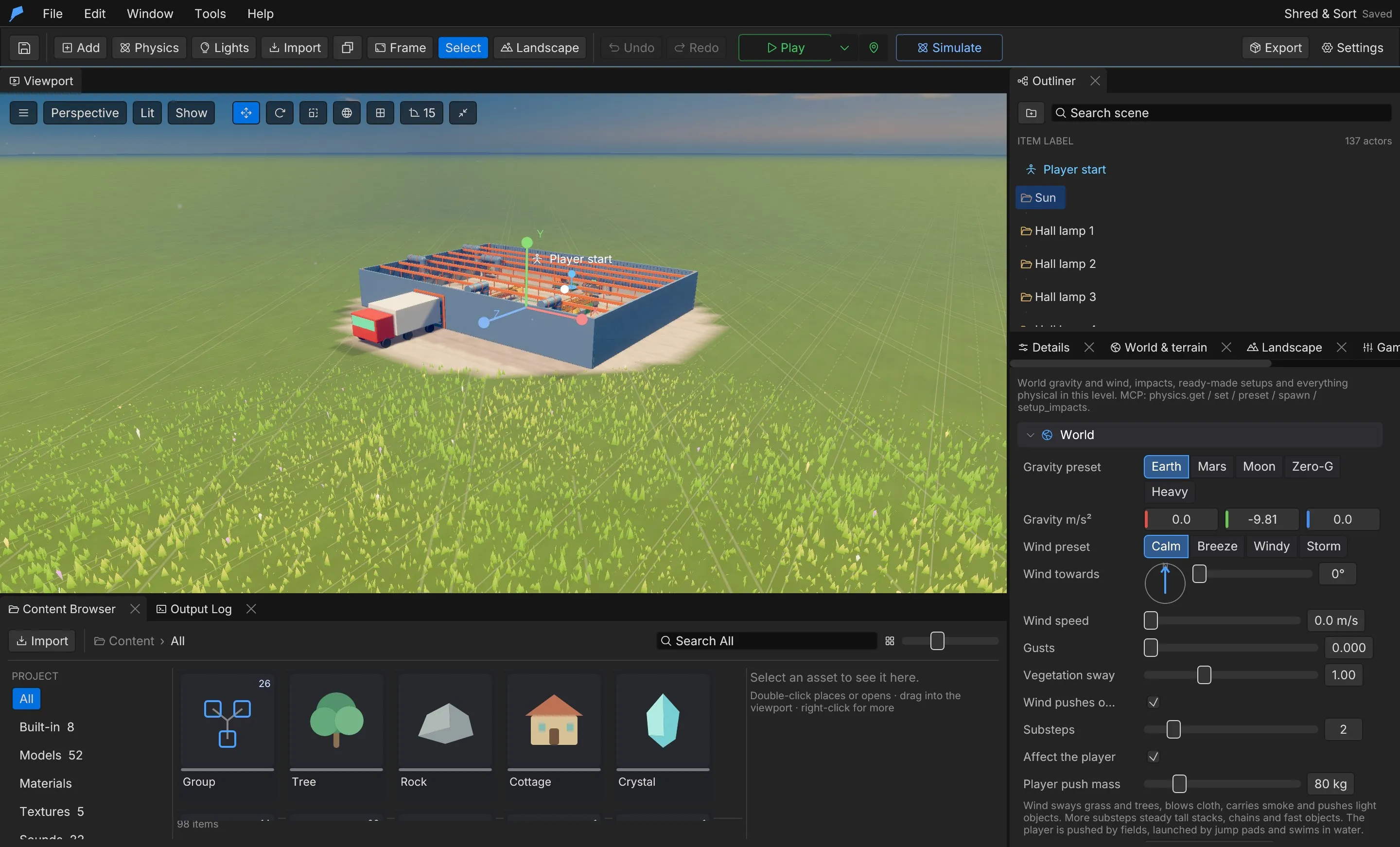 | Setting | Field | Range | Default | | ---------------------------------------------------------------------------- | -------------------- | --------------------------- | -------------- | | Gravity | `gravity` | −100 to 100 m/s² per axis | \[0, −9.81, 0] | | Substeps | `substeps` | 1–8 per frame | 1 | | Solver iterations | `solver_iterations` | 1–16 per step; command only | 4 | | Continuous-collision substeps | `ccd_substeps` | 1–8; command only | 1 | | Wind | `wind` | −60 to 60 m/s per axis | \[2, 0, 1] | | Gust | `gust` | 0 (steady) to 1 | 0.4 | | Foliage sway | `foliage_sway` | 0–3 | 1 | | Wind pushes bodies | `wind_pushes_bodies` | On/off | On | | Affect the player (force fields and water push, launch and float the player) | `affect_player` | On/off | On | | Player push mass | `player_push` | 0–2000 kg; 0 cannot push | 80 kg | More substeps steady tall stacks, chains and fast objects at a higher cost. More solver iterations keep tall stacks, chains and ragdolls stiff; fewer are cheaper for big piles. More continuous-collision substeps catch fast bodies with **Continuous collision** on that bounce between thin walls within one frame. Set both with `physics.set`. ## Impacts [Section titled “Impacts”](#impacts) When a body loses speed faster than a rule’s minimum, Feather plays the sound and effect for its surface. Harder hits are louder, and **Water** plays when a body splashes into a water volume. Surfaces without a rule fall back to **Default**. In **Physics → Impacts**, edit one rule per surface: | Field | Description | Range | Default | | ----------- | -------------------------------------------------------- | ------ | ------- | | `surface` | Default, Wood, Metal, Stone, Dirt, Glass, Flesh or Water | — | — | | `sound` | A project sound or audio cue; empty plays nothing | — | Empty | | `effect` | A particle effect id; empty spawns nothing | — | Empty | | `min_speed` | Speed lost in one frame that counts as an impact, in m/s | 0.2–50 | 2.5 | | `volume` | Playback volume | 0–2 | 1 | `physics.setup_impacts` creates a starter set: the effects `impact_dust`, `impact_sparks`, `impact_splinters` and `impact_splash`, and a rule per surface that matches your project’s sounds by name. Tune the effects in [Effects](/docs/presentation/effects/). ## Joints [Section titled “Joints”](#joints) A joint connects an object with a body to another body, or to the world. Add one with **Details → Add Component → Joint**. | Kind | Use | | ------------ | --------------------------------------------------------------- | | Fixed (weld) | Welds two objects; breakable welds make destructible structures | | Hinge | Rotates around an axis: doors, wheels, levers | | Ball | Rotates freely around the anchor: chains, pendulums | | Slider | Slides along an axis: pistons, drawers, lifts | | Rope | Stays within a maximum length | | Spring | Pulls back to a rest length | | Field | Description | Default | | ------------------- | ------------------------------------------------------------------------------------ | ---------------- | | `target` | Object id to attach to; `null` attaches to the world | World | | `anchor` | Attachment point on this object, local metres | \[0, 0, 0] | | `target_anchor` | Point on the target, or an offset from the start position when attached to the world | Same as `anchor` | | `axis` | Hinge and slider axis, local | \[0, 1, 0] | | `limits` | Hinge degrees (−360 to 360) or slider metres, `[min, max]` | None | | `length` | Rope maximum or spring rest length, 0–1000 m; 0 uses the starting distance | 0 | | `stiffness` | Spring stiffness, N/m | 400 | | `damping` | Spring damping | 20 | | `motor_speed` | Hinge °/s or slider m/s; 0 is off | 0 | | `motor_force` | Motor strength, N | 1000 | | `break_force` | Breaks above this force, N; 0 never breaks | 0 | | `collide_connected` | The two objects still collide with each other | Off | Joints connect when Play or Simulate starts. Use the crosshair buttons beside **Attached to** and **Anchor** to pick the target and anchor in the viewport. ## Force fields [Section titled “Force fields”](#force-fields) A force field pushes bodies, cloth and, optionally, the player inside a sphere or box. Add one with **Details → Add Component → Force field**. | Field | Description | Default | | --------------------------------------------------- | -------------------------------------------------------------------------------------------------------------------------------------------------------------------------------------------------------------------------------------------------------------------------------------------------------------------------- | ----------- | | `kind` | `Directional` pushes along a direction; `Radial` pushes away from the centre (negative pulls in); `Vortex` swirls around the up axis; `Wind` blows air at `strength` m/s, so light, flat things fly and dense ones barely move; `Conveyor` carries bodies along the direction at up to `strength` m/s, whatever their mass | Directional | | `shape` | `Sphere` (`size[0]` is the radius) or `Box` (half extents) | Sphere | | `size` | Local metres, up to 2000, scaled by the object | \[4, 4, 4] | | `direction` | Local push direction for directional fields | \[0, 1, 0] | | `strength` | Acceleration in m/s², −500 to 500; mass does not matter | 12 | | `launch` | Sets this speed once on entry instead, in m/s (a jump pad) | Off | | `falloff` | Weaker towards the edge | On | | `affects_bodies`, `affects_cloth`, `affects_player` | What the field moves | On | | `enabled` | Whether the field is active | On | | `offset` | Where the field sits relative to its object, local metres | \[0, 0, 0] | | `tag` | Only bodies with this tag feel the field; empty affects every body. Cloth and the player ignore it | Empty | ## Example: a launch pad on the jetty [Section titled “Example: a launch pad on the jetty”](#example-a-launch-pad-on-the-jetty) You’ll add a pad that throws the player into the air when they walk onto it. Start from the **Ocean Voyage** example project: you spawn on the jetty facing along it, and the pad goes a few steps ahead. 1. Right-click the viewport and choose **Add here → Cube**. 2. In **Details**, set the name to **Launch pad**. Under **Transform**, set **Location** to **0, 15.35, 51** and **Scale** to **2, 0.2, 2**. The cube keeps its default **Static** body, so the player can stand on it. 3. Click **Add Component → Force field**. 4. In the **Force field** section, leave **Kind** on **Directional** and **Direction** on **0, 1, 0**. Set **Shape** to **Box** and **Half size m** to **0.5, 8, 0.5**. 5. Turn on **Launch on entry**, set **Launch speed** to **16 m/s**, and turn off **Falloff**. 6. Press **Play** and walk forward onto the pad. The half size is scaled by the object, so the field is 2 m wide and 3.2 m tall. It has to be that tall: the field tests the centre of the player’s capsule, about 0.9 m above their feet. ### Do the same from the command line [Section titled “Do the same from the command line”](#do-the-same-from-the-command-line) `scene.add` returns the new object’s ID; use it in `scene.update` (it is `36` in a fresh copy of Ocean Voyage).
```bash
feather-cli --workspace /tmp/demo --project project.feather.json command scene.add \
--json '{"kind":"Cube","name":"Launch pad","position":[0,15.35,51]}' --save project.feather.json
feather-cli --workspace /tmp/demo --project project.feather.json command scene.update \
--json '{"id":36,"patch":{"scale":[2,0.2,2],"force_field":{"shape":"Box","size":[0.5,8,0.5],"direction":[0,1,0],"launch":true,"strength":16,"falloff":false}}}' \
--save project.feather.json
```
### Check it worked [Section titled “Check it worked”](#check-it-worked) In Play, stepping onto the pad throws you straight up, about 7 m above the jetty. Without a renderer, walk forward for 1.5 seconds and compare the player’s highest point with a run of the unchanged project:
```bash
feather-cli --workspace /tmp/demo --project project.feather.json command game.simulate --json '{
"frames": 240,
"inputs": [
{"frame": 10, "key": "W", "pressed": true},
{"frame": 100, "key": "W", "pressed": false}
]}'
```
`player.max_height` rises from about 2.6 (the starting height on the jetty) to about 9.3, and `success` is `true`. ### Common problems [Section titled “Common problems”](#common-problems) * **The player walks over the pad without launching.** The field box doesn’t reach the capsule centre. Increase the Y half size, or raise the field with **Offset**. * **Nothing reacts to the field.** Check **Enabled** and the **Affects** toggles, and that **Affect the player** is on in **Window → Physics → World** if the player should feel it. * **Only some bodies are pushed.** A field with **Only tag** set affects only bodies with that tag. ## Thrusters [Section titled “Thrusters”](#thrusters) A thruster pushes a **Dynamic** body along one of its own axes, at a point on it: rockets, jets, propellers, drones and hover pads. Add one with **Details → Add Component → Thruster**. Adding it to a body that isn’t dynamic applies the **Crate** preset, and the force starts at 1.5 times the body’s weight; the panel shows that weight, so you can see how much force lifts it. A thruster fires at full throttle while its **Fire with** key (`SPACE`, `E`, `MOUSELEFT`…) or input action is held; otherwise it runs at the throttle a script set, or its starting **Throttle**. An **At point m** away from the centre also turns the body, and **Turn N·m** adds a spin of its own, like a reaction wheel. | Setting | Field | Range | Default | | -------------- | ----------------- | ---------------------------------------------------------- | ---------- | | Force | `force` | 0–1,000,000 N at full throttle | 200 N | | Push along | `direction` | The body’s own axis; any non-zero vector | \[0, 1, 0] | | At point m | `offset` | ±100 m per axis, local | \[0, 0, 0] | | Turn N·m | `torque` | ±1,000,000 N·m about each local axis | \[0, 0, 0] | | Throttle | `throttle` | 0–1, when Play starts | 0 | | Fire with | `key` | A key or input action, up to 64 characters; empty for none | Empty | | Hover height | `hover` | 0–50 m in the panel, up to 500 by command; 0 is off | 0 | | Hover firmness | `hover_stiffness` | 0.1 (floaty) to 10 (stiff) | 1 | | Spool | `spool` | 0–3 s in the panel, up to 10 by command; 0 is instant | 0.15 s | With **Hover height** above 0, the thruster throttles itself to hold the body that far above whatever is under it — ground, floors or water — and holds its attitude like a drone, turning the thrust axis back up so a nudge or a wave doesn’t flip it. A 1 kg body needs about 10 N to hover on Earth gravity. ## Spawners [Section titled “Spawners”](#spawners) A spawner emits physics copies of another object during Play, as a steady stream or in bursts: ball pits, falling crates, marbles, debris rain, factory feeders. Add one with **Details → Add Component → Spawner**, then pick the object to copy in **Copies**. Park that template out of sight. Copies appear anywhere in the spawner’s area box, leave along its own direction, and are removed when Play stops. | Setting | Field | Range | Default | | ------------------- | -------------- | ---------------------------------------------------------------------- | -------------- | | Copies | `template` | An object in this level | None | | Active | `active` | Running when Play starts | On | | Rate | `rate` | 0–100 copies per second in the panel, up to 500 by command | 2 | | Burst at start | `burst` | 0–500 copies at once when Play starts | 0 | | Most alive | `max_alive` | 1–3000; the oldest copy goes to make room | 200 | | Lifetime | `lifetime` | 0–120 s in the panel, up to 3600 by command; 0 keeps copies until Stop | 0 | | Total (0 = endless) | `total` | 0–10,000 in the panel, up to 1,000,000 by command | 0 | | Launch speed | `speed` | 0–60 m/s in the panel, up to 200 by command | 0 | | Direction | `direction` | The spawner’s own axis | \[0, −1, 0] | | Spread | `spread` | 0–180° random cone around the direction | 10° | | Area half size m | `area` | 0–500 m per axis, local | \[0.5, 0, 0.5] | | Spin | `spin` | 0–20 rad/s random spin in the panel, up to 50 by command | 1 | | Size variety | `size_variety` | 0 (all the same) to 0.9; mass follows the size | 0 | | Body | `body` | Dynamic, Static, Kinematic or None | Dynamic | At most 3000 spawner copies are alive at once across the level; further copies are refused and a runtime message reports it. ## Cloth [Section titled “Cloth”](#cloth) Cloth is a rectangle of particles in the object’s local XY plane. It simulates while you edit, reacts to the project wind and force fields, and collides with the ground, the player and moving bodies. | Field | Description | Range | Default | | --------------- | -------------------------------------------------------------------- | --------- | --------- | | `pin` | `Top` edge, `Left` edge, top `Corners`, or `None` (drops and drapes) | — | Top | | `size` | Width and height | 0.1–100 m | \[2, 3] | | `resolution` | Particles across and down | 2–48 | \[10, 14] | | `stiffness` | 0 silky to 1 stiff canvas | 0–1 | 0.8 | | `damping` | 0 keeps swinging to 1 stops at once | 0–1 | 0.03 | | `gravity_scale` | Weight | −2 to 4 | 1 | | `wind` | Response to wind and fields | 0–5 | 1 | | `color` | sRGB colour when no material is set | 0–1 | — | | `material` | A project material id | — | None | | `collide` | Collide with the ground, player and bodies | — | On | ## Ready-made setups [Section titled “Ready-made setups”](#ready-made-setups) Add any setup from the toolbar **Physics** menu, from **Physics → Add to the level**, or by dragging it from **Content Browser → Physics setups**. Each is placed at the camera focus. | Setup | What you get | | --------------------------- | ---------------------------------------------------------------------------------------- | | `water` | A 20 × 20 m pool of buoyant, swimmable water with a crate | | `river` | A water channel with a current | | `ocean` | An endless sea at that height | | `ship` | A sailing ship with a helm; see [Vehicles and boats](/docs/gameplay/vehicles-and-boats/) | | `car` | A car on raycast wheels; see [Vehicles and boats](/docs/gameplay/vehicles-and-boats/) | | `flag`, `banner`, `curtain` | Cloth on a pole, pinned along the top, or one the player pushes through | | `wind_zone` | A box of wind | | `jump_pad` | A launch pad | | `attractor` | A sphere that pulls things in | | `tornado` | A vortex that lifts and spins | | `hinge_door` | A door on a hinge | | `chain` | A hanging chain of linked boxes | | `wrecking_ball` | A heavy ball on a rope | | `crate_stack` | A pyramid of crates | Water volumes, buoyancy and swimming are covered in [Water and fluids](/docs/world/water-and-fluids/). ## Simulate in the editor [Section titled “Simulate in the editor”](#simulate-in-the-editor) Press **Simulate** in the toolbar to run physics without the player or scripts: bodies fall and settle, joints swing, water floats things and cloth drapes. Press **Keep** to write the moving bodies’ positions and rotations back to the scene as one undo step, or **Reset** to put everything back. Use it to place rubble, settle stacks or drape cloth naturally. ## Extend it [Section titled “Extend it”](#extend-it) Scripts can drive physics at runtime. Object scripts can use the short forms on their own body (see [Physics bodies](/docs/logic/scripting/#physics-bodies)); the forms below take an object ID and work in object and world scripts. | Function | Description | | -------------------------------------------------- | -------------------------------------------------------------------------- | | `apply_impulse(id, x, y, z)` | Adds an impulse in newton-seconds | | `apply_torque_impulse(id, x, y, z)` | Adds an angular impulse | | `set_velocity(id, x, y, z)` | Replaces the linear velocity, m/s | | `velocity(id)` | Linear velocity `[x, y, z]` | | `set_gravity_scale(id, scale)` | Per-body gravity scale, −10 to 10 | | `set_gravity(x, y, z)`, `gravity()` | World gravity, each axis −100 to 100 m/s² | | `set_wind(x, y, z)` | World wind, clamped to ±60 m/s | | `explode(x, y, z, radius, strength)` | Pushes bodies away from a point; radius up to 500 m, strength within ±1000 | | `in_water(id)`, `water_depth(id)` | Whether a body is in water, and how deep | | `set_field_enabled(id, on)` | Turns a force field on or off | | `set_field_strength(id, strength)` | Overrides a force field’s strength until Play stops, within ±500 | | `set_thrust(id, throttle)`, `thrust(id)` | Sets a thruster’s throttle, 0–1, or reads the throttle it fires at now | | `set_spawner(id, on)`, `set_spawner(id, on, rate)` | Switches a spawner, optionally with a new rate, 0–500 per second | | `spawner_burst(id, count)`, `spawned_count(id)` | Emits 1–500 copies at once, or counts the spawner’s live copies | | `break_joint(id)`, `joint_broken(id)` | Breaks a joint, or checks whether it broke | | `set_joint_motor(id, speed)` | Sets a hinge or slider motor speed, within ±10,000 |
```rust
// A pressure plate: when the player steps on it, open the gate's hinge motor.
fn trigger_enter(other) {
if other_is_player() {
set_joint_motor(42, 90.0);
}
}
```
Scripts can also ask the physics world what is where — `raycast`, `spherecast`, `overlap_sphere`, `overlap_box` and `line_of_sight` — and get an answer straight away. See [Scripting](/docs/logic/scripting/). In Blueprints, use **On Trigger Enter**, **On Trigger Exit**, **On Collision Start** and **On Collision End** events, and the **Apply Impulse** and **Set Velocity** actions. ## Limits [Section titled “Limits”](#limits) * Mesh colliders cannot be used on **Dynamic** bodies. * Groups and child objects cannot be **Dynamic** or **Kinematic**. * A joint’s object and its target both need a physics body; a joint cannot target its own object. * At most one impact rule per surface. * Cloth resolution is capped at 48 × 48 particles. ## Automate it [Section titled “Automate it”](#automate-it) Agents use the same commands as the editor. `physics.get` returns the settings, presets, templates and the open level’s bodies, water, fields, joints and cloth. Per-object components change through `scene.update`.
```bash
# Moon gravity and a stronger breeze
feather-cli --connect .feather-session.json command physics.set \
--json '{"patch":{"gravity":[0,-1.6,0],"wind":[6,0,2],"substeps":4}}'
# Stiffer stacks: more solver iterations
feather-cli --connect .feather-session.json command physics.set \
--json '{"patch":{"solver_iterations":8}}'
# Make dynamic object 15 hover 2 m above the ground, and object 16 stream copies of object 17
feather-cli --connect .feather-session.json command scene.update \
--json '{"id":15,"patch":{"thruster":{"force":400,"hover":2}}}'
feather-cli --connect .feather-session.json command scene.update \
--json '{"id":16,"patch":{"spawner":{"template":17,"rate":5,"max_alive":100}}}'
# Turn objects 12 and 13 into bouncy balls
feather-cli --connect .feather-session.json command physics.preset \
--json '{"ids":[12,13],"preset":"ball"}'
# Hang object 14 from the world on a 3 m rope
feather-cli --connect .feather-session.json command scene.update \
--json '{"id":14,"patch":{"joint":{"kind":"Rope","target":null,"length":3}}}'
# Add a wrecking ball, then settle the scene and keep the result
feather-cli --connect .feather-session.json command physics.spawn \
--json '{"template":"wrecking_ball","position":[0,0,-8]}'
feather-cli --connect .feather-session.json command physics.simulate --json '{"action":"start"}'
feather-cli --connect .feather-session.json command physics.simulate --json '{"action":"keep"}'
```
`physics.fit` sizes a collider from a model without a renderer, and `game.simulate` runs bounded headless gameplay and physics to verify motion. `physics.get` also lists the level’s thrusters and spawners, and a [`--verify-run` report](/docs/shipping/profiler/#verification-runs) has a `physics` section: the step’s cost in milliseconds, body, awake and collider counts, solver iterations, threads, thrusters firing and spawner copies. See [Simulation](/docs/agents/simulation/).
# Player and traversal
> Configure the built-in first- and third-person player, its movement, stamina, climbing, swimming and traversal abilities, and the input actions that drive them.
Every Feather project has a playable character. It walks, runs, sprints, jumps, crouches, climbs, mantles and swims out of the box, in first person or as a third-person avatar. On top of that you can switch on traversal abilities — rope swinging, grapple zips, wall-running, charged jumps, gliding and flight — and tune how all of it feels. Input goes through named actions that work on keyboard, mouse and gamepad, and players can rebind them. Everything here is project data, edited in the editor or through `project.player`, `feel.*`, `traversal.*` and `input.*` commands. ## What’s included [Section titled “What’s included”](#whats-included) * **Camera:** first person, or third person with an avatar model, an animation library and a camera that pulls in when scenery blocks it. * **Movement:** walk, run, sprint and jump speeds; crouching; climbing steep surfaces; mantling onto ledges; swimming in water volumes. * **Stamina** for sprinting, climbing and fast swimming. * **Traversal abilities:** swing, zip, wall-run, super jump, glide and flight. All are off by default. * **Camera feel:** head bob, a field-of-view kick when sprinting, a landing dip and screen shake. * **Footsteps and footprints** that match the surface underfoot. * **Input actions** with up to four keys and four gamepad buttons each, plus gamepad look settings. For the shooter movement kit (slide, dash, grapple), see [Combat](/docs/gameplay/combat/). ## Set up the player [Section titled “Set up the player”](#set-up-the-player) 1. Open **Window → World & terrain** and select the **Player** tab. The same settings appear in **Project settings → Player & camera**. 2. Under **Camera**, choose **First person** or **Third person**. 3. For third person, pick an **Avatar model** and, optionally, an **Animation library**. Any imported model with named clips can drive characters that share its skeleton. 4. Set the speeds, then expand **Locomotion clips** to map clip names, or choose an **Animation graph**. 5. Expand **Held models (weapons)** to attach up to eight models to the avatar’s bones. 6. Below the player settings, tune **Movement & stamina**, **Traversal (swing, glide, fly…)**, **Camera feel**, **Footsteps** and **Footprints & step effects**. 7. Press **Play**. 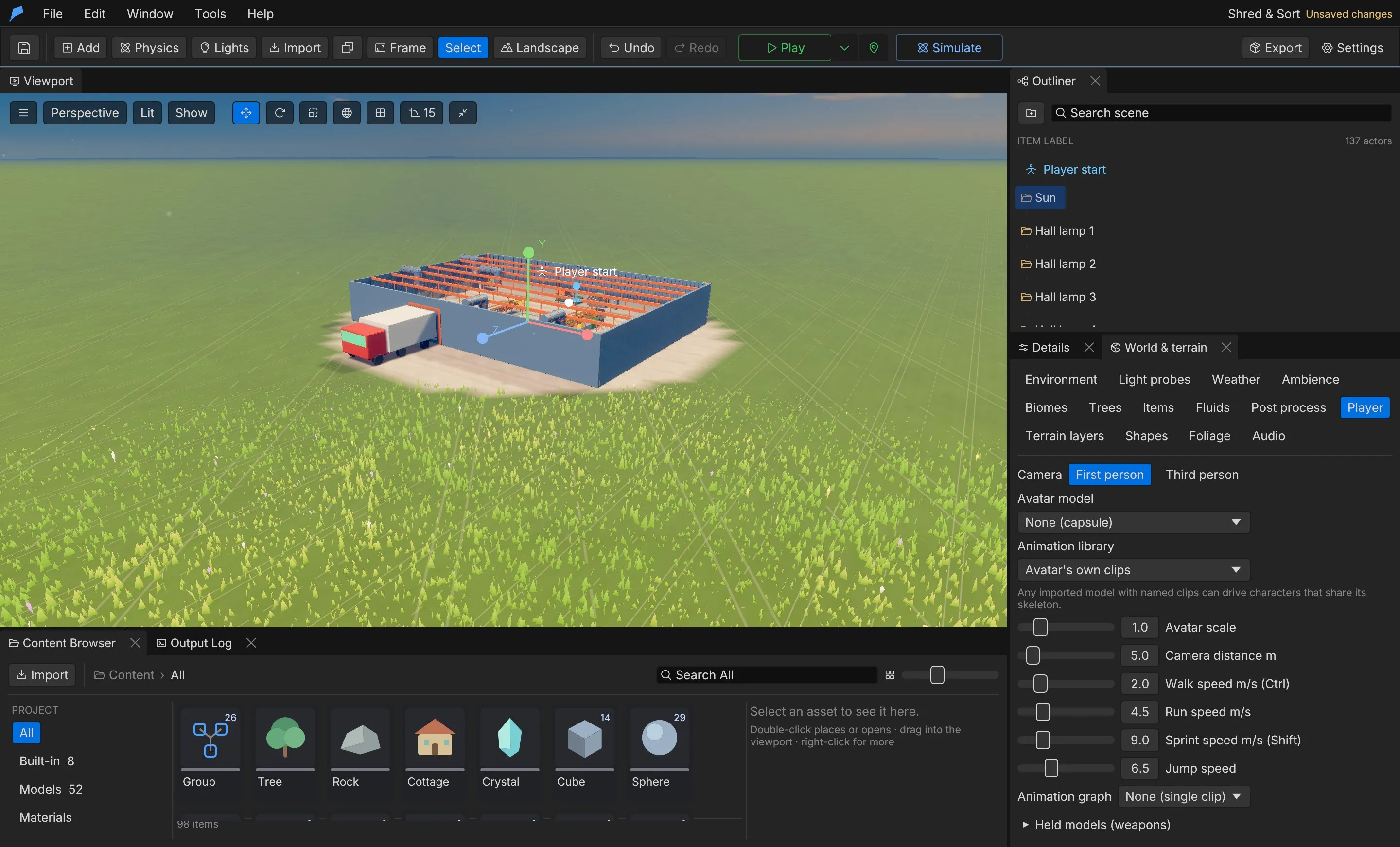 ### Player settings [Section titled “Player settings”](#player-settings) | Setting | Field | Range | Default | | ----------------- | ---------------------------- | --------------------------------------------------------- | ---------------------- | | Camera | `camera` | `FirstPerson`, `ThirdPerson` | FirstPerson | | Avatar model | `avatar_asset_id` | Asset ID | None (capsule) | | Animation library | `animation_library_asset_id` | Asset ID | The avatar’s own clips | | Avatar scale | `avatar_scale` | 0.05–20 | 1 | | Camera distance | `camera_distance` | 1–40 m | 5 m | | Walk speed | `walk_speed` | 0.1–50 m/s | 2 m/s | | Run speed | `run_speed` | 0.1–50 m/s | 4.5 m/s | | Sprint speed | `sprint_speed` | 0.1–50 m/s | 9 m/s | | Jump speed | `jump_speed` | 0–30 m/s | 6.5 m/s | | Animation graph | `animation_graph` | Graph ID | None | | Held models | `attachments` | Up to 8 `{model_asset_id, bone, offset, rotation, scale}` | None | An animation library with different bone names is retargeted onto the avatar automatically. An animation graph replaces the clip list and receives `speed`, `grounded` and `vertical_speed` every frame. See [Animation graphs](/docs/animation/animation-graphs/). ### Locomotion clips [Section titled “Locomotion clips”](#locomotion-clips) The defaults match the Character Forge humanoid clip names. A model without a clip keeps playing its current one. When a model has no `Idle_Loop`, `Walk_Loop` or `Jog_Fwd_Loop` clip, those defaults fall back to its conventionally named clips, so many downloaded characters animate without setup: | Default | Falls back to, first match, any letter case | | -------------- | ---------------------------------------------------- | | `Idle_Loop` | `idle`, `Idle_A`, `Idle_01`, `Breathing Idle` | | `Walk_Loop` | `walk`, `Walking`, `Walk_A`, `Walk_01` | | `Jog_Fwd_Loop` | `run`, `jog`, `sprint`, `Running`, `Run_A`, `Run_01` | | State | Field | Default clip | | ------ | -------- | -------------- | | Idle | `idle` | `Idle_Loop` | | Walk | `walk` | `Walk_Loop` | | Run | `run` | `Jog_Fwd_Loop` | | Sprint | `sprint` | `Sprint_Loop` | | Jump | `jump` | `Jump_Start` | | Fall | `fall` | `Jump_Loop` | | Swing | `swing` | `Swing_Loop` | | Glide | `glide` | `Glide_Loop` | | Fly | `fly` | `Fly_Loop` | | Crouch | `crouch` | `Crouch_Idle` | ## Movement and stamina [Section titled “Movement and stamina”](#movement-and-stamina) The player runs by default, sprints while **Sprint** is held, and walks while **Alt** is held. With crouching on, **Crouch** lowers the capsule and slows the player. Wading through thick fluids slows the player, and so do deep fresh snow and sand; a trodden track is easier going. Set how much snow and sand slow walkers with **Slows walkers** in the **Snow & sand** section of **Window → World & terrain → Weather** (`drifts.set` `slow`, 0–0.9, default 0.45). | Field | Description | Range | Default | | ------------------------- | ------------------------------------------------------------------------------------------ | ---------- | ------- | | `movement.crouch` | Crouch on the crouch action | On/off | On | | `movement.crouch_speed` | Fraction of run speed while crouched | 0.05–1 | 0.5 | | `movement.climbing` | Walk into a steep surface to climb it; Jump leaps up, Crouch lets go | On/off | On | | `movement.climb_speed` | Climbing speed | 0.1–10 m/s | 1.8 m/s | | `movement.climb_tag` | Only objects with this tag are climbable; empty allows any steep surface, terrain included | — | Empty | | `movement.mantle` | Jump at a ledge to pull up onto it | On/off | On | | `movement.mantle_height` | Highest ledge above the feet | 0.3–4 m | 2 m | | `movement.mantle_seconds` | Time to pull up | 0.05–3 s | 0.4 s | | Stamina field | Description | Default | | --------------------------------- | ---------------------------------------------------- | --------- | | `stamina.enabled` | Stamina limits sprinting, climbing and fast swimming | On | | `stamina.max` | Maximum stamina | 100 | | `stamina.sprint`, `climb`, `swim` | Cost per second | 14, 9, 10 | | `stamina.climb_jump` | Cost per climbing leap | 18 | | `stamina.regen` | Regained per second | 32 | | `stamina.delay` | Seconds before regeneration starts | 0.8 s | Running out of stamina exhausts the player until it refills completely. ### Swimming [Section titled “Swimming”](#swimming) The player swims in any water volume with **Player swims** turned on. The head floats above the surface; **Jump** swims up and **Crouch** dives. Swimming is slower than running, and sprinting in water costs swim stamina. See [Water and fluids](/docs/world/water-and-fluids/) for water volumes. ## Traversal abilities [Section titled “Traversal abilities”](#traversal-abilities) Turn abilities on in **Traversal (swing, glide, fly…)**, or choose **All abilities on (superhero)** to enable all six. They use the actions every project already has, and momentum carries between them: let go of a swing at the bottom of the arc and you fly on. | Ability | Control | | ---------- | --------------------------------------------------------------------------------------------------------- | | Swing | Hold **Grapple** (F) in the air; W pumps the swing, release to let go with a boost | | Zip | **Ability** (Q) pulls you to the point you aim at; a ledge there pops you up | | Wall-run | Hold **Sprint** in the air beside a wall; **Jump** kicks off | | Super jump | Hold **Crouch** on the ground to charge, then **Jump** | | Glide | Hold **Jump** while falling | | Flight | Double-tap **Jump** in the air; Jump rises, Crouch dives, Sprint boosts; land or double-tap again to stop | | Field | Description | Range | Default | | ---------------------------------------- | --------------------------------------------------- | -------------------- | --------------- | | `swing` | Rope swinging from anything solid up and ahead | On/off | Off | | `swing_range` | How far up and ahead a rope can catch | 5–120 m | 45 m | | `swing_pump` | Pumping and reeling in | 0–40 m/s² | 9 m/s² | | `swing_release` | Speed kept and added when letting go | 0.5–2× | 1.15× | | `swing_sky` | With nothing to catch, the rope swings from the sky | On/off | Off | | `zip` | Grapple zip to the aimed point | On/off | Off | | `zip_range`, `zip_speed` | Reach and speed | 5–150 m, 5–80 m/s | 60 m, 32 m/s | | `wall_run` | Run along walls | On/off | Off | | `wall_run_speed`, `wall_run_seconds` | Speed and longest run | 2–30 m/s, 0.2–6 s | 10 m/s, 1.6 s | | `wall_jump` | Kick-off speed | 2–25 m/s | 9 m/s | | `super_jump` | Charged jump | On/off | Off | | `super_jump_height`, `super_jump_charge` | Height at full charge and charge time | 2–120 m, 0.1–4 s | 18 m, 0.9 s | | `glide` | Glide while falling | On/off | Off | | `glide_sink`, `glide_speed` | Sink rate and forward speed | 0.2–10 m/s, 2–60 m/s | 2.2 m/s, 15 m/s | | `flight` | Free flight | On/off | Off | | `flight_speed`, `flight_boost` | Speed and Sprint multiplier | 2–120 m/s, 1–5× | 22 m/s, 2.2× | | `air_control` | How much you steer momentum after an ability | 0–1 | 0.5 | Traversal works with the third-person controller, and with the first-person controller when combat is off. ## Example: leap off the jetty and glide [Section titled “Example: leap off the jetty and glide”](#example-leap-off-the-jetty-and-glide) You’ll give the player a charged super jump and a glide, so they can leap high off the jetty and float out over the sea. Start from the **Ocean Voyage** example project, which has no combat. 1. Open **Window → World & terrain** and select the **Player** tab. 2. Expand **Traversal (swing, glide, fly…)**. 3. Turn on **Super jump** and set **Super jump height** to **24 m**. Leave **Charge time** at **0.9 s**. 4. Turn on **Glide** and set **Glide sink** to **1.5 m/s**. Leave **Glide speed** at **15 m/s**. 5. Press **Play**. To jump, hold **Crouch** (Ctrl) for about a second, then press **Jump** (Space) while still holding Crouch. Releasing Crouch before you press Jump throws the charge away. Keep Jump held after the jump: once you’re falling faster than 1 m/s you start gliding, and **W** steers the glide forward. ### Do the same from the command line [Section titled “Do the same from the command line”](#do-the-same-from-the-command-line)
```bash
feather-cli --workspace /tmp/demo --project project.feather.json command traversal.set \
--json '{"patch":{"super_jump":true,"super_jump_height":24,"glide":true,"glide_sink":1.5}}' \
--save project.feather.json
```
### Check it worked [Section titled “Check it worked”](#check-it-worked) In Play, a full charge throws you about 24 m up, and you then sink slowly instead of dropping. A headless run proves it without a renderer. Hold Ctrl from frame 20, press Space at frame 90 (1.2 s of charge), then hold W:
```bash
feather-cli --workspace /tmp/demo --project project.feather.json command game.simulate --json '{
"frames": 420,
"inputs": [
{"frame": 20, "key": "Ctrl", "pressed": true},
{"frame": 90, "key": "Space", "pressed": true},
{"frame": 91, "key": "W", "pressed": true},
{"frame": 92, "key": "Ctrl", "pressed": false}
]}'
```
The report’s `traversal` section shows `super_jumps: 1`, `glides: 1`, `glide_seconds` around 3.8, `top_height` around 26 and `mode: "glide"` at the end. `player.final.position` is about 55 m further along Z than `player.initial.position`, and still about 18 m higher: the player is gliding over the sea when the run ends. ## Camera and footsteps [Section titled “Camera and footsteps”](#camera-and-footsteps) | Field | Description | Range | Default | | ----------------------------- | -------------------------------------------------------- | --------------- | -------- | | `camera.head_bob` | First-person head bob | 0–0.3 m | 0.035 m | | `camera.fov_kick` | Extra field of view while sprinting | 0–30° | 7° | | `camera.landing_dip` | View dip on a hard landing | 0–1 m | 0.18 m | | `camera.shake` | Screen shake in both views | 0–2 | 1 | | `camera.collision_radius` | Third-person camera collision radius | 0–1 m | 0.25 m | | `camera.pull_in`, `ease_out` | How fast the camera pulls in when blocked and eases back | 0.5–100, 0.1–50 | 20, 3 | | `footsteps.enabled`, `volume` | Footstep sounds | 0–2 | On, 0.55 | | `footsteps.stride` | Metres between steps at a run | 0.3–6 m | 1.9 m | | `footsteps.landing` | Play a landing sound | On/off | On | The footstep surface comes from the object’s physics surface or name, or from the terrain. Each surface — `grass`, `dirt`, `stone`, `wood`, `water`, `snow`, `metal` or `sand` — can use your own sound cue. Dirt, sand and snow leave footprints with a puff of dust by default, and water splashes. ## Input actions [Section titled “Input actions”](#input-actions) Gameplay reads named actions rather than raw keys. Edit them in **Window → Input**. | Action | Keys | Gamepad | | ------------------------------------------------------ | ----------------------- | --------------------------- | | `move_forward`, `move_back`, `move_left`, `move_right` | W, S, A, D | Left stick | | `jump` | Space | South | | `sprint` | ShiftLeft | LeftStick | | `crouch` | ControlLeft | East | | `interact` | E | West | | `fire`, `aim` | Mouse1, Mouse2 | RightTrigger, LeftTrigger | | `reload` | R | West | | `grenade`, `ability` | G, Q | RightBumper, LeftBumper | | `melee` | V | RightStick | | `grapple` | F | North | | `throw` | Mouse1 | RightTrigger | | `use_tool` | C | DPadDown | | `slot_1`, `slot_2`, `slot_3` | 1, 2, 3 | DPadLeft, DPadUp, DPadRight | | `journal` | J | Select | | `pause` | Escape (not rebindable) | Start | The left stick always moves and the right stick looks. Gameplay data that names an action’s default key — for example `combat.keys.jump = "Space"` — follows the action, so gamepad buttons and player rebinds apply to it. Player rebinds are saved per player, outside the project. | Gamepad field | Description | Range | Default | | ------------- | -------------------------------------------- | --------- | ------- | | `enabled` | Gamepad input | On/off | On | | `deadzone` | Stick dead zone | 0–0.9 | 0.15 | | `look_speed` | Turn speed at full right-stick deflection | 1–1080°/s | 200°/s | | `look_curve` | Higher values give finer aim near the centre | 0.5–4 | 1.6 | | `invert_y` | Invert vertical look | On/off | Off | ## Extend it [Section titled “Extend it”](#extend-it) | Function | Description | | ------------------------------------------- | ----------------------------------------------------------------------- | | `action_down(id)` | `true` while an action is held | | `action_pressed(id)` | `true` on the frame an action is pressed | | `stamina()`, `max_stamina()`, `exhausted()` | Stamina state | | `climbing()`, `crouching()` | Movement state | | `tune("feel", patch)` | Changes game feel at runtime, for example a slower crouch in a cutscene | | `player_position()`, `player_forward()` | Where the player is and which way they face |
```rust
// A world script: warn the player once each time they run out of stamina.
fn update(dt) {
let tired = exhausted();
if tired && !get("warned", false) {
print("Out of stamina");
}
set("warned", tired);
}
```
## Limits [Section titled “Limits”](#limits) * Up to four keys and four gamepad buttons per action. Action IDs are 1–48 lowercase letters, digits or underscores. * Up to eight held models on the avatar. * `tune` covers game feel, not traversal; change traversal with `traversal.set`. ## Automate it [Section titled “Automate it”](#automate-it)
```bash
# Third-person player with a faster sprint
feather-cli --connect .feather-session.json command project.player \
--json '{"camera":"ThirdPerson","camera_distance":4,"sprint_speed":11}'
# Turn on swinging and gliding
feather-cli --connect .feather-session.json command traversal.set \
--json '{"patch":{"swing":true,"swing_range":60,"glide":true}}'
# Allow climbing only on objects tagged "ivy"
feather-cli --connect .feather-session.json command feel.set \
--json '{"patch":{"movement":{"climb_tag":"ivy"}}}'
# Add a "dodge" action on Alt and the gamepad's East button
feather-cli --connect .feather-session.json command input.upsert \
--json '{"value":{"id":"dodge","label":"Dodge","keys":["AltLeft"],"gamepad":["East"]}}'
```
`game.simulate` accepts scripted key and stick inputs, so agents can verify movement and traversal without a renderer. See [Simulation](/docs/agents/simulation/).
# Story
> Write branching dialogues, quests with tracked objectives and cinematics as project data, and drive them from scripts.
Feather’s story system covers the three things most narrative games need: branching dialogues, quests with staged objectives, and cinematics. All of it is project data, authored in the **Story** window or through `story.*` commands, and saved with the project. Conditions and actions are short Rhai snippets that use the same functions as [world scripts](/docs/logic/scripting/). A dialogue choice can check the player’s inventory, and a quest stage can complete when a script value reaches a goal. ## What’s included [Section titled “What’s included”](#whats-included) * **Dialogues:** a node graph of lines and choices, with speakers, conditions, actions, voice-over, speaker animations, auto-advance and per-line camera framing. * **Quests:** ordered stages with objectives, progress toward a goal, completion and failure conditions, on-screen tracking, world markers and a journal. * **Cinematics:** a camera path with timed events — subtitles, animations, moves, sounds, fades and more — with letterbox, skipping and a blend back to gameplay. * Story progress — dialogue choices seen, quest status and stage — is kept in saves. ## Write a dialogue [Section titled “Write a dialogue”](#write-a-dialogue) 1. Open **Window → Story** and select the **Dialogues** tab. 2. Create a dialogue. Add nodes to the graph and drag between them to link a line to the next one or to a choice’s target. 3. For each node, set the **speaker** and the **text**. Add choices for the player, each with optional conditions and actions. 4. Use the preview to step through the conversation in the editor. 5. Start the dialogue from a script, for example when the player interacts with a character.
```rust
// A world script: talk to the blacksmith (object 18).
fn on_interact(id) {
if id == "18" {
start_dialogue("blacksmith_intro", 18);
}
}
```
### Dialogue nodes [Section titled “Dialogue nodes”](#dialogue-nodes) | Field | Description | | -------------- | ------------------------------------------------------------------------------------------------------------------------------------------------------------------------------------------ | | `speaker` | `npc` (the character the dialogue was started with), `player`, an object name or any display name; empty is a narrator line | | `text` | The line. `{key}` inserts script state and `{npc}` the partner’s name. A node with no text is a silent logic step that runs its action and follows the first choice whose condition passes | | `condition` | Rhai condition; when false the node is skipped and `next` follows | | `action` | Rhai code run when the node is entered | | `next` | The node after this one when it has no choices; empty ends the dialogue | | `choices` | Up to 12 choices | | `voice` | A sound played with the line | | `animation` | A clip the speaker plays | | `camera` | `Free`, `Speaker`, `OverShoulder` or `Wide`; unset uses the dialogue’s camera | | `auto_advance` | Seconds before advancing on its own; 0 waits for the player | | Choice field | Description | | ----------------------- | --------------------------------------------------------------------- | | `text` | What the player picks | | `next` | Node to go to; empty ends the dialogue | | `condition` | Rhai condition; when false the choice is hidden | | `show_disabled`, `hint` | Show a failing choice greyed out with a hint, such as “Needs 50 gold” | | `action` | Rhai code run when picked | | `once` | Offer the choice only until it has been picked once | The dialogue’s `camera` defaults to `OverShoulder`. Other options are `Speaker` (close on the speaker’s face), `Wide` (both characters side by side) and `Free` (leave the camera where it is). ## Create a quest [Section titled “Create a quest”](#create-a-quest) 1. In **Window → Story**, select the **Quests** tab and create a quest. 2. Give it a title, description and category, such as “Main” or “Side”, and a reward shown in the journal. 3. Add stages in order. For each stage, write a short objective and set how it completes. 4. Start the quest with `auto_start`, from a dialogue action, or from a script. | Quest field | Description | | ------------------------ | ----------------------------------------------------------- | | `category` | Journal group | | `start` | The first stage; empty uses the first in the list | | `auto_start` | A Rhai condition that starts the quest when it becomes true | | `on_complete`, `on_fail` | Rhai code run when the quest ends | | `reward` | Text shown in the journal | | `hidden` | Internal quests never show in the journal or tracker | | Stage field | Description | | ------------------------- | -------------------------------------------------------- | | `objective` | Short text for the tracker; `{key}` inserts script state | | `details` | Longer journal entry | | `complete_when` | Rhai condition that completes the stage | | `fail_when` | Rhai condition that fails the whole quest | | `progress`, `goal` | A Rhai number shown as progress toward the goal | | `on_enter`, `on_complete` | Rhai code run when the stage starts and ends | | `next` | The next stage; empty completes the quest | | `target` | Object name the quest marker points at | Quest conditions are checked every `quest_check_interval` seconds. ## Cinematics [Section titled “Cinematics”](#cinematics) A cinematic is a timed sequence: camera keys plus events. Events can show a subtitle, play an animation, move, place or show an object, play a sound, fade, shake the camera, set the time of day, start a dialogue or run Rhai code. A cinematic can follow an `anchor` object, show a letterbox, hide the HUD, be skippable and blend back to the gameplay camera. Cinematics are edited on the **Cinematics** tab, and as tracks in the Sequencer. See [Sequencer](/docs/animation/sequencer/). ## Story settings [Section titled “Story settings”](#story-settings) | Field | Description | Range | Default | | ------------------------- | ----------------------------------------------------- | ------------ | --------------- | | `text_speed` | Characters revealed per second; 0 shows lines at once | 0–1000 | 45 | | `dialogue_camera` | Frame the speakers during dialogue | On/off | On | | `pause_clock_in_dialogue` | Stop the game clock while a dialogue is open | On/off | On | | `quest_tracker` | Show active objectives on screen | On/off | On | | `quest_markers` | Draw a marker over the current objective’s target | On/off | On | | `quest_check_interval` | Seconds between quest condition checks | 0.05–10 s | 0.5 s | | `journal_key` | Opens the quest journal | Key name | J | | `skip_key` | Skips a skippable cinematic | Key name | Space | | `advance_keys` | Advance dialogue | Up to 8 keys | Space, Enter, E | | `letterbox` | Letterbox bar height as a fraction of the screen | 0–0.3 | 0.11 | | `subtitles` | Show subtitles for cinematic lines | On/off | On | ## Extend it [Section titled “Extend it”](#extend-it) | Function | Description | | --------------------------------------------------------------- | ----------------------------------------------------------------- | | `start_dialogue(id[, npc])` | Starts a dialogue, optionally with an object as the `npc` speaker | | `end_dialogue()`, `dialogue_active()` | End the open dialogue, or check for one | | `dialogue_seen(dialogue, node)` | Whether the player has reached a node | | `start_quest(id)`, `set_quest_stage(id, stage)` | Start a quest or jump to a stage | | `complete_quest(id)`, `fail_quest(id)` | End a quest | | `quest_status(id)` | `inactive`, `active`, `completed` or `failed` | | `quest_stage(id)`, `quest_active(id)` | The current stage, or whether the quest is active | | `play_cinematic(id)`, `stop_cinematic()`, `cinematic_playing()` | Cinematics | | `play_sequence(id)` | Plays a Sequencer sequence | | `open_journal()`, `close_journal()` | The quest journal | | Hook | Runs when | | ----------------------------- | ---------------------------------------------------------------------------------------- | | `on_dialogue_end(id)` | A dialogue finishes | | `on_quest(id, status, stage)` | A quest changes status or stage; `status` is `started`, `stage`, `completed` or `failed` | | `on_cinematic_end(id)` | A cinematic finishes |
```rust
// A world script: play the ending cinematic when the main quest completes.
fn on_quest(id, status, stage) {
if id == "main" && status == "completed" {
play_cinematic("ending");
}
}
```
## Limits [Section titled “Limits”](#limits) * Up to 512 dialogues with 400 nodes each, and 12 choices per node. * Up to 256 quests with 64 stages each. * Up to 128 cinematics with 512 events each. * Text up to 4,096 characters and Rhai snippets up to 8,192 characters. ## Automate it [Section titled “Automate it”](#automate-it)
```bash
# A two-line dialogue with a choice
feather-cli --connect .feather-session.json command story.set --json '{
"kind":"dialogue",
"value":{"id":"blacksmith_intro","title":"Blacksmith","nodes":[
{"id":"hello","speaker":"npc","text":"Need a blade sharpened?","choices":[
{"text":"Yes, please.","next":"thanks"},
{"text":"Not today.","next":""}]},
{"id":"thanks","speaker":"npc","text":"Come back at dusk."}]}}'
# Show lines instantly and hide quest markers
feather-cli --connect .feather-session.json command story.settings \
--json '{"text_speed":0,"quest_markers":false}'
```
`story.set` replaces the whole item, so read it with `story.get` first when you change one part. `story.get` with no arguments summarises every dialogue, quest and cinematic plus the settings.
# Vehicles and boats
> Turn a dynamic object into a drivable car on raycast wheels or a sailable boat, tune how it handles, and drive it from scripts.
Feather has two ready-made ways to get around: wheeled vehicles and boats. Each is a component you add to an object with a **Dynamic** physics body. The player walks up, presses **Interact** and takes control; scripts can drive the same vehicles without a player. ## What’s included [Section titled “What’s included”](#whats-included) * **Vehicles:** raycast wheels with spring-and-damper suspension, load-sensitive tyre grip, front, rear or all-wheel drive, speed-sensitive steering, a handbrake that swings the tail, drawn tyres that turn and spin, and a chase camera. * **Boats:** a helm the player steers from, sails driven by the project wind, oars or a motor, a rudder, a keel against sideways sliding, and an anchor. Boats float on any water by their density. * Ready-made `car` and `ship` setups. * Script functions to board, leave, read speed and drive. ## Add a car [Section titled “Add a car”](#add-a-car) 1. Choose **Physics → Car** in the toolbar, or select a box-shaped object with a **Dynamic** body and choose **Details → Add Component → Vehicle**. 2. Make sure the object’s front faces local −Z. The front wheels steer. 3. Tune the engine, brakes, tyres and suspension in **Details → Vehicle**. 4. Press **Play**, walk to the driver’s side and press **E**. | Control | Action | | -------- | --------------------------- | | W / S | Throttle, brake and reverse | | A / D | Steer | | Jump | Handbrake | | Interact | Get out | ### Vehicle settings [Section titled “Vehicle settings”](#vehicle-settings) | Setting | Field | Range | Default | | ----------------- | --------------- | ------------------------------------------------------------- | ------------------- | | Engine | `engine` | Pull at full throttle, 0–40 m/s² | 9 m/s² | | Brakes | `brake` | Deceleration at full brake, 0–60 m/s² | 14 m/s² | | Top speed | `max_speed` | 1–120 m/s | 26 m/s | | Reverse speed | `reverse_speed` | 0–40 m/s | 7 m/s | | Steering lock | `steer` | Front-wheel angle, reduced at speed, 0–60° | 32° | | Tyre grip | `grip` | g held before sliding, 0.1–3 | 1.2 g | | Drive | `drive` | `Front`, `Rear` or `All` | Rear | | Wheel radius | `wheel_radius` | 0.05–2 m | 0.38 m | | Wheel width | `wheel_width` | 0.02–2 m | 0.26 m | | Suspension travel | `suspension` | 0.05–1.5 m | 0.35 m | | Stiffness | `stiffness` | Bounce frequency, 0.5–6 Hz; low is soft | 1.8 Hz | | Damping | `damping` | Damping ratio, 0–2; 1 settles without bouncing | 0.7 | | Seat | `seat` | Driver position in local box space | \[−0.22, 0.1, 0.05] | | Draw wheels | `show_wheels` | On/off | On | | Prompt | `prompt` | 1–80 characters | Drive | | Wheels | `wheels` | Up to 16 mounts in local box space (−0.5 to 0.5 before scale) | Four bottom corners | 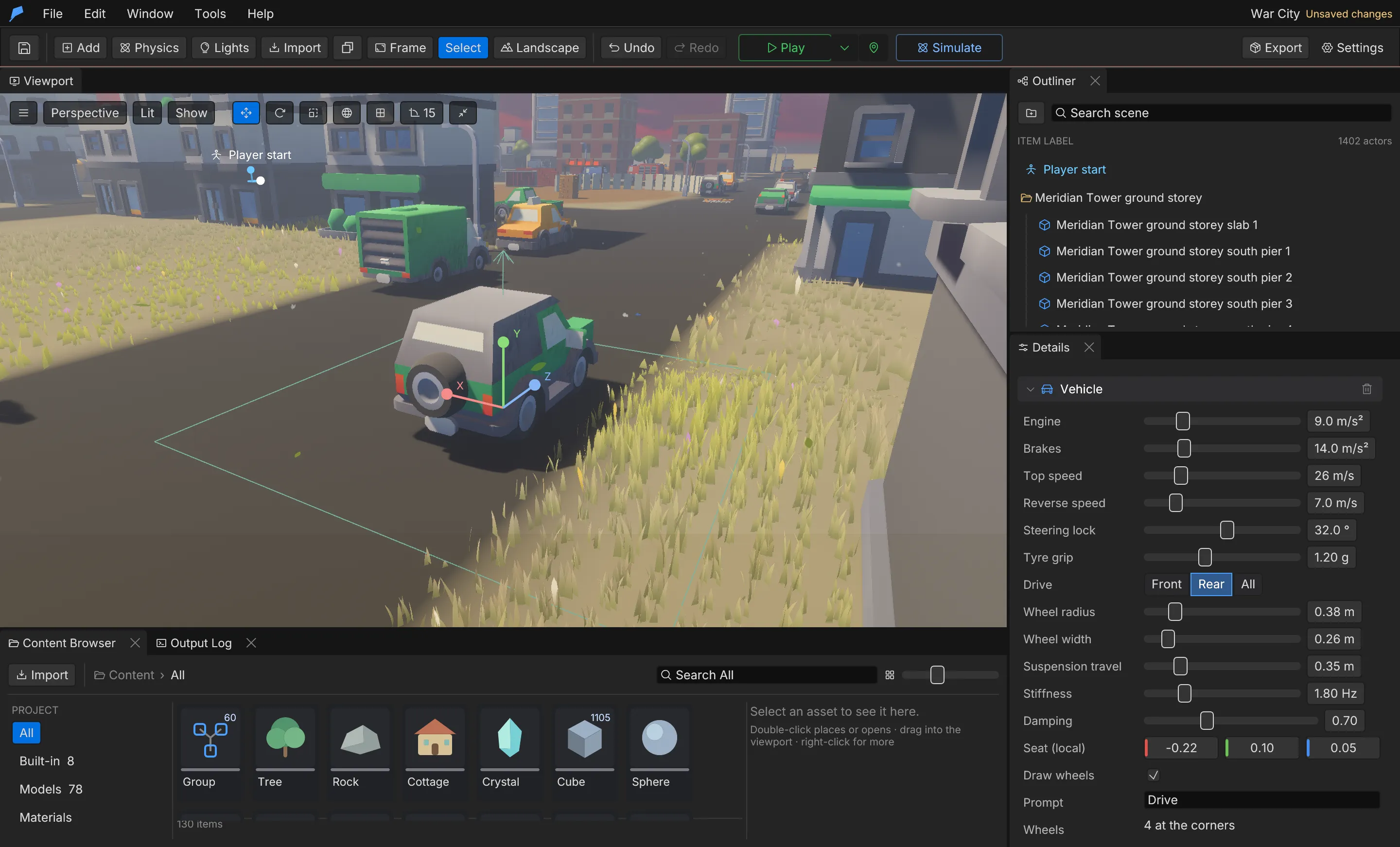 Each wheel casts a ray down from its mount. The suspension holds the body up, and the tyre pushes along the ground (engine and brakes) and sideways against sliding (grip). Both forces are limited by the load on that wheel, so heavy braking in a turn slides. Stiffness is a natural frequency, so the same values suit light and heavy vehicles. To set custom wheel positions, for a truck or a six-wheeler, patch `vehicle.wheels` with `scene.update`. **Reset** in **Details → Vehicle** returns to the four corners. While you drive, the camera becomes a chase camera behind the vehicle. Its distance follows the vehicle’s longest side, so bigger vehicles get a wider view; there is nothing to set up. ## Example: a rally car at the start [Section titled “Example: a rally car at the start”](#example-a-rally-car-at-the-start) You’ll put an all-wheel-drive rally car next to the player start, get in and drive it. Start from the **War City** example project; the player starts at the FOB. 1. Point the viewport at open ground just in front of the player start (the blue ring), then choose **Physics → Car** in the toolbar. You get a red **Car** with a **Car cabin** welded on top, at the centre of the view. 2. Select **Car**. In **Details**, rename it **Rally car**. 3. In **Details → Vehicle**, set **Drive** to **All**, **Engine** to **14 m/s²**, **Tyre grip** to **1.6 g** and **Top speed** to **30 m/s**. 4. Press **Play**, walk to the car’s left side (the driver’s door) and press **E** when the **Drive** prompt appears. 5. Hold **W** to accelerate, steer with **A** and **D**, and press **E** again to get out. ### Do the same from the command line [Section titled “Do the same from the command line”](#do-the-same-from-the-command-line) `physics.spawn` returns the new IDs with the car first (`1403` in a fresh copy of War City). The position is terrain-relative, 6 m from the player start.
```bash
feather-cli --workspace /tmp/demo --project project.feather.json command physics.spawn \
--json '{"template":"car","position":[26,0,-34]}' --save project.feather.json
feather-cli --workspace /tmp/demo --project project.feather.json command scene.update \
--json '{"id":1403,"patch":{"name":"Rally car","vehicle":{"drive":"All","engine":14,"grip":1.6,"max_speed":30}}}' \
--save project.feather.json
```
### Check it worked [Section titled “Check it worked”](#check-it-worked) In Play, the view swings behind the car as soon as you get in, and the car pulls away when you hold W. Headless, walk back to the car (it is behind the player start), press E, then hold W:
```bash
feather-cli --workspace /tmp/demo --project project.feather.json command game.simulate --json '{
"frames": 200,
"inputs": [
{"frame": 10, "key": "S", "pressed": true},
{"frame": 60, "key": "S", "pressed": false},
{"frame": 70, "key": "E", "pressed": true},
{"frame": 72, "key": "E", "pressed": false},
{"frame": 90, "key": "W", "pressed": true}
]}'
```
The report’s `vehicle` section shows `entered: [1403]` and `driver: 1403`, `seconds_driving` around 2.2 and `distance` around 17 m. `controls["1403"]` shows `throttle: 1`, `grounded: 4` (all four wheels on the ground) and a `speed` around 16.7 m/s. ### Common problems [Section titled “Common problems”](#common-problems) * **No Drive prompt.** The vehicle needs a **Dynamic** body. Stand by the seat, on the car’s −X side: within half the car’s width plus 1.8 m (at least 2.5 m), and within 2.5 m of its height. * **The car drives backwards.** The front is the object’s local −Z. Rotate the object 180° around Y. * **The car tips over in corners.** Lower its balance point: in **Details → Physics → Advanced**, turn on **Own balance point** and lower **Centre of mass m**. See [Physics](/docs/gameplay/physics/#body-settings). ## Add a boat [Section titled “Add a boat”](#add-a-boat) 1. Choose **Physics → Ship** in the toolbar, or give a hull a **Dynamic** body and choose **Details → Add Component → Boat**. 2. Place it on water. The bow is local −Z. 3. Set the helm position, where the player stands to steer, and tune the sail and rudder. 4. Press **Play**, walk to the helm and press **E**. | Control | Action | | -------- | ------------------------------------------ | | W / S | Raise and lower the sail, and row or drive | | A / D | Rudder | | Jump | Drop or raise the anchor | | Interact | Leave the helm | ### Boat settings [Section titled “Boat settings”](#boat-settings) | Setting | Field | Range | Default | | ------------ | ----------- | ---------------------------------------------------------------------------- | --------------- | | Sail | `sail` | Acceleration at full sail with a fresh wind behind, 0–20 m/s²; 0 has no sail | 1.6 m/s² | | Oars / motor | `thrust` | Acceleration at full throttle, 0–20 m/s² | 0.6 m/s² | | Turn rate | `turn_rate` | Rudder turn rate once moving, 0–180°/s | 22°/s | | Top speed | `max_speed` | 0.5–60 m/s | 9 m/s | | Keel | `keel` | Resistance to sideways sliding, 0–10 | 4 | | Helm | `helm` | Captain position in local box space | \[0, 0.5, 0.35] | | Prompt | `prompt` | 1–80 characters | Take the helm | Sails pull hardest with the wind behind and a little even against it. Set the wind in **Physics → World**; see [Physics](/docs/gameplay/physics/#world-settings). A boat floats when its body is lighter than the water it displaces; water density and waves are covered in [Water and fluids](/docs/world/water-and-fluids/). A boat left under sail keeps going, and an anchored boat stays moored after the captain leaves. A boat that rolls too easily steadies with a lower balance point (**Own balance point** under **Details → Physics → Advanced**). ## Extend it [Section titled “Extend it”](#extend-it) | Function | Description | | ----------------------------------------------- | ----------------------------------------------------------------- | | `drive(id)` | Puts the player in a vehicle | | `leave_vehicle()` | Gets the player out | | `driving()` | The ID of the vehicle the player is driving, or 0 | | `vehicle_input(id, throttle, steer, handbrake)` | Drives a vehicle without a player; throttle and steer are −1 to 1 | | `vehicle_speed(id)` | The vehicle’s current speed | | `board(id)` | Puts the player at a boat’s helm | | `leave_boat()` | Leaves the helm | | `helm()` | The ID of the boat the player is steering, or 0 | | `set_sail(id, amount)` | Sets the sail, 0 furled to 1 full | | `set_anchor(id, on)` | Drops or raises the anchor | Scripted input stays in effect until you send new input, so you can set it once per decision rather than every frame.
```rust
// A world script: car 12 circles on its own until the player gets in.
fn update(dt) {
if driving() == 12 {
return;
}
vehicle_input(12, 0.6, 0.3, false);
}
```
## Limits [Section titled “Limits”](#limits) * Vehicles and boats need a **Dynamic** body; the component does nothing on other body types. * A vehicle has at most 16 wheels. Wheel mounts, the seat and the helm must be within ±10 in local units. ## Automate it [Section titled “Automate it”](#automate-it)
```bash
# Add a car 10 m ahead of the origin
feather-cli --connect .feather-session.json command physics.spawn \
--json '{"template":"car","position":[0,0,10]}'
# Make car 12 an all-wheel-drive rally car with softer suspension
feather-cli --connect .feather-session.json command scene.update \
--json '{"id":12,"patch":{"vehicle":{"drive":"All","grip":1.6,"stiffness":1.4,"suspension":0.5}}}'
# Give ship 20 a bigger sail
feather-cli --connect .feather-session.json command scene.update \
--json '{"id":20,"patch":{"boat":{"sail":3,"max_speed":14}}}'
```
`game.simulate` reports the driving and helm state, so agents can check handling without a renderer. See [Simulation](/docs/agents/simulation/).
# Blueprints
> Build object behaviour visually with node graphs that compile to the same Rhai runtime as scripts.
A Blueprint is a node graph attached to one object. You wire events, flow control, values and engine functions together, and the editor compiles the graph to readable Rhai. It runs on the same bounded runtime as a [script](/docs/logic/scripting/), in the editor’s Play mode and in exported games. An object can have both a script and a Blueprint. They run as independent programs in the same session, with the script running first. 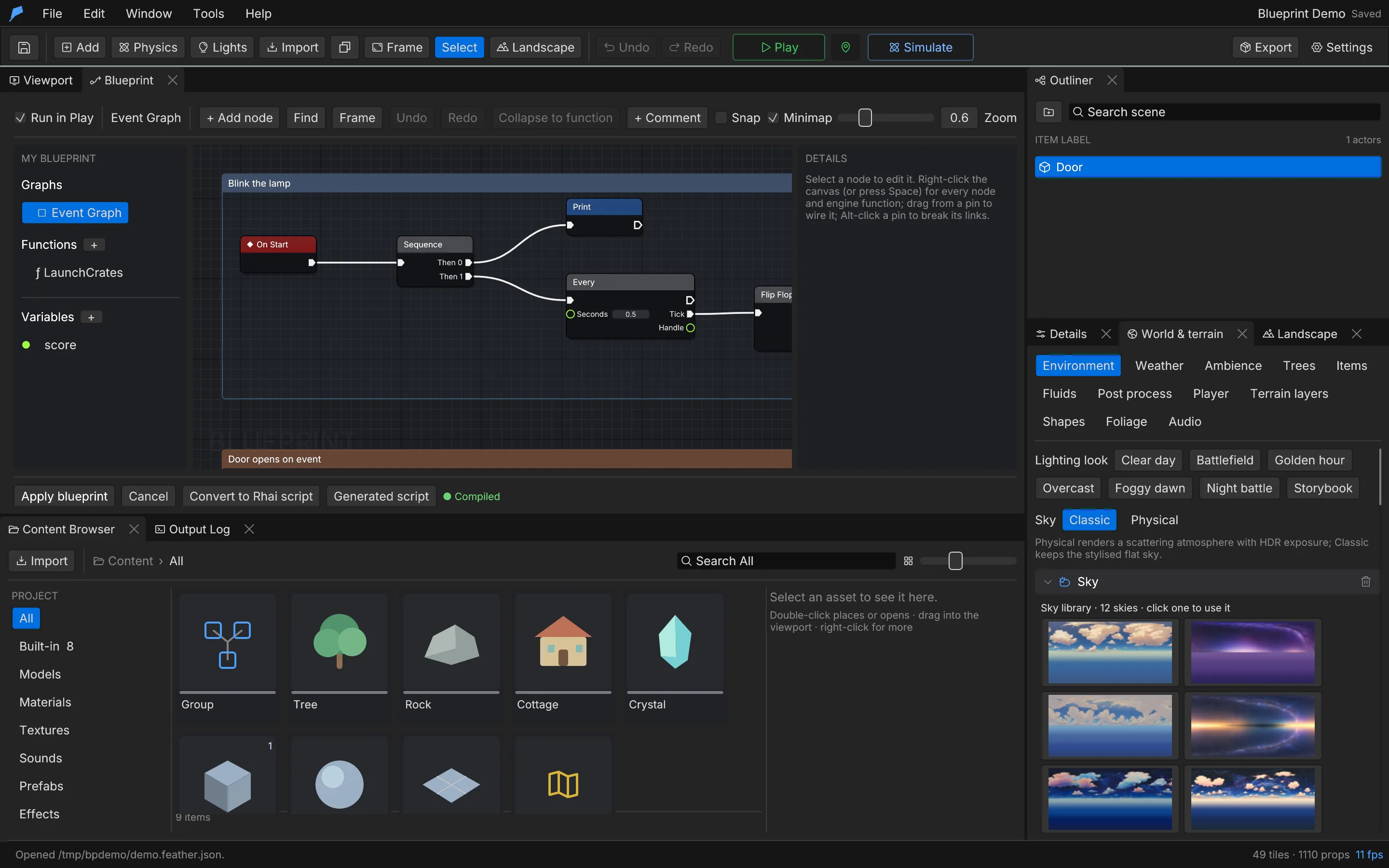 ## Open the Blueprint editor [Section titled “Open the Blueprint editor”](#open-the-blueprint-editor) 1. Select the object in the viewport or the Outliner. 2. Choose **Tools → Blueprints**, or click **Blueprints** in the object’s Details panel. 3. Right-click the canvas, press **Ctrl+Space** or click **+ Add node** to open the node palette. 4. Drag from a pin to another pin to wire them. 5. Click **Apply blueprint** to commit the graph to the object. **Cancel** discards the pending edits. 6. Press **Play**. While the session runs, nodes glow as they execute. **Apply blueprint** is available only while the graph compiles. The status line under the canvas shows **Compiled**, the number of warnings, or the first error. Click an error or warning to jump to its node. ## Example: a gate that opens when the player steps on a plate [Section titled “Example: a gate that opens when the player steps on a plate”](#example-a-gate-that-opens-when-the-player-steps-on-a-plate) You will add a pressure plate and a gate to the jetty in the **Ocean Voyage** example. A Blueprint on the plate opens the gate the first time the player steps on it. 1. Choose **File → Open example → Ocean Voyage**, then **File → Save project** to keep your own copy. 2. Click **Add → Cube** and rename it `Pressure plate`. Under **Transform**, set **Parent** to **Jetty**, **Local location** to `0`, `0.2`, `3` and **Scale** to `1.4`, `0.1`, `1.4`. Under **Physics**, turn on **Sensor**. 3. Click **Add → Cube** again and rename it `Gate`. Set **Parent** to **Jetty**, **Local location** to `0`, `1.2`, `8` and **Scale** to `2.6`, `2.2`, `0.2`. Note its ID in the Details header (`id 37` in a fresh copy). 4. With the gate selected, click **+ Add Component → Door**. Set **Swings** to `90°` and **Takes** to `1 s`. The hinge stays on the left edge. 5. Select the plate and choose **Tools → Blueprints**. 6. Open the node palette and add **On Trigger Enter**, **Branch**, **Do Once**, **Use Object** (from the Interaction & carrying group) and **Print**. 7. Wire **On Trigger Enter → Next** to **Branch → In**, **Branch → True** to **Do Once → In**, **Do Once → Completed** to **Use Object → In**, and **Use Object → Next** to **Print → In**. 8. Select **Branch**. In **Details**, under **Inline expressions**, set **Condition** to **OtherIsPlayer**. On the **Use Object** node, type the gate’s ID (`37`) into **id**. Set the **Print** message to `Plate pressed: opening the gate`. 9. Click **Apply blueprint**. The status line shows **Compiled**. **Do Once** stops the plate from closing the gate again the next time the player steps on it, because `use_object` toggles a door the same way pressing Interact does. Do the same from the command line, on a copy of the example. Each `scene.add` returns the new object’s ID and each `blueprint.add_node` returns a `node_id`; the commands below use the values a fresh copy returns.
```bash
cp -R examples/ocean-voyage /tmp/demo
P="--workspace /tmp/demo --project project.feather.json"
feather-cli $P command scene.add --save project.feather.json \
--json '{"kind":"Cube","name":"Pressure plate","parent_id":3,"position":[0,0.2,3]}' # id 36
feather-cli $P command scene.update --save project.feather.json \
--json '{"id":36,"patch":{"scale":[1.4,0.1,1.4],"physics":{"sensor":true}}}'
feather-cli $P command scene.add --save project.feather.json \
--json '{"kind":"Cube","name":"Gate","parent_id":3,"position":[0,1.2,8]}' # id 37
feather-cli $P command scene.update --save project.feather.json \
--json '{"id":37,"patch":{"scale":[2.6,2.2,0.2],"door":{"open_degrees":90,"seconds":1}}}'
feather-cli $P command blueprint.add_node --save project.feather.json \
--json '{"id":36,"operation":{"type":"OnTriggerEnter"},"position":[0,0]}' # node 1
feather-cli $P command blueprint.add_node --save project.feather.json \
--json '{"id":36,"operation":{"type":"Branch","condition":{"type":"OtherIsPlayer"}},"position":[240,0]}'
feather-cli $P command blueprint.add_node --save project.feather.json \
--json '{"id":36,"operation":{"type":"DoOnce"},"position":[480,0]}'
feather-cli $P command blueprint.add_node --save project.feather.json \
--json '{"id":36,"operation":{"type":"Call","function":"use_object","arity":1,"values":{"id":37}},"position":[720,0]}'
feather-cli $P command blueprint.add_node --save project.feather.json \
--json '{"id":36,"operation":{"type":"Print","message":"Plate pressed: opening the gate"},"position":[960,0]}'
feather-cli $P command blueprint.connect --save project.feather.json \
--json '{"id":36,"from":1,"from_pin":"Next","to":2,"to_pin":"In"}'
feather-cli $P command blueprint.connect --save project.feather.json \
--json '{"id":36,"from":2,"from_pin":"True","to":3,"to_pin":"In"}'
feather-cli $P command blueprint.connect --save project.feather.json \
--json '{"id":36,"from":3,"from_pin":"Completed","to":4,"to_pin":"In"}'
feather-cli $P command blueprint.connect --save project.feather.json \
--json '{"id":36,"from":4,"from_pin":"Next","to":5,"to_pin":"In"}'
```
`blueprint.get` with `{"id":36}` returns the compiled Rhai in `data.source`:
```rust
let _once_3 = false;
fn trigger_enter(other_id) {
if other_is_player() {
if !_once_3 {
_once_3 = true;
use_object(37.0);
print("Plate pressed: opening the gate");
}
} else {
}
}
```
**Check it worked.** Press **Play** and walk forward with **W**. When you cross the plate, its nodes glow, the Console shows `Pressure plate [Blueprint]: Plate pressed: opening the gate` and the gate swings open on its left edge over one second. To check the Blueprint path without the editor:
```bash
feather-cli $P command game.simulate \
--json '{"frames":120,"inputs":[{"frame":0,"key":"W","pressed":true}]}'
```
`data.report.logs` contains the `Plate pressed` line exactly once and `success` is `true`. The simulation runs Blueprints but not the game’s world-logic runtime, so the door itself does not swing there; check the swing in Play. ## The editor layout [Section titled “The editor layout”](#the-editor-layout) | Area | Contents | | ---------------- | --------------------------------------------------------------------------------------------------------------------------------------------------------------------------- | | Toolbar | **Run in Play**, the graph breadcrumb, **+ Add node**, **Find**, **Frame**, **Undo**, **Redo**, **Collapse to function**, **+ Comment**, **Snap**, **Minimap** and **Zoom** | | **My Blueprint** | The event graph, the object’s functions and its variables | | Canvas | The graph you are editing, with an optional minimap | | **Details** | Settings of the selected node, comment, function or variable | | Footer | **Apply blueprint**, **Cancel**, **Convert to Rhai script**, **Generated script** and the compile status | Clear **Run in Play** to keep a Blueprint on the object without running it. ### Canvas controls [Section titled “Canvas controls”](#canvas-controls) | Action | Shortcut | | -------------------------------- | ----------------------------------------- | | Open the node palette | Right-click the canvas, or **Ctrl+Space** | | Break every link on a pin | **Alt**-click the pin | | Frame the whole graph | **Home**, or **Frame** | | Frame the selection | **F** | | Comment box around the selection | **C** | | Copy, paste, duplicate | **Ctrl+C**, **Ctrl+V**, **Ctrl+D** | | Select all | **Ctrl+A** | | Delete the selection | **Delete** or **Backspace** | | Undo, redo | **Ctrl+Z**, **Ctrl+Y** | **Snap** aligns moved nodes to a 16 px grid. **Zoom** ranges from 0.2 to 2.0. **Find** lists every node of the open graph by title or ID; click one to select and frame it. ## Wires and pins [Section titled “Wires and pins”](#wires-and-pins) Graphs carry two kinds of wire: * **Execution wires** set the order in which nodes run. Every chain starts at an event. * **Data wires** carry typed values: Number, Bool, String, Vec3, Object or Array. A pin of type Any accepts every type. Wires between incompatible types are rejected. Nodes without execution pins are *pure*: they are evaluated where their value is read. An execution output and a data input each take one wire; connecting a new wire replaces the old one. Execution cycles are rejected; use **Every** for repeating work. Unconnected data inputs use the constant typed into the node. Object inputs accept an object name or ID. ## Events [Section titled “Events”](#events) Each event can appear once in the event graph. | Node | Runs when | | --------------------------------------------- | -------------------------------------------------------------------------------------------------------- | | **On Start** | Once, when Play begins | | **On Update** | Every frame; **Delta Seconds** is the frame time | | **On Trigger Enter** / **On Trigger Exit** | A sensor on this object starts or stops overlapping something. Needs **Physics → Sensor** and a collider | | **On Collision Start** / **On Collision End** | This object’s collider starts or stops touching something | | **On Event** | An event with this name arrives from `emit` or `emit_to` in any script; **Data** is its payload | | **Custom Event** | A listener registered with `on(name)` when Play begins fires on a matching `emit` | | **On Key** | A key or mouse button is **Pressed** this frame, or every frame while **Held** | The four contact events output **Other**, the other object’s ID. On Key accepts A–Z, 0–9, SPACE, ENTER, F1–F12, the arrow keys (ARROWUP and so on) and mouse buttons such as MOUSELEFT. ## Node palette [Section titled “Node palette”](#node-palette) The palette lists the built-in nodes below, your Blueprint functions, and a generated **Call** node for every engine function in the script API, grouped the same way. A function registered for scripts appears in the palette automatically. Type in the search box to find a node. Every word must match the node’s name, key, group or description, and the best matches come first: an exact name, then names that start with the words, then names that contain them, then matches in the group or description. A word of three or more letters also matches the letters of a name in order, so `gvitm` finds **Give Item**. While you search, results are listed by rank with their group on the right; with an empty search the palette is grouped. ### Flow control [Section titled “Flow control”](#flow-control) | Node | Behaviour | | ------------- | ----------------------------------------------------------------------------------------------------------------------------------------- | | **Branch** | Continues on **True** or **False** from a Bool **Condition** | | **Sequence** | Runs outputs **Then 0** to **Then N** in order; 1 to 8 outputs | | **For Each** | Runs **Body** for every element of **Array** (with **Element** and **Index**), then **Completed** | | **Do Once** | Lets execution through once until **Reset** | | **Gate** | **Enter** passes to **Exit** only while the gate is open; **Open**, **Close** and **Toggle** change it. Can start closed | | **Flip Flop** | Alternates between **A** and **B**; **Is A** reports which ran | | **Delay** | Runs **Completed** after **Seconds** (default 1). Re-triggers while waiting are ignored | | **Every** | Runs **Tick** every **Seconds** (default 1); **Next** continues at once. **Handle** cancels the timer; running the node again restarts it | | **Reroute** | A waypoint for a data or execution wire | | **If Key** | Branches on a key held this frame (legacy) | ### Data and messages [Section titled “Data and messages”](#data-and-messages) | Group | Nodes | | ----------------- | ------------------------------------------------------------------------------------------------------------------ | | Events & messages | **Emit** (send an event to every script), **Emit To** (send an event to one object) | | Objects | **Self**, **Get Object** (by name or ID), **Get Tagged** (every object with a tag, as an array) | | Variables | **Get**, **Set**, **Add to** (Number variables only) | | Math | **Add**, **Subtract**, **Multiply**, **Divide**, **Negate**, **Break Vec3**, **Append** (joins two values as text) | | Compare | `<`, `≤`, `>`, `≥` on Numbers; `==` and `!=` on any values | | Logic | **AND**, **OR**, **Not** | ### Actions [Section titled “Actions”](#actions) | Node | Behaviour | | ----------------------------------------------- | --------------------------------------------------------------------------------------------------------------------- | | **Print**, **Print Value** | Writes a message or a value to the Console | | **Print Contact** | Prints a message with the other object’s name and ID. Contact events only | | **Translate**, **Rotate** | Moves or turns this object by a fixed offset, in metres or radians; per second when **Per second** is on in On Update | | **Translate Expression**, **Rotate Expression** | The same, from X, Y and Z values | | **Apply Impulse** | Pushes this Dynamic body once, in N·s | | **Set Velocity** | Sets this Dynamic body’s velocity, in m/s | ### Call nodes [Section titled “Call nodes”](#call-nodes) A **Call** node’s input pins are the function’s parameters, and **Return Value** is its result. Functions with several parameter counts expose an **Overload** setting. Getters are pure by default; functions that change the game keep execution pins. Turn on **Pure (no execution pins)** to override this. Game variables are read with a **Call** node from the **Data & state** group: **Tune Number**, **Tune Bool** or **Tune Text** (the keys `tune_number`, `tune_bool` and `tune_text`), plus **Tune** for any kind. Type the variable’s id into the **id** pin. **Tune Number** returns a Number and **Tune Bool** a Bool, so they wire straight into comparisons; **Tune Text** and **Tune** return Any. See [World logic](/docs/logic/world-logic/#game-variables) for the variables themselves and [Scripting](/docs/logic/scripting/#game-variables) for the script functions. ## Variables [Section titled “Variables”](#variables) Add variables under **Variables** in **My Blueprint**. Each has a unique name (letters, digits and `_`), a type and a default value. | Type | Default value | | ------- | --------------------- | | Number | A number | | Boolean | `true` or `false` | | String | Text, up to 256 bytes | | Vec3 | `[x, y, z]` | Select a variable to add a **Get** or **Set** node for it. Variables reset when Play starts again. ## Expressions and contact filters [Section titled “Expressions and contact filters”](#expressions-and-contact-filters) **Branch**, **Set Variable**, **Add to Variable** and the expression actions also accept an inline expression, used when the pin is not wired. Expressions combine: | Expression | Value | | -------------------------------- | ----------------------------------------------------------------------------------------------- | | `Number`, `Boolean`, `Variable` | A constant or a variable | | `DeltaTime`, `ElapsedTime` | Frame time, and seconds since Play started | | `Binary`, `Unary` | Arithmetic, comparison and logic operators | | `OtherIsPlayer`, `OtherIsSensor` | Whether the other contact is the player, or a sensor | | `OtherKindIs` | Whether the other object is a Group, Tree, Rock, Cottage, Crystal, Cube, Sphere, Plane or Model | | `OtherIdIs` | Whether the other object has an ID, or is `player` or `world` | The `Other…` filters are valid only on a path that starts from a trigger or collision event. ## Functions [Section titled “Functions”](#functions) Functions are reusable sub-graphs with typed inputs and outputs. They run inline where they are called. 1. Click **+** next to **Functions** in **My Blueprint**. A new function starts with a **Function Entry** wired to a **Return** node. 2. Add inputs and outputs in **Details**. Types are Number, Bool, String, Vec3, Object, Array and Any. 3. Build the body between the entry and the return. 4. In the event graph, add the function from the palette’s **Functions** group. Functions cannot contain events, **Delay** or **Every**. A function that is still called cannot be deleted. ### Collapse to function [Section titled “Collapse to function”](#collapse-to-function) Select nodes in the event graph and click **Collapse to function**, or use the node context menu. Wires entering the selection become inputs, values leaving it become outputs, and a single call node replaces the selection. The selection needs one execution entry and at most one exit; events, **Delay** and **Every** must stay outside. ## Comments [Section titled “Comments”](#comments) Press **C** or click **+ Comment** to draw a comment box around the selection. Set its title and colour in **Details**. Moving a comment moves the nodes inside it. ## Generated Rhai [Section titled “Generated Rhai”](#generated-rhai) Open **Generated script** to read the Rhai the graph compiles to, highlighted like the code editor. **Copy to clipboard** copies it. **Convert to Rhai script** writes that program into the object’s script, where you can edit it in the Code panel, and turns the Blueprint off. ## Limits [Section titled “Limits”](#limits) | Limit | Value | | ---------------------------------------------------------------------------------- | ------------------ | | Nodes, across the event graph and all functions | 256 | | Links | 512 | | Variables | 32 | | Functions | 16 | | Inputs or outputs per function | 12 | | Comment boxes per graph | 64 | | Script variables in the compiled program (variables, node state and wired outputs) | 100 | | Compiled source | 16 KiB | | Text constants | 256 bytes | | Print messages | 1,000 bytes | | Event names | 1 to 64 characters | The compiled program also runs under the [script limits](/docs/logic/scripting/#limits). ## Automate it [Section titled “Automate it”](#automate-it) Agents edit Blueprints node by node through `blueprint.*` commands. Each edit is one undo step, and the whole graph must still compile. | Command | Purpose | | ------------------------------------------------------------------- | ----------------------------------------------------------------------- | | `blueprint.nodes` | The palette, with each node’s pins and the `operation` JSON to add it | | `blueprint.get`, `blueprint.set` | Read, replace or clear an object’s whole graph | | `blueprint.add_node`, `blueprint.set_node`, `blueprint.remove_node` | Edit nodes | | `blueprint.connect`, `blueprint.disconnect` | Edit wires | | `blueprint.function`, `blueprint.collapse` | Create, change and collapse functions | | `blueprint.comment` | Create, update or remove comment boxes | | `blueprint.to_script` | Convert the graph to a Rhai script | | `blueprint.runtime` | Per-node execution counts from Play or a headless run | | `blueprint.selftest` | Wires, compiles and runs palette nodes headless to check that they work | `blueprint.selftest` takes an optional `query` (up to 128 characters, matched like the palette search), `frames` (1 to 600, default 30) and `all`. Each matching node, built-in or **Call**, is wired from **On Start** with sample pin values, compiled, checked and run in a small test world holding the object itself, a tagged object named `Smoke Target` and the player. It changes nothing in the project. Each node gets a status: | Status | Meaning | | ------------ | -------------------------------------------------------------------------------------------------------- | | `ran` | The node executed and passed execution on | | `compiled` | It compiles, but its event cannot fire headless, such as contacts and keys | | `data_error` | The engine rejected the sample data, such as an unknown item; the pins are fine | | `failed` | A compile or check error, wrong argument types or a crash; the message and generated source are included | The result has the counts and lists only the nodes that did not run; `"all": true` lists every node.
```bash
feather-cli --connect .feather-session.json command blueprint.selftest --json '{"query":"delay"}'
```
Add an On Start node and a Delay node to object 1, then wire them. Use the node IDs that `blueprint.add_node` returns; this example assumes 1 and 2:
```bash
feather-cli --connect .feather-session.json command blueprint.add_node \
--json '{"id":1,"operation":{"type":"OnStart"},"position":[0,0]}'
feather-cli --connect .feather-session.json command blueprint.add_node \
--json '{"id":1,"operation":{"type":"Delay","values":{"Seconds":2}},"position":[240,0]}'
feather-cli --connect .feather-session.json command blueprint.connect \
--json '{"id":1,"from":1,"from_pin":"Next","to":2,"to_pin":"In"}'
```
See [Agents & automation](/docs/agents/overview/) for connecting a live session.
# Scripting with Rhai
> Attach Rhai scripts to objects to add gameplay. Scripts run identically in the editor's Play mode and in exported games.
Scripts add behaviour to individual objects. They are written in [Rhai](https://rhai.rs), a small embedded language with Rust-like syntax, and run the same way in the editor’s Play mode and in an exported player. An object can have both a script and a [Blueprint](/docs/logic/blueprints/). They run as independent programs in the same session, with the script running first. ## Add a script to an object [Section titled “Add a script to an object”](#add-a-script-to-an-object) 1. Select the object in the viewport or the Outliner. 2. Open **Tools → Script editor** (the object must be selected; the editor opens as the **Code** tab). 3. Write your script, or start from one of the gameplay templates. 4. Press **Cmd/Ctrl+Enter** to apply it. Applying goes through the project’s undo history. 5. Press **Play** to run it. Runtime messages and errors appear in the **Console**. The editor checks syntax as you type, and validates the final source again when you apply, save or press Play. It colours engine functions, hooks such as `start` and `update`, and your own functions differently, so a misspelt engine call stands out. You can also write a short script straight in the object’s **Details** panel: 1. Select the object and scroll to the **Script** section. 2. Click a template (**Rotating object**, **Keyboard movement**, **Stateful rising object**, **Player trigger zone**, **Dynamic collision bounce** or **Keyboard physics movement**), or **Add empty script**. 3. Edit the code. The field is highlighted and runs the same strict check as world scripts: unknown functions, wrong argument counts and misspelt hooks show as an error with the line number, and **Ready to run** appears when the script passes. 4. Click **Apply script**. **Open in Code workspace** opens the full editor, with completion, hover docs, find and replace, recipes and the API browser. ## Example: a spinning coin worth 10 points [Section titled “Example: a spinning coin worth 10 points”](#example-a-spinning-coin-worth-10-points) You will put a gold coin on the jetty in the **Ocean Voyage** example: a script turns it and makes it float, and the built-in collectible behaviour adds 10 to the score when the player walks into it. 1. Choose **File → Open example → Ocean Voyage**, then **File → Save project** to keep your own copy. 2. Click **Add → Sphere** in the toolbar. In the **Details** panel, rename it `Coin`. 3. Under **Transform**, set **Parent** to **Jetty**, then set **Local location** to `0`, `1`, `5` and **Scale** to `0.6`, `0.6`, `0.6`. The coin now hovers over the jetty, 3 m in front of the player start. 4. Under **Appearance**, set **Base colour** to a gold such as `#FFCC33`. 5. Under **Physics**, keep **Body** on **Static** and turn on **Sensor**, so the player walks through the coin instead of bumping into it. 6. Under **Behaviours**, turn on **Collectible** and set **Score per item** to `10`. 7. With the coin selected, open **Tools → Script editor**, paste the script below and press **Cmd/Ctrl+Enter**.
```rust
// A coin that turns and floats. Collecting it is handled by Behaviours → Collectible.
let spin = 3.0; // radians per second
let base_y = 0.0;
fn start() {
base_y = position_y();
print("Coin ready at height " + base_y);
}
fn update(dt) {
rotate(0.0, spin * dt, 0.0);
set_position(position_x(), base_y + 0.2 * (elapsed * 2.0).sin(), position_z());
}
```
Do the same from the command line, on a copy of the example. Save the script above as `coin.rhai` in the workspace folder. `scene.add` returns the new object’s ID in `data.object.id`; in a fresh copy of Ocean Voyage it is 36.
```bash
cp -R examples/ocean-voyage /tmp/demo
cd /tmp/demo # put coin.rhai here
feather-cli --workspace /tmp/demo --project project.feather.json command scene.add \
--json '{"kind":"Sphere","name":"Coin","parent_id":3,"position":[0,1,5]}' --save project.feather.json
feather-cli --workspace /tmp/demo --project project.feather.json command scene.update \
--json '{"id":36,"patch":{"scale":[0.6,0.6,0.6],"color":[1.0,0.8,0.2],"physics":{"sensor":true},"gameplay":{"collectible":true,"score":10}}}' \
--save project.feather.json
# Check the script, then attach it (jq turns the file into a JSON string).
jq -n --rawfile src coin.rhai '{kind:"object",source:$src}' | \
feather-cli --workspace /tmp/demo --project project.feather.json command script.check --json -
jq -n --rawfile src coin.rhai '{id:36,patch:{script:{source:$src}}}' | \
feather-cli --workspace /tmp/demo --project project.feather.json command scene.update \
--json - --save project.feather.json
```
**Check it worked.** Press **Play**: the coin turns and bobs. Walk forward with **W**; the coin disappears, the Console shows `Collected Coin (+10).` and the score next to the Console tab reads **Score 10**. To check it without the editor, walk the player forward for two seconds:
```bash
feather-cli --workspace /tmp/demo --project project.feather.json command game.simulate \
--json '{"frames":120,"inputs":[{"frame":0,"key":"W","pressed":true}]}'
```
In `data.report`, `score` is `10`, `logs` contains `Coin [Script]: Coin ready at height …` and `Collected Coin (+10).`, and the Coin entry in `objects` has `final.visible: false` and a `max_height` about 0.13 m above its start height. ## Script structure [Section titled “Script structure”](#script-structure) Each script keeps its own global variables for the whole Play session and can define two optional lifecycle functions: | Function | When it runs | | ------------ | ---------------------------------------------- | | `start()` | Once, when Play begins | | `update(dt)` | Every frame; `dt` is the frame time in seconds | The global `elapsed` holds the time since Play started, in seconds.
```rust
let speed = 1.0;
fn start() {
print("My object is ready");
}
fn update(dt) {
rotate(0.0, speed * dt, 0.0);
if key_down("E") {
translate(0.0, dt, 0.0);
}
}
```
## Moving objects [Section titled “Moving objects”](#moving-objects) | Function | Description | | -------------------------- | ------------------------------------------------------------------------------------ | | `translate(x, y, z)` | Moves the object in world space, in metres | | `rotate(x, y, z)` | Rotates the object, in radians | | `set_position(x, y, z)` | Sets an absolute world position | | `position()` | Returns `[x, y, z]`; `position_x()`, `position_y()` and `position_z()` read one axis | | `self_name()`, `self_id()` | The object’s name and its ID as a string | Reads reflect earlier writes in the same callback. Transform writes teleport the object; to move a physics body, use velocity and impulses instead. ## Contact events [Section titled “Contact events”](#contact-events) Four optional callbacks react to physics contacts. Each receives the other object’s ID as a string — a positive number, or the reserved values `player` and `world`. | Callback | Runs when | | ------------------------ | -------------------------------------------------------- | | `trigger_enter(other)` | Another collider starts overlapping this object’s sensor | | `trigger_exit(other)` | That overlap ends | | `collision_start(other)` | This solid body starts touching another solid collider | | `collision_end(other)` | That contact ends | Trigger callbacks need **Physics → Sensor** enabled on the object, along with a collider. Inside any contact callback you can inspect the other object with `other_id()`, `other_name()`, `other_kind()`, `other_is_player()`, `other_is_sensor()`, `other_kind_is("Cube")` and `other_id_is("player")`.
```rust
// Attach to a sensor object with a collider.
fn trigger_enter(other) {
if other_is_player() {
print("Welcome, " + other_name());
}
}
```
## Physics bodies [Section titled “Physics bodies”](#physics-bodies) For objects with a **Dynamic** body: | Function | Description | | ------------------------ | --------------------------------------------------------------------------------- | | `velocity()` | Linear velocity `[x, y, z]` in metres per second | | `set_velocity(x, y, z)` | Replaces the linear velocity | | `apply_impulse(x, y, z)` | Adds an impulse in newton-seconds; the body’s mass determines the change in speed | ## Physics queries [Section titled “Physics queries”](#physics-queries) Queries ask the live physics world what is where: scene objects, runtime copies, the terrain and the player. They answer at once, inside the callback. Sensors are ignored. | Function | Returns | | ---------------------------------------------- | ---------------------------------------------------------------------------------- | | `raycast(x, y, z, dx, dy, dz, max)` | The first hit along a ray from a point in a direction, up to `max` metres, or `()` | | `raycast(from, dir, max)` | The same with `vec3` or `[x, y, z]` values for the start and direction | | `raycast(…, ignore)` | Either form with one more argument: an object ID to skip, such as `self_id()` | | `spherecast(x, y, z, dx, dy, dz, radius, max)` | The first hit for a ball of `radius` moved along the ray, or `()` | | `overlap_sphere(x, y, z, radius)` | IDs of everything inside a ball; the player is `"player"` | | `overlap_box(x, y, z, hx, hy, hz)` | IDs of everything inside a box with half extents `hx`, `hy`, `hz` | | `overlap_box(x, y, z, hx, hy, hz, yaw)` | The same box turned by `yaw` degrees | | `line_of_sight(from, to)` | `true` when nothing blocks the line between two points | A hit is a map: | Field | Value | | ----------------- | ------------------------------------------------------------------------- | | `id` | The object’s ID, `"player"`, or `()` for the terrain | | `player` | `true` when the hit is the player | | `ground` | `true` when the hit is the terrain or anything that is not a scene object | | `point`, `normal` | Where it hit and the surface direction there, as `[x, y, z]` | | `distance` | Metres from the start | The direction does not need to be normalised. Distances are greater than 0 and up to 2,000 m; a spherecast radius is up to 50 m; overlap radii and half extents are up to 200 m. The overlap lists leave out the terrain. A ray starting inside this object hits it, so pass `self_id()` as `ignore`.
```rust
// Report what is in front of the camera, up to 30 m away.
fn update(dt) {
if action_pressed("fire") {
let hit = raycast(camera_position(), camera_forward(), 30.0, self_id());
if hit != () && !hit.ground {
print("Looking at " + hit.id + ", " + hit.distance + " m away");
}
}
}
```
## Changing objects at runtime [Section titled “Changing objects at runtime”](#changing-objects-at-runtime) These take an object ID, so a script can change itself (`self_id()`) or any other object. Colour and light changes last until **Stop**. | Function | Description | | ------------------------------------ | --------------------------------------------------------------------- | | `exists(id)` | Whether the object is still in the game; `false` once it is despawned | | `set_rotation(id, x, y, z)` | Turns the object to absolute angles, in degrees | | `set_color(id, r, g, b)` | Gives every mesh of the object one colour; each channel is 0–1 (sRGB) | | `set_color(id, r, g, b, glow)` | The same, glowing in that colour; `glow` is 0 (none) to 50 | | `set_light(id, brightness)` | Scales a light object’s authored intensity; 0 is off, up to 20 | | `set_light(id, brightness, r, g, b)` | The same with a new light colour, each channel 0–1 |
```rust
// A warning lamp that glows red while the player is within 5 m.
fn update(dt) {
let near = distance(self_id(), "player") < 5.0;
if near {
set_color(self_id(), 1.0, 0.1, 0.1, 8.0);
} else {
set_color(self_id(), 0.2, 0.2, 0.2);
}
}
```
## More physics functions [Section titled “More physics functions”](#more-physics-functions) Joints, force fields, thrusters, spawners, gravity, wind and explosions have their own script functions, listed in [Physics → Extend it](/docs/gameplay/physics/#extend-it). ## Sharing state between programs [Section titled “Sharing state between programs”](#sharing-state-between-programs) `get_var(name)` and `set_var(name, value)` share numeric values between the script and the Blueprint on the same object. Missing values read as zero, and all values reset when Play starts again. ## Game variables [Section titled “Game variables”](#game-variables) Game variables are the project’s tunable values, edited in **Window → Game variables** (see [World logic](/docs/logic/world-logic/#game-variables) to create them). Any world or object script reads them live: | Function | Description | | ---------------------- | ------------------------------------------------------------------- | | `tune("id")` | The variable’s current value; fails at runtime if it does not exist | | `tune("id", fallback)` | The current value, or `fallback` when the variable does not exist | | `tune_number("id")` | The value as a Number; fails if it is missing or another kind | | `tune_bool("id")` | The value as a Boolean | | `tune_text("id")` | The value as text | An edit applies at once, even during Play. `tune_number`, `tune_bool` and `tune_text` are the typed reads Blueprint Call nodes use. The one-argument `tune("id")` is the game variable; the two-argument `tune("domain", patch)` that changes system settings is separate (see [Player & traversal](/docs/gameplay/player-and-traversal/)).
```rust
// Read a tunable value and a toggle, with a fallback for the toggle.
fn start() {
let cash = tune_number("starting_cash");
if tune("shop_open", false) {
toast("Shop is open, cash " + cash);
}
}
```
## Input [Section titled “Input”](#input) `key_down(key)` returns `true` while a key is held, for example `key_down("E")` or `key_down("Space")`. For rebindable controls, use input actions instead; see [Player & traversal](/docs/gameplay/player-and-traversal/). ## Held tools and camera aim [Section titled “Held tools and camera aim”](#held-tools-and-camera-aim) A held tool is an imported model drawn in the player’s hands in first person. `hold` puts it there; offsets are in camera space (x right, y up, and -z ahead, so a negative z is in front of the camera) and rotation is in degrees (pitch, yaw, roll). The model bobs as the player walks and lags behind quick turns. | Function | Description | | ----------------------------------------------- | --------------------------------------------------------------- | | `hold(model, x, y, z, scale)` | Holds an imported model at that offset; `scale` is a multiplier | | `hold(model, x, y, z, scale, pitch, yaw, roll)` | The same, with the model’s rotation in degrees | | `hold_none()` | Removes the held model | | `hold_kick(amount)` | Kicks the tool back; the amount is 0–2 and the kick fades out | | `hold_shake(amount)` | Rumbles the held model; the amount is 0–1 | | `camera_position()` | The camera’s world position `[x, y, z]` | | `camera_forward()` | The camera’s facing direction `[x, y, z]`, pitch included |
```rust
// A vacuum tool that kicks and rumbles when it is fired, aimed where the camera looks.
fn update(dt) {
hold("Vacuum", 0.35, -0.25, -0.6, 0.5);
if action_pressed("fire") {
let aim = camera_forward();
let at = camera_position();
push_area(at[0], at[1], at[2], 3.0, aim[0] * 8.0, 0.0, aim[2] * 8.0, "litter");
hold_kick(0.8);
hold_shake(0.3);
}
}
```
## Limits [Section titled “Limits”](#limits) Scripts are bounded so a mistake cannot freeze the editor: * Source up to 16 KiB per script. * 200,000 operations per callback, 32 nested calls and 128 variables. * Arrays up to 256 entries, maps up to 128 entries and strings up to 16 KiB. A runtime error disables only the failing script and reports its source line in the Console. Press **Stop** to restore the scene; the next Play starts fresh. ## Common problems [Section titled “Common problems”](#common-problems) * **`trigger_enter` never runs.** The object needs **Physics → Sensor** and a collider. On a **Collectible** object the player collects it within 1.6 m and its collider turns off, so the player’s trigger callbacks do not fire; react to the score instead, or drop **Collectible** and handle the pickup in the script. * **`despawn(self_id())` leaves the object in place.** `despawn` removes runtime copies made with `spawn_copy`. To hide an authored object, use `set_visible(id, false)`. * **A physics body jumps or ignores collisions.** `translate`, `rotate` and `set_position` teleport the object. Move Dynamic bodies with `set_velocity` or `apply_impulse`. * **Nothing happens and the Console shows an error.** The script stopped at that line; fix it, press **Stop** and Play again. ## Automate it [Section titled “Automate it”](#automate-it) Agents can set a script through the same command the editor uses:
```bash
feather-cli --connect .feather-session.json command scene.update \
--json '{"id":1,"patch":{"script":{"source":"fn update(dt) { rotate(0.0, dt, 0.0); }"}}}'
```
See [Agents & automation](/docs/agents/overview/) for connecting a live session.
# World logic
> Write game-mode rules in world scripts, keep tuning numbers in data tables, and edit any script as a node graph.
Object [scripts](/docs/logic/scripting/) and [Blueprints](/docs/logic/blueprints/) belong to one object. World scripts belong to the whole game: they hold its rules, react to engine events such as quests, damage, items and the clock, and drive the game UI. Data tables keep tuning numbers and content out of the code, as JSON. ## Write a world script [Section titled “Write a world script”](#write-a-world-script) 1. Open **Window → Game logic** and select the **World scripts** tab. 2. Click **New**, type a name and click **Create**. 3. Write the script. The editor checks it as you type. 4. Press **Cmd/Ctrl+Enter** to apply it. Applying goes through the project’s undo history. 5. Press **Play**. 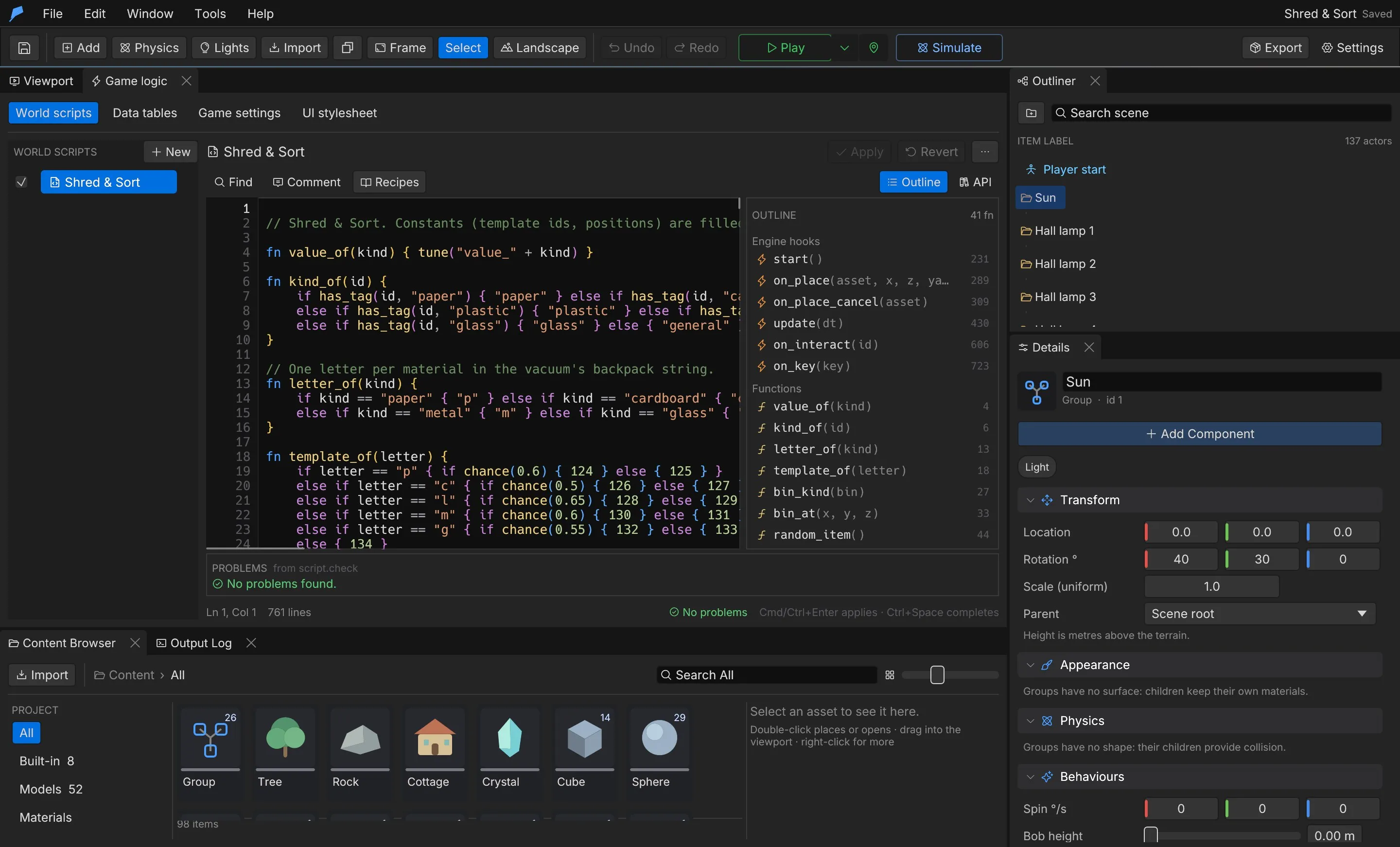 Each script has a run toggle: **Off · click to run it in Play** keeps a script in the project without running it. Scripts with errors cannot be applied; fix them or turn the script off.
```rust
fn start() {
every(30.0, || toast("Still alive"));
on("coin", |data| {
set("score", get("score", 0) + data.value);
ui_set("hud", "score", get("score"));
});
}
fn on_enemy_killed(id, kind, x, y, z, value) {
emit("coin", #{ value: value });
}
```
### Strict checking [Section titled “Strict checking”](#strict-checking) World scripts are checked before they are saved. Unknown functions (with suggestions), wrong argument counts and misspelt or wrong hooks are errors. Helper functions defined in other world scripts count as known. ## Example: a shop that opens at 9:00 [Section titled “Example: a shop that opens at 9:00”](#example-a-shop-that-opens-at-900) You will add a shop counter to the jetty in the **Ocean Voyage** example. The game clock starts at 8:30, the shop opens at 9:00 and closes at 18:00, and the opening hours and prices live in a data table. 1. Choose **File → Open example → Ocean Voyage**, then **File → Save project** to keep your own copy. 2. Open **Window → Game logic** and select **Data tables**. Type `shop` in the name field, click **+ Add table**, replace `{}` with the JSON below and click **Apply**.
```json
{ "opens": 9, "closes": 18, "prices": { "bread": 3, "lamp_oil": 8 } }
```
3. Select **Game settings**. Set **Game minutes per real second** to `10` and **Start hour** to `8.5`. At this rate one game hour takes six real seconds. 4. Click **Add → Cube** and rename it `Shop counter`. Under **Transform**, set **Parent** to **Jetty**, **Local location** to `1`, `0.6`, `4` and **Scale** to `0.8`, `0.8`, `1.6`. 5. Under **Tags & interaction**, set **Tags** to `shop`, turn on **Interactable (E)** and set **Prompt** to `Buy bread`. 6. Back in **Game logic**, select **World scripts**, click **New**, name it `Shop` and click **Create**. Replace the template with the script below and press **Cmd/Ctrl+Enter**.
```rust
// Opens the shop between the hours in the "shop" data table.
fn start() {
update_shop(hour());
}
fn on_hour(hour) {
update_shop(hour);
}
fn update_shop(hour) {
let shop = data("shop");
let open = hour >= shop.opens && hour < shop.closes;
if open != get("shop_open", false) {
set("shop_open", open);
toast(if open { "The shop is open" } else { "The shop is closed" });
}
}
fn on_interact(id) {
if !has_tag(id, "shop") {
return;
}
let shop = data("shop");
if get("shop_open", false) {
toast("Bread costs " + shop.prices.bread + " coins");
} else {
toast("Closed. Come back at " + shop.opens + ":00");
}
}
```
Do the same from the command line, on a copy of the example. Save the script above as `shop.rhai` in the workspace folder. In a fresh copy the counter gets ID 36.
```bash
cp -R examples/ocean-voyage /tmp/demo
cd /tmp/demo # put shop.rhai here
P="--workspace /tmp/demo --project project.feather.json"
feather-cli $P command data.set --save project.feather.json \
--json '{"name":"shop","value":{"opens":9,"closes":18,"prices":{"bread":3,"lamp_oil":8}}}'
feather-cli $P command project.game --save project.feather.json \
--json '{"minutes_per_second":10,"start_hour":8.5}'
feather-cli $P command scene.add --save project.feather.json \
--json '{"kind":"Cube","name":"Shop counter","parent_id":3,"position":[1,0.6,4]}'
feather-cli $P command scene.update --save project.feather.json \
--json '{"id":36,"patch":{"scale":[0.8,0.8,1.6],"tags":["shop"],"interact":"Buy bread"}}'
jq -n --rawfile src shop.rhai '{kind:"world",source:$src}' | \
feather-cli $P command script.check --json -
jq -n --rawfile src shop.rhai '{name:"Shop",enabled:true,source:$src}' | \
feather-cli $P command world_script.set --json - --save project.feather.json
```
**Check it worked.** Press **Play**. Walk to the counter and press **E** before 9:00: the message reads `Closed. Come back at 9:00`. About three seconds after Play starts, `The shop is open` appears; press **E** again to see `Bread costs 3 coins`. From the command line, `script.check` returns `"ok": true` with no findings, `data.get` with `{"name":"shop"}` returns the table, and `project.inspect` lists `Shop` in `data.project.world_scripts` with `enabled: true` and `minutes_per_second: 10` in `data.project.game`. ## Hooks [Section titled “Hooks”](#hooks) Define any of these functions in a world script and the engine calls them: | Hook | Runs when | | -------------------------------------------------------------- | -------------------------------------------------------------------------- | | `start()` | Play begins, after the world loads | | `update(dt)` | Every frame; `dt` is seconds since the last frame | | `on_minute(hour, minute)`, `on_hour(hour)`, `on_day(day)` | The game clock passes a minute, hour or day | | `on_key(key)` | A key or mouse button is pressed, such as `E`, `SPACE` or `MOUSELEFT` | | `on_interact(id)` | The player uses an object’s interaction prompt | | `on_ui(panel, button)` | A game UI button is clicked | | `on_place(asset, x, z, yaw, radius)`, `on_place_cancel(asset)` | Build mode places a structure, or is cancelled | | `on_load()` | A save is loaded | | `on_level(level)` | A level finishes loading | | `on_quest(id, status, stage)` | A quest changes status or stage | | `on_dialogue_end(id)` | A dialogue finishes | | `on_cinematic_end(id)` | A cinematic finishes | | `on_enemy_killed(id, kind, x, y, z, value)` | An enemy dies | | `on_player_hurt(amount)`, `on_player_died()` | The player takes damage or dies | | `on_pickup(kind, amount)` | The player picks something up | | `on_anim_event(id, name)` | An animation event or montage notify fires on a character | | `on_destroyed(id)` | A destructible object breaks | | `on_item(id, count)` | The player gains or loses an item; `count` is how many they have now | | `on_use_item(id)` | The player uses an item | | `on_equip(slot, id)` | The player wears an item in a slot; `id` is empty when the slot is emptied | | `on_damaged(target, amount, kind)` | The player, an enemy or an object takes elemental damage | | `on_status(target, status)` | The player or an enemy starts burning, gets wet, shocked or chilled | | `on_event(name, data)` | An event arrives from `emit` in any world or object script | ## Timers, events and state [Section titled “Timers, events and state”](#timers-events-and-state) | Function | Description | | -------------------------------------------------------------- | ---------------------------------------------- | | `after(seconds, callback)` | Runs a callback once; returns a timer ID | | `every(seconds, callback)` | Runs a callback repeatedly; returns a timer ID | | `cancel(id)` | Cancels a timer | | `emit(name)`, `emit(name, data)` | Sends an event to every script | | `emit_to(object, name)`, `emit_to(object, name, data)` | Sends an event to one object | | `on(name, callback)` | Listens for an event | | `get(key)`, `get(key, default)`, `set(key, value)`, `has(key)` | Shared game state | | `data(table)` | Reads a data table | | `obj(name_or_id)`, `tagged(tag)`, `named(name)` | Object handles | `script.api` lists every function with typed parameters, and `script.recipes` returns working examples such as a door, a pickup and a wave spawner. ## Data tables [Section titled “Data tables”](#data-tables) The **Data tables** tab holds named JSON tables for gameplay numbers and content: enemy stats, loot lists, shop prices. Scripts read them with `data("name")`. Click **Format** to tidy the JSON and **Apply** to save. Table names use lowercase letters, digits and `_`.
```rust
fn start() {
let waves = data("waves");
print("First wave: " + waves[0].count + " enemies");
}
```
## Game variables [Section titled “Game variables”](#game-variables) Game variables are the game’s tunable values: starting cash, prices, timers, speeds. Each has a label, a category, a kind, a value, a default, an optional range and step, a unit and a description, so the editor shows it as a control instead of code. Scripts read the live value with `tune`, and an edit applies at once, even during Play. Open **Window → Game variables**. Click **New variable**, give it a **Name** (the label), a **Script id**, a **Category** and a **Type**, and click **Create**. The kind decides the control: | Kind | Control | Value | | ------- | ------------------------------------------------------- | --------------------- | | Number | Slider when Min and Max are set, otherwise a drag field | A number | | Integer | Slider or drag field | A whole number | | Toggle | Checkbox | `true` or `false` | | Text | Text field | Up to 400 characters | | Color | Colour picker | `[r, g, b]`, each 0–1 | Right-click a row to **Edit label, range, unit…**, copy its `tune("id")` call or **Remove** it. The header’s reset button restores every default. A variable’s fields: | Field | Meaning | | ------------- | ------------------------------------------------------------------------------------------------------------------------------- | | `id` | What scripts call it: `tune("starting_cash")`; lowercase letters, digits and `_`, starting with a letter, at most 48 characters | | `label` | Shown in the editor, at most 80 characters | | `category` | Groups the panel; empty means **General** | | `kind` | Number, Integer, Toggle, Text or Color | | `value` | The current value | | `default` | What reset restores; the value when it was created if left unset | | `min`, `max` | Optional number range; a slider is shown when both are set | | `step` | Slider or drag step for numbers | | `unit` | Shown with the number: `$` leads it, `s` and `m/s` follow | | `description` | Tooltip: what it changes, at most 400 characters | When a variable is read, the panel shows **used by N** and lists every world script, object script and Blueprint that reads it. Renaming the id rewrites all of them; removing one that is still in use is refused unless the reads are gone or you confirm **Remove anyway**. During Play the header shows **LIVE · changes apply at once**. ### Example: starting cash and a shop toggle [Section titled “Example: starting cash and a shop toggle”](#example-starting-cash-and-a-shop-toggle) You will add two game variables and read them from a world script in the **Ocean Voyage** example. 1. Choose **File → Open example → Ocean Voyage**, then **File → Save project** to keep your own copy. 2. Open **Window → Game variables** and click **New variable**. Set **Name** to `Starting cash`, **Script id** to `starting_cash`, **Category** to `Economy` and **Type** to **Number**, then click **Create**. 3. Right-click the new row and choose **Edit label, range, unit…**. Set **Min** to `0`, **Max** to `500`, **Step** to `5`, **Unit** to `$` and **Description** to `Coins the player starts with.`, then click **Save**. 4. Add a second variable: **New variable**, **Name** `Shop open`, **Script id** `shop_open`, **Type** **Toggle**, then **Create**. 5. Open **Window → Game logic**, select **World scripts**, click **New**, name it `Economy`, click **Create**, replace the template with the script below and press **Cmd/Ctrl+Enter**.
```rust
fn start() {
toast("Starting cash: " + tune("starting_cash"));
if tune("shop_open", false) {
toast("Shop is open");
}
}
```
Do the same from the command line, on a copy of the example. Save the script above as `economy.rhai` in the workspace folder.
```bash
cp -R examples/ocean-voyage /tmp/demo
cd /tmp/demo # put economy.rhai here
P="--workspace /tmp/demo --project project.feather.json"
feather-cli $P command variables.upsert --save project.feather.json \
--json '{"value":{"id":"starting_cash","label":"Starting cash","category":"Economy","kind":"Number","value":20,"min":0,"max":500,"step":5,"unit":"$","description":"Coins the player starts with."}}'
feather-cli $P command variables.upsert --save project.feather.json \
--json '{"value":{"id":"shop_open","label":"Shop open","kind":"Toggle","value":false}}'
jq -n --rawfile src economy.rhai '{kind:"world",source:$src}' | \
feather-cli $P command script.check --json -
jq -n --rawfile src economy.rhai '{name:"Economy",enabled:true,source:$src}' | \
feather-cli $P command world_script.set --json - --save project.feather.json
```
**Check it worked.** `script.check` returns `"ok": true` with no findings. `variables.get` with `{"id":"starting_cash"}` returns value `20` and a `used_by` list reading `World script "Economy" (1×)`, and `shop_open` is listed the same way. Press **Play** to read them: `tune("starting_cash")` returns the current number and `tune("shop_open", false)` the toggle. While the game runs, drag the **Starting cash** slider (or run `variables.set`) and the next read returns the new value at once. A headless `game.simulate` run does not load game variables into the script runtime, so test the read in Play. ## Game settings [Section titled “Game settings”](#game-settings) The **Game settings** tab sets the game clock and rules: | Setting | Description | | --------------------------------------- | --------------------------------------------------------------------- | | **Game minutes per real second** | Clock speed; 0 follows the environment clock | | **Start day**, **Start hour** | When the clock starts | | **Mouse look without holding a button** | Free mouse look in Play | | **Interaction distance m** | How close the player must be to use an interaction prompt | | **Character animation library** | The clip library characters use by default, or each model’s own clips | The **UI stylesheet** tab edits the game’s CSS; see [Game UI](/docs/presentation/game-ui/). ## Script graph [Section titled “Script graph”](#script-graph) **Window → Script graph · code as nodes** shows any world or object script as a node graph, with the Rhai code beside it. Code and graph are one program: edit either. Constructs that no node fits are kept as code blocks, so nothing is lost. 1. Choose a world script or an object script. On an object, you can also click **Open as graph** in its Details panel. 2. Click a node to edit it in the **Inspector**, or add statements below it. 3. Click **Save to project** to write the graph back as code. This is undoable. ## Limits [Section titled “Limits”](#limits) | Limit | Value | | -------------------------- | -------------------- | | World scripts per project | 32 | | Source per world script | 256 KiB | | Data tables | 64, up to 1 MiB each | | Game variables per project | 512 | | Operations per callback | 2,000,000 | | Nested calls | 64 | | Strings | 64 KiB | | Arrays and maps | 100,000 entries | ## Automate it [Section titled “Automate it”](#automate-it) | Command | Purpose | | ----------------------------------------------------------------- | ----------------------------------------------------------------- | | `world_script.set` | Creates or updates a world script; it must pass `script.check` | | `world_script.rename`, `world_script.remove` | Renames or deletes a world script | | `script.check` | Strict static check of a world or object script | | `script.api`, `script.recipes` | The typed API and working examples | | `script.to_graph`, `script.from_graph` | Reads a script as a graph, or writes a graph back as Rhai | | `data.list`, `data.get`, `data.set`, `data.rename`, `data.remove` | Manage data tables | | `variables.get`, `variables.upsert`, `variables.set` | Read, create or patch, and change game variables | | `variables.reset`, `variables.remove` | Restore defaults, or delete (refused while in use unless `force`) |
```bash
feather-cli --connect .feather-session.json command world_script.set \
--json '{"name":"Rules","enabled":true,"source":"fn on_player_died() { toast(\"Try again\"); }"}'
```
See [Agents & automation](/docs/agents/overview/) for connecting a live session.
# Audio
> Import sounds, place emitters, set music and ambience, and mix with buses, cues, ducking, occlusion and reverb zones.
Feather plays imported sounds from objects, as project-wide music and ambience, and from scripts. A mixer routes every sound through a bus, picks variations through cues, ducks one bus under another, muffles sounds behind walls and adds echoes inside reverb zones. Audio plays during Play and in exported games. ## Import sounds [Section titled “Import sounds”](#import-sounds) 1. Open **World & terrain → Audio**. 2. Click **Import sound…** and choose an OGG, WAV or MP3 file. 3. The sound appears under **Sound assets**, where you can rename or remove it. A project holds up to 2,000 sounds of up to 64 MiB each. Each file is stored once, by content hash. ## Music and ambience [Section titled “Music and ambience”](#music-and-ambience) The **Audio** tab also sets project-wide sound: | Setting | Description | Default | | ------------------------------------ | -------------------------------------------------- | ------- | | **Master volume** | Scales everything | 1 | | **Music** | A sound that plays as the music loop | None | | **Music volume** | Linear, 0 to 4 | 0.5 | | **Day ambience**, **Night ambience** | Ambience beds that cross-fade with the time of day | None | | **Ambience volume** | Linear, 0 to 4 | 0.6 | Music plays on the `music` bus and the ambience beds on the `ambience` bus. ## Sound emitters [Section titled “Sound emitters”](#sound-emitters) A Sound component makes an object play a sound, such as a river, a forge or tavern music. 1. Select the object. 2. In **Details**, click **Add Component** and choose **Sound**. 3. Pick the sound and set its options. | Setting | Description | Default | Range | | ----------------- | --------------------------------------------------------------------- | ------- | ---------- | | **Volume** | Linear; 1 is the original level | 1 | 0 to 4 | | **Pitch** | Playback rate | 1 | 0.25 to 4 | | **Loop** | Repeat the sound | On | — | | **Play on start** | Start when Play begins; otherwise a script starts it | On | — | | **Positional** | Heard only within **Range** of the object; otherwise heard everywhere | On | — | | **Range** | Distance in metres | 25 | 1 to 2,000 | | **Plays** | Always, Day or Night | Always | — | ## The mixer [Section titled “The mixer”](#the-mixer) Open **Window → Mixer · buses, cues, reverb** to edit buses, cues, ducking, occlusion and reverb zones. Click **Apply** to commit your changes or **Revert** to discard them. 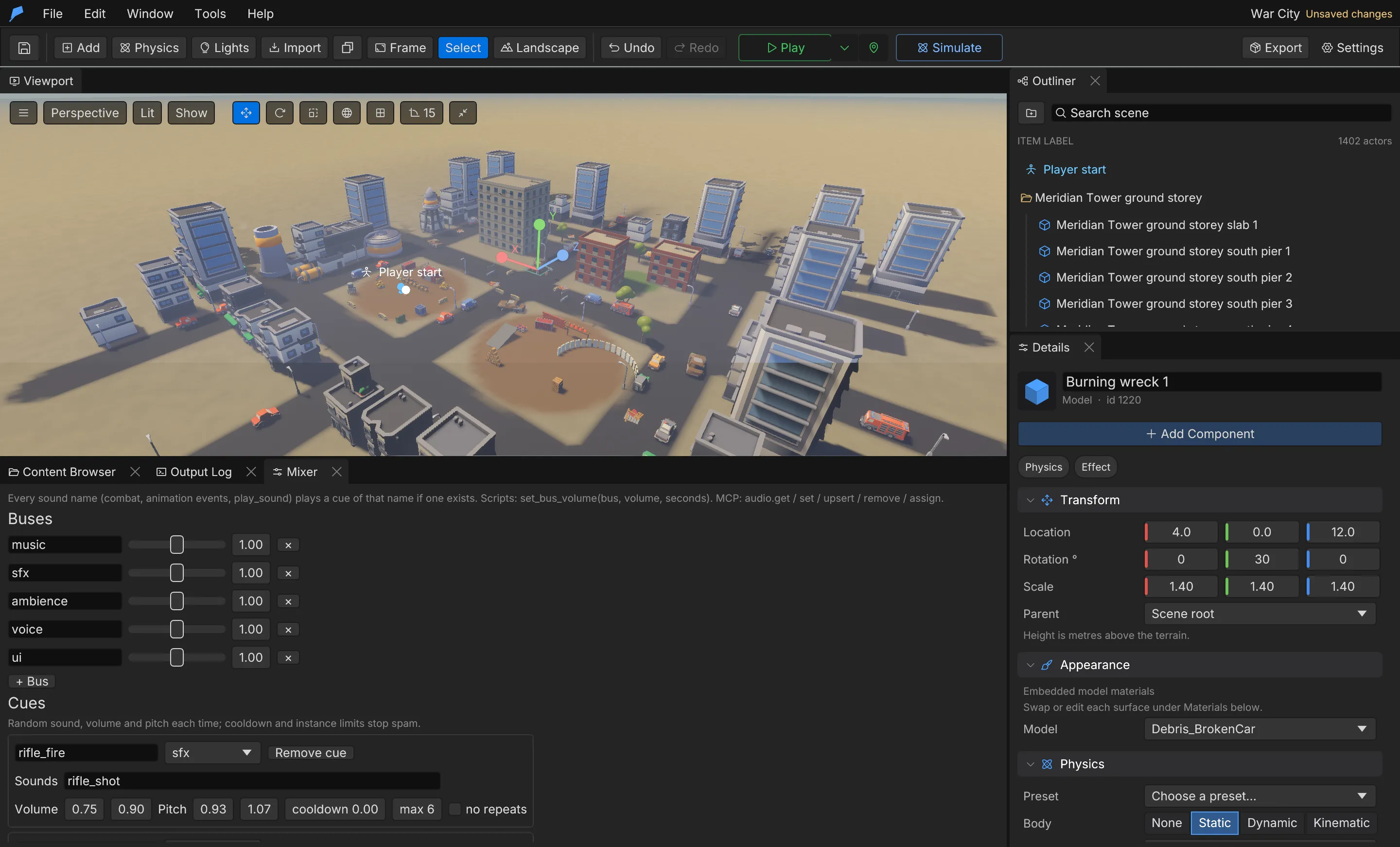 ### Buses [Section titled “Buses”](#buses) Every project has five buses: `music`, `sfx`, `ambience`, `voice` and `ui`. You can add more. Each bus has a linear volume from 0 to 4. Under **Sound buses**, choose the bus each sound plays on; sounds without one play on `sfx`. Players set music, effects and voice volumes in the pause menu of an exported game. While the camera is under water, everything on the other buses is muffled (music only slightly — the `ui` bus is not) and a muffled ambience, dive and surface splashes and breath bubbles play. Those levels and the project sounds that can replace the built-in ones live with the water look — see [Underwater and swimming](/docs/world/water-and-fluids/#underwater-and-swimming). ### Cues [Section titled “Cues”](#cues) A cue is a named set of variations. Playing the cue picks one of its sounds at random, with a random volume and pitch inside the ranges you set. Use cues for gunshots, footsteps and impacts. Wherever a sound name is accepted, such as in combat settings, animation events or `play_sound`, a cue with that name is used first. | Setting | Description | Default | Range | | ------------- | ----------------------------------------- | --------------- | --------- | | **Sounds** | Sounds to pick from | — | 1 to 32 | | **Volume** | `[min, max]` | 0.9 to 1.0 | 0 to 4 | | **Pitch** | `[min, max]` | 0.95 to 1.05 | 0.25 to 4 | | Bus | Overrides the picked sound’s bus | The sound’s bus | — | | Max instances | How many can play at once; 0 is unlimited | 0 | — | | Cooldown | Seconds before the cue can play again | 0 | 0 to 60 s | | Avoid repeat | Never picks the same sound twice in a row | On | — | ### Ducking [Section titled “Ducking”](#ducking) A ducking rule makes a target bus quieter while a sound plays on a trigger bus. New projects duck `music` under `voice`. | Setting | Description | Default | Range | | ------- | ------------------------------ | ------- | --------- | | Target | The bus that gets quieter | `music` | — | | Trigger | The bus that causes it | `voice` | — | | Amount | Volume multiplier while ducked | 0.4 | 0 to 1 | | Attack | Seconds to duck | 0.15 | 0 to 10 s | | Release | Seconds to recover | 0.8 | 0 to 10 s | ### Occlusion [Section titled “Occlusion”](#occlusion) Walls between the listener and a positional sound make it quieter. Occlusion is on by default. | Setting | Description | Default | Range | | -------- | -------------------------------- | ------- | ----------- | | Amount | Volume multiplier behind a wall | 0.45 | 0 to 1 | | Interval | Seconds between checks per sound | 0.15 | 0.02 to 5 s | ### Reverb zones [Section titled “Reverb zones”](#reverb-zones) While the listener is inside a reverb zone, sounds get echo taps. Use them for halls, crypts and caves. | Setting | Description | Default | Range | | ------- | ------------------------------------------ | ----------- | ------------ | | Center | World position in metres | `[0, 0, 0]` | — | | Radius | Metres | 20 | 0.5 to 5,000 | | Echoes | Taps after each sound | 3 | 0 to 6 | | Delay | Seconds between taps | 0.09 | 0.01 to 2 s | | Volume | Volume of the first tap | 0.35 | 0 to 1 | | Decay | How much quieter each tap is than the last | 0.55 | 0 to 1 | ## Script API [Section titled “Script API”](#script-api) | Function | Description | | -------------------------------------- | ------------------------------------------------------------------------ | | `play_sound(name)` | Plays a sound or cue | | `play_sound_at(name, x, y, z)` | Plays a sound or cue at a world position | | `set_bus_volume(bus, volume)` | Sets a bus volume | | `set_bus_volume(bus, volume, seconds)` | Fades a bus to a volume over time | | `play_music(name)` | Swaps the music loop for a project sound, by name or ID; `""` is silence | | `reset_music()` | Goes back to the project’s **Music** | `play_music` changes which sound plays as the music loop, on the `music` bus. A name that matches no sound also plays silence. Games with their own options screen can read and change the player’s volumes with `user_settings()` and `set_user_setting`; see [Game UI](/docs/presentation/game-ui/#your-own-title-pause-and-options-screens).
```rust
fn on_event(name, data) {
if name == "boss_intro" {
set_bus_volume("music", 0.0, 2.0);
play_sound("boss_roar");
}
if name == "boss_fight" {
set_bus_volume("music", 1.0, 0.5);
play_music("boss_theme");
}
if name == "boss_defeated" {
reset_music();
}
}
```
## Automate it [Section titled “Automate it”](#automate-it) | Command | Purpose | | -------------- | ---------------------------------------------------------------- | | `sound.import` | Imports an OGG, WAV or MP3 from the workspace as a project sound | | `audio.get` | Reads the mixer and every sound with its bus | | `audio.set` | Patches audio settings (JSON merge; arrays replace) | | `audio.upsert` | Creates or patches one bus, cue or reverb zone by name | | `audio.remove` | Removes a bus, cue or reverb zone | | `audio.assign` | Puts a sound on a bus | Create a footstep cue with three variations:
```bash
feather-cli --connect .feather-session.json command audio.upsert --json '{
"kind": "cue",
"value": {
"name": "footstep",
"sounds": ["step_1", "step_2", "step_3"],
"volume": [0.8, 1.0],
"pitch": [0.9, 1.1],
"bus": "sfx",
"cooldown": 0.1
}
}'
```
See [Agents & automation](/docs/agents/overview/) for connecting a live session.
# Effects
> Build particle effects from emitters, place decals on surfaces, and spawn both from scripts.
Particle effects are data-driven: each effect has up to eight emitters that throw low-poly particles with a lifetime, speed, gravity, size and colour over life, plus an optional light flash and sound. Decals lay marks such as scorches, cracks and puddles on surfaces. Objects play both through components, and scripts spawn them at runtime. ## Create an effect [Section titled “Create an effect”](#create-an-effect) 1. Open **Window → Effects · particles**. 2. Type an ID in the **new effect id** field and click **Add effect**. IDs use letters, digits, `-` and `_`. 3. Edit the effect’s emitters, light and sound. 4. Click **Preview** to play the saved effect at the camera’s focus. 5. Click **Apply** to commit, or **Revert** to discard. **Delete effect** removes an effect that no object uses. 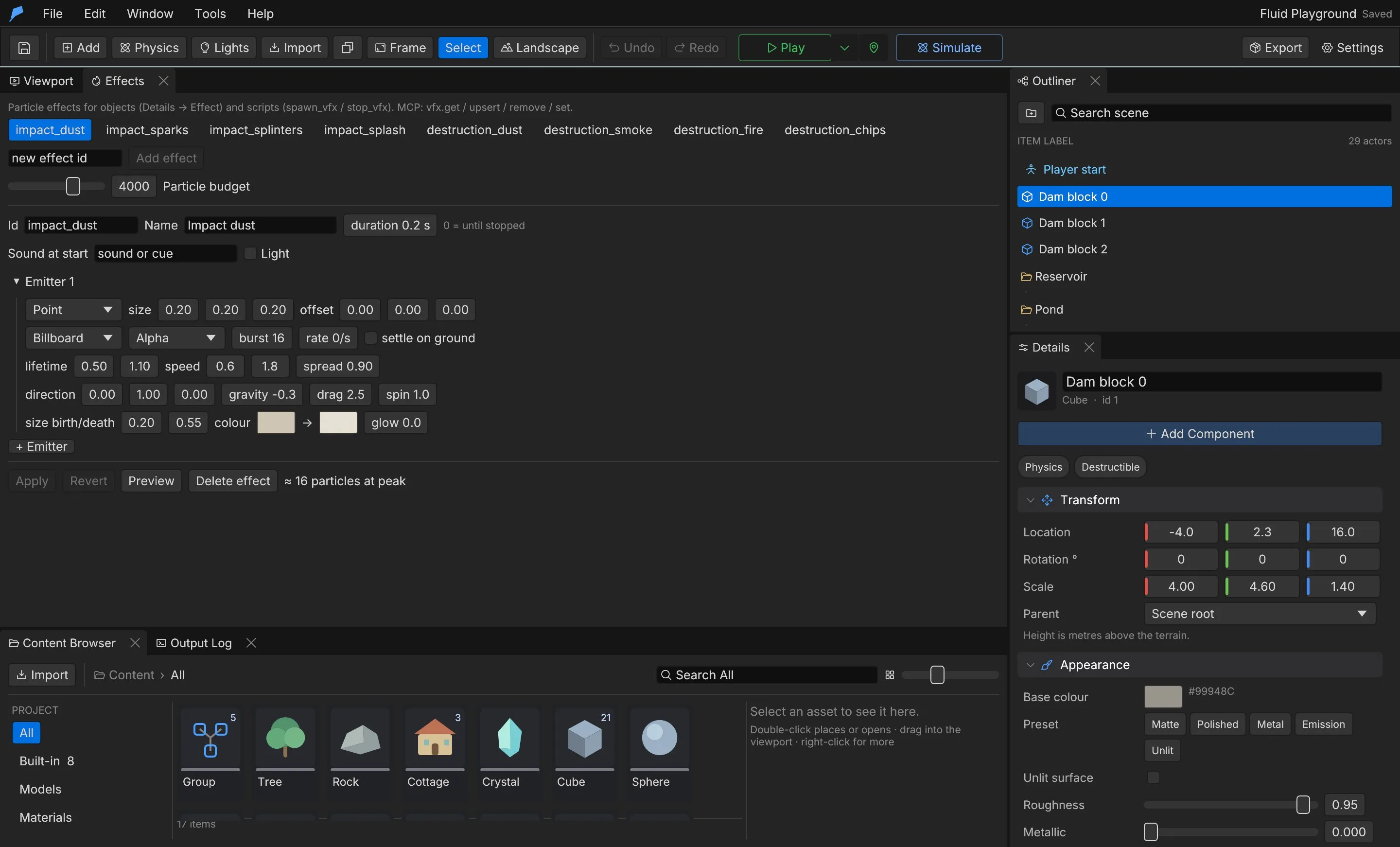 ## Effect settings [Section titled “Effect settings”](#effect-settings) | Setting | Description | Default | | ------------------ | --------------------------------------------------------------------------------------------------------------------- | ------- | | **Name** | Display name | — | | Duration | Seconds the emitters run, 0 to 600; 0 runs until stopped | 0 | | **Sound at start** | A project sound or cue played when the effect starts | None | | **Light** | An optional flash of light: colour, intensity (0 to 1,000,000), range (0.1 to 200 m) and flicker (0 steady to 1 wild) | Off | New lights default to a warm colour, intensity 20,000, range 8 m and flicker 0.4. ## Emitters [Section titled “Emitters”](#emitters) | Setting | Description | Default | Range | | ------------------------ | ------------------------------------------------------------------------------------------- | ------------- | ---------- | | Shape | Point, Sphere, Disc (on the ground plane) or Box | Point | — | | Size | Sphere or disc radius in X, or box half extents | 0.2 m | ±1,000 m | | Offset | Position relative to the effect | `[0, 0, 0]` | ±1,000 m | | Mesh | Cube, Sphere or Billboard (always faces the camera) | Cube | — | | Blend | Opaque; Additive adds light (fire, sparks, magic); Alpha is see-through (smoke, dust, mist) | Additive | — | | Burst | Particles emitted at once when the effect starts | 0 | 0 to 2,000 | | Rate | Particles per second while the effect runs | 20 | 0 to 2,000 | | Lifetime | `[min, max]` seconds | 0.6 to 1.2 | 0.01 to 60 | | Speed | `[min, max]` | 0.5 to 1.5 | 0 to 200 | | Direction | Main direction, in local space | Up | — | | Spread | 0 is exactly along the direction, 1 is any direction | 0.3 | 0 to 1 | | Gravity | Metres per second², downward; negative values rise | −1 | ±100 | | Drag | Slows particles over time | 1 | 0 to 50 | | Particle size | Size at birth and at death, in metres | 0.08 to 0.02 | 0 to 20 | | Colour start, colour end | Colour over life, RGB 0 to 1 | Orange to red | — | | Glow | Emissive strength for bloom; 0 is lit normally | 6 | 0 to 200 | | Spin | Rotation speed | 3 | 0 to 50 | | Settle | Stop on the terrain instead of falling through | Off | — | An emitter must have a burst or a rate above 0. ## Play an effect on an object [Section titled “Play an effect on an object”](#play-an-effect-on-an-object) 1. Select the object. 2. In **Details**, click **Add Component** and choose **Effect**. 3. Choose the **Effect**, set an **Offset**, and turn **Play on start** on or off. ## Decals [Section titled “Decals”](#decals) A decal is a mark lying on a surface. Add one with **Add Component → Decal**. | Setting | Description | Default | Range | | -------------------------------- | ------------------------------------------------------------------------------------------------------------------------- | -------------- | ------------- | | **Built-in shape** / **Texture** | A procedural shape, or a project texture (PNG with alpha) | Built-in shape | — | | **Shape** | `splat`, `scorch`, `crack`, `puddle`, `ring`, `dirt`, `footprint` or `pawprint` | `scorch` | — | | **Tint** | Colour, RGB | Dark brown | 0 to 1 | | **Opacity** | How solid the mark is | 0.9 | 0 to 1 | | **Width**, **Length** | Metres | 2 | 0.01 to 200 m | | **Wetness** | 0 is matte, 1 is wet and glossy | 0 | 0 to 1 | | **Follow terrain** | Lie on the terrain under the object. Off, the decal lies in the object’s own plane; rotate the object to put it on a wall | On | — | ## Script API [Section titled “Script API”](#script-api) | Function | Description | | ------------------------------------------------------- | --------------------------------------------------------------------------- | | `spawn_vfx(effect, x, y, z)`, `spawn_vfx(effect, at)` | Starts an effect at a position (`at` is a `vec3`) and returns a handle | | `stop_vfx(handle)` | Stops a spawned effect | | `spawn_decal(shape, x, y, z, size, seconds)` | Places a built-in decal shape for a number of seconds, at a random rotation | | `spawn_decal(shape, x, y, z, size, seconds, [r, g, b])` | The same, tinted | Script decals shrink away over their last two seconds. When more script decals exist than the decal budget allows, the oldest are recycled.
```rust
fn on_event(name, data) {
if name == "explosion" {
spawn_vfx("blast", data.x, data.y, data.z);
spawn_decal("scorch", data.x, data.y, data.z, 3.0, 30.0);
}
}
```
The engine also provides two built-in effects, `water_splash` and `water_spray`. A project effect with the same ID replaces the built-in one. ## Budgets and limits [Section titled “Budgets and limits”](#budgets-and-limits) | Limit | Value | Default | | --------------------------------------------------------------- | ------------ | ------- | | **Particle budget**: particles alive at once across all effects | 10 to 50,000 | 4,000 | | Script decals alive at once | 0 to 5,000 | 256 | | Effects per project | 256 | — | | Emitters per effect | 1 to 8 | — | `vfx.get` and `vfx.upsert` report each effect’s peak particle count, so you can check an effect against the budget before you use it. ## Automate it [Section titled “Automate it”](#automate-it) | Command | Purpose | | ------------ | ----------------------------------------------------------------------------------------------- | | `vfx.get` | Lists effects, the particle budget and which objects play which effect; `id` returns one effect | | `vfx.upsert` | Creates or patches an effect (JSON merge; arrays replace); `rename_from` renames it | | `vfx.remove` | Deletes an effect that no object uses | | `vfx.set` | Sets `max_particles` and `max_decals` | Create a short spark burst with a light flash:
```bash
feather-cli --connect .feather-session.json command vfx.upsert --json '{
"value": {
"id": "sparks",
"name": "Sparks",
"duration": 0.5,
"light": {"color": [1.0, 0.7, 0.3], "intensity": 15000, "range": 6, "flicker": 0.6},
"emitters": [{
"shape": "Sphere", "size": [0.1, 0.1, 0.1],
"mesh": "Cube", "blend": "Additive",
"burst": 60, "rate": 0,
"lifetime": [0.3, 0.8], "speed": [3, 8], "spread": 1,
"gravity": 9.8, "particle_size": [0.05, 0.01],
"color_start": [1.0, 0.9, 0.5], "color_end": [1.0, 0.3, 0.05],
"glow": 12
}]
}
}'
```
See [Agents & automation](/docs/agents/overview/) for connecting a live session.
# Game UI
> Build HUDs, menus and shops with HTML-like markup, data bindings and CSS, and restyle the engine's built-in screens.
Game UI is written in an HTML-like markup and styled with CSS. The same renderer draws your own screens, the engine’s built-in HUD, dialogue box, journal and prompts, so one stylesheet restyles the whole game. UI appears in the editor’s Play mode and in exported games. There are three ways to put UI on screen: | Approach | Use it for | | ------------------- | ---------------------------------------------------------------------------------------- | | **Screens** | Project-stored HUDs, menus, shops and inventories with data bindings, shown from scripts | | **Script elements** | Quick labels, bars, panels and toasts drawn directly from a script | | **Templates** | Overriding the markup of the engine’s built-in screens | [Widgets](/docs/presentation/game-ui-widgets/) are reusable components, such as a stat bar or a modal dialog, that you use as tags in any of the three. ## Create a screen [Section titled “Create a screen”](#create-a-screen) 1. Click **Settings** in the toolbar and open **Game UI screens**. 2. Type a name and click **New screen**. Names use lowercase letters, digits, `-` and `_`. 3. Write the **HTML** and **CSS**, and describe the screen and the fields it reads in **Description**. 4. Enter **Sample data** as JSON. The preview renders the screen with it. 5. Set the **Layer**, from −100 to 100. Higher layers draw on top. 6. Click **Show in viewport** to see the screen over the game view. Show the screen from a world script, then update only the data that changes:
```rust
fn start() {
ui_show("hud", #{ health: 100, ammo: 30, items: [] });
}
fn on_player_hurt(amount) {
ui_set("hud", "health", player_health());
}
```
The engine updates the existing widgets in place, so CSS transitions keep running as values change. ## Markup [Section titled “Markup”](#markup) | Category | Supported | | ------------------ | ------------------------------------------------------------------------------------------------------------------------------------------------------------------ | | Block tags | `panel`, `div`, `section`, `row`, `col`, `h1`–`h3`, `p`, `button`, `bar`, `hr`, `spacer`, `img`, `ul`/`ol`/`li`, `table`/`tr`/`th`/`td`. Unknown tags act as `div` | | Inline tags | `b`, `strong`, `em`, `i`, `span`, `small`, `icon`, `a`, `br`, `code` | | Common attributes | `class`, `id`, `style`, `title` (tooltip), `key` (see [Lists that animate](#lists-that-animate)) | | Element attributes | `button id disabled onclick`; `bar value max label`; `img src width height` (a project texture name); `icon name`; `table striped` | | Screen attributes | `exit` on the screen’s first element: how long the screen stays to animate out, such as `exit="300ms"` | Inline tags next to each other become one line of text and have no box of their own, so padding, backgrounds and layout do not apply to them. Use a block tag, such as `
` instead of ``, whenever you need a box. `` takes any [Phosphor](https://phosphoricons.com) icon name, such as `thumbs-up` or `rocket-launch`, plus game aliases such as `gold`, `health`, `quit` and `music`. Unknown names draw a circle. The screen’s root element has the screen name as its class, so CSS can scope rules with `.hud …`. ### Data bindings [Section titled “Data bindings”](#data-bindings) Screens use a Mustache subset: | Syntax | Effect | | --------------------- | ------------------------------------------------------------------------------------------------------ | | `{{name}}` | Inserts a value, escaped for markup | | `{{{name}}}` | Inserts a value unescaped | | `{{#list}}…{{/list}}` | Repeats for each item of a list, or shows once when the value is true, a non-empty string or an object | | `{{^list}}…{{/list}}` | Shows only when the value is missing, false or empty | | `{{a.b}}` | Reads a field of an object | | `{{.}}` | The current item | Helpers compute values and compare them: | Helper | Gives | | -------------------------------------------- | ----------------------------------------------------------------------------------------------------- | | `{{pct value max}}` | `value / max` as a whole percentage, 0 to 100, for widths and gauges; `max` defaults to 100 | | `{{angle value max from to}}` | The degrees (0–360) that `value / max` fills of the `from`%–`to`% part of a round gauge, for `rotate` | | `{{round x}}` | A whole number | | `{{json x}}` | The value as JSON, to pass a list or object to a widget prop | | `{{#eq a b}}…{{/eq}}` | Shows its content when `a` equals `b`; `{{^eq a b}}` shows it when they differ | | `{{#lt a b}}…{{/lt}}`, `{{#gt a b}}…{{/gt}}` | Numeric less-than and greater-than | Operands are field names, numbers, `true` or `false`, quoted text (`'gold'`) or a ratio of two operands (`hp/max`): `{{#lt hp/max 0.25}}
Low health
{{/lt}}`.
```html
{{title}}
{{#items}}
{{name}}
{{/items}}
{{^items}}
Sold out
{{/items}}
```
### Lists that animate [Section titled “Lists that animate”](#lists-that-animate) Give repeated items a `key` and each one keeps its element, and any animation it is playing, when the list changes:
```html
{{#quests}}
{{title}}
{{/quests}}
```
With keys, a new item animates in on its own and removing one leaves the others alone. Without keys, any change in the number of items rebuilds the list and every item restarts its animation. ### Button events [Section titled “Button events”](#button-events) A button with `onclick="buy"` sends the event `ui:buy` to every script, with a map holding `screen` and each `data-*` attribute. It also calls the `on_ui(screen, button)` hook.
```rust
fn start() {
on("ui:buy", |e| {
give_item(e.item, 1);
});
}
```
## CSS [Section titled “CSS”](#css) Each screen’s CSS joins the project stylesheet. The renderer supports flexbox and grid layout, gradients, `transition`, `@keyframes`, CSS variables, `:hover`, `:active`, `:nth-child`, `:has()`, attribute selectors and `@media`. Tags are type selectors (`panel`, `button`, `bar`), `class` becomes `.class`, `id` becomes `#id`, and other attributes become `[attr]` selectors. `opacity` fades an element and everything inside it. `translate`, `scale`, `rotate` and `transform` move elements, and `transition`, `@keyframes` and `animation` animate them. The engine theme defines variables at `:root`: `--panel`, `--panel-strong`, `--line`, `--line-strong`, `--text`, `--muted`, `--accent`, `--accent-bright`, `--good`, `--bad` and `--radius`. Override them to re-theme every screen at once. The game stylesheet is built in this order: the engine theme, the [UI kit](#the-ui-kit), widget CSS, the project stylesheet, then each screen’s CSS. Later rules win, so a screen can restyle anything before it. A declaration the renderer does not support is dropped and the rest of the stylesheet still loads; the problem is reported (in the editor, and as `ui.css_error` in a `--verify-run` report). When two `@keyframes` share a name, the later one is used. ### The project stylesheet and fonts [Section titled “The project stylesheet and fonts”](#the-project-stylesheet-and-fonts) Edit the stylesheet in **Settings → Game UI stylesheet**, or in **Window → Game logic → UI stylesheet**. **Start from the built-in theme** copies the default rules so you can edit them. Click **Apply** to keep your changes. Click **Import font…** to add a TTF or OTF font, then use it with `font-family: "Name"`. ## The UI kit [Section titled “The UI kit”](#the-ui-kit) The engine ships ready-made classes you can use in any screen, widget or `ui_html` markup. ### Motion [Section titled “Motion”](#motion) | Classes | Effect | | ---------------------------------------------------------------------------------------------------------------------------------------------------------- | ---------------------------------------------------- | | `fx-fade-in`, `fx-slide-up`, `fx-slide-down`, `fx-slide-left`, `fx-slide-right`, `fx-pop`, `fx-zoom-in`, `fx-bounce`, `fx-wobble`, `fx-shake`, `fx-grow-x` | Play once when the element appears | | `fx-pulse`, `fx-float`, `fx-spin`, `fx-blink`, `fx-glow` | Loop while the element is shown | | `fx-slow`, `fx-fast` | Change the animation length to 0.9 s or 0.2 s | | `delay-1` … `delay-6` | Delay the animation or transition in steps of 0.06 s | | `stagger` | On a parent: its children animate one after another | ### Enter and exit [Section titled “Enter and exit”](#enter-and-exit) Give elements `enter-fade`, `enter-up`, `enter-down`, `enter-left`, `enter-right`, `enter-pop` or `enter-zoom` and they animate in when the screen is shown. They also animate out when it is hidden, if the screen’s first element has an `exit` time: the screen then stays on screen that long, up to 10 s, with the class `leaving`, and its buttons stop responding. On its first frame a screen has the class `entering`. You can write your own rules for `screen.entering` and `screen.leaving`.
```html
Paused
Day {{day}}
```
### Screen effects [Section titled “Screen effects”](#screen-effects) `ui_flash(screen, effect)` plays a one-off reaction on the whole screen: `shake`, `bounce`, `pulse`, `wobble`, `glow` or `flash`. `ui_class(screen, "dim", true)` keeps a screen dimmed. ### Layout and components [Section titled “Layout and components”](#layout-and-components) | Classes | What they do | | ------------------------------------------------------------------------------------------------------- | ---------------------------------------------------------------------------- | | `center`, `top-left`, `top-right`, `top-center`, `bottom-left`, `bottom-right`, `bottom-center`, `fill` | Place an element on screen | | `stack`, `inline`, `spread`, `grid-2`, `grid-3`, `grid-4`, `grow` | Arrange children in a column, a row, a spaced row, a grid, or fill the space | | `scrim` | Dims everything behind a modal | | `card`, `card-header` | A content card and its header row | | `glass`, `neon` | A frosted panel look, and a glowing border | | `title`, `subtitle`, `big-number`, `label` | Text styles | | `badge` (with `good` or `bad`), `chip`, `divider` | A pill label, a small rounded tag and a thin line | | `tabs` | A row of buttons; give the current one `active` | | `toggle`, `toggle on` | A switch: `
` | | `meter`, `meter-fill` | A bar whose fill you size, such as `style="width: {{pct hp max}}%"` | | `bar.thin`, `bar.glow` | Bar variants | | `menu` | A column of big buttons that slide when hovered or focused | | `slot`, `slot.selected` | Inventory and hotbar cells | | `tooltip`, `notice` | A small floating label, and a raised message box | ## Script API [Section titled “Script API”](#script-api) ### Screens [Section titled “Screens”](#screens) | Function | Description | | --------------------------------------------------------------------- | --------------------------------------------------------------------------------------------------------- | | `ui_show(name)`, `ui_show(name, data)` | Shows a screen, optionally with data | | `ui_set(name, key, value)` | Changes one data field | | `ui_data(name)` | Returns the screen’s current data | | `ui_hide(name)` | Hides a screen | | `ui_toggle(name)` | Shows or hides a screen; returns whether it is now shown | | `ui_shown(name)` | Whether a screen is shown | | `ui_attach(name, target)`, `ui_attach(name, target, height)` | Makes a shown screen follow an object, `"player"` or a `vec3`, for health bars, prompts and markers | | `ui_surface(name, object)`, `ui_surface(name, object, width, height)` | Draws a shown screen or a `ui_html` id onto an object instead of over the game view | | `ui_detach(name)` | Returns an attached screen to the layout, or takes it off its object | | `ui_class(name, class, on)` | Adds or removes a class on the screen, for CSS such as `screen.boss …` | | `ui_flash(name, class)`, `ui_flash(name, class, seconds)` | Adds a class for a while (default 0.6 s, up to 30 s); flashing again restarts it | | `ui_var(name, var, value)` | Sets the CSS variable `--var` on the screen; numbers stay unitless, so pass `"40%"` or `"12px"` for units | One screen can be shown many times as instances by adding `#` and a suffix, such as `ui_show("enemy_bar#12", data)`. `ui_class`, `ui_flash` and `ui_var` also work on `ui_html` ids. Class names are 1 to 48 letters, digits, `-` or `_`; `entering` and `leaving` are reserved for the engine. A variable value is at most 200 characters, without `;`, `{` or `}`.
```rust
fn on_player_hurt(amount) {
ui_set("hud", "health", player_health());
ui_var("hud", "hp", player_health() + "%"); // width: var(--hp) in the screen's CSS
ui_flash("hud", "shake");
}
```
### Screens on objects [Section titled “Screens on objects”](#screens-on-objects) `ui_surface` draws a screen onto every mesh of an object as an unlit picture, for computer monitors, scoreboards, clocks and signs. The screen keeps its data bindings and animations. Use a thin box whose front (+Z face) is the screen; its other faces show the picture too. The size is in pixels, 16 to 2,048 on each side, and defaults to 512 × 384. At most 32 surfaces can be bound at once. `ui_detach` or `ui_hide` unbinds a surface, and **Stop** gives the object its own materials back.
```rust
fn start() {
ui_show("scoreboard", #{ home: 0, away: 0 });
ui_surface("scoreboard", find("Scoreboard"), 1024, 320);
}
```
### Script elements and HUD [Section titled “Script elements and HUD”](#script-elements-and-hud) | Function | Description | | ------------------------------------------------------ | -------------------------------------------------------------------------- | | `ui_label(id, text)` | A text label | | `ui_bar(id, label, value, max)` | A progress bar | | `ui_panel(id, title, lines, buttons)` | A panel with lines of text and buttons; clicks call `on_ui(panel, button)` | | `ui_html(id, markup)` | Any markup | | `html(text)` | Escapes text before you insert it into markup | | `toast(text)` | A short notification | | `set_hud(visible)` | Shows or hides the HUD | | `set_marker(key, x, y, z, label)`, `clear_marker(key)` | Places or removes a world marker | Script elements are rebuilt every frame. Call them from `update(dt)` to keep them on screen.
```rust
fn update(dt) {
ui_bar("stamina", "Stamina", get("stamina"), 100);
}
```
## Built-in screen templates [Section titled “Built-in screen templates”](#built-in-screen-templates) **Settings → Game UI templates** lets you override the markup of the engine’s own screens. Each template receives fixed fields: | Template | Shows | | --------------- | ------------------------------------------------ | | `dialogue` | The dialogue box, with speaker, text and choices | | `subtitle` | A subtitle line | | `quest_tracker` | Active quests and objectives | | `journal` | The quest journal | | `save_menu` | Save and load slots | | `skip_hint` | The cinematic skip prompt | | `inventory` | The player’s inventory | | `container` | A chest or container | | `status_bar` | Health, statuses, the worn tool and stamina | ## Pause menu [Section titled “Pause menu”](#pause-menu) In an exported game, **Escape** (or the input action bound to pause) opens the pause menu: **Resume**, **Save game**, **Load game**, **Settings**, **Controls** and **Quit to desktop**. **Settings** covers graphics, fullscreen, vertical sync, music, effects and voice volumes, mouse sensitivity, camera shake, motion blur and language. **Controls** lets players rebind keys and gamepad buttons. See [Saves & settings](/docs/shipping/saves-and-settings/). ### Your own title, pause and options screens [Section titled “Your own title, pause and options screens”](#your-own-title-pause-and-options-screens) A game can draw its own menus as screens and leave the engine’s menu for settings and key bindings: | Function | Description | | --------------------------------- | ----------------------------------------------------------------------------------------------------------------------- | | `use_game_menu(on)` | The game draws its own pause menu: **Escape** no longer opens the engine’s menu and reaches `on_key` instead | | `open_system_menu()` | Opens the engine’s menu on its **Settings** page, in an exported game | | `pause_game(on)`, `game_paused()` | Freezes game time (physics, timers and the player) while hooks keep running with `dt` 0, and reads whether it is paused | | `quit_game()` | Quits to the desktop; in the editor it stops Play | | `user_settings()` | The player’s settings as a map | | `set_user_setting(key, value)` | Changes one setting and saves it, as the pause menu’s **Settings** page does | `use_game_menu` and `pause_game` reset when Play stops. `user_settings()` has these keys: | Key | Value | | ------------------------------------------------------------- | ------------------------------- | | `quality` | `"Low"`, `"Medium"` or `"High"` | | `fullscreen`, `vsync`, `motion_blur` | `true` or `false` | | `master_volume`, `music_volume`, `sfx_volume`, `voice_volume` | 0 to 2 | | `mouse_sensitivity` | 0.1 to 4 | | `camera_shake` | 0 to 1 | Numbers outside a range are clamped. An unknown key or a value of the wrong type is a script error.
```rust
fn start() {
use_game_menu(true);
on("ui:resume", |e| { ui_hide("pause"); pause_game(false); });
on("ui:options", |e| open_system_menu());
on("ui:quit", |e| quit_game());
//
on("ui:music", |e| set_user_setting("music_volume", e.level));
}
fn on_key(key) {
if key == "ESCAPE" {
let paused = !game_paused();
pause_game(paused);
if paused { ui_show("pause"); } else { ui_hide("pause"); }
}
}
```
## Limits [Section titled “Limits”](#limits) | Limit | Value | | ------------------- | ----------- | | Screens per project | 64 | | HTML per screen | 64 KiB | | CSS per screen | 32 KiB | | Layer | −100 to 100 | ## Automate it [Section titled “Automate it”](#automate-it) | Command | Purpose | | --------------------------------------------------------------------------- | ---------------------------------------------------------------------------------------------------------------------------------------------------------------------------------------------------------------------------- | | `ui.get` | Lists screens, or returns one screen’s HTML, CSS, description, layer and sample | | `ui.upsert` | Creates or changes a screen; fields you omit keep their value, and the sample must render | | `ui.remove` | Deletes a screen | | `ui.render` | Renders a screen or draft HTML with data and returns its markup and buttons, without changing anything. When the screen uses widgets it also returns `widgets`, `expanded` (the markup the game draws) and `widget_warnings` | | `ui_widget.get`, `ui_widget.upsert`, `ui_widget.remove`, `ui_widget.render` | Manage and preview [widgets](/docs/presentation/game-ui-widgets/) | | `font.import` | Imports a TTF or OTF font for the stylesheet |
```bash
feather-cli --connect .feather-session.json command ui.upsert --json '{
"name": "hud",
"description": "Health bar. Fields: health, max.",
"html": "",
"css": ".hud .hud-health { width: 240px; padding: 8px; }",
"layer": 10,
"sample": {"health": 75, "max": 100}
}'
```
A `--verify-run` report (see [Profiler](/docs/shipping/profiler/)) has a `ui` section with the screens on show, the screens playing their exit (`leaving`), `css_error`, `widget_errors` and the screens drawn onto objects (`surfaces`). See [Agents & automation](/docs/agents/overview/) for connecting a live session.
# Game UI widgets
> Define reusable UI components with typed props and slots once, and use them as tags in any screen, template or script markup.
A widget is a piece of [game UI](/docs/presentation/game-ui/) you define once and use anywhere as a tag: a stat bar, an item slot, a modal dialog. It has its own markup and CSS, **props** (typed inputs with defaults) and **slots** (places the screen fills with its own content). Widgets work everywhere markup does: screens, built-in screen templates and `ui_html`.
```html
The world waits.
```
## Built-in widgets [Section titled “Built-in widgets”](#built-in-widgets) The engine ships eight widgets. A project widget with the same name replaces one. | Widget | Props | Slots | | --------------- | -------------------------------------------------------------------------------------------------------------------------------------------------------- | ---------------------------- | | `stat-bar` | `label`, `value` (100), `max` (100), `icon`, `tone`, `show_value` (true) | — | | `icon-button` | `label`, `icon`, `onclick`, `variant` (`default`, `primary`, `ghost`, `danger`), `hotkey`, `disabled` | Default, after the label | | `item-slot` | `icon`, `image` (a project texture), `count` (0 hides it), `hotkey`, `rarity` (`common`, `uncommon`, `rare`, `epic`, `legendary`), `selected`, `onclick` | — | | `modal-dialog` | `title`, `subtitle`, `icon`, `close` (the X button’s action; empty hides it), `width` (480 px) | Default (the body), `footer` | | `key-hint` | `cap` (the key’s text, default `E`), `label`, `hold` | — | | `tab-bar` | `tabs` (a list of `{id, label, icon}`), `active` (the current tab’s id), `onclick` (default `tab`) | — | | `notice-card` | `icon` (default `info`), `title`, `text`, `tone` | Default | | `progress-ring` | `value` (0), `max` (100), `label`, `size` (84 px), `tone` | — | `tone` is `accent` (the default), `good`, `bad` or `info`. Icons are Phosphor icon names. An `item-slot` without `onclick` is not a button, so a HUD hotbar keeps the mouse captured. A `tab-bar` click sends its `onclick` action with the clicked tab’s id as `tab`. ## Use a widget [Section titled “Use a widget”](#use-a-widget) * **Props are attributes.** Each value is converted to the type of the prop’s default: numbers (`value="{{hp}}"`), booleans (a bare attribute such as `selected` is true, `"false"` is false), and lists or objects as JSON (`tabs="{{json tabs}}"`). A missing or empty attribute keeps the default. * **Children fill slots.** Plain children go to the default slot; a child with `slot="footer"` goes to the `footer` slot. * **The root takes the tag’s** `class`, `style`, `id`, `key`, `exit` and `data-*` attributes, plus the widget’s name as a class. So `` animates and keeps its element in a keyed list, and `.stat-bar` styles every instance. * **Clicks.** A widget’s buttons take their action from a prop, so the screen decides the event: `` sends `ui:buy` with `item`. Unknown props, wrong types and values outside a prop’s options are reported as warnings, and the prop keeps its default. The warnings appear in the editor, in `ui.render` and in `ui_widget.render`. ## Make a widget [Section titled “Make a widget”](#make-a-widget) 1. Click **Settings** in the toolbar and open **Game UI widgets**. The list shows built-in widgets and your own; customised built-ins are marked. 2. Type a name and click **New widget**. Names are lowercase words joined by hyphens, such as `shop-item`; the hyphen is required, so a widget never clashes with a built-in tag. 3. Fill in the **Description**, add props with **+ Prop** (name, default, options, description), and write the **HTML** and **CSS**. 4. Write an **Example usage**. The preview renders it and lists warnings and button events; turn on **Show in viewport** to see it with the real game renderer. 5. Click **Apply**. **Revert** discards your edits. To change a built-in, select it and click **Customise**: the project gets a copy you can edit, and **Reset to built-in** drops your changes. A widget of your own is removed with **Delete**, which is refused while a screen, template or widget still uses it.
```json
{
"name": "shop-item",
"description": "A row in a shop: icon, name, price and a buy button.",
"props": {
"name": {"default": "Item", "description": "Item name"},
"price": {"default": 0, "description": "Price in gold"},
"gold": {"default": 0, "description": "The player's gold"},
"icon": {"default": "package"},
"rarity": {"default": "common", "options": ["common", "rare", "epic"]},
"onclick": {"default": "buy"}
},
"html": "
"
}
```
### Rules [Section titled “Rules”](#rules) * The HTML renders to **one root element**. It reads props with the same bindings and helpers as screens: `{{label}}`, `{{#flag}}…{{/flag}}`, `{{pct value max}}`, `{{#eq a b}}…{{/eq}}` (see [Data bindings](/docs/presentation/game-ui/#data-bindings)). * `` is replaced by the tag’s children and `` by the children with `slot="footer"`. A slot’s own children are its fallback: `Untitled`. `{{#slots.footer}}…{{/slots.footer}}` shows a part only when that slot is filled. * A prop’s type is the type of its default: text, number, boolean, list or object. `options` limits a text prop to a set of values, and the default must be one of them. * Prop names are lowercase letters, digits and `_`, and cannot be `class`, `style`, `id`, `key`, `exit`, `slot` or `slots`. * Widgets can use other widgets, up to 12 levels deep. A widget that uses itself is an error. * Scope the CSS with the widget’s name (`.shop-item …`). Widget CSS loads after the UI kit and before the project stylesheet and the screens, so a screen can restyle a widget. ## Limits [Section titled “Limits”](#limits) | Limit | Value | | ------------------------------ | ---------------- | | Project widgets | 64 | | Props per widget | 32 | | HTML, CSS | 32 KiB each | | Description | 2,000 characters | | Example | 8 KiB | | Name | 48 characters | | Nesting | 12 levels | | Elements one screen expands to | 20,000 | ## Automate it [Section titled “Automate it”](#automate-it) | Command | Purpose | | ------------------ | --------------------------------------------------------------------------------------------------------------------------------------------------------------------------------------------------------------------------------------- | | `ui_widget.get` | Lists every widget, built-in and project, with its props (type, default, options, description), slots and example. With `name`, also its HTML, CSS, the expanded example and `used_by` | | `ui_widget.upsert` | Creates or changes a project widget; fields you omit keep their value. A built-in’s name makes an override that starts from the built-in. `rename_from` renames a project widget and updates its tags in screens, widgets and templates | | `ui_widget.remove` | Deletes a project widget; refused while something uses it, unless it overrides a built-in, which then comes back | | `ui_widget.render` | Expands a widget (`name` with optional `props` and `children`, or `name` alone for its example) or any `markup`, without saving. Returns the markup, warnings and buttons | Save the JSON above as `shop-item.json`, then create the widget and preview it with other props:
```bash
feather-cli --connect .feather-session.json command ui_widget.upsert --json - < shop-item.json
feather-cli --connect .feather-session.json command ui_widget.render \
--json '{"name":"shop-item","props":{"name":"Bow","price":50,"gold":80},"children":"
Ranged
"}'
```
`ui_widget.render` lists one button with `onclick` `buy`. A `--verify-run` report lists screens whose widgets did not expand under `ui.widget_errors`. See [Agents & automation](/docs/agents/overview/) for connecting a live session.
# Localization
> Translate UI, story text and script messages with per-language string tables and a player-facing language picker.
Localization keeps one string table per project. Each key holds a text per language. UI markup, story text and built-in screen templates refer to keys with `@{key}`, and scripts look them up with `tr`. Players choose their language in the pause menu. ## Set up languages and strings [Section titled “Set up languages and strings”](#set-up-languages-and-strings) 1. Open **Window → Localization**. 2. Under **Languages**, click **Add language** and enter a code such as `en`, `it`, `de` or `ja`. 3. Click a language to make it the default. The default is used when a translation is missing. 4. Click **Add key**, name it, and type its text in each language column. New projects start with one language, `en`, which is also the default. ## Use keys [Section titled “Use keys”](#use-keys) | Where | Syntax | | ------------------------------------------------------------------------------------------------------- | ----------- | | [Game UI](/docs/presentation/game-ui/) markup, screen templates and [story](/docs/gameplay/story/) text | `@{key}` | | Scripts | `tr("key")` |
```html
@{menu.title}
```
Text is resolved in the player’s language. If that language has no text for the key, the default language is used; if the default has none either, the key itself is shown. ### Placeholders [Section titled “Placeholders”](#placeholders) `tr(key, map)` fills `{name}` placeholders in the text from a map:
```rust
// The key "greeting" holds "Welcome back, {name}" in en.
fn start() {
toast(tr("greeting", #{ name: "Ada" }));
}
```
## Language picker [Section titled “Language picker”](#language-picker) When a project has more than one language, the pause menu’s **Settings** shows a **Language** row with every language code. The player’s choice is saved. ## Script API [Section titled “Script API”](#script-api) | Function | Description | | -------------------- | -------------------------------------------------------- | | `tr(key)` | The text for a key in the current language | | `tr(key, map)` | The same, with `{name}` placeholders filled from the map | | `set_language(code)` | Switches the language | | `language()` | The current language code | | `languages()` | Every language code in the project | ## Limits [Section titled “Limits”](#limits) | Limit | Value | | -------------- | ----------------------------------- | | Languages | 1 to 64 | | Language codes | 1 to 16 letters, digits, `-` or `_` | | String keys | 50,000 | | Key length | 1 to 128 characters, without `}` | ## Automate it [Section titled “Automate it”](#automate-it) | Command | Purpose | | --------------------- | ----------------------------------------------------------------------------------------------------------------------------------------------- | | `localization.get` | Languages, the default, strings and the keys each language is missing. `language` resolves every string for one language; `prefix` filters keys | | `localization.set` | Sets the language list and the default language | | `localization.upsert` | Adds or changes translations; an empty text removes one | | `localization.remove` | Deletes keys | Add Italian and translate two menu strings:
```bash
feather-cli --connect .feather-session.json command localization.set \
--json '{"languages":["en","it"],"default_language":"en"}'
feather-cli --connect .feather-session.json command localization.upsert --json '{
"strings": {
"menu.title": {"en": "Main menu", "it": "Menu principale"},
"menu.start": {"en": "Start", "it": "Inizia"}
}
}'
```
Use `localization.get` to list the keys each language is still missing. See [Agents & automation](/docs/agents/overview/) for connecting a live session.
# Lighting
> Add point, spot and directional lights, bake light probes for interiors, and configure sun shadows, screen-space reflections and bounce lighting.
Scenes are lit by the sun or moon, the sky, and the lights you place. For interiors, caves and alleys, baked **light probes** replace the flat outdoor ambient with bounce light and sky visibility, so enclosed spaces darken naturally and take on their lamps’ colour. Screen-space reflections and screen-space bounce lighting add dynamic detail on top. The sun’s position, the time of day and the lighting looks are covered in [Sky, weather and climate](/docs/world/sky-weather-climate/). ## Add a light [Section titled “Add a light”](#add-a-light) 1. Select an object, such as a lamp post or a torch model. 2. In the Details panel, click **Add Component → Light**. 3. Pick a **Preset**, then adjust the fields. Applying a preset keeps the light’s offset on the object. | Preset | Kind | Description | | --------- | ----------- | -------------------------------------------------------- | | Candle | Point | A small warm flame that flickers | | Torch | Point | Warm, flickering, casts shadows | | Lantern | Point | Lights up at night | | Lamp | Point | A neutral electric lamp | | Neon | Point | A saturated neon glow | | Spotlight | Spot | A crisp cone with shadows | | God Rays | Spot | A soft volumetric spot that draws shafts through the fog | | Moonlight | Directional | A cool moonlight for night scenes | | Key Light | Directional | A strong warm key light, like a second sun | | Rim Light | Directional | A soft cool rim light without shadows | ### Light settings [Section titled “Light settings”](#light-settings) | Setting | Field | Range | Default | Description | | ------------- | --------------- | ----------------------------------------------------------- | ------- | ------------------------------------------------------------------------------- | | Kind | `kind` | Point / Spot / Directional | Point | A directional light shines straight down until you rotate the object | | Colour | `color` | sRGB | White | | | Temperature | `temperature` | 1,000–12,000 K in the panel; 0 turns it off | 0 | 1,000 is a candle, 2,700 a lamp, 6,500 daylight | | Intensity | `intensity` | Up to 200,000 lm (point, spot) or 150,000 lux (directional) | 12,000 | | | Range | `range` | 0.5–100 m in the panel, up to 200 by command | 14 m | Point and spot only | | Cone | `spot_angle` | 1–89° | 35° | Spot only | | Hard edge | `inner_angle` | 0 (soft) – 1 (hard) | 0.8 | Spot only | | Source radius | `source_radius` | 0–2 m in the panel, up to 10 by command | 0 | Larger values give softer highlights | | Offset | `offset` | −100 to 100 m | — | Position relative to the object, for example the lamp head | | Flicker | `flicker` | 0 (steady) – 1 (wild) | 0 | | | Cast shadows | `shadows` | On/off | Off | | | Only at night | `night_only` | On/off | On | Fades the light in only when the sun is down | | Volumetric | `volumetric` | On/off | Off | Lights the volumetric fog, for halos and shafts. Needs volumetric fog turned on | ### Change lights from scripts [Section titled “Change lights from scripts”](#change-lights-from-scripts) During Play, scripts dim, brighten or recolour a light object: | Function | Description | | ------------------------------------ | ---------------------------------------------------------------------------------------- | | `set_light(id, brightness)` | Scales the light’s authored brightness, from 0 (off) to 20. A colour set earlier is kept | | `set_light(id, brightness, r, g, b)` | The same, with a new sRGB colour (each 0–1) | The scale applies on top of **Only at night** and **Flicker**. Press **Stop** to restore the authored lights.
```rust
// A world script: the light object named "Alarm lamp" pulses red.
fn update(dt) {
let lamp = find("Alarm lamp");
set_light(lamp, 1.0 + (elapsed * 6.0).sin(), 1.0, 0.1, 0.05);
}
```
## Bake light probes [Section titled “Bake light probes”](#bake-light-probes) Light probes are baked on the CPU with a path tracer; no GPU is needed. A bake traces the models, built-in props and landscape near each probe, with albedo from their materials, lit by your lights, the sun or moon at the bake hour, and the ambient sky. There are two kinds: * **Irradiance volumes** are boxes of ambient samples. Inside the box, the baked bounce light and sky visibility replace the flat ambient and sky light, blending out over the last metre. * **Reflection probes** capture a cubemap at their centre, used for reflections and diffuse light inside their box. 1. Open **Window → World & terrain → Light probes**. 2. Click **Add volume** or **Add reflection probe**. The probe bounds draw in the viewport. 3. Set the probe’s centre, size and yaw to cover the room or cave. 4. Click **Bake** on the probe, or **Bake all**. Each probe shows its status: **baked**, **unbaked** (no effect until baked), **stale** (the scene near it changed since the bake, including objects, lights, the sky or the bake settings), or **missing** (the baked file is not in the asset cache). Re-bake stale probes. Turn off **Draw probes** to compare against flat ambient. | Volume setting | Field | Range | Default | | --------------- | ------------ | -------------------------------------------- | ------- | | Size | `size` | 0.5–1,000 m per axis | — | | Yaw | `yaw` | −180 to 180° in the panel | 0 | | Resolution | `resolution` | 1–32 samples per axis; about one per 1.5–3 m | — | | Bounce strength | `intensity` | 0–4 in the panel, up to 16 by command | 1 | | Fill | `fill` | 0–1 | 0.7 | **Fill** is the share of sky and ambient light kept however enclosed the space is. 0 is physically dark; graded, stylized scenes can turn low values to black. | Reflection setting | Field | Range | Default | | ------------------ | ------------- | ------------------------------------- | ------- | | Size, Yaw | `size`, `yaw` | As for volumes | — | | Resolution | `resolution` | 32, 64, 128 or 256 | 128 | | Intensity | `intensity` | 0–4 in the panel, up to 16 by command | — | ### Bake settings [Section titled “Bake settings”](#bake-settings) | Setting | Field | Range | Default | | ------------------------- | ---------------- | ----------------------------------------------- | ------------------------- | | Rays | `rays` | 16–1,024 in the panel, up to 4,096 by command | 128 per ambient-cube face | | Bounces | `bounces` | 1–4 | 2 | | Ray reach | `max_distance` | 5–300 m in the panel, up to 1,000 by command | 80 m | | Own bake hour / Bake hour | `hour` | 0–23.9 h; −1 uses the environment’s time of day | −1 | | Re-bake on destruction | `runtime_rebake` | On/off | On | With **Re-bake on destruction** on, destroying objects inside a probe during Play re-bakes it in the background without them. A 16 × 6 × 16 m room at the default settings bakes in about a second. ## Sun shadows [Section titled “Sun shadows”](#sun-shadows) Open **Window → World & terrain → Post process** and expand **Sun shadows**. | Setting | Field | Range | Default | | ----------------------- | ------------------------- | -------------------------------------------------- | ------- | | Cascades | `cascades` | 1–4 | 4 | | Map size | `map_size` | 512, 1024, 2048, 4096 texels | 2048 | | Sharp shadows reach (m) | `first_cascade_far_bound` | 1–100 m in the panel | 12 m | | Shadow distance (m) | `max_distance` | 0–1,000 m in the panel; 0 follows the fog distance | 0 | | Depth bias | `depth_bias` | 0–0.2 in the panel | 0.02 | | Normal bias | `normal_bias` | 0–10 | 1.8 | More cascades give sharper near and far shadows at more cost. Raise **Depth bias** if surfaces show striped shadow acne, and **Normal bias** if slopes do; too much normal bias detaches shadows from objects. The player’s graphics quality sets the shadow map size: 1024 on Low, 2048 on Medium and 4096 on High. ## Reflections and bounce lighting [Section titled “Reflections and bounce lighting”](#reflections-and-bounce-lighting) Both effects are in the **Post process** tab. They switch the camera to the deferred renderer and replace MSAA with SMAA or TAA. | Setting | Section | Default | Description | | --------------------------------- | -------------------- | ------- | ----------------------------------------------------------------------------------------------- | | Screen-space reflections | Reflections and film | Off | Wet stone, water and metal reflect what is on screen | | Reflective below roughness | Reflections and film | 0.35 | Surfaces smoother than this reflect. Terrain layers set their own roughness | | Bounce lighting (screen-space GI) | Global illumination | Off | One bounce of diffuse light from what is on screen: a sunlit red wall tints the floor beside it | | Bounce intensity | Global illumination | 1 | 0–4; 1 is physically based | | Bounce distance (m) | Global illumination | 6 m | 0.5–30 m; longer reaches across rooms but costs more and misses small detail | Bounce lighting traces at half resolution and smooths over frames. It is off on the Low graphics setting. ## Limits [Section titled “Limits”](#limits) * Up to 8 irradiance volumes and 8 reflection probes are drawn per view. * A bake processes up to 32 probes per command. * Screen-space effects only see what is on screen. ## Automate it [Section titled “Automate it”](#automate-it) This places a torch, adds an irradiance volume around a room, and bakes it:
```bash
feather-cli --connect .feather-session.json command light.add \
--json '{"preset":"torch","position":[2,1.5,-4],"name":"Hall torch"}'
feather-cli --connect .feather-session.json command probe.add \
--json '{"kind":"volume","value":{"id":"hall","center":[0,3,-4],"size":[16,6,16],"resolution":[8,3,8]}}'
feather-cli --connect .feather-session.json command lighting.bake_probes \
--json '{"ids":["hall"]}'
```
| Command | Purpose | | --------------------------------------------- | ----------------------------------------------------------------------- | | `light.add` | Places a preset light as a new object | | `scene.update` | Adds or edits a `light` on an object | | `lighting.get` / `lighting.set` | Reads probe status; patches `probes_enabled` and `bake` settings | | `probe.add` / `probe.update` / `probe.remove` | Edits irradiance volumes and reflection probes | | `lighting.bake_probes` | Bakes probes; `stale_only` re-bakes only unbaked, stale or missing ones | | `project.environment` | Patches the sun `shadows` settings | | `project.post_process` | Turns screen-space reflections and bounce lighting on or off | See [Agents & automation](/docs/agents/overview/) for connecting a live session.
# Material graphs
> Build animated and procedural surfaces by wiring typed nodes into a material, starting from ready-made templates.
A material asset can carry a typed node graph. The graph computes the surface’s base colour, roughness, metallic, emission, opacity and a vertex offset, and compiles to a shader. The editor, the command API, validation, previews and the runtime all use the same graph and the same compiler, so a graph built by hand and one built by an agent behave identically. Materials without a graph keep the standard or toon path described in [Materials](/docs/rendering/materials/). ## Start from a template [Section titled “Start from a template”](#start-from-a-template) 1. Open **Window → Materials & textures** and select the **Material Graph** tab. 2. Select a material, or click **+ New graph material**. 3. Open **Templates ▾** and choose a template. 4. Assign the material to objects as usual. Applying a template replaces the material’s graph and sets the matching surface defaults (alpha, roughness, two-sided rendering and shading) in one undo step. | Template | Result | | --------------- | ---------------------------------------------------------------------------- | | Toon Basic | Constant colour and roughness with toon surface settings | | Facade Windows | A window grid on walls, with some windows lit warm at night (Windows, Night) | | Glowing Crystal | A rim glow (Fresnel Glow) | | Dissolve | World-space noise animated over time | | Hologram | Animated scan lines (Scanline) | | Stylized Water | Animated world-space noise | | Wind Foliage | Vertex sway (Wind Sway) | | Lava | Animated world-space noise | **Clear graph** removes the graph and returns the material to the standard path. **Fit graph** frames every node on the canvas. ## Edit a graph [Section titled “Edit a graph”](#edit-a-graph) The workspace has the node palette on the left, the canvas in the centre, and a large live preview with the inspector and diagnostics on the right. 1. Find a node in the **Node palette**, or type in **Search nodes…**. **Fresnel Glow** and **Wind Sway** are pinned as quick effect nodes. 2. Add the node and drag it into place. Pan and zoom the canvas to navigate. 3. Drag from an output pin to an input pin of the same type. Connecting to an input that already has a wire replaces the old wire. 4. Select a node to edit its values in the inspector. Pins and wires are colour-coded by type: Float, Vector2, Vector3 and Color. Every node shows a small preview, and the large preview renders the material with its compiled shader. The status line shows **Compiled** with the node count and shader size, or **Compile error** with the reason. Every canvas edit goes through the same commands agents use, so each one is a single undo step and an invalid edit is rejected without changing the project. ## Material Output [Section titled “Material Output”](#material-output) Each graph has exactly one **Material Output** node. Unconnected inputs keep the material’s own values. | Input | Type | Description | | --------------------- | ------- | ------------------------------------------------ | | Base Color | Color | Surface colour | | Roughness | Float | | | Metallic | Float | | | Emissive | Color | Emitted light | | Opacity | Float | Used with the Cutout and Transparent alpha modes | | World Position Offset | Vector3 | Moves vertices, for wind and waves | ## Node reference [Section titled “Node reference”](#node-reference) | Group | Node | Outputs | Description | | --------- | ------------------------------------- | ---------- | ---------------------------------------------------------------------------------------------------------------- | | Constants | Scalar | Value | A float constant | | Constants | Color | Color | An sRGB colour constant | | Constants | Vector 2, Vector 3 | Vector | Vector constants | | Inputs | Base Color | Color | The material’s colour and base texture after sampling | | Inputs | Texture Coordinates | UV | Mesh UVs after the material’s UV tiling | | Inputs | World Position | Position | Position in world metres | | Inputs | Surface Normal | Normal | World-space normal | | Inputs | Time | Seconds | Elapsed game time | | Inputs | Night | Value | 0 in daylight, 1 at night, smooth through dusk and dawn | | Math | Add, Subtract, Multiply, Divide, Lerp | Result | Typed as Float, Vector2, Vector3 or Color. Divide is safe against zero. Lerp blends A to B by Alpha | | Math | Sine, One Minus | Result | Float operations | | Math | Clamp | Result | Clamps a float between `min` and `max` | | Math | Power | Result | Raises a non-negative float to `exponent` (0.01–32) | | Math | Smoothstep | Result | Smooth threshold between `low` and `high` | | Math | Posterize | Result | Quantizes a float into `steps` bands (2–32) | | Effects | Noise | Value | Animated, seamless value noise in world space; `scale`, `speed` | | Effects | Scanline | Value | Animated horizontal scan lines; `scale`, `speed`, `width` | | Effects | Windows | Glass, Lit | A window grid on walls in world metres, none on roofs. Glass masks the panes; Lit picks windows to glow at night | | Effects | Colorize | Color | Multiplies a colour by a float mask | | Effects | Fresnel Glow | Color | Rim glow; `color`, `power`, `strength` | | Effects | Wind Sway | Offset | World-position offset for foliage and cloth-like surfaces; `direction`, `strength`, `speed`, `scale` | Fresnel Glow and Wind Sway have defaults on their optional inputs, so you can wire only their result. Time, Noise, Scanline and Wind Sway animate from a per-material clock. Combine **Night** with **Windows → Lit** and **Emissive** to light buildings after dark. ## Runtime behaviour [Section titled “Runtime behaviour”](#runtime-behaviour) Each graph material compiles to one shader. It keeps the material’s textures, alpha mode and lighting, and applies the graph’s outputs on top. A graph takes precedence over a toon shading setting; clearing the graph restores the normal path. Invalid graphs are reported during validation and never reach the renderer. ## Limits [Section titled “Limits”](#limits) * Up to 96 nodes and 192 wires per graph. * Generated shader code is limited to 64 KiB. * Each input takes one wire, pin types must match exactly, and cycles are rejected. * Disconnected nodes are allowed, so you can build a graph step by step. ## Automate it [Section titled “Automate it”](#automate-it) Create a material from a template, add a Fresnel Glow node, and wire it into the emission. Use the material ID and node ID that each command returns:
```bash
feather-cli --connect .feather-session.json command material.create \
--json '{"name":"Crystal","graph_template":"Glowing Crystal"}'
feather-cli --connect .feather-session.json command material.add_node \
--json '{"id":1,"operation":{"type":"FresnelGlow","color":[0.2,0.8,1.0],"power":2.5,"strength":4.0},"position":[280,160]}'
feather-cli --connect .feather-session.json command material.connect \
--json '{"id":1,"from":20,"from_pin":"Color","to":1,"to_pin":"Emissive"}'
```
| Command | Purpose | | ------------------------------------- | ---------------------------------------------------------------------------------------------------- | | `material.nodes` | Lists the node palette with operation JSON, typed pins and templates; filter with `query` or `group` | | `material.get` | With `id`, returns the graph, each node’s typed pins, the compiled WGSL and diagnostics | | `material.add_node` | Adds a node; creates the Material Output graph when absent | | `material.set_node` | Changes a node’s operation or position; wires to removed pins are dropped | | `material.connect` | Wires an output pin to an input pin of the same type | | `material.disconnect` | Removes a wire by `edge`, or the wires on a `node` and optional `pin` | | `material.remove_node` | Removes a node and its wires; the Material Output cannot be removed | | `material.create` / `material.update` | Apply a `graph_template`, or replace the whole `graph` | See [Agents & automation](/docs/agents/overview/) for connecting a live session.
# Materials
> Set the surface of built-in objects, create reusable material assets, and override the materials of imported models slot by slot.
Feather Engine 2 has two ways to set how a surface looks. Built-in objects such as cubes, trees and cottages carry their own **surface settings** in the Details panel. **Material assets** are reusable, project-wide materials with textures; you assign them to any object, either to the whole object or to one named material slot of an imported model. Editing a material asset updates every object that uses it, live. ## Set the surface of a built-in object [Section titled “Set the surface of a built-in object”](#set-the-surface-of-a-built-in-object) 1. Select the object. 2. In the Details panel, open **Appearance**. 3. Pick a colour and a **Preset**, then adjust the sliders. | Setting | Range | Default | Description | | ----------------- | ------ | ------- | -------------------------------------------------------------------------------------------------------------- | | Base colour | sRGB | — | Labelled **Canopy colour** on trees and **Wall colour** on cottages; other parts keep their original materials | | Unlit surface | On/off | Off | Shows the base colour without lighting | | Roughness | 0–1 | 0.95 | Low values are glossy | | Metallic | 0–1 | 0 | | | Emission colour | sRGB | — | Separate from the base colour | | Emission strength | 0–100 | 0 | Brightens the surface. It does not add a light | | Preset | Sets | | -------- | --------------------------------------------------------- | | Matte | The defaults. **Reset material** applies it too | | Polished | Roughness 0.18 | | Metal | Roughness 0.2, metallic 1 | | Emission | Emission in the base colour at strength 2 | | Unlit | Keeps the current settings and turns on **Unlit surface** | Groups have no surface of their own; their children keep their own materials. Imported models keep their embedded materials; change them with material assets instead. ## Create a material asset [Section titled “Create a material asset”](#create-a-material-asset) 1. Open **Window → Materials & textures** and select the **Materials** tab. 2. Click **+ New material**. **Duplicate** copies the selected material; **Delete** removes it and clears every slot that used it. 3. Edit the fields. The preview sphere follows your changes while you drag. 4. Select an object in the viewport and click **Assign to *object name*** to apply the material to all of its meshes. The panel shows how many objects use the material. | Field | Range | Default | Description | | ----------------------------- | ----------------------------------- | ------- | ----------------------------------------------------------------- | | Base colour | sRGB 0–1 | White | Multiplied with the base texture | | Base texture | Project texture | None | | | Normal map | Project texture | None | | | Roughness | 0–1 | 0.8 | | | Metallic | 0–1 | 0 | | | Emission | sRGB 0–1 | White | Emission colour | | Strength | 0–50 in the panel, 0–100 by command | 0 | Emission strength | | Emission texture | Project texture | None | | | Opaque / Cutout / Transparent | — | Opaque | Alpha mode | | Cutoff | 0–1 | 0.5 | Cutout only: pixels below it are discarded, for leaves and fences | | Opacity | 0–1 | 1 | Transparent only | | Double sided | On/off | Off | | | Unlit | On/off | Off | | | Shading | Project / Standard / Toon | Project | See below | | UV tiling | 0.01–100 per axis in the panel | 1 × 1 | Texture repeats across the mesh UVs | ### Shading [Section titled “Shading”](#shading) **Standard** is physically based. **Toon** is cel shading. **Project** follows the project default, set in the **Project shading** tab of the same window. A toon material can use the project’s toon look or turn on **Own toon look** to keep its own. See [Post-processing](/docs/rendering/post-processing/) for the toon look settings. A material can also carry a node graph. Build it in the **Material Graph** tab; see [Material graphs](/docs/rendering/material-graphs/). ## Override a model’s materials [Section titled “Override a model’s materials”](#override-a-models-materials) Imported models list each embedded glTF material in **Details → Materials**. 1. Select the model. 2. In **Details → Materials**, each slot shows **Embedded** or the material asset that replaces it. Pick a material asset from the list to override that slot. 3. To edit an embedded material, click **Edit** next to the slot. The editor copies it into a new material asset — colour, roughness, metallic, emission, alpha, double-sided and textures — assigns it to the slot, and opens it in the material editor. 4. **+ Whole-model override** applies one material to every mesh. On built-in objects the button is **+ Override material**. Remove an override with **×**. An object can hold up to 32 material overrides. ## Textures [Section titled “Textures”](#textures) Materials, terrain layers and skies use **project textures**. 1. Open **Window → Materials & textures** and select the **Textures** tab. 2. Click **Import PNG texture…**. Textures must be PNG images. Identical images share one stored file, and you can rename or remove a texture from its menu. To use the stylized texture library instead, import a library texture with `texture.library_import`; it copies the colour map and the OpenGL normal map into the project. ## Limits [Section titled “Limits”](#limits) * Up to 1,000 material assets per project. * Up to 32 material overrides per object. * Colours, roughness, metallic, cutoff and opacity are 0–1. Emission strength is 0–100. UV scale is 0.001–1,000 by command. * Textures are PNG only. A `.cube` colour LUT is converted on import for post-processing. ## Automate it [Section titled “Automate it”](#automate-it) Agents create and assign materials through the same commands the editor uses. This imports a texture, creates a tiled material from it, and assigns it to object 12:
```bash
feather-cli --connect .feather-session.json command texture.import \
--json '{"path":"textures/stone.png"}'
feather-cli --connect .feather-session.json command material.create \
--json '{"name":"Stone wall","base_texture":3,"roughness":0.9,"uv_scale":[4,4]}'
feather-cli --connect .feather-session.json command scene.update \
--json '{"id":12,"patch":{"material_slots":[{"slot":null,"material_id":1}]}}'
```
| Command | Purpose | | --------------------- | ----------------------------------------------------------------------------- | | `material.get` | Reads project shading and material summaries; with `id`, one material in full | | `material.create` | Creates a material asset and returns its ID | | `material.update` | Patches a material asset; every user updates live | | `material.remove` | Deletes a material and clears the slots that used it | | `material.from_model` | Makes an editable material from a model’s embedded glTF material | | `material.set` | Patches the project shading defaults | | `scene.update` | Sets `material_slots`, or the built-in `material` fields, on an object | | `texture.import` | Imports a PNG as a project texture | Use the IDs the commands return in place of the example IDs. See [Agents & automation](/docs/agents/overview/) for connecting a live session.
# Post-processing
> Grade the final image with exposure, tonemapping, bloom, ambient occlusion, fog, lens effects, ink outlines and toon shading.
Post-processing changes the final image. The project has one post-process volume that applies everywhere, live in the viewport, in Play and in exported games. It covers exposure and tonemapping, bloom, colour grading, lens effects, motion blur and anti-aliasing, and stylized ink outlines. Fog and ambient occlusion are part of the environment, and toon shading is part of the project’s material settings. ## Apply a look [Section titled “Apply a look”](#apply-a-look) 1. Open **Window → World & terrain → Post process**. 2. Under **Looks**, click a look to start from: Neutral, Stylized, Warm storybook, Vivid, Cinematic, Cold moonlight, Faded film, Dreamy or Noir. 3. Fine-tune the sections below. Each slider has a reset button that returns it to neutral. 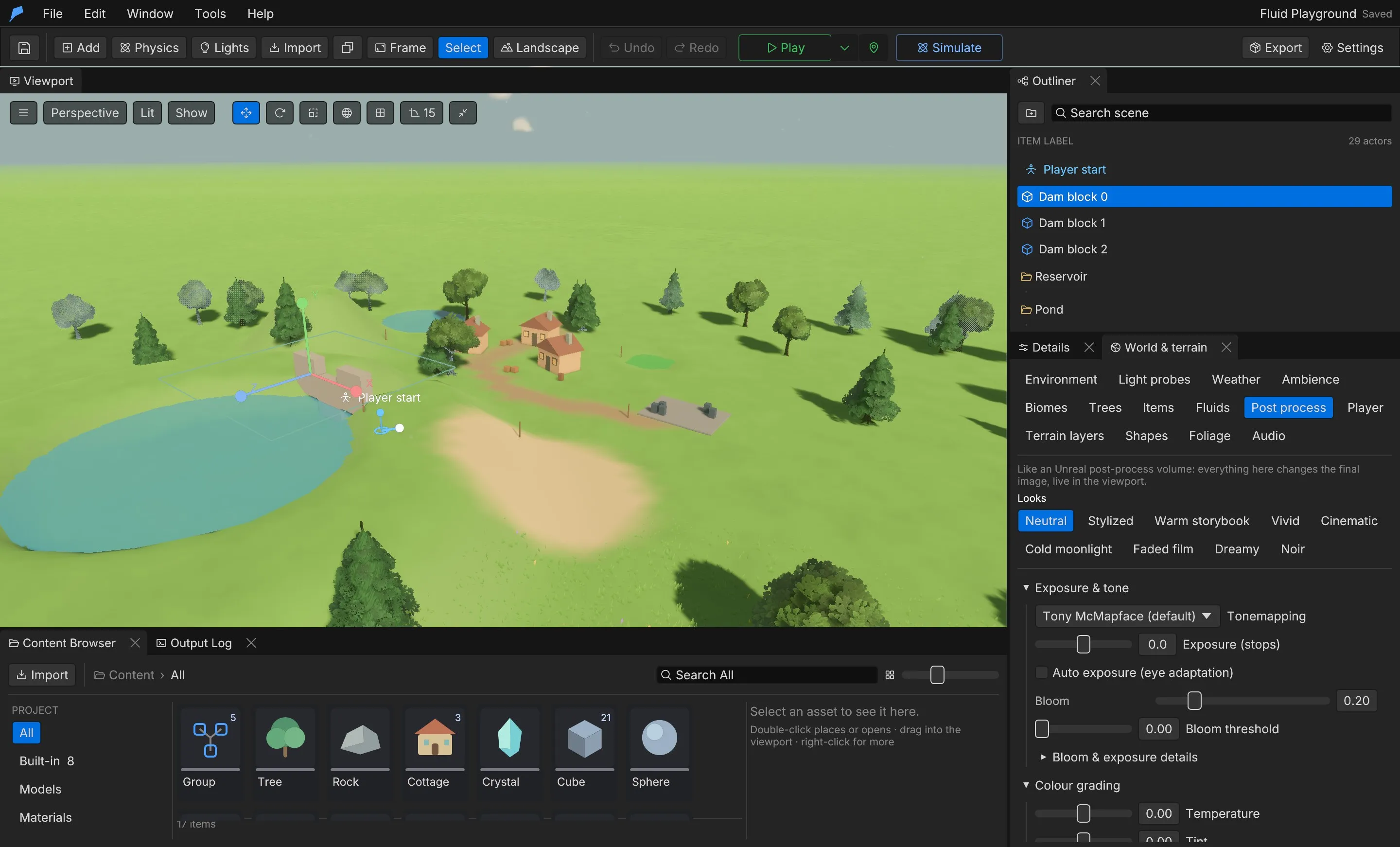 **Stylized** combines toon-friendly grading, ink outlines and soft bloom. For a complete lighting mood, including time of day and haze, use a lighting look instead; see [Sky, weather and climate](/docs/world/sky-weather-climate/#apply-a-lighting-look). ## Exposure and tone [Section titled “Exposure and tone”](#exposure-and-tone) | Setting | Field | Panel range | Default | | ------------------------------ | ----------------- | ------------------------------------------------------------------------------------------------ | ------------- | | Tonemapping | `tonemapping` | TonyMcMapface, AcesFitted, AgX, BlenderFilmic, Reinhard, ReinhardLuminance, SomewhatBoring, None | TonyMcMapface | | Exposure (stops) | `exposure` | −4 to 4 (−8 to 8 by command) | 0 | | Auto exposure (eye adaptation) | `auto_exposure` | On/off | Off | | Bloom threshold | `bloom_threshold` | 0–4 (up to 10 by command) | 0 | Under **Bloom & exposure details**: | Setting | Field | Range | Default | | -------------------------------------- | ------------------------------------------------------------ | --------- | ---------- | | Bloom at strength 0 / at strength 1 | `bloom_intensity_min`, `bloom_intensity_max` | 0–1; 0–2 | 0.05; 0.35 | | Bloom soft knee | `bloom_soft_knee` | 0–1 | 0.5 | | Bloom scatter | `bloom_scatter` | 0–1 | 0.7 | | Auto exposure min EV / max EV | `auto_exposure_min_ev`, `auto_exposure_max_ev` | −16 to 24 | −8; 8 | | Adapt to dark / Adapt to bright (EV/s) | `auto_exposure_speed_brighten`, `auto_exposure_speed_darken` | 0.01–20 | 3; 1 | The overall **Bloom** strength (0–1, default 0, which turns bloom off) and **Exposure stops** for the Physical sky (−3 to 3 in the panel, −6 to 6 by command) are on the **Environment** tab and stored in `project.environment` as `bloom` and `exposure_compensation`. Bloom strength maps onto the range set by **Bloom at strength 0** and **Bloom at strength 1**. ## Colour grading [Section titled “Colour grading”](#colour-grading) | Setting | Field | Panel range | Default | | --------------- | ------------- | ------------------------------- | ------- | | Temperature | `temperature` | −0.5 (cooler) to 0.5 (warmer) | 0 | | Tint | `tint` | −0.5 (green) to 0.5 (magenta) | 0 | | Saturation | `saturation` | 0–2 | 1 | | Contrast | `contrast` | 0.5–2 | 1 | | Midtone gamma | `gamma` | 0.5–2; above 1 darkens midtones | 1 | | Shadows lift | `shadows` | −0.2 to 0.2 | 0 | | Highlights gain | `highlights` | 0.5–1.5 | 1 | | Hue shift ° | `hue` | −180 to 180 | 0 | **Shadows**, **Midtones** and **Highlights** each have their own saturation, contrast, gamma, gain and lift, multiplied onto the global values. **Midtones from … to** sets where the midtone range starts and ends. ### Colour LUT [Section titled “Colour LUT”](#colour-lut) Pick a **Colour LUT** to grade with a lookup table, and blend it with **LUT intensity** (0–1, default 1). A LUT is a strip PNG of N² × N pixels, for example 256 × 16. Import a `.cube` file with `texture.import` and it is converted to a strip. Vignette, film grain and the LUT run after tonemapping, so they appear in the player, screenshots and thumbnails. ## Lens [Section titled “Lens”](#lens) | Setting | Field | Panel range | Default | | -------------------- | ---------------------- | ---------------------------------- | ------- | | Vignette | `vignette` | 0–1 | 0 | | Vignette softness | `vignette_softness` | 0 (tight) – 1 (wide) | 0.5 | | Vignette roundness | `vignette_roundness` | 0 (follows the frame) – 1 (circle) | 0.5 | | Vignette colour | `vignette_color` | sRGB | Black | | Chromatic aberration | `chromatic_aberration` | 0–0.06 (up to 0.2 by command) | 0 | | Depth of field | `depth_of_field` | On/off | Off | | Focus distance m | `focus_distance` | 0.5–200 m | 12 m | | Aperture f-stop | `aperture` | 0.8–22 | 2.8 | | Bokeh highlights | `bokeh` | On/off | Off | ## Motion and quality [Section titled “Motion and quality”](#motion-and-quality) | Setting | Field | Range | Default | | ---------------------------- | --------------- | ----------------------------- | ------- | | Motion blur | `motion_blur` | 0–1, the camera shutter angle | 0 | | Anti-aliasing | `anti_aliasing` | Msaa, Smaa, Taa, Fxaa, None | Msaa | | Contrast-adaptive sharpening | `sharpening` | 0–1 | 0 | Players can lower depth of field, motion blur and TAA with the Low graphics setting. Some effects replace MSAA with SMAA or TAA: ink outlines, screen-space reflections, bounce lighting and volumetric clouds. ## Ink outlines and film grain [Section titled “Ink outlines and film grain”](#ink-outlines-and-film-grain) Ink outlines draw cel-shaded lines around shapes and creases. They are in **Reflections and film**. | Setting | Field | Panel range | Default | | ---------------------- | ------------------------- | ------------------------------- | ---------- | | Ink outlines | `outline` | 0 (off) – 1 | 0 | | Outline thickness (px) | `outline_thickness` | 0.5–6 | 1.5 | | Outline colour | `outline_color` | sRGB | Near black | | Silhouette threshold | `outline_depth_threshold` | 0.005–1; lower draws more lines | 0.08 | | Crease lines | `outline_crease` | 0–0.3; 0 turns creases off | 0.02 | | Outline fade (m) | `outline_fade_distance` | 5–1,000 m | 220 m | | Film grain | `film_grain` | 0–1 | 0 | | Grain size (px) | `grain_size` | 1–8 | 1.5 | Screen-space reflections and bounce lighting are covered in [Lighting](/docs/rendering/lighting/#reflections-and-bounce-lighting). ## Ambient occlusion [Section titled “Ambient occlusion”](#ambient-occlusion) Turn on **Ambient occlusion (SSAO)** in the Post process tab, or **Ambient occlusion** on the Environment tab. It is off by default. | Setting | Field | Range | Default | | ------------------ | ---------------- | --------------------------------- | ------- | | SSAO quality | `ssao_quality` | Low, Medium, High, Ultra | High | | SSAO thickness (m) | `ssao_thickness` | 0.01–4 m; thinner gives less halo | 0.25 m | ## Fog [Section titled “Fog”](#fog) Feather Engine 2 has three kinds of fog: * **Distance fog** fully hides the world at **Fog distance m** on the Environment tab (20–2,000 m in the panel, up to 5,000 by command, default 235 m). The weather thickens it, and the horizon settings can push clear-weather fog out to the edge of the view; see [Landscape](/docs/world/landscape/#streaming-and-distance). * **Volumetric fog** is a box of raymarched fog around the camera, lit by the sun or moon and by lights marked **Volumetric**. Turn it on under **Volumetric fog** on the Environment tab. * **Fog volumes** fill one object’s box with volumetric fog. Add one with **Add Component → Fog**. | Volumetric fog setting | Panel range | Default | | --------------------------------------- | ------------- | --------- | | Volumetric fog (light shafts and halos) | On/off | Off | | Fog colour | sRGB | Pale blue | | Density | 0–0.5 | 0.06 | | Scattering | 0–1 | 0.35 | | Absorption | 0–1 | 0.3 | | Shaft directionality | −0.95 to 0.95 | 0.55 | | Sun/moon in fog | 0–10 | 1 | | Ambient in fog | 0–2 | 0.1 | | Quality (steps) | 4–256 | 48 | | Box half-width m | 5–500 | 90 | | Box height m | 1–300 | 30 | | Box floor m | −100 to 100 | −4 | The Low graphics setting turns volumetric fog off. ## Toon shading [Section titled “Toon shading”](#toon-shading) Toon shading bands the light from directional lights, including their shadows, into a few soft steps, tints the shade, and adds a rim light and a stylized highlight. Base colour textures, vertex colours, normal maps, alpha and emission keep working. Other lights, the sky and ambient light reach the surface unchanged. 1. Open **Window → Materials & textures** and select the **Project shading** tab. 2. Turn on **Toon by default** to draw imported models, and every material on **Project** shading, with toon shading. Materials set to **Standard** or **Toon** keep their choice. 3. Pick a **Preset**, then adjust the look. | Setting | Field | Range | Default | | ------------------ | ------------------- | ----------------------------------- | ---------- | | Light bands | `bands` | 1–6 lit steps | 2 | | Band softness | `softness` | 0 (hard ink) – 1 (smooth) | 0.12 | | Shadow tint | `shadow_tint` | sRGB; white keeps the shade neutral | Cool blue | | Rim colour | `rim_color` | sRGB | Warm white | | Rim width | `rim_width` | 0–1 | 0.32 | | Rim strength | `rim_strength` | 0–4 | 0.45 | | Highlight size | `specular_size` | 0–1 | 0.25 | | Highlight strength | `specular_strength` | 0–4 | 0.3 | | Preset | Look | | -------------- | ----------------------------------------- | | Storybook | The defaults | | Hard cel | One hard band, deeper shade, stronger rim | | Soft painterly | Three soft bands, gentle rim | | Warm sunset | Warm rim light | | Flat | One band, no rim and no highlight | A material can override the project look; see [Materials](/docs/rendering/materials/#shading). ## Limits [Section titled “Limits”](#limits) * One post-process volume per project. * Depth of field, motion blur, TAA, volumetric fog and bounce lighting are reduced or off on the Low graphics setting. * A LUT must be a project texture in the N² × N strip layout. ## Automate it [Section titled “Automate it”](#automate-it) This loads the Stylized look, adds a warm grade and a vignette, and turns on toon shading for the whole project:
```bash
feather-cli --connect .feather-session.json command project.post_process \
--json '{"preset":"Stylized","temperature":0.15,"vignette":0.3}'
feather-cli --connect .feather-session.json command material.set \
--json '{"patch":{"toon_by_default":true,"toon_preset":"Soft painterly"}}'
```
| Command | Purpose | | ---------------------- | ------------------------------------------------------------------------------------------ | | `project.post_process` | Patches the post-process volume; `preset` loads a look first | | `project.environment` | Patches bloom strength, ambient occlusion, exposure stops, fog distance and volumetric fog | | `material.set` | Patches the project’s toon shading | | `scene.update` | Adds or edits a `fog` volume on an object | | `texture.import` | Imports a PNG or converts a `.cube` LUT | See [Agents & automation](/docs/agents/overview/) for connecting a live session.
# Build a game
> Build a project as a standalone game for Windows, macOS or Linux from the editor, the CLI or GitHub Actions, and upload it to Steam.
A build turns the open project into a game that players run without the editor. It contains the native Feather player, a copy of the project and the assets it uses. The player runs the same scripts, Blueprints and physics as Play in the editor. The player is the same program for every game, so a build compiles no game code. Building is mostly copying and checking files, and takes seconds once a player is available. The editor, `feather-cli` and GitHub Actions all use the same build pipeline. ## Build from the editor [Section titled “Build from the editor”](#build-from-the-editor) 1. Save any pending edits. A build validates the whole project and its scripts first, and stops on the first error. 2. Open the **Build** window: choose **File → Build game…**, or **Window → Build · Windows, macOS, Linux**. 3. Pick a platform. Each button shows **This computer**, **Runtime ready** or **Needs a runtime**; hover over it to see where its player comes from. 4. Adjust the **Settings** section if you need to (see below). The window shows the output folder. 5. Click **Build \ for \**. The **Build log** shows progress. 6. When it finishes, the window shows the time, file count and size, with **Show in folder**, **Run game** (for this computer’s platform) and **Copy path**. The **Build** button in the toolbar, and **File → Build for this computer**, build straight away for the platform selected in the Build window (this computer by default). Only one build runs at a time. ## Build settings [Section titled “Build settings”](#build-settings) Settings are stored in the project and are the same in the Build window and the `build.get` / `build.set` commands. | Setting | Default | Notes | | -------------------------------- | --------------------------- | ------------------------------------------------------------------------------------------------------------------------------------------ | | **Game name** (`game_name`) | The project name | Name of the app and its executable. 1–64 characters, without `/ \ : * ? " < > \|`, not starting with a dot and not a reserved Windows name | | `version` | `0.1.0` | Three numbers, such as `1.2.0` | | `build_number` | `1` | 1 to 1,000,000. Increase it with every release (macOS `CFBundleVersion`) | | **Bundle id** (`bundle_id`) | `com.feather-engine.` | Reverse-DNS app id, such as `com.studio.game` | | `profile` | `release` | `release` is optimised for players. `development` compiles faster and runs slower | | **Output folder** (`output_dir`) | `builds` | A folder inside the workspace. In the editor, it is relative to the project’s folder | | **Make a zip** (`archive`) | Off | Also write a `.zip` (`.tar.gz` for Linux) beside the build | ## What a build contains [Section titled “What a build contains”](#what-a-build-contains) Each build is written to `